Jellyfin: open it, first login, settings, fixes
· Updated 18 September 2026 · SparkBox team
A free and open-source media server. Stream your movie, TV, and music collections to any device. No subscriptions, no tracking, just your media. This is the short card for it — the two minutes after you press Enable, and the page to come back to when something is off.
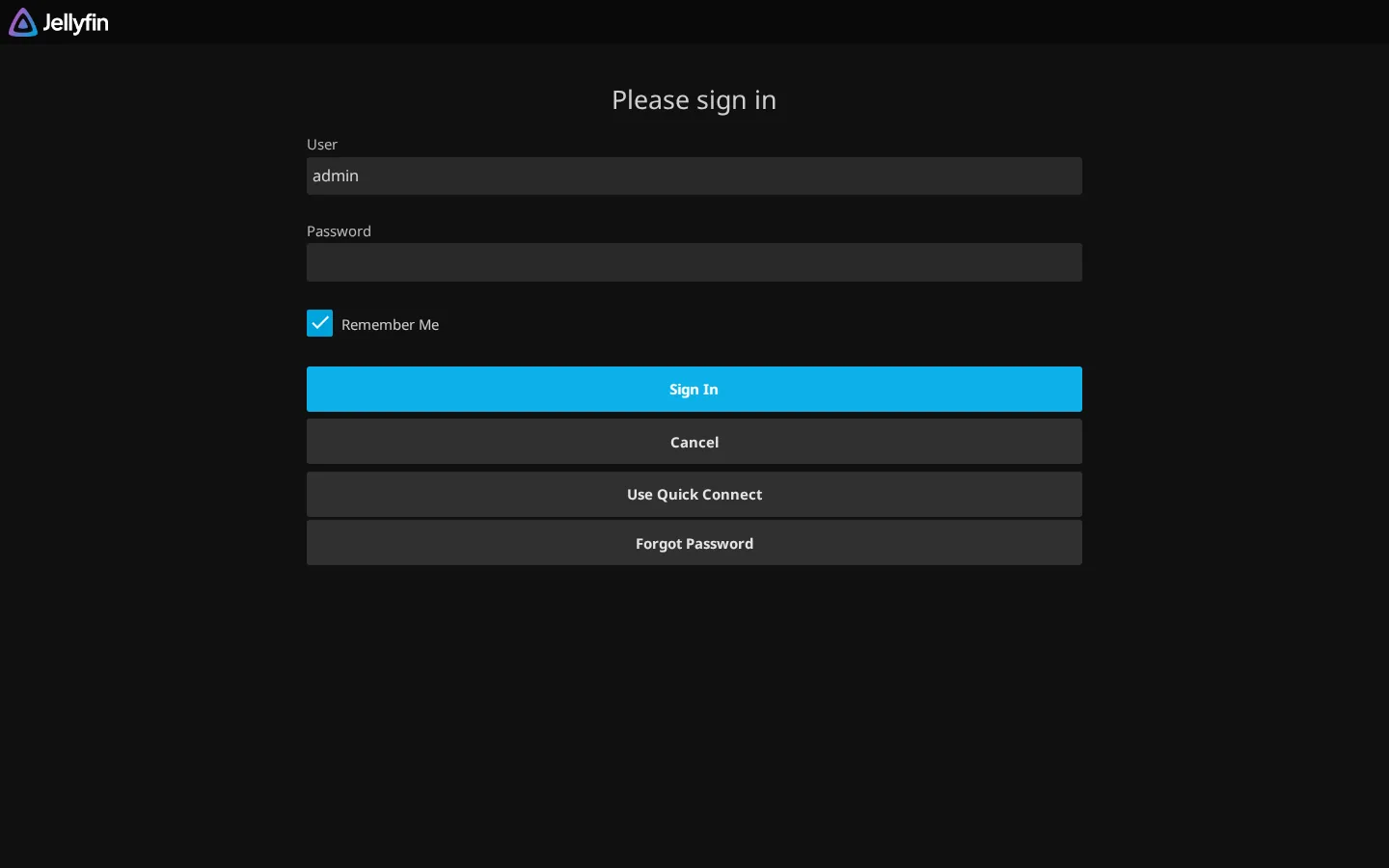
Open it
Dashboard → Apps → Jellyfin → Open. The direct address on your network is:
http://<your-box-IP>:8097Create a library and point it at your media folder to get started
First login
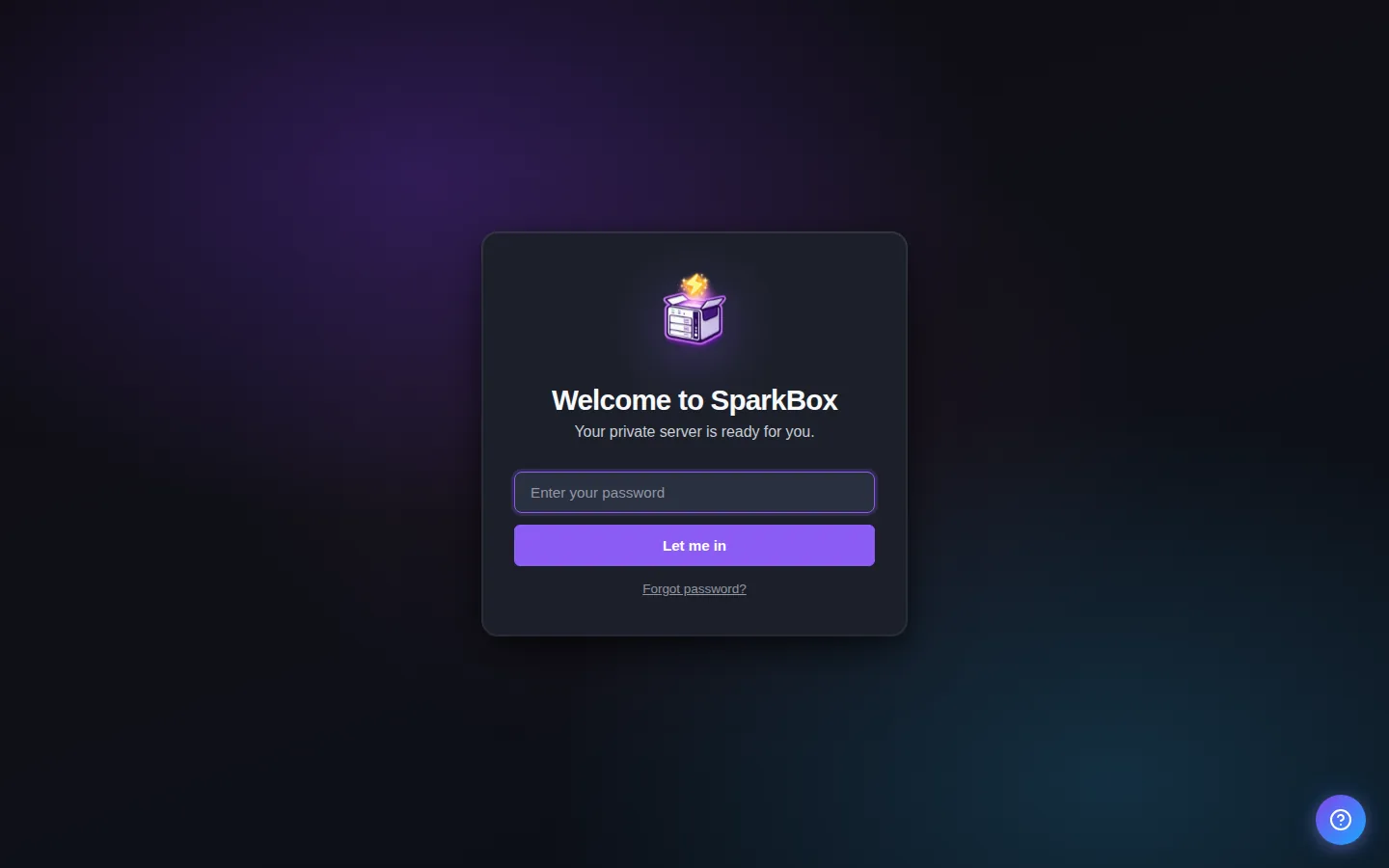
Jellyfin runs a setup wizard on first launch. Pick a username and password — the first user you create becomes the admin.
Any password the installer generated for you is under Settings → Passwords; the Open button offers to copy it.
Worth knowing
- Point Jellyfin to a folder with your media files to start streaming
- Install the Jellyfin app on your phone, TV, or Roku for playback
When it breaks
The problems people actually report with Jellyfin, each with its own tested fix:
- Jellyfin 401: The Stuck Seerr Wizard and Failing Logins
- Jellyfin library is empty or won't scan your media
- Jellyfin login fails through Seerr, and the dashboard launcher stays "not ready"
- Jellyfin shows "Permission denied", boots unhealthy, or returns HTTP 000000
- Jellyfin web UI is broken after a script tried to inject into index.html
- Jellyfin "connection refused" in Jellyseerr — and the setup lockout that follows
- Jellyfin Shows Duplicate or Empty Root Folders — Fixing the Wrong Media Path
- Jellyfin Stuck on "Server Is Still Starting Up" After an Update
- Jellyfin transcoding suddenly went slow (or won't start at all)
Anything else: the dashboard's checkup names the cause, and Tom AI can read the app's log for you.
Where your data lives
/opt/sparkbox/modules/jellyfin/config/Included in the dashboard's Backup by default. Restoring that backup on a fresh install brings Jellyfin back exactly as it was.
Questions, or did this not match your box?
Every guide here came from a real problem someone hit. If yours behaves differently, say so — that is how these get corrected, and how the fix gets prioritised.
We answer there rather than in a comment box, because that is where the people who have already solved it are.