Jellyfin "connection refused" in Jellyseerr — and the setup lockout that follows
· Updated 18 September 2026 · SparkBox team
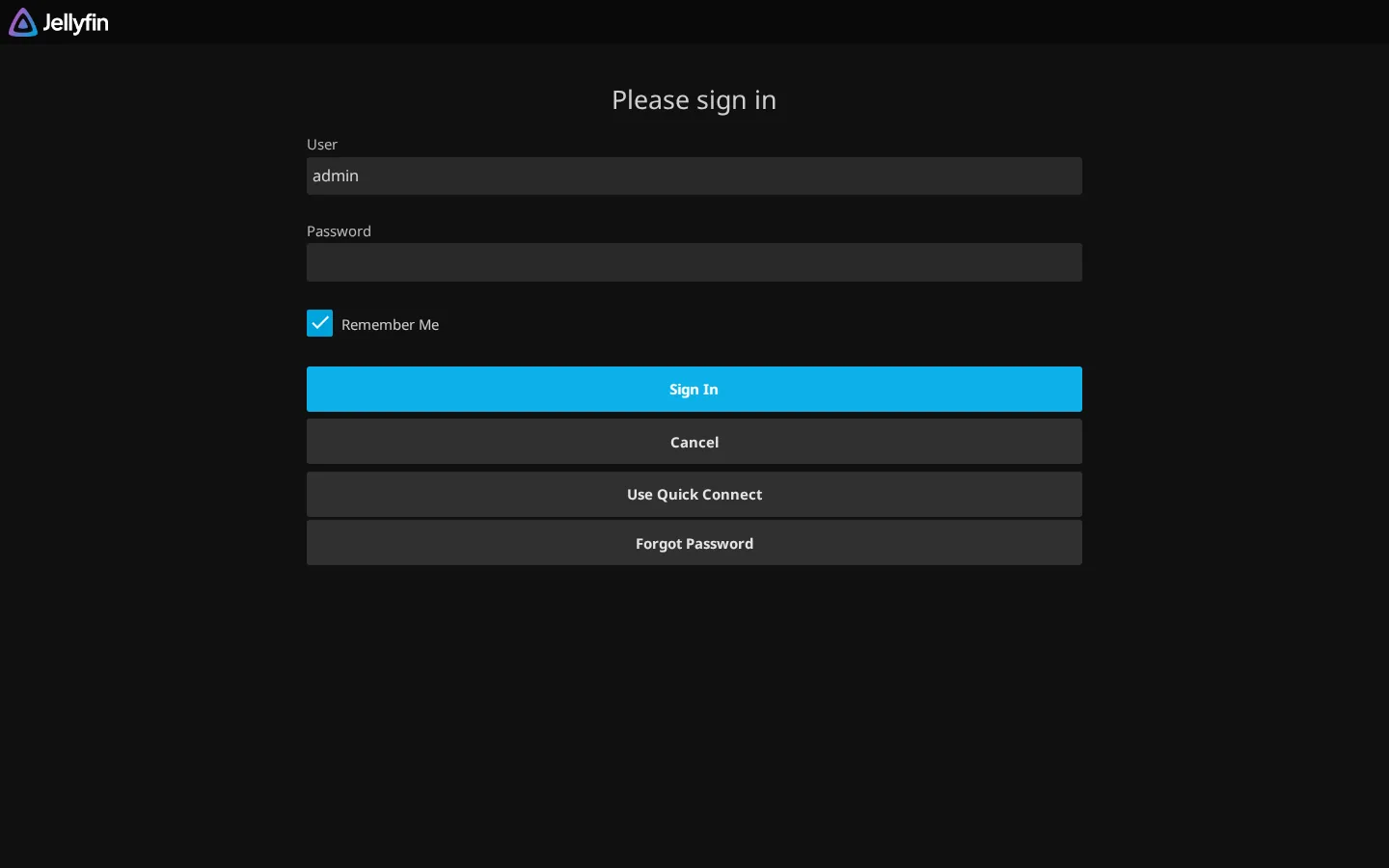
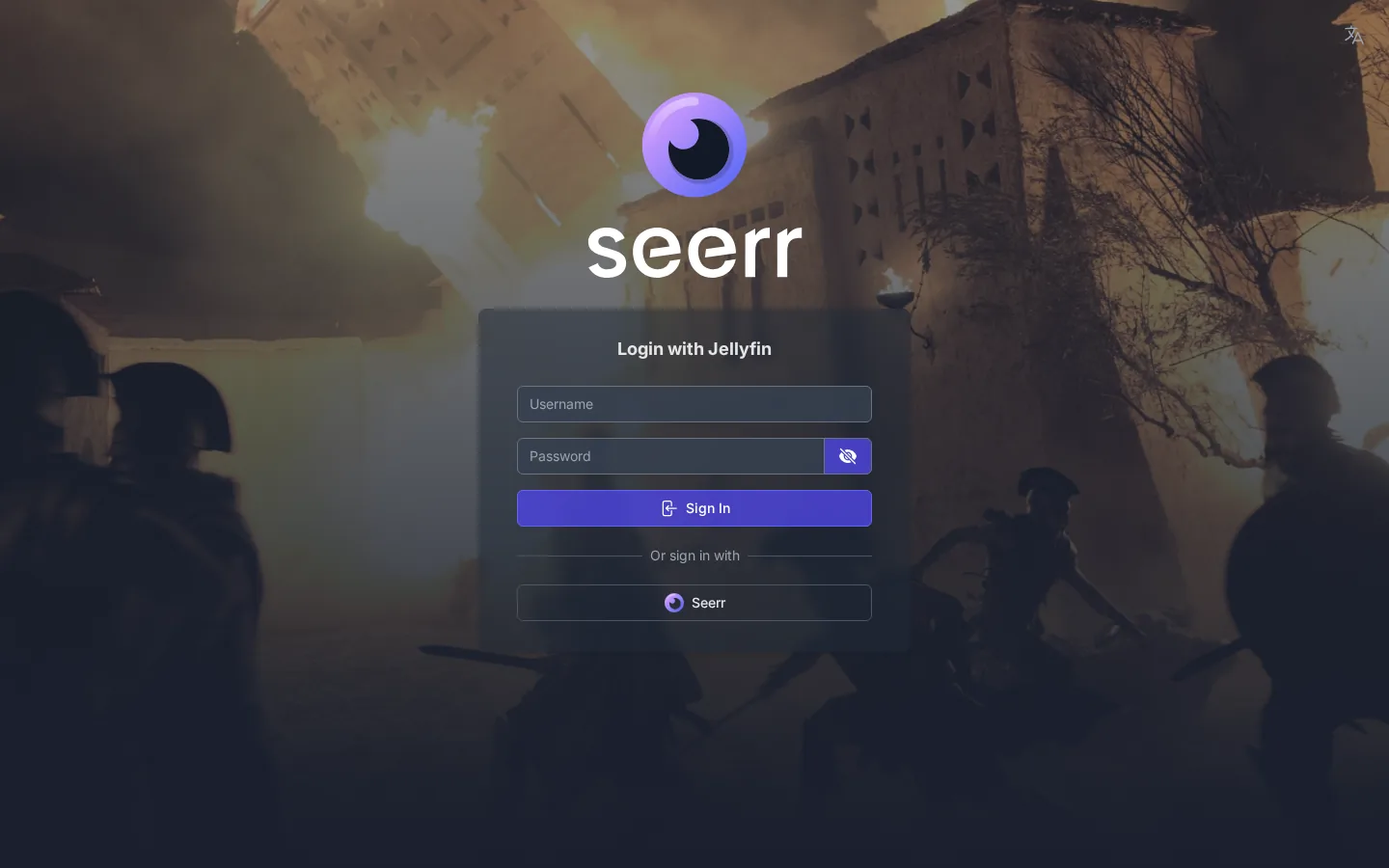
Your request app (Jellyseerr) shows a red connection refused error when it tries to talk to Jellyfin, or worse, it drops back to the first-run setup wizard and your regular Jellyfin-only viewers can't get past it. Both problems come from the same place: Jellyseerr is pointed at a Jellyfin address that is blank or unreachable, and when its config looks wiped it falls back to demanding an admin login.
The 10-second version: Point Jellyseerr at Jellyfin's container name and internal port (on SparkBox that's sb-jellyfin-media:8096), not localhost or your public HTTPS URL. If Jellyseerr is stuck on the setup wizard, that means its config was wiped, not that it's a fresh install — restore the saved settings instead of re-running setup.
What "refused" actually means here
"Connection refused" is a network-level reply, not an app error. It means Jellyseerr sent a request to some address and port, and nothing on the other end accepted it. The address itself was reachable enough to get a hard "no." That's different from a timeout (nothing answered at all) or a 401 (something answered but rejected your credentials).
A few terms first, so the rest makes sense:
- Container: an isolated box that runs one app. Jellyfin runs in one; Jellyseerr runs in another.
- Container name / service name: the internal hostname other containers use to find it, e.g.
sb-jellyfin-media. - Port: the numbered door an app listens on. Jellyfin listens on
8096internally. - API key: a long secret string that lets Jellyseerr talk to Jellyfin as an admin without a password.
The refusal almost always traces to one of three states. Work through them in order.
Cause 1: The Jellyfin address is blank
Jellyseerr stores the Jellyfin URL in its own settings. If that value ever gets cleared — a bad edit, a half-finished setup, a config file that got reset — Jellyseerr tries to connect to "nothing" and reports a refusal or an invalid-URL failure.
- Open Jellyseerr and go to Settings → Jellyfin (or the media-server settings section).
- Check the hostname/URL field. If it's empty, that's your problem.
- Fill in Jellyfin's internal address — the container name and port, covered in Cause 2 below — then save and hit Test.
Gotcha: A blank address and a wrong address look identical in the error message. Don't assume it's blank until you've actually opened the field. If it's populated but still refuses, jump to Cause 2.
Cause 2: The address is right in your browser but unreachable from inside the container
This is the big one. The address that works when you type it into a browser is often the address that Jellyseerr cannot use, because they're on different sides of the network.
When Jellyseerr uses localhost or 127.0.0.1, it means "myself" — the Jellyseerr container, not Jellyfin. Jellyfin isn't listening there, so the connection is refused. Likewise, pointing the internal connection at your public HTTPS reverse-proxy URL forces container-to-container traffic out and back through DNS and TLS it doesn't need, which frequently fails or times out.
The fix is to use the address Jellyseerr can resolve on its own network: Jellyfin's container name and internal port.
- In Settings → Jellyfin, set the hostname to the Jellyfin container's service name and the port to
8096. On SparkBox the canonical value issb-jellyfin-mediaon port8096. - Leave "Use SSL" off for the internal connection — the two containers talk plain HTTP on the private network.
- Save and press Test. A green result means the network path is good.
To prove the path yourself before touching settings, exec into the Jellyseerr container and ask Jellyfin for its public info (this endpoint needs no login):
docker exec -it sb-seerr curl -s http://sb-jellyfin-media:8096/System/Info/PublicIf that prints JSON with a server name and version, the address is correct and reachable — put that exact host and port into Jellyseerr. If it hangs or says "Connection refused," the two containers aren't on the same network or Jellyfin isn't up yet. Confirm both containers are running and attached to the same Docker network before going further. (Replace sb-seerr and sb-jellyfin-media with your own container names if you're not on SparkBox.)
Cause 3: The setup wizard locks out Jellyfin-only users
Here's the nastier failure. If Jellyseerr's saved configuration gets wiped — a reset config file, a lost volume, a container recreated without its data — Jellyseerr behaves as if it were installed for the very first time and shows its initial setup wizard. That wizard insists on signing in with a Jellyfin administrator account to link the server.
Your ordinary viewers are Jellyfin-only users with no administrator rights. They can log in to Jellyfin fine, but they cannot complete Jellyseerr's setup, and there's no button in the UI to skip it. The whole request app becomes a wall.
The important insight: this is almost never a truly fresh install. If Jellyseerr already has user rows in its own database, it was configured before and its config got wiped — not started clean. That distinction (already-configured vs genuinely new) is the reliable way to tell a real first run from a regression. So the correct repair is to restore the saved configuration, not to run setup again as if nothing existed.
- Do not click through the wizard with a throwaway admin account — that overwrites state and can strip the existing users' access.
- Stop Jellyseerr.
- Restore its configuration/data directory from your most recent backup — the one that still holds the Jellyfin address and admin API key.
- Start Jellyseerr again. It should skip the wizard and load straight into the dashboard, because the restored config proves it was already set up.
Gotcha: If you have no backup, you'll have to rebuild the link with a Jellyfin admin account — but do it from a machine where you can sign in as admin, then re-add your Jellyfin-only users afterward. Prevent a repeat by backing up Jellyseerr's data volume, not just your media.
How SparkBox repairs this before you notice
On SparkBox the fix isn't manual. A heal step — scripts/seerr-heal-jellyfin.sh — runs on every media bring-up, right alongside the routine that patches the Seerr bundle. On each start it checks for the three broken states above:
- Blank address — no Jellyfin URL saved.
- Setup regression — the wizard is showing even though Jellyseerr's own database already has user rows, the durable "was configured before vs never configured" signal.
- Unreachable address — the saved URL can't be reached from inside the Seerr container.
When it sees any of those, it repairs them: it re-pins the canonical sb-jellyfin-media:8096 address, and does a blank-only credential restore — putting the Jellyfin admin API key back from saved state only when the field is empty, so it never clobbers a working key. The result is that Jellyfin-only users don't get trapped behind a setup wall, because the config is healthy again before anyone loads the page.
Frequently asked
Why does Jellyseerr say the Jellyfin connection was refused?
Jellyseerr is trying to reach a Jellyfin address that is either blank or unreachable from inside its container. The classic mistake is localhost or 127.0.0.1, which points Jellyseerr back at itself rather than at Jellyfin. Use Jellyfin's container name and internal port instead.
What address should Jellyseerr use for Jellyfin?
On a container setup, use the Jellyfin container's service name with its internal port 8096 — on SparkBox that's sb-jellyfin-media:8096. Don't use localhost, 127.0.0.1, or your external HTTPS reverse-proxy URL for the internal link.
Why am I stuck on the Jellyseerr setup screen with no way in?
Jellyseerr lost its saved config and fell back to the first-run wizard, which demands a Jellyfin admin sign-in. Jellyfin-only users have no path past it. Restore the saved configuration instead of running setup fresh — existing user rows in Jellyseerr's database confirm it was already set up.
Does SparkBox fix this automatically?
Yes. A heal script runs on every media start, detects a blank, unreachable, or regressed setup, and restores the canonical Jellyfin address plus the admin API key from saved state — only filling blanks, never overwriting a working value.
Skip the network-address guesswork
SparkBox pins Jellyseerr to the right internal Jellyfin address and self-heals the setup regression on every start, so your viewers never hit a "refused" wall.
Questions, or did this not match your box?
Every guide here came from a real problem someone hit. If yours behaves differently, say so — that is how these get corrected, and how the fix gets prioritised.
We answer there rather than in a comment box, because that is where the people who have already solved it are.