Locked Out of Jellyfin? Fix a Lost Admin Password Without Losing Your Library
· Updated 18 September 2026 · SparkBox team
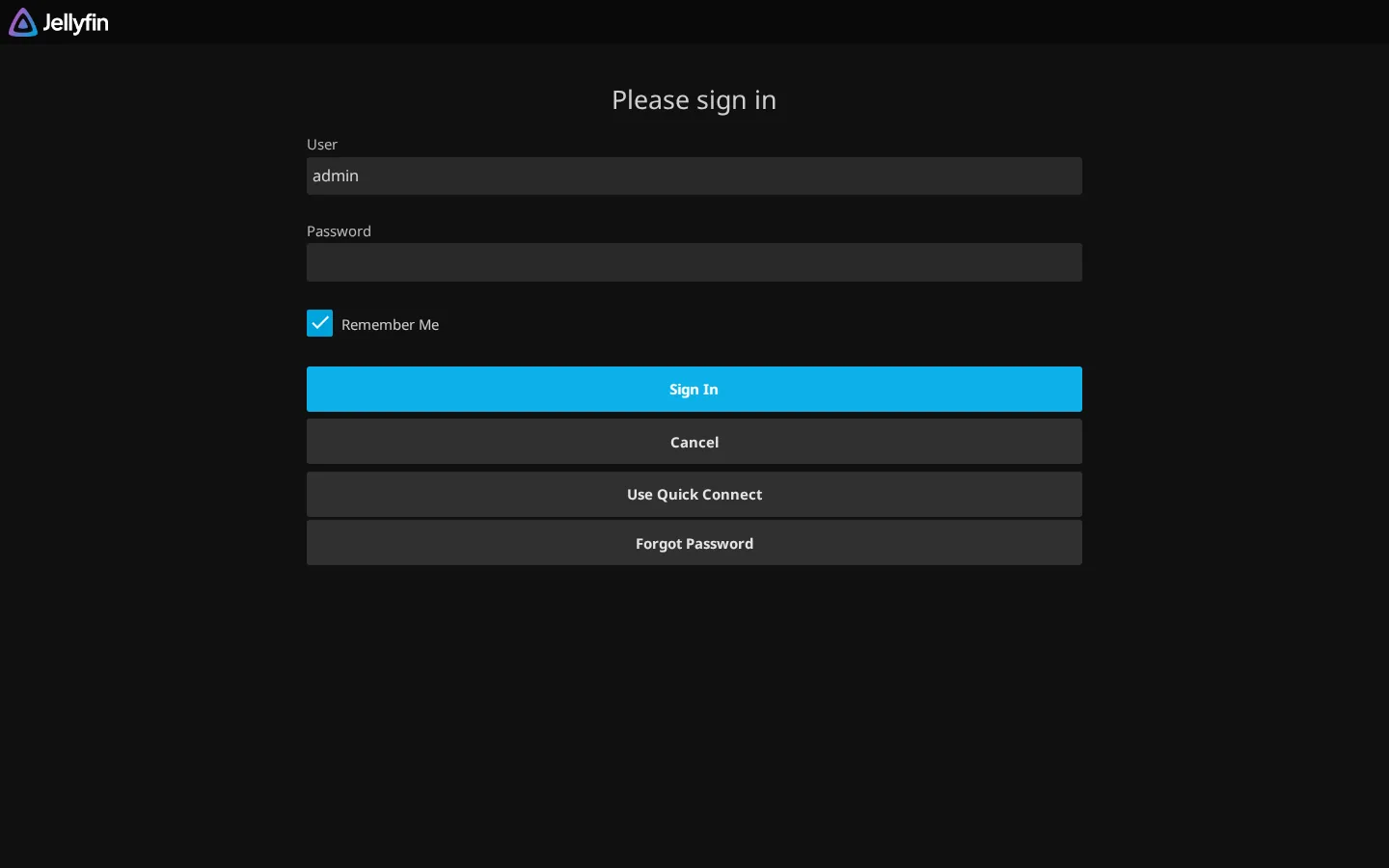
You forgot (or never wrote down) the admin password for your Jellyfin server, and there's no "forgot password" link anywhere on the login screen. The cause is simple: Jellyfin doesn't ship with a password-recovery flow, so a lost admin password has to be fixed manually. The bad news is that a lot of the advice floating around for this is genuinely destructive.
Rather not risk your library over a password? SparkBox manages Jellyfin's setup for you, so admin credentials are recoverable from one place instead of buried in a database file. See the walkthrough →
The 10-second version: Don't delete your Jellyfin config or database to "start fresh." Instead, stop the server, open its jellyfin.db file with a SQLite browser, clear the password hash for your admin user in the Users table, restart, and log in with a blank password to set a new one.
Why Jellyfin has no "forgot password" option
Most hosted apps you sign up for online can email you a reset link because they run a mail service and know your email address. Jellyfin is self-hosted software running on your own machine, so it doesn't send email by default and has no external identity provider tied to your account. If you're the only admin and you lose that password, there's simply no button to click. This isn't a bug so much as a gap in the out-of-the-box experience, and it's one of the most common reasons people end up stuck outside their own media server.
The destructive advice you'll see, and why to skip it
Search for "Jellyfin forgot password" and you'll find suggestions to just delete your entire Jellyfin data or config folder and reinstall. That does technically get you a fresh admin account, but it also erases:
- Every library you've added, along with scanned metadata and artwork
- All other user accounts, including anyone in your household
- Watch history, favorites, and playback progress for everyone
- Any plugins or server settings you've configured
That's a full reset of your server just to fix a login. It works, but it's the equivalent of throwing out the whole filing cabinet because you lost one key. There's a narrower fix that only touches the password.
The real fix: reset the password directly in the database
Jellyfin keeps its user accounts, including password hashes, in a SQLite database file (typically named jellyfin.db) inside its data or config directory. Where that folder lives depends on how you installed Jellyfin, for example a Docker volume, a Windows ProgramData path, or a Linux system data directory, so check your own install's documented data path if you're not sure. The fix is to edit that file directly rather than delete it.
Before you touch anything: make a copy of jellyfin.db first. If something goes wrong editing it, you can restore the copy and try again instead of losing the whole file.
Steps
- Stop the Jellyfin server completely. The database file can be locked or get corrupted if you edit it while Jellyfin is running.
- Locate the data/config directory for your install and make a backup copy of
jellyfin.dbbefore doing anything else. - Open
jellyfin.dbwith a SQLite database browser (any tool that can open and edit SQLite files will do). - Find the Users table and locate the row for your locked-out admin account.
- Clear the password-related hash fields for that user (the columns holding the password and any "easy password" PIN) so the account has no password set.
- Save the changes and close the database browser cleanly so the file isn't left in a half-written state.
- Start Jellyfin back up and log in as that admin user with the password field left blank.
- Once you're in, immediately go to Dashboard > Users and set a new password for the account. Don't leave it passwordless.
This only touches the one row for the affected user. Every library, every other account, and every setting is untouched.
If you have a second admin account
If you weren't the only admin, this whole process is easier: have another admin log in and reset the locked account's password from Dashboard > Users > [that user] > Reset Password. No database editing required. It's worth setting up a second admin account on any Jellyfin server precisely so you never have to touch the database file at all.
When it looks like a password problem but it's actually DNS
Sometimes what feels like a login failure is really an access failure. If you normally reach Jellyfin through a domain name or a reverse proxy address and it suddenly won't load, that can look identical to being "locked out," even though your password is fine. Before assuming your credentials are broken, try connecting straight to the server's local IP address and port on your own network instead of the domain name. If the login screen loads and your password works there, the actual issue is with DNS or your reverse proxy routing, not with Jellyfin's user database, and no password reset is needed at all.
Frequently asked
Where is Jellyfin's user password stored?
Jellyfin stores user accounts, including password hashes, in a SQLite database file called jellyfin.db inside its data/config directory. The exact folder location varies depending on how you installed Jellyfin (Docker volume, Windows install, Linux package).
Will resetting my Jellyfin password delete my libraries?
No, not if you edit the user database directly. Libraries, metadata, and watch history live in separate tables and files from the password hash. The destructive advice you may see online, deleting the whole config or database folder, wipes everything just to fix a login.
Why doesn't Jellyfin have a "forgot password" email link?
Jellyfin is self-hosted and doesn't run its own email service by default, so it has no built-in password-reset flow like a hosted SaaS app would. This is the known admin password recovery gap: if you lose the only admin account's password, you have to reset it manually at the file level.
I can't even reach the Jellyfin dashboard, is that a password problem?
Not always. Before assuming your password is wrong, try connecting directly to the server on its local IP address and port instead of a domain name or reverse proxy address. If that works, the issue is DNS or proxy routing, not your Jellyfin credentials.
Skip the SQLite editor entirely
SparkBox sets up Jellyfin as part of a managed media stack and keeps admin credentials recoverable from its own dashboard, so a lost password doesn't mean opening a database file at all.
Questions, or did this not match your box?
Every guide here came from a real problem someone hit. If yours behaves differently, say so — that is how these get corrected, and how the fix gets prioritised.
We answer there rather than in a comment box, because that is where the people who have already solved it are.