Pinchflat: open it, first login, settings, fixes
· Updated 18 September 2026 · SparkBox team
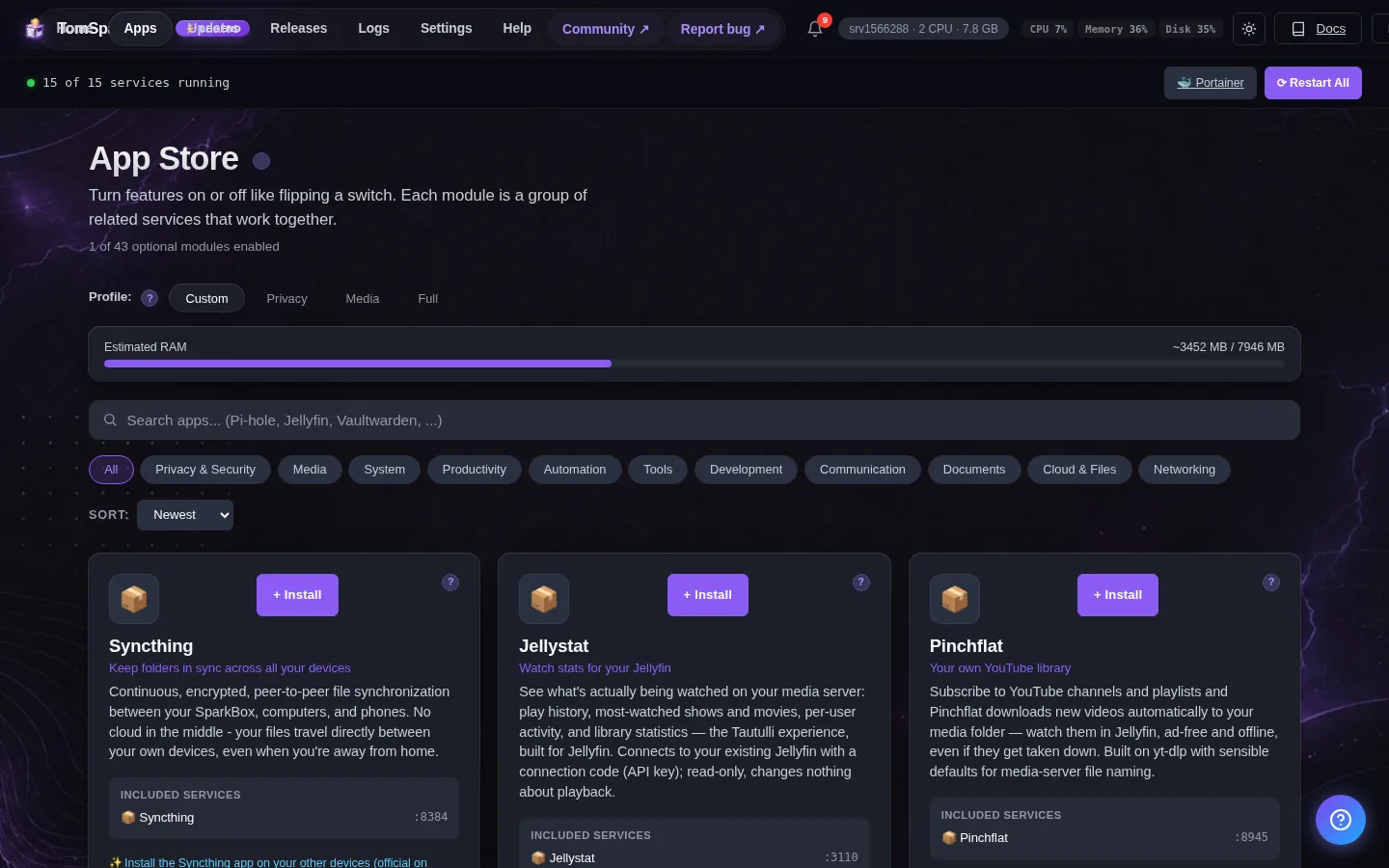
Subscribe to YouTube channels and playlists and Pinchflat downloads new videos automatically to your media folder — watch them in Jellyfin, ad-free and offline, even if they get taken down. Built on yt-dlp with sensible defaults for media-server file naming. This is the short card for it — the two minutes after you press Enable, and the page to come back to when something is off.
Before you turn it on
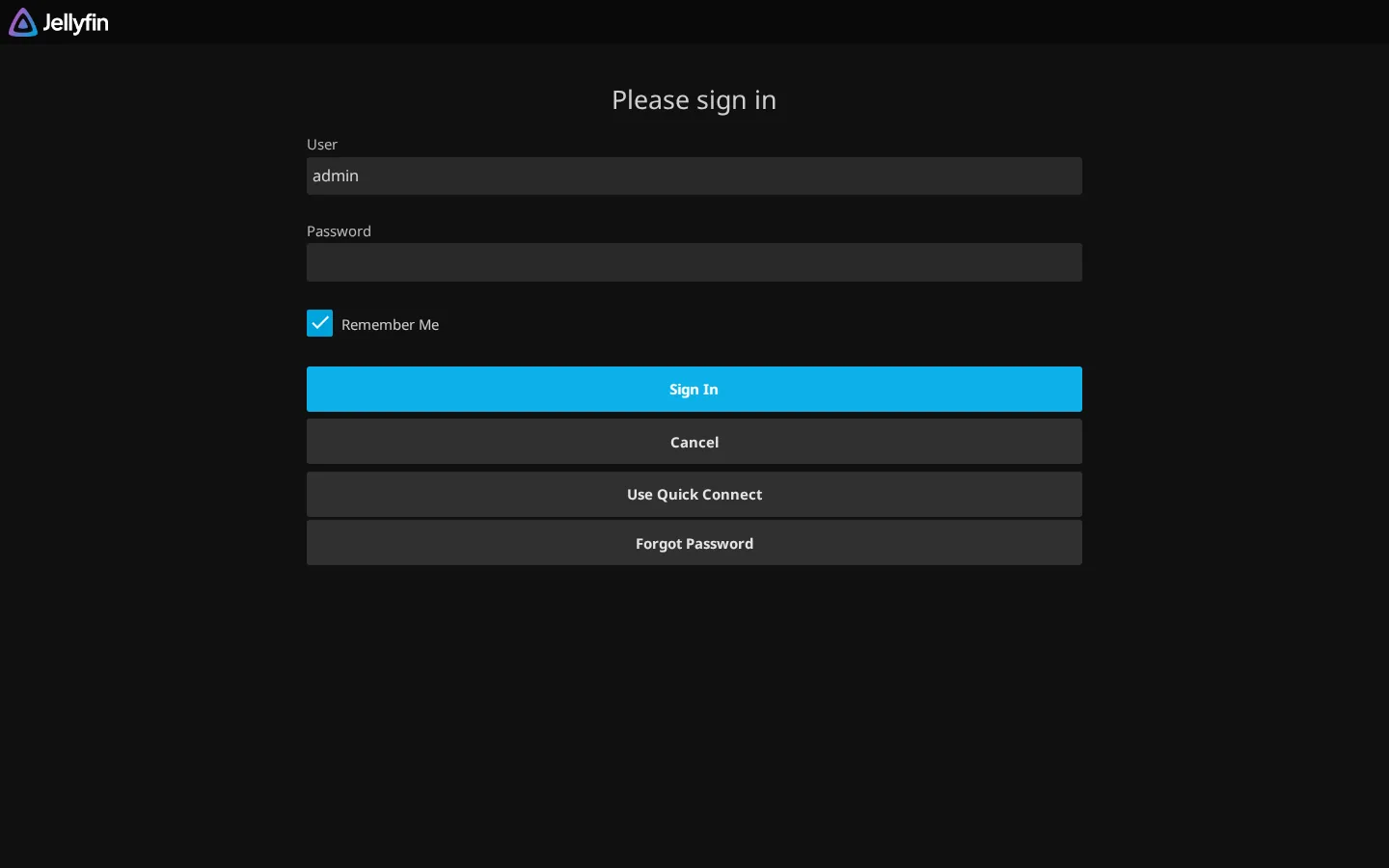
Downloads land in your media folder under youtube/. To browse them in Jellyfin: add a library pointing at /data/youtube (Jellyfin → Dashboard → Libraries → Add, content type 'Shows' works well for channels). Personal-archive tool — subscribe to channels you watch, mind YouTube's terms.
Open it
Dashboard → Apps → Pinchflat → Open. The direct address on your network is:
http://<your-box-IP>:8945Create a Media Profile first (where files go + quality), then add channel subscriptions — Pinchflat checks for new videos on a schedule
First login
No login — anyone on your home network who opens Pinchflat can add subscriptions and download videos onto your disk. Keep it on your LAN and don't publish it to the internet.
Any password the installer generated for you is under Settings → Passwords; the Open button offers to copy it.
Settings that matter
Change these under Apps → Pinchflat (or when you enable it):
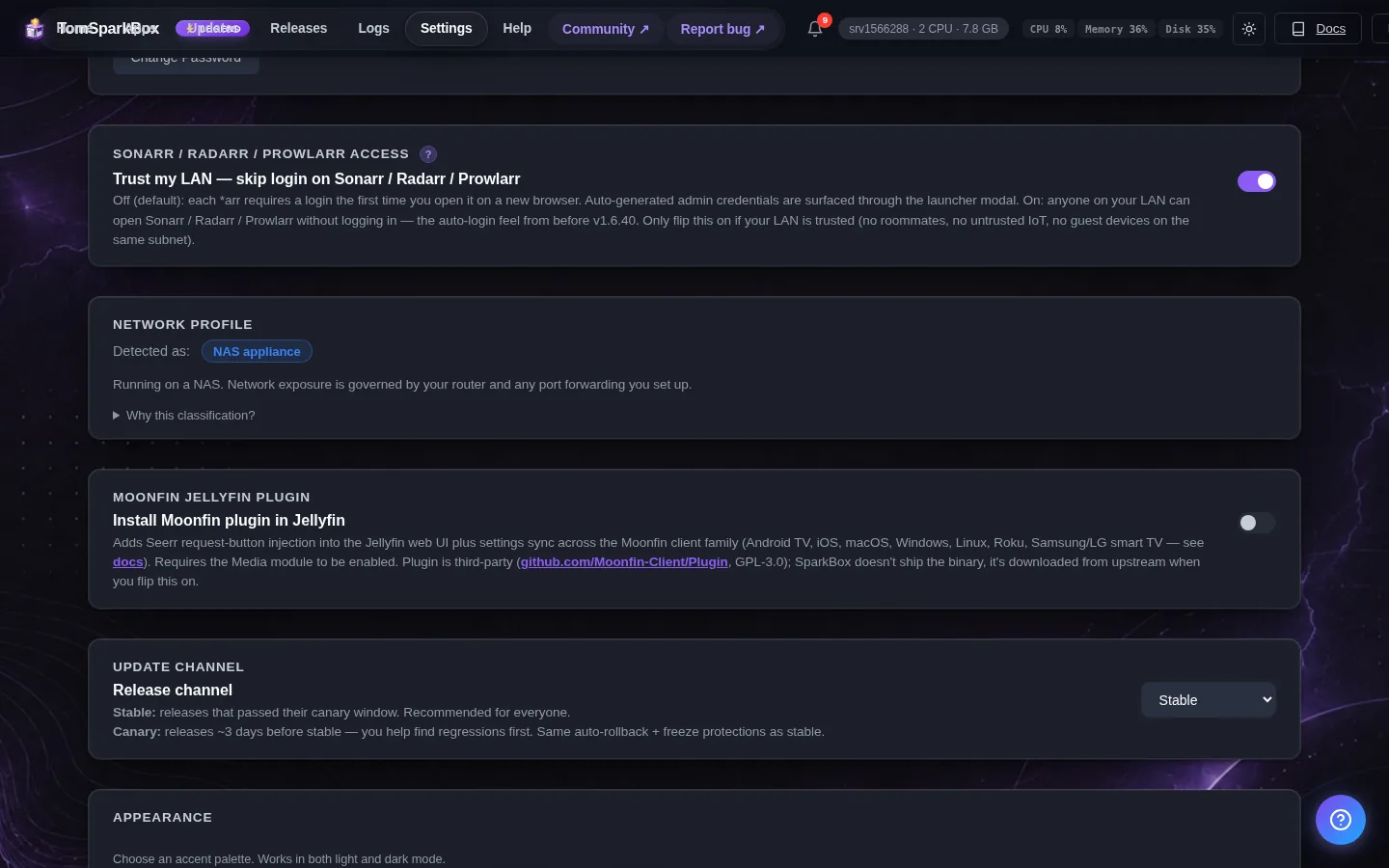
- Parallel downloads — How many videos Pinchflat downloads at the same time (upstream default 2). Each one is a separate yt-dlp process hitting YouTube, so set this to 1 if some channels keep failing with 429 / 'Sign in to confirm you're not a bot'. Takes effect after you restart Pinchflat from the Apps page.
Some channels download fine, others always fail
The tell-tale log lines are 'HTTP Error 429: Too Many Requests' and 'Sign in to confirm you're not a bot'. That is YouTube rate-limiting or age/bot-gating a subset of channels — it is not a broken install, which is why the other half keeps working. Two levers, in this order. (1) Turn the parallelism down: set 'Parallel downloads' to 1 in SparkBox Settings, then restart Pinchflat from the Apps page. Every worker is a separate yt-dlp process hitting YouTube, so fewer at once is the single most effective fix for 429s. (2) Give Pinchflat a YouTube cookies file. Export cookies.txt (Netscape format) from a browser that is signed in to YouTube — do this on your own computer, not on the box — and save it on your NAS at /opt/sparkbox/modules/pinchflat/config/extras/cookies.txt. Then, per subscription, set 'Cookie Behaviour' in Pinchflat (Sources → edit) to 'When Needed', or 'All Operations' for a channel that fails every time. No restart needed — the file is read on the next download. Heads up: yt-dlp warns that YouTube can IP-ban accounts whose cookies are used for heavy downloading, so use a throwaway account, not your main one.
Adding your own yt-dlp options
Pinchflat is built on yt-dlp and will pick up your own yt-dlp option file — SparkBox already bind-mounts the folder it looks in, so there is nothing to change in the compose file. Create /opt/sparkbox/modules/pinchflat/config/extras/yt-dlp-configs/base-config.txt on your NAS and put one option per line, exactly as you would in a yt-dlp config (for example: --extractor-args youtube:player_client=default,-web_safari). base-config.txt applies to every download. You can also scope options more narrowly with media-profile-<id>-config.txt, source-<id>-config.txt or media-item-<id>-config.txt in that same folder — the most specific file wins, and empty files are ignored. Two gotchas: the options apply to DOWNLOADS only (not to the indexing pass that discovers new videos), and this folder lives under modules/pinchflat/config, which SparkBox preserves across updates — so your file survives a SparkBox update.
When it breaks
If it will not open, check the app card first — a red dot means it is restarting or unhealthy, and this walkthrough reads the reason from its log. Tom AI on the dashboard can do the same for you.
Where your data lives
/opt/sparkbox/modules/pinchflat/config/Included in the dashboard's Backup by default. Restoring that backup on a fresh install brings Pinchflat back exactly as it was.
Questions, or did this not match your box?
Every guide here came from a real problem someone hit. If yours behaves differently, say so — that is how these get corrected, and how the fix gets prioritised.
We answer there rather than in a comment box, because that is where the people who have already solved it are.