How to set up Homarr
· Updated 31 July 2026 · SparkBox team
Your personal application dashboard. This guide covers how to access it, log in for the first time, configure the basics, and where its data lives so you can back it up.
1. What is Homarr?
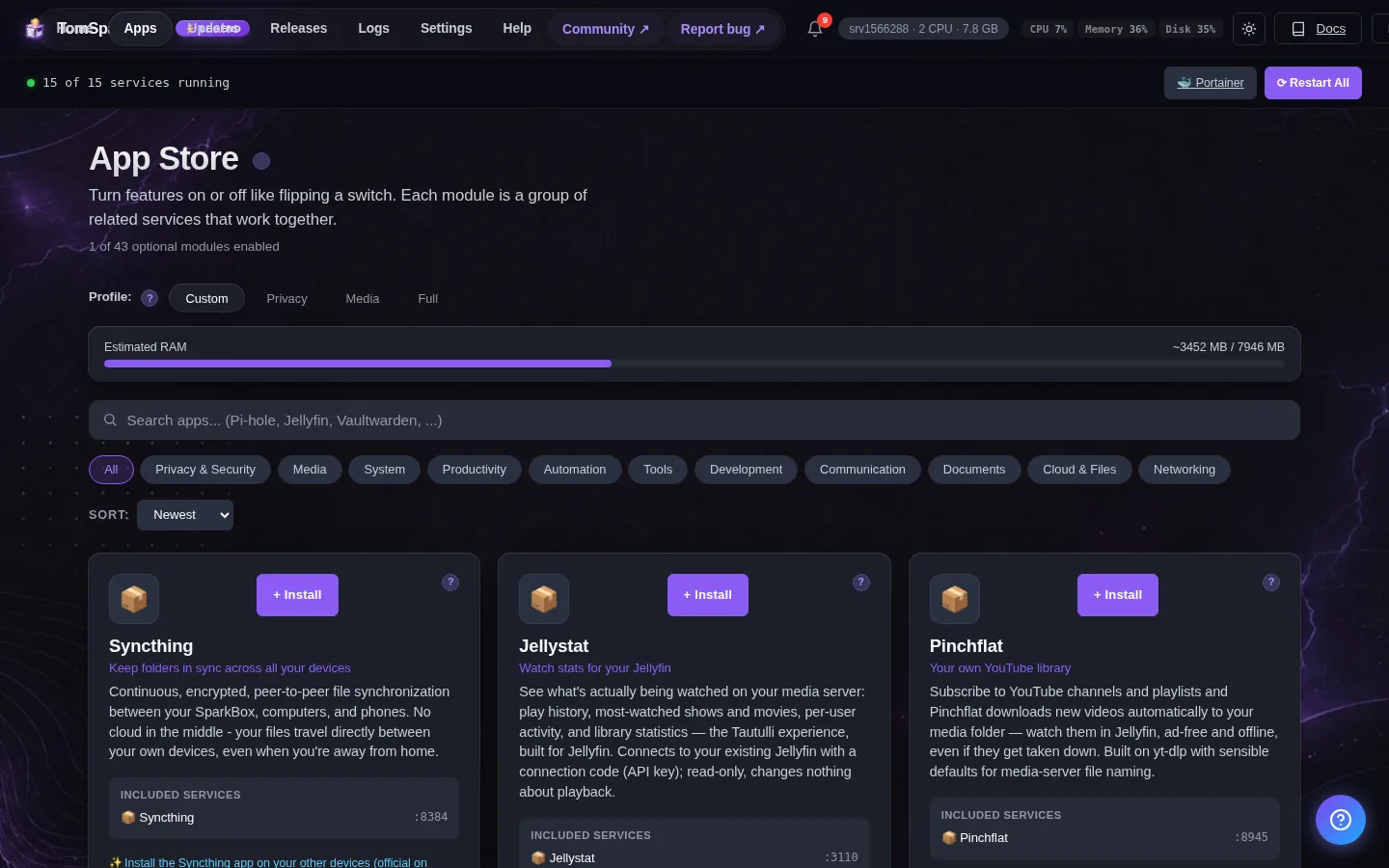
A sleek, modern dashboard for all your self-hosted applications. Organize your services with drag-and-drop widgets, integrate with Docker for real-time status, and access everything from one place.
2. How to access it
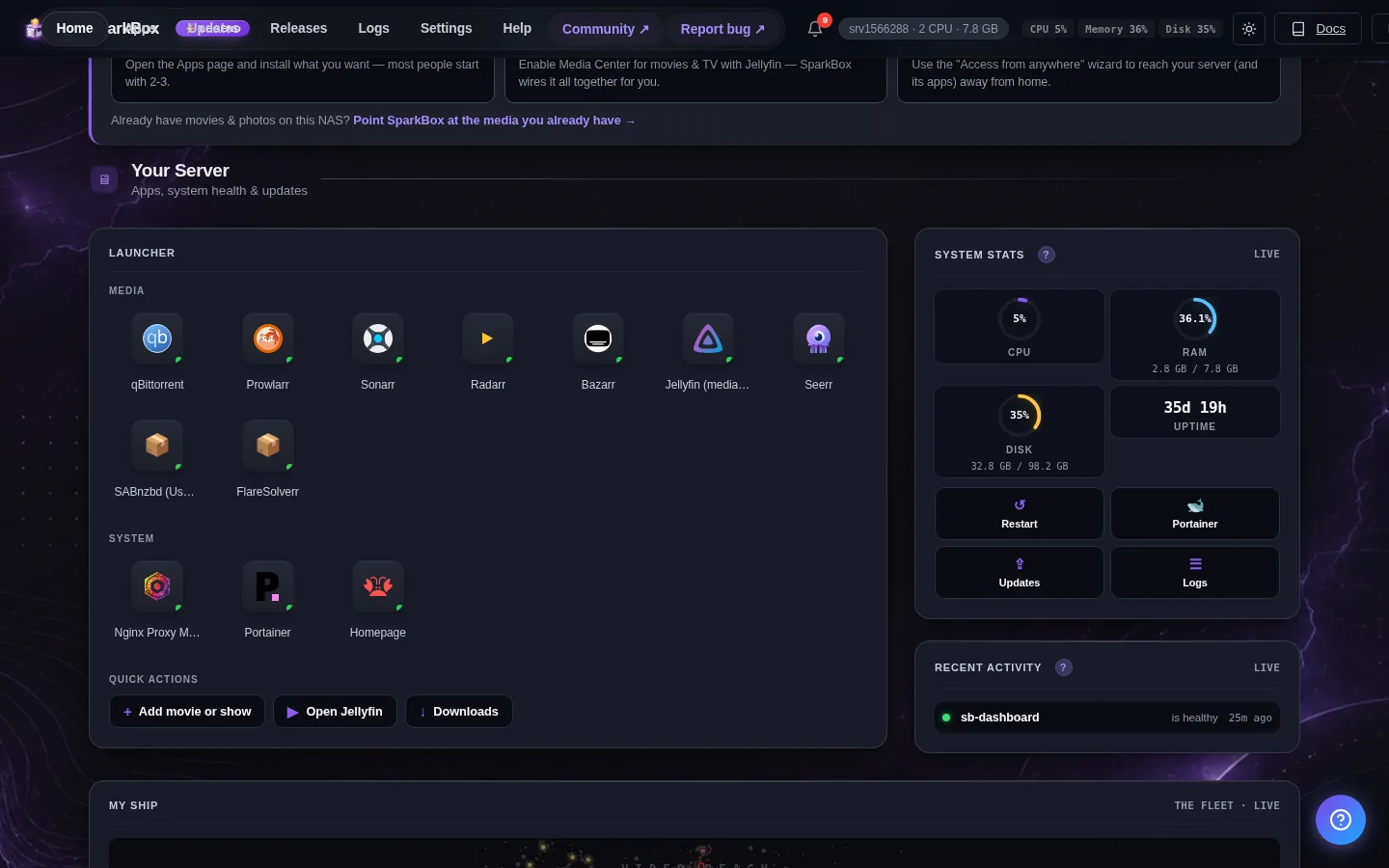
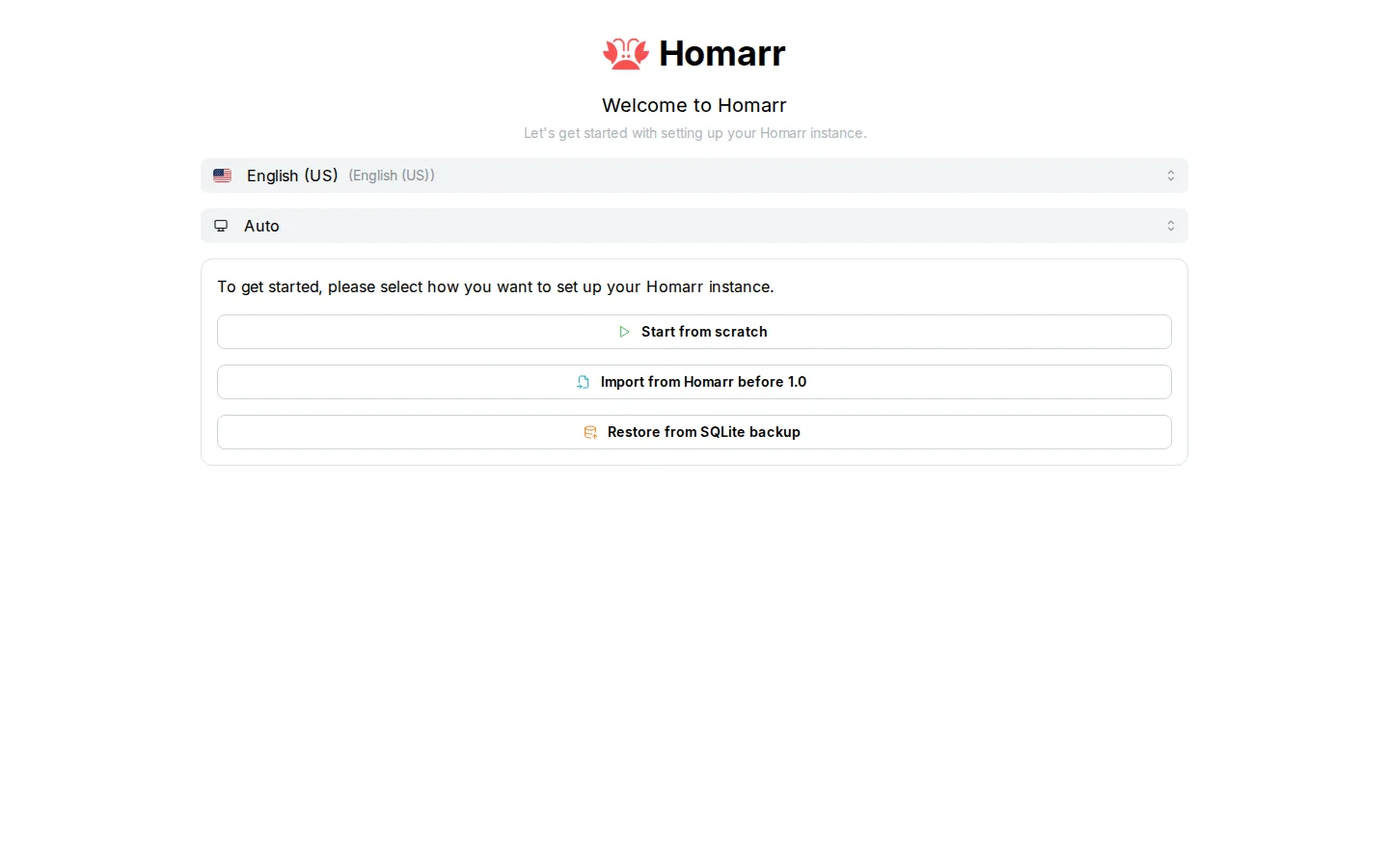
Once it's enabled, Homarr runs on your SparkBox at:
http://<your-NAS-IP>:7575Add your services as tiles and organize them into categories
3. First login
Homarr shows an 'Onboarding' screen on first visit to create the admin account — pick a username + password (minimum 8 chars). After that, click any empty tile slot to add apps. Homarr auto-detects Docker containers so Sonarr, Radarr, Jellyfin, etc. can be added with one click.
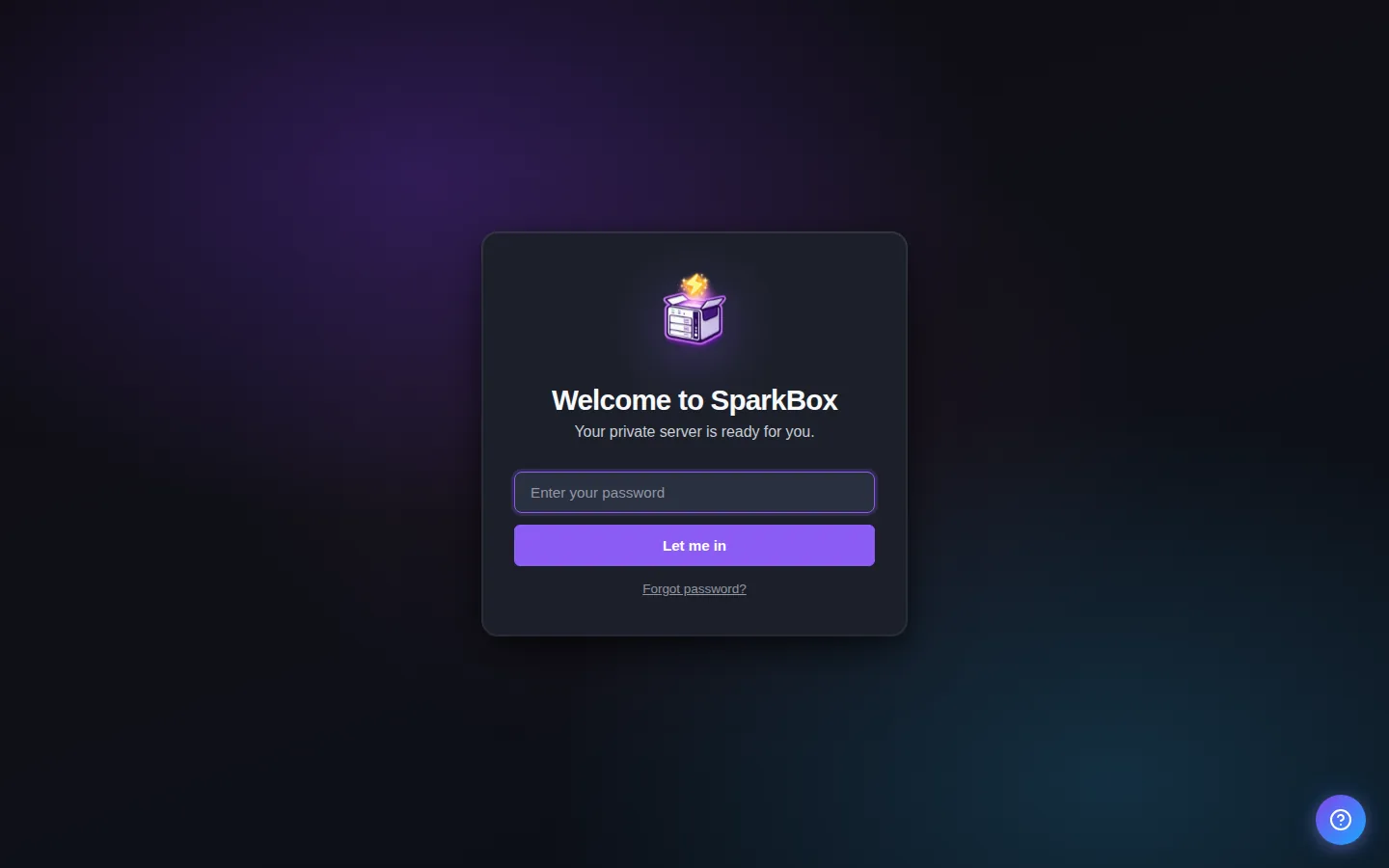
If it instead asks for a password you didn't set, check Settings → Passwords in your SparkBox dashboard — every auto-generated credential is listed there.
4. Tips
- Drag and drop widgets to customize your dashboard layout
- Homarr can auto-discover Docker containers and show their status
5. Where your data lives
Homarr's config and persistent data are stored on the SparkBox host under:
/opt/sparkbox/modules/homarr/config/Backups via the SparkBox dashboard's Backup tile include this directory by default, so a single restore brings Homarr back to its current state on a fresh install.
Next steps
That's Homarr live on SparkBox.
If something doesn't match what you see, post in d/sparkbox or hit us up on YouTube. Every SparkBox bug gets patched; every UX-stumble in this guide gets rewritten.
Questions, or did this not match your box?
Every guide here came from a real problem someone hit. If yours behaves differently, say so — that is how these get corrected, and how the fix gets prioritised.
We answer there rather than in a comment box, because that is where the people who have already solved it are.