Monitoring: open it, first login, settings, fixes
· Updated 18 September 2026 · SparkBox team
Keeps an eye on all your services 24/7 and sends you alerts via Telegram, Discord, email, Slack, and 90+ other notification services when something goes down. This is the short card for it — the two minutes after you press Enable, and the page to come back to when something is off.
Open it
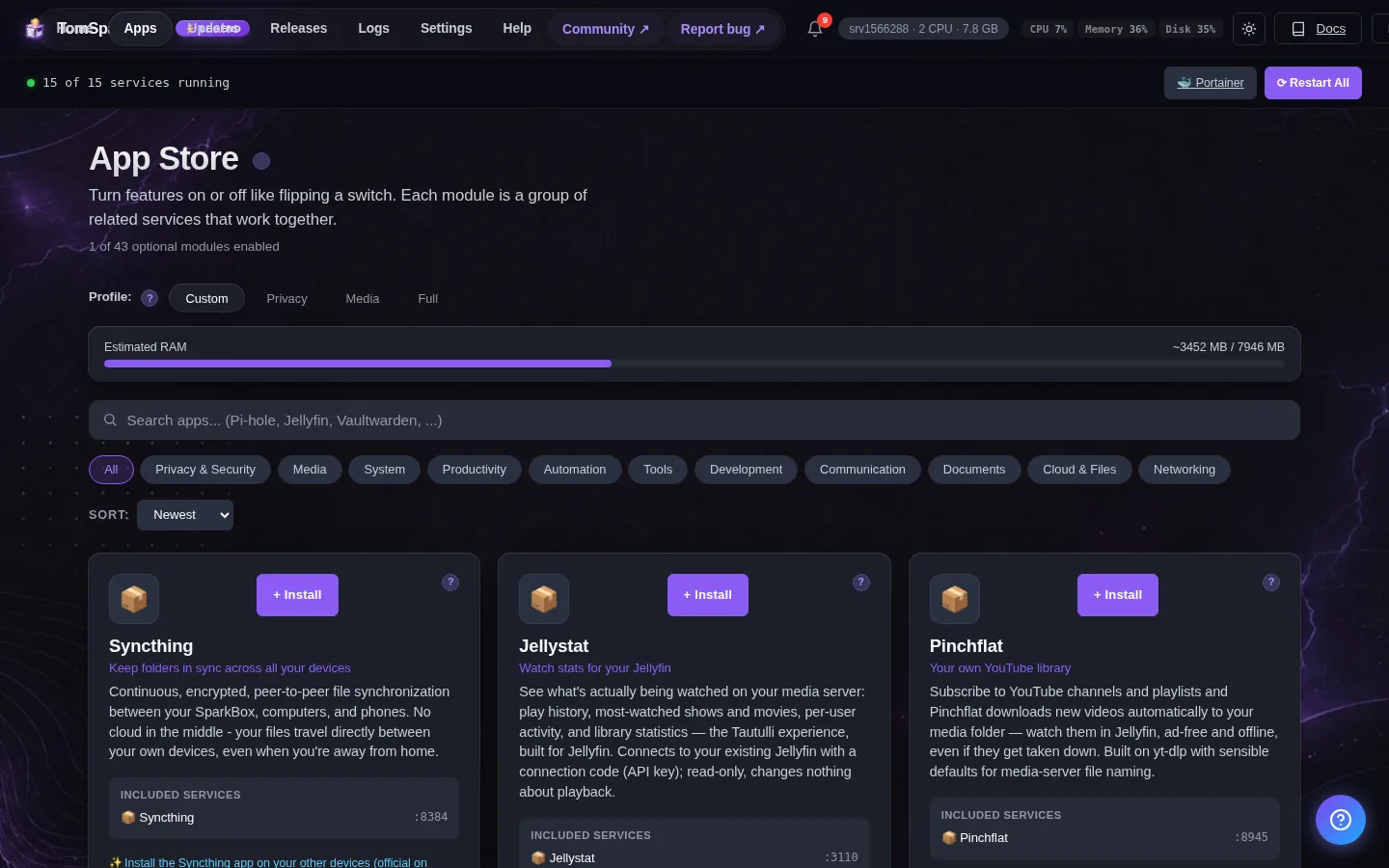
Dashboard → Apps → Monitoring → Open. The direct address on your network is:
http://<your-box-IP>:3001Set up a Telegram or Discord webhook to get notified when services have problems
First login
No preset password. On your first visit Uptime Kuma asks you to create an admin account - pick any username and password (it's separate from your SparkBox dashboard login). Whoever creates it first owns it, so do this right after enabling the module.
Any password the installer generated for you is under Settings → Passwords; the Open button offers to copy it.
Worth knowing
- Start with one monitor for the SparkBox dashboard itself (HTTP, your box's IP, port 8443) and add your favourite apps from there
- When adding a monitor for another app on the same box, use your box's LAN IP and the app's port - not 'localhost', which would point at the Uptime Kuma container itself
- Alerts only help if they reach you somewhere you'll actually see them - Telegram and Discord are the two easiest to set up
Add your first monitor
Click Add New Monitor. Monitor type: HTTP(s). Friendly name: whatever you like. URL: your box's IP plus the app's port - for example http://192.168.1.50:8096 for Jellyfin. Save, and Uptime Kuma starts checking it every 60 seconds; the tile turns red the moment the app stops answering. One honest caveat: Uptime Kuma runs ON your SparkBox, so if the whole box goes down it goes down with it and can't alert you - it's best at catching a single app misbehaving, not a power cut.
Get alerted on your phone
Open Settings (top right), then Notifications, then Setup Notification. Telegram is the easiest: message @BotFather on Telegram, send /newbot, copy the token it gives you into Uptime Kuma, then message your new bot once and click Auto Get to fill in the chat ID. Test, save, and tick the notification on each monitor you want it for. Discord is similar - create a webhook in any channel (Channel settings, Integrations, Webhooks) and paste the URL in.
When it breaks
If it will not open, check the app card first — a red dot means it is restarting or unhealthy, and this walkthrough reads the reason from its log. Tom AI on the dashboard can do the same for you.
Where your data lives
/opt/sparkbox/modules/monitoring/config/Included in the dashboard's Backup by default. Restoring that backup on a fresh install brings Monitoring back exactly as it was.
Questions, or did this not match your box?
Every guide here came from a real problem someone hit. If yours behaves differently, say so — that is how these get corrected, and how the fix gets prioritised.
We answer there rather than in a comment box, because that is where the people who have already solved it are.