ErsatzTV: open it, first login, settings, fixes
· Updated 18 September 2026 · SparkBox team
Builds always-on TV channels out of the movies and shows you already own, with a proper channel guide. Instead of picking something to watch, you turn the TV on and something is playing. Point any IPTV player — or Jellyfin's Live TV — at it. This is the short card for it — the two minutes after you press Enable, and the page to come back to when something is off.
Open it
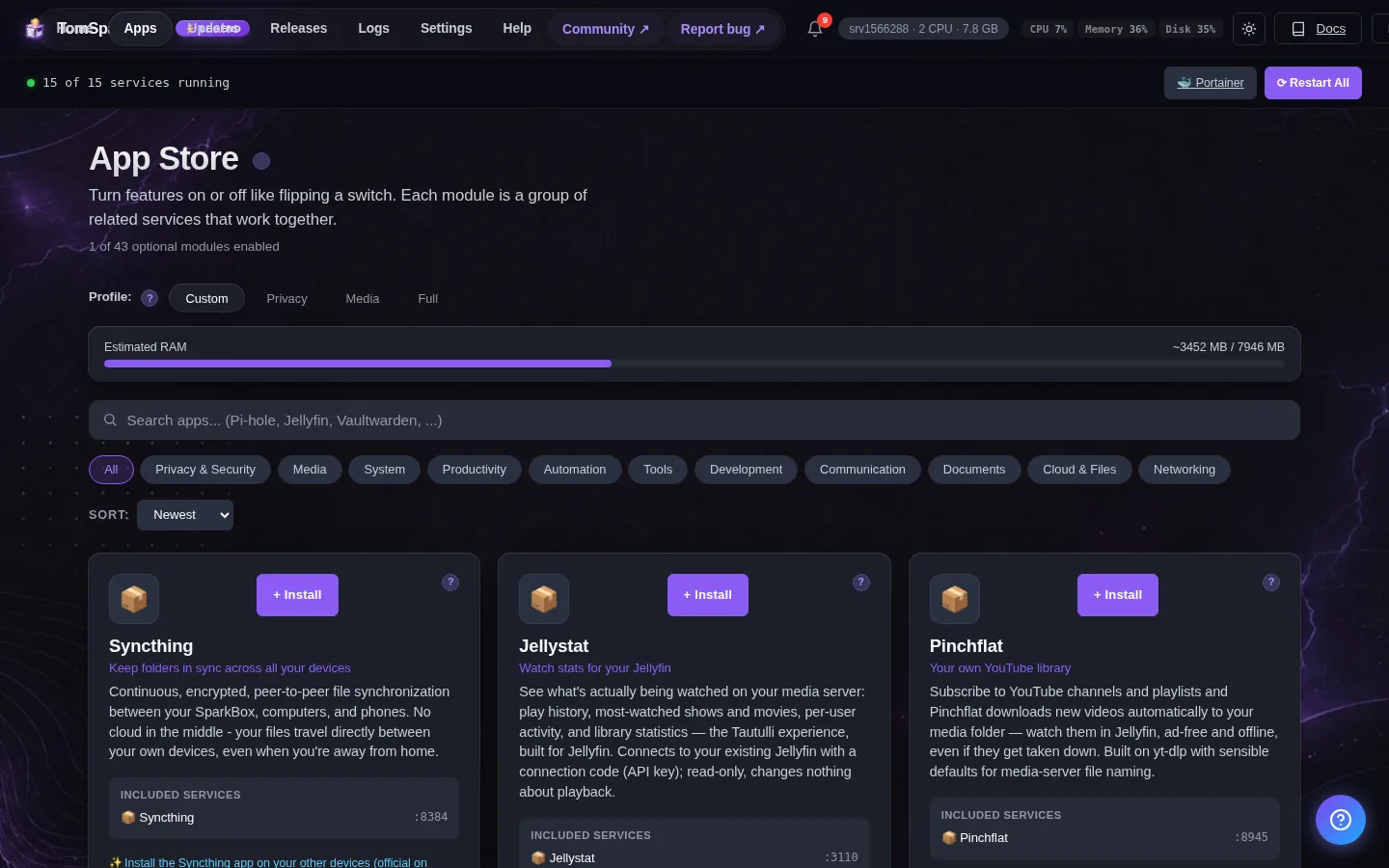
Dashboard → Apps → ErsatzTV → Open. The direct address on your network is:
http://<your-box-IP>:8409Add a media source first, then build your first channel from a collection.
First login
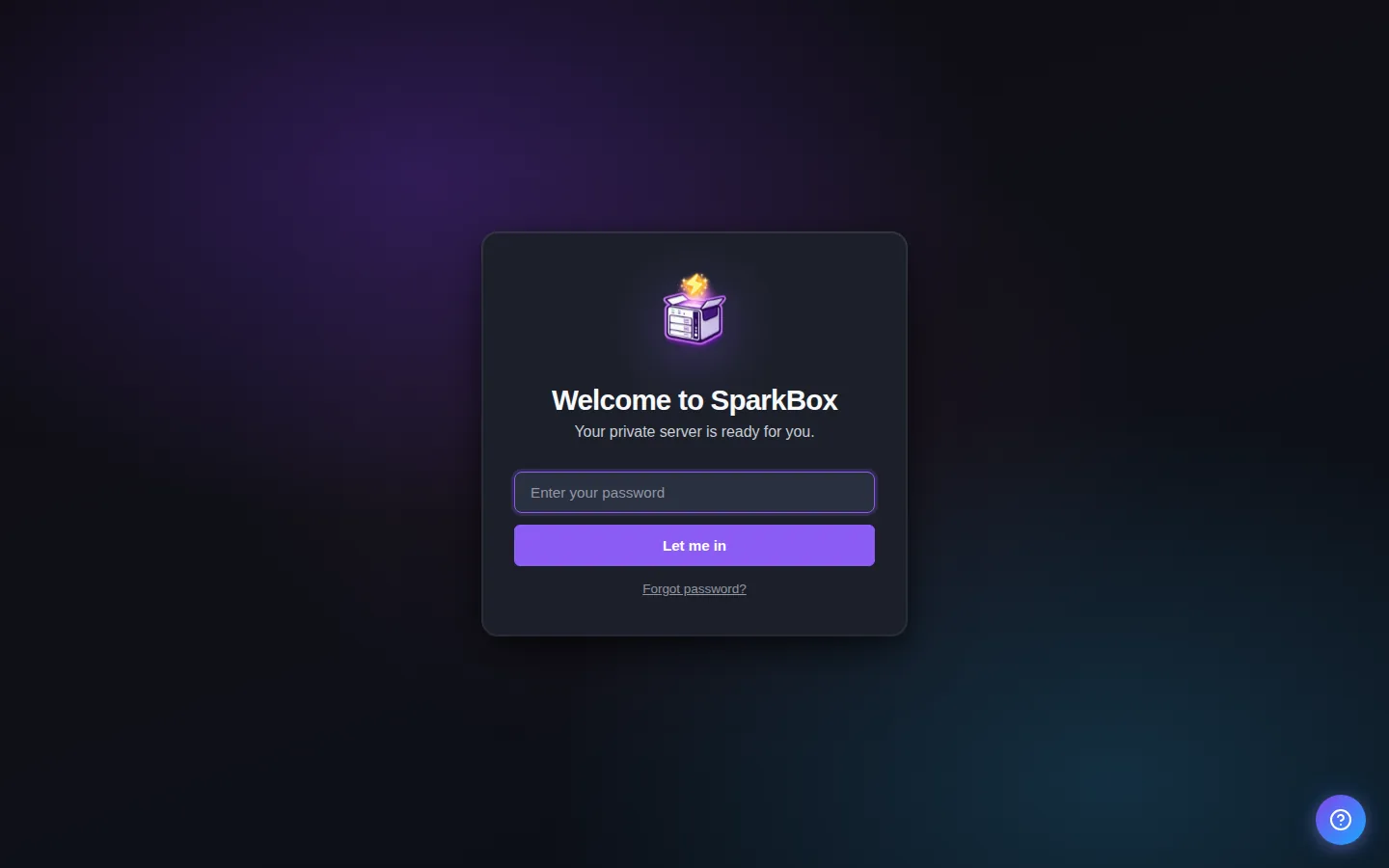
No account needed — ErsatzTV opens straight into its own web interface. Anyone who can reach it on your network can change your channels, so keep it on your LAN rather than exposing it to the internet.
Any password the installer generated for you is under Settings → Passwords; the Open button offers to copy it.
Worth knowing
- Best on a box with hardware transcoding. ErsatzTV re-encodes continuously to keep a channel live, so without a GPU it will lean on your CPU.
- Build a channel from a collection first (say, every episode of one show), then add more once you can see it working.
- Add the channel guide to Jellyfin under Live TV, or point any IPTV app at it.
Build your first channel
ErsatzTV needs three things before anything plays, in this order:
- A media source. Go to Media Sources. Either add your Jellyfin server (SparkBox runs it at
http://sb-jellyfin-media:8096— that name works from inside ErsatzTV), or point it at/mediato scan your files directly. - A collection. Under Media → Collections, group what you want on the channel. Start narrow — one show, or one director — so you can tell it is working.
- A channel and schedule. Create the channel, then a schedule that plays your collection. Without a schedule the channel exists but shows nothing.
Give it a minute after saving. ErsatzTV builds the upcoming programme block in advance, so a brand-new channel is briefly empty before it fills in.
Watch it on your TV
ErsatzTV hands out a standard IPTV playlist and guide, so anything that speaks IPTV can play it:
Playlist:  http://<your-NAS-IP>:8409/iptv/channels.m3u
Guide:     http://<your-NAS-IP>:8409/iptv/xmltv.xml
To watch through Jellyfin, open Jellyfin's dashboard and go to Live TV → Tuner Devices, add an M3U Tuner with the playlist address, then add the guide address under TV Guide Data Providers. Your channels then appear in Jellyfin alongside everything else.
If your box gets hot
This is the one thing to understand about ErsatzTV. Jellyfin only works when somebody presses play; ErsatzTV is running a broadcast, so it can be re-encoding video continuously for as long as a channel is live.
On a box with Intel Quick Sync, turn hardware transcoding on and the GPU absorbs it — set JELLYFIN_HW_ACCEL=intel in Settings (the same switch Jellyfin uses; it covers both). Without a GPU, expect steady CPU load, and keep to one or two channels.
If the box is struggling, the fastest fix is fewer live channels rather than a bigger memory limit — the cost is in the encoding, not the RAM.
When it breaks
If it will not open, check the app card first — a red dot means it is restarting or unhealthy, and this walkthrough reads the reason from its log. Tom AI on the dashboard can do the same for you.
Where your data lives
/opt/sparkbox/modules/ersatztv/config/Included in the dashboard's Backup by default. Restoring that backup on a fresh install brings ErsatzTV back exactly as it was.
Questions, or did this not match your box?
Every guide here came from a real problem someone hit. If yours behaves differently, say so — that is how these get corrected, and how the fix gets prioritised.
We answer there rather than in a comment box, because that is where the people who have already solved it are.