BookStack: open it, first login, settings, fixes
· Updated 18 September 2026 · SparkBox team
A simple, self-hosted, easy-to-use platform for organizing and storing information. Perfect for personal knowledge bases, team wikis, and project documentation. This is the short card for it — the two minutes after you press Enable, and the page to come back to when something is off.
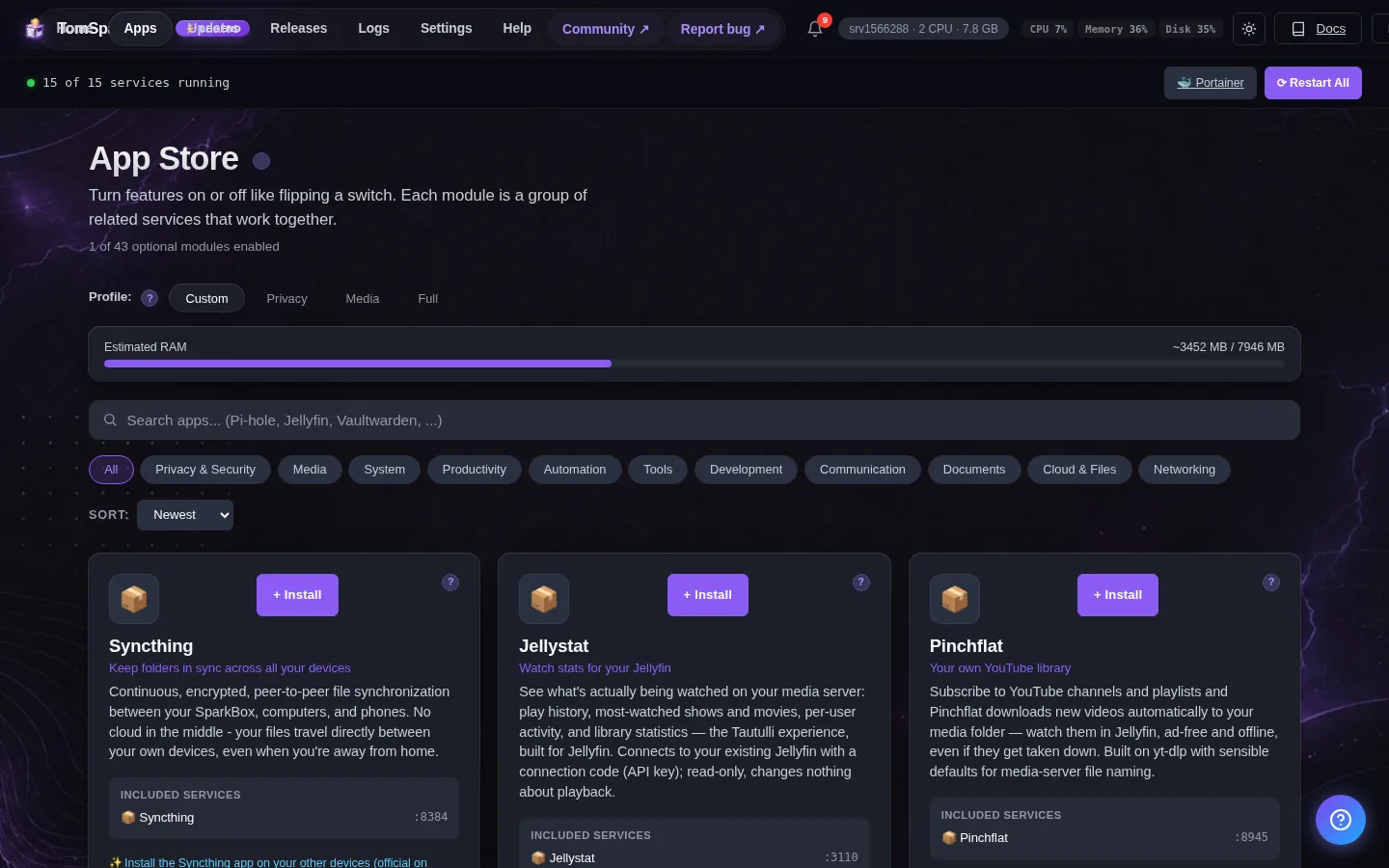
Before you turn it on
SparkBox generates a unique admin password for BookStack on first start (the shared factory login is retired automatically). Log in as admin@admin.com with the password from Settings → Service Passwords.
Open it
Dashboard → Apps → BookStack → Open. The direct address on your network is:
http://<your-box-IP>:6875Log in as admin@admin.com with the auto-generated password from Settings → Service Passwords
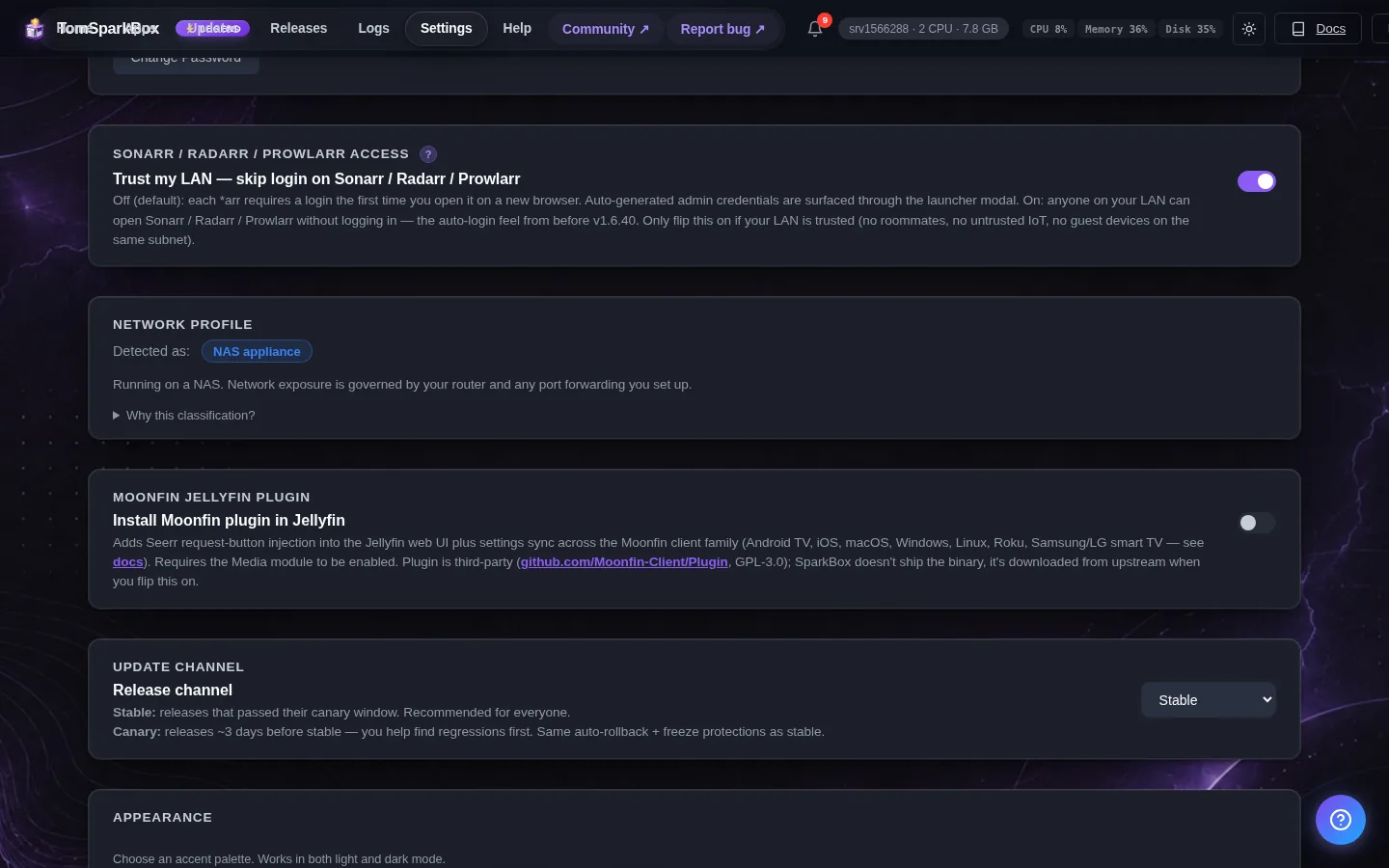
First login
Log in as admin@admin.com — SparkBox auto-generated the password for you and it's shown below (also at Settings → Service Passwords, with a Reset button). If you had already changed BookStack's password yourself, your own password keeps working and SparkBox leaves it alone.
Any password the installer generated for you is under Settings → Passwords; the Open button offers to copy it.
When it breaks
If it will not open, check the app card first — a red dot means it is restarting or unhealthy, and this walkthrough reads the reason from its log. Tom AI on the dashboard can do the same for you.
Where your data lives
/opt/sparkbox/modules/bookstack/config/Included in the dashboard's Backup by default. Restoring that backup on a fresh install brings BookStack back exactly as it was.
Questions, or did this not match your box?
Every guide here came from a real problem someone hit. If yours behaves differently, say so — that is how these get corrected, and how the fix gets prioritised.
We answer there rather than in a comment box, because that is where the people who have already solved it are.