How to set up Hearth Chat
· Updated 18 September 2026 · SparkBox team
Updated September 14, 2026 · Current setup guidance; early-access limits are stated where applicable.
Hearth is your own private group chat — text, photos, video, reactions, voice/video calls and push notifications, all running on your own SparkBox. No accounts, no company in the middle, and no upload caps because your media lives on your pool. It's free on every SparkBox — and now also a product of its own you can run anywhere Docker runs. This guide covers the SparkBox way: how to turn it on, share your join code, choose how it's reached, and install it on your phone.
1. What is Hearth Chat?
Hearth is a self-hosted group chat that lives entirely on your SparkBox. Think of your family or friends group chat — but it runs on hardware you own, so nobody else can read it, mine it for ads, or shut it down. There are no accounts: everyone joins with one shared code and picks a display name. Because the files live on your storage pool, there's no "upgrade for more space" — drop a 4 GB video and it just works.
Hearth is free with every SparkBox — Legends funded its development, and now every box gets it (there's also a self-host lane for people without a SparkBox). Want to fund what ships next? That's what Legend is →
2. Turn it on
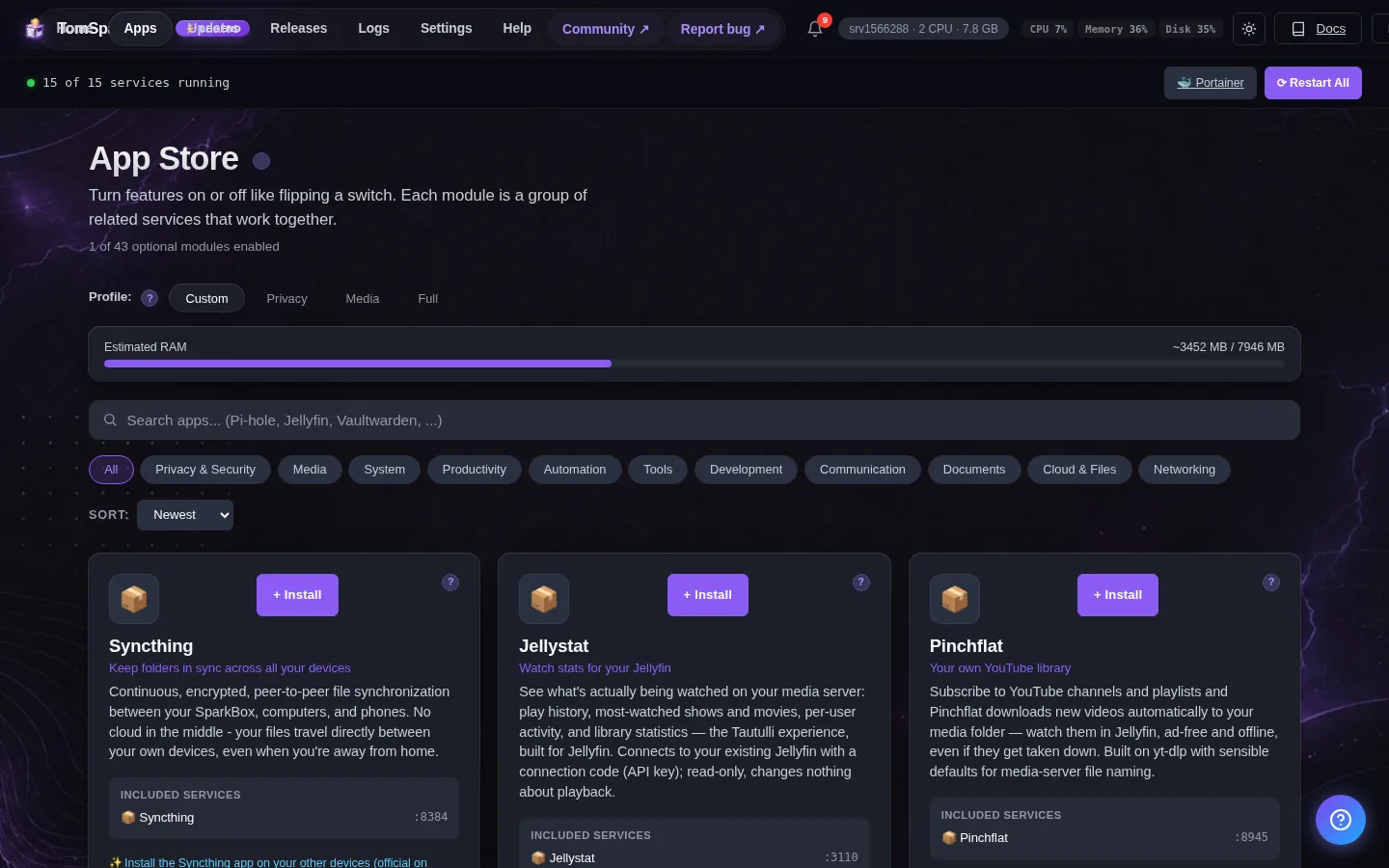
Open your SparkBox dashboard in a browser — it's at https://your-box-ip:8443 (the same address you set up SparkBox with; if you're not sure of the IP, it's the one shown when you installed). Then:
- Open the Apps tab.
- Find Hearth Chat (it has a gold ✦ Tom Spark badge and a BETA tag).
- Click Install / Enable.
Want a link that works from anywhere, with zero port forwarding? Enable the Cloudflare Tunnel app, then pick "Cloudflare Tunnel" in Hearth's Access picker — it works even on 5G or Starlink where port forwarding is impossible. Tailscale (private) and a public domain remain the other two options.
Enabling takes under a minute while it pulls the app and starts it. SparkBox automatically generates a unique join code for your box at this point — you never share a default with anyone else. Once you're in, tap 📨 Invite people inside Hearth: it gives you a link and a QR code, and anyone who opens it just types a name and they're in.
3. Your join code & inviting people
Your join code is the only key to your Hearth — treat it like a password. Anyone with it can join, so only share it with people you want in.
Where to find it: in your SparkBox dashboard go to Settings → Service Passwords and look for Hearth join code. That's the one you type the very first time you open Hearth. (It's also on the box as HEARTH_JOIN_CODE in /opt/sparkbox/.env if you'd rather look there.)
Once you're in, the easy way to invite everyone else is the Invite people button inside Hearth (in the left sidebar) — they never have to type the code by hand. It copies a link like:
https://your-hearth-address/#invite=your-code
It also shows a QR code of the same link — point a phone camera at it. Either way: they open it, the code is filled in for them, they pick a display name, and they're chatting — no sign-up, no email, no phone number. The only thing your guests ever need is that link and a browser — unless you choose the Tailscale option below, which has one extra requirement worth understanding first.
4. How to reach Hearth (pick one)
For privacy, Hearth doesn't have a web address until you give it one — so it won't open from your phone until you do this step once. You set it up from the Access button on the Hearth card in your dashboard (Apps → Hearth → Access). Every option gives you a real https:// link that works on your phone with notifications.
The one question that decides it: do the people you're inviting need to install anything?
- DuckDNS / your own domain / Cloudflare Tunnel: your guests need nothing — any browser on any phone opens your invite link. Anyone on the internet who has the link can reach the join screen, and the join code is what keeps them out.
- Tailscale: maximum privacy — Hearth isn't on the public internet at all — but every person you invite must install the Tailscale app and be added to your Tailscale network (in the Tailscale admin console: Users → Invite external users). Great for your own devices and your household; a real hurdle for a casual friend group. If your invitees aren't techy, pick one of the other options.
If you're not sure, do the DuckDNS one — it's free, takes about five minutes, and your guests just tap the link.
Easiest & free: a DuckDNS web address
No domain of your own? Get a free one:
- Go to duckdns.org and sign in (Google, GitHub, etc.).
- Type a name in the box — like
yourname— and click add domain. You now ownyourname.duckdns.org. Copy the token shown at the top of the page. - Check the
current ipbox next to your name — this is the step everyone misses. DuckDNS fills it in with the computer you're sitting at, which usually isn't your SparkBox. It has to be the address of the machine SparkBox runs on. At home that's your home internet address (DuckDNS's guess is normally right if you're on the same wifi); if SparkBox is on a rented server, type that server's address in and click update ip. - In your SparkBox dashboard, open Apps, find Hearth, and click Access.
- Enter
yourname.duckdns.organd your email address (Let's Encrypt needs one to issue the certificate — it's only used to warn you before it expires), tick Use a DNS challenge, choose DuckDNS, and paste your token. - Click Set up public access. SparkBox fetches the HTTPS certificate for you (a minute or two).
Your Hearth now lives at https://yourname.duckdns.org. Share that link (with your join code) and it works from any phone, anywhere. (Tip: with DuckDNS, use the plain yourname.duckdns.org — it doesn't do chat.yourname.duckdns.org-style sub-names.)
Certificate worked but the page won't load? It's one of these two.
- The address is pointing somewhere else. Getting the certificate doesn't prove the address reaches your box — that part uses a different route. Go back to duckdns.org and confirm the
current ipreally is the machine SparkBox runs on. - Your router isn't letting anyone in. On a home box you have to forward ports 80 and 443 to your SparkBox — same job as the game-server guides, different numbers. Search your router's model plus “port forwarding”. On a rented server there's nothing to forward, but make sure nothing else on it is already using those two ports.
Can't forward ports (5G, Starlink, student halls, landlord's router)? Use the Cloudflare Tunnel option below instead — it needs no open ports at all.
If you already own a domain
Same steps, but enter your own address (e.g. chat.yoursite.com). If your domain is on Cloudflare, tick the DNS challenge and choose Cloudflare (paste a scoped API token). Otherwise, point that domain's DNS at the machine SparkBox runs on first, then enter it. The same two rules apply: the address has to resolve to your box, and ports 80 and 443 have to reach it.
No ports, no domain hassle: Cloudflare Tunnel
On 5G, Starlink, or any connection where port forwarding is impossible, the domain options above can't work — the tunnel can. Enable the Cloudflare Tunnel app (its card walks you through creating a free tunnel and pasting the token), add a Public Hostname for Hearth on your Cloudflare tunnel page (the Access picker shows you the exact target to type), then enter that hostname in Hearth's Access picker. Guests still need nothing but the link.
Private, over Tailscale (your own devices & household)
Tailscale keeps Hearth entirely off the public internet — the most private way to run it, and it's one click: enable the Tailscale app, connect it, and Hearth's Access picker shows a Use Tailscale button with your private https://…ts.net:8770 link. The trade-off, said plainly: everyone you invite must install Tailscale and be a member of your Tailscale network (invite them from the Tailscale admin console — check the current Tailscale plan limits for your household). Perfect for you-and-yours across your own phones and laptops; for a wider friend group, use a public option above — the join code is still what gates entry.
5. Install it on your phone
Hearth works like a real app once you add it to your home screen — that's also what enables push notifications.
- iPhone: open your Hearth link in Safari, tap the Share button, choose Add to Home Screen, then open Hearth from the new icon. When it asks, allow notifications.
- Android: open the link in Chrome, tap the menu, choose Install app, then open it from the icon and allow notifications.
One thing to know on iPhone: notifications only work from the installed app on your home screen, not a Safari tab — so do the Add to Home Screen step.
6. Channels, calls & no limits
Make channels however you want with the + next to "Channels." Share photos and video subject to your storage and connection limits — they're stored on your pool. React to messages, edit or delete your own, and tap Gather in a channel to start a voice or video call with everyone there. The member list shows who's by the fire right now.
7. Where your data lives
Your messages, uploads, and notification keys live on your storage pool under:
${SB_DATA_DIR}/hearth/ (e.g. /opt/sparkbox/data/hearth)
That keeps big media on your large pool, not the system disk. Backups via the SparkBox dashboard's Backup tile include this directory, so a single restore brings your whole Hearth back on a fresh install.
Next steps
That's Hearth Chat live on your SparkBox.
If something doesn't match what you see, post in d/sparkbox or hit us up on YouTube. Every SparkBox bug gets patched; every UX-stumble in this guide gets rewritten.
Why Hearth is free for every box → More guides →
Questions, or did this not match your box?
Every guide here came from a real problem someone hit. If yours behaves differently, say so — that is how these get corrected, and how the fix gets prioritised.
We answer there rather than in a comment box, because that is where the people who have already solved it are.