Pi-hole login rejects every password you try
· Updated 18 September 2026 · SparkBox team
You set an admin password, restart the container, and get "Invalid password" every single time on /admin/. The gist: Pi-hole v6 quietly stopped listening to the old password variable, so whatever you typed was never actually applied — Pi-hole made up its own password instead, and you never saw it.
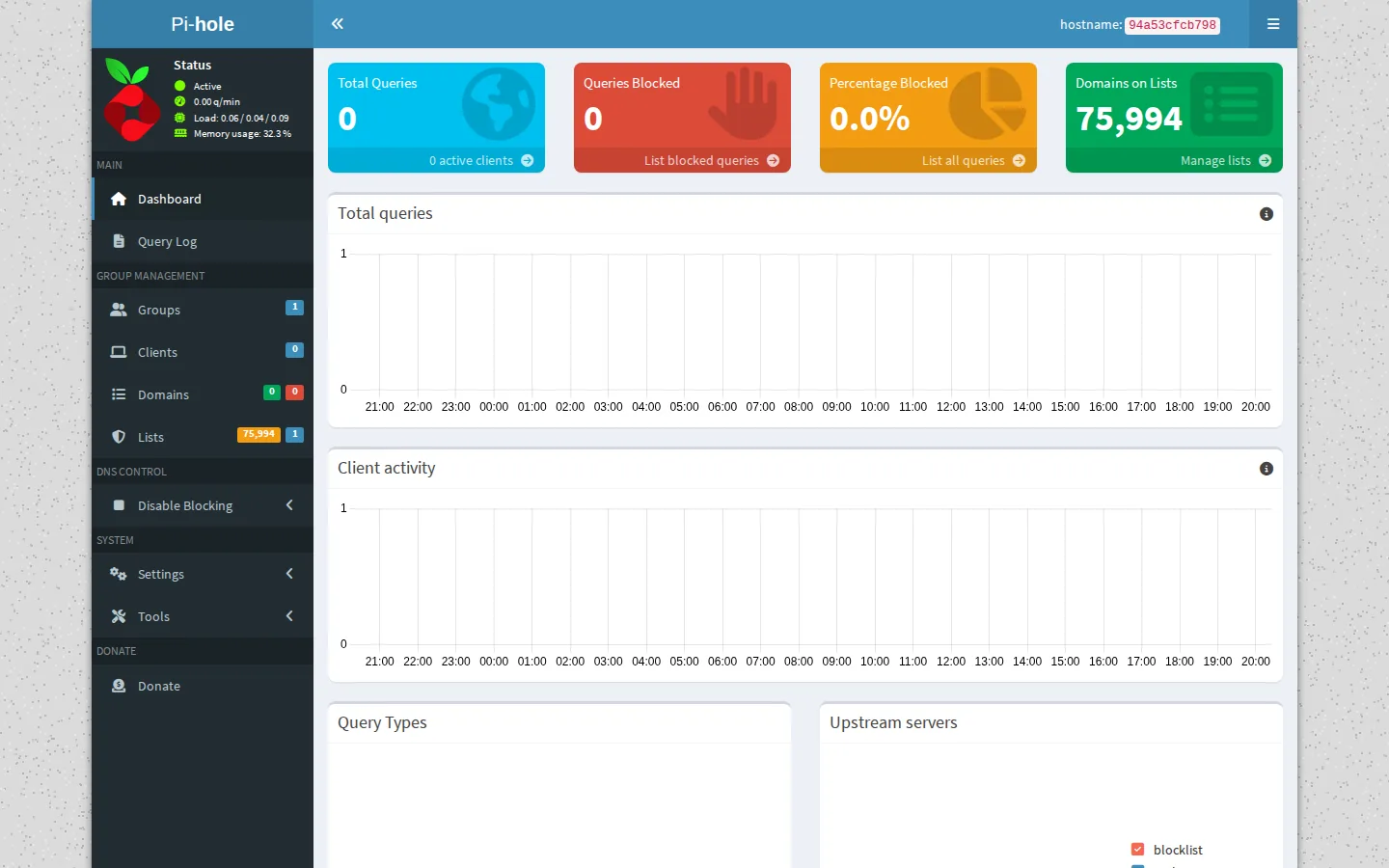
The 10-second version: Pi-hole v6 ignores the legacy WEBPASSWORD variable entirely. Set FTLCONF_webserver_api_password to your chosen password in the container's environment instead, then recreate the container so it picks up the new value.
Why the password never "takes"
Pi-hole v5 read its admin password from an environment variable called WEBPASSWORD. Docker Compose files written for v5 — including a lot of examples still floating around online — set that variable and assumed the job was done.
Pi-hole v6 rebuilt its configuration system around FTL (the Faster Than Light DNS engine) and its own config keys, prefixed FTLCONF_. WEBPASSWORD isn't one of them, so v6 simply doesn't look at it. If FTLCONF_webserver_api_password is also missing — which it will be, if your compose file was never updated — Pi-hole falls back to generating a random password on first boot and prints it once in the container's startup logs.
The result: you never see that random password, you keep typing the one you thought you set, and every login attempt fails. This is the same category of mistake as the earlier DNSMASQ_LISTENING issue that quietly blocked LAN-wide DNS in older Pi-hole compose files — a v5 environment variable that v6 no longer honors. The password variable was the sibling case that got missed in that same pass.
Fix 1: Find the password Pi-hole actually set
If you just want back in right now without editing anything, check what Pi-hole generated for itself.
- Look at the container's logs from when it first started. Pi-hole prints the randomly generated password once, during initial startup:
Scroll (or grep) for a line mentioning the generated password. If the container has restarted many times since, this line may have scrolled out of the log buffer — in that case, skip to Fix 2.docker logs pihole - Log in at
http://your-server-address/admin/with whatever password the logs show.
Gotcha: the login page lives at /admin/, not the bare IP or hostname. Browsing to just the server address can land you on a blank page or an unrelated redirect, which looks a lot like a broken install when it's really just the wrong path.
Fix 2: Set your own password permanently (recommended)
Rather than relying on whatever Pi-hole auto-generated, set the password yourself using the variable v6 actually reads.
- Open the Pi-hole service's
docker-compose.ymlfile. - In the
environment:section, add or update:environment: - FTLCONF_webserver_api_password=your-chosen-password - If a
WEBPASSWORDline is still present, you can leave it (v6 ignores it harmlessly) or delete it now to avoid confusion later. - Recreate the container so the new environment value is applied — a restart alone won't re-read a changed compose file; the container needs to be recreated:
docker compose up -d --force-recreate - Log in at
/admin/with the password you just set.
Fix 3: Reset the password from inside the container
If you'd rather not touch the compose file, Pi-hole's own CLI can set the admin password directly. Open a shell inside the running container and use Pi-hole's password-setting command (check pihole -h inside your container for the exact syntax your version expects, since it has shifted between releases). This changes the live password immediately but won't survive a full container rebuild unless you also update the environment variable per Fix 2 — so treat this as a quick unlock, not a permanent fix.
If you're using a launcher or dashboard
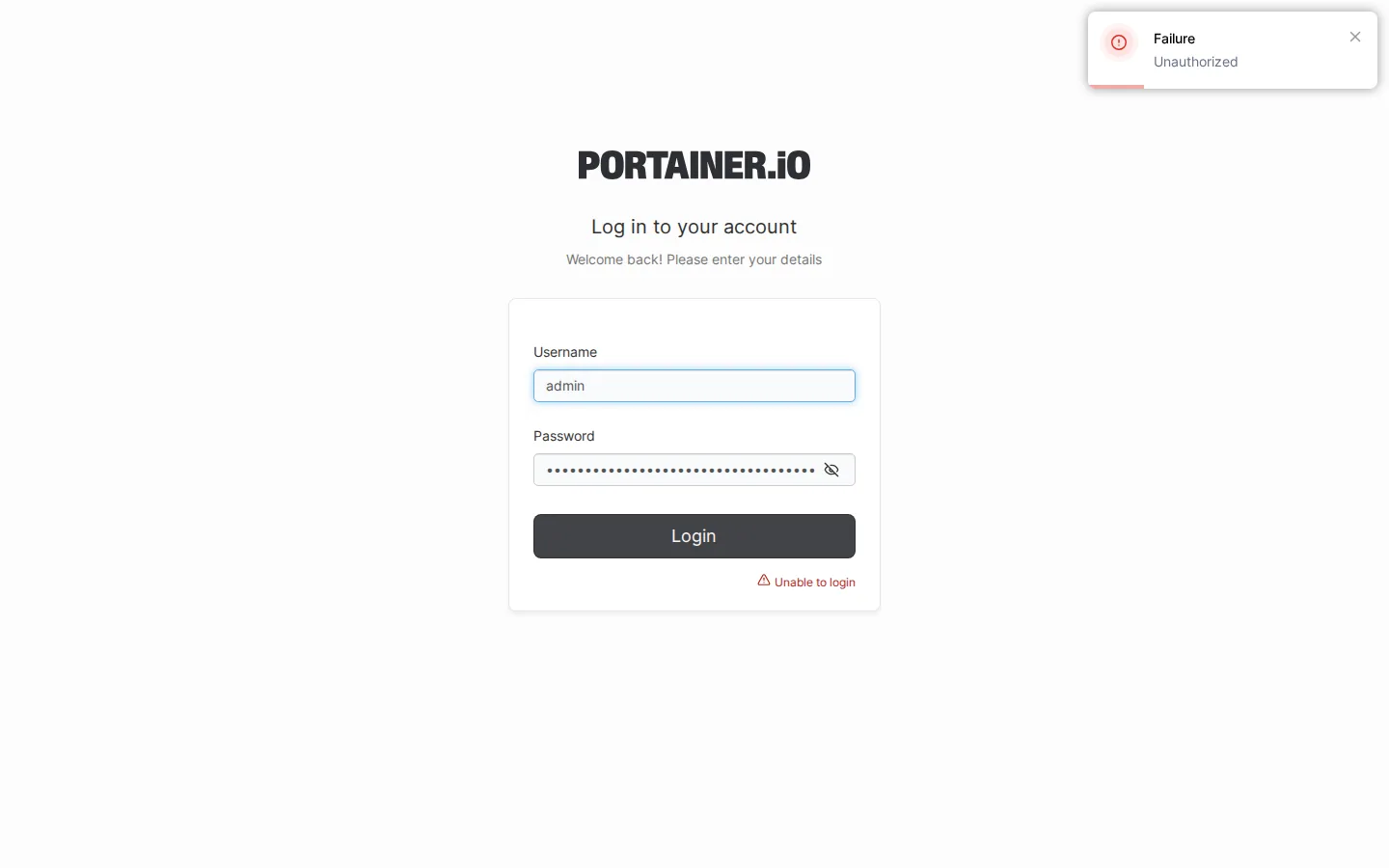
Some self-hosting launchers show a first-login modal the moment a service comes up, surfacing the generated credential and a direct link to the correct login path so you never have to go digging through logs. If your setup doesn't have anything like that, the log-check in Fix 1 is the manual equivalent — it's the same information, just less convenient to find.
Frequently asked
Why doesn't my Pi-hole password work anymore?
If you're on Pi-hole v6, it no longer reads the legacy WEBPASSWORD environment variable. Any password you set through that variable is silently ignored, and Pi-hole generates its own random password instead. You need to set FTLCONF_webserver_api_password (or use the pihole CLI) to control the password directly.
Where do I find Pi-hole's auto-generated password?
Check the container logs right after it starts — Pi-hole v6 prints the randomly generated password once during first boot. It's easy to miss if you weren't watching, which is why setting your own password explicitly is the more reliable fix.
Why does going to my Pi-hole IP show a blank page instead of login?
Pi-hole's admin interface lives at /admin/, not the bare root address. If you only browse to the server's IP or hostname, you may get a blank or redirected page. Add /admin/ to the end of the URL to reach the login screen.
Do I need to remove the old WEBPASSWORD variable?
You don't have to remove it — Pi-hole v6 simply ignores it, so it's harmless leftover. But it's worth deleting once you've confirmed FTLCONF_webserver_api_password works, so nobody assumes it still does anything.
Skip the environment-variable archaeology
SparkBox ships Pi-hole with the correct v6 password variable already wired up, and shows the working credential and login link in a first-login modal so you're never locked out on day one.
Questions, or did this not match your box?
Every guide here came from a real problem someone hit. If yours behaves differently, say so — that is how these get corrected, and how the fix gets prioritised.
We answer there rather than in a comment box, because that is where the people who have already solved it are.