Fix "Sonarr Cannot Connect" (Login Page, Prowlarr, Radarr)
· Updated 19 September 2026 · SparkBox team
You browse to Sonarr and get a blank page, a "this site can't be reached" error, or a login screen that never lets you in — or Prowlarr/Radarr report they can't connect to Sonarr at all. Almost every case comes down to Sonarr not being reachable at the address you're using, or a stale login session getting in the way. Here's how to tell which one you have and fix it.
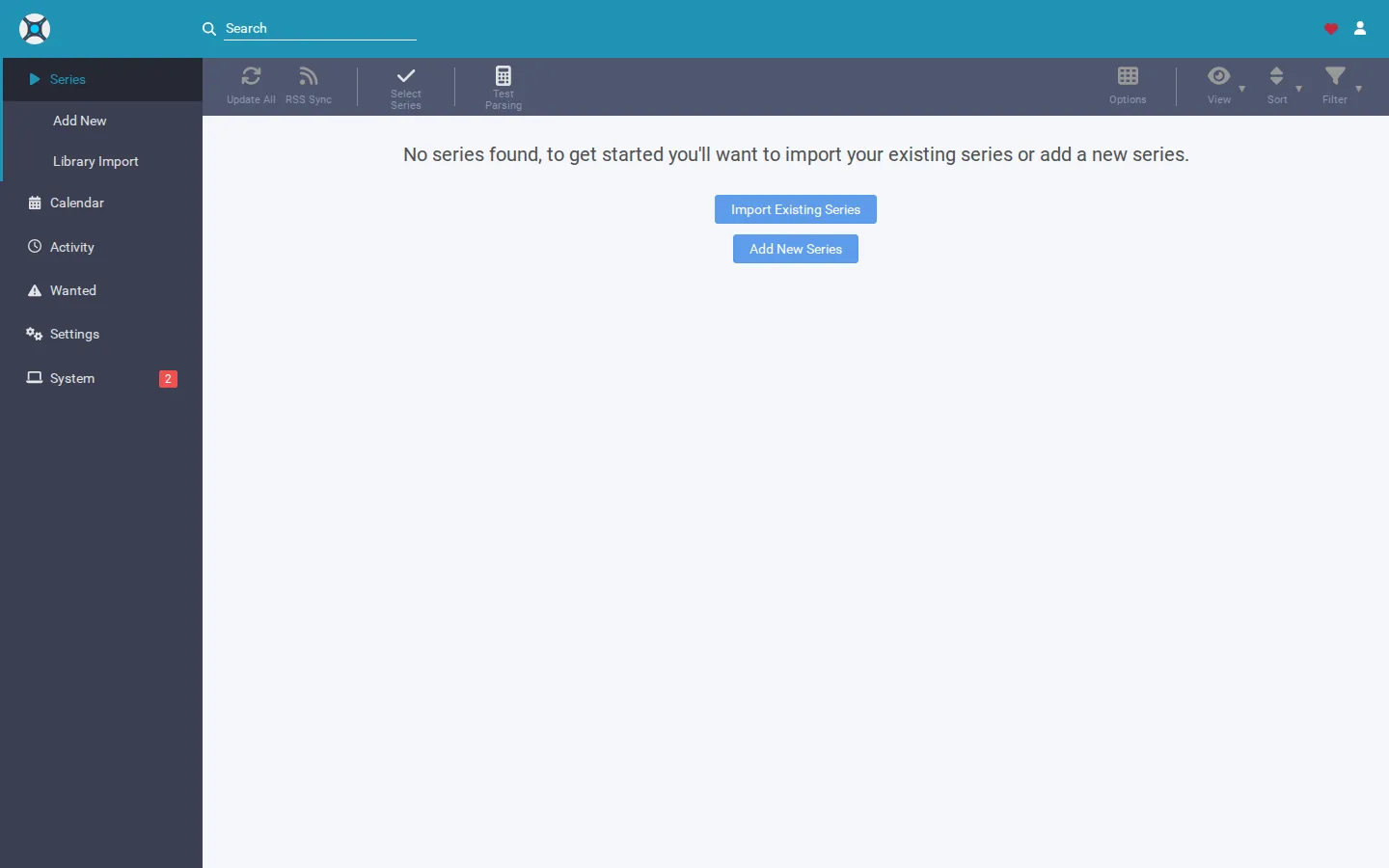
Rather not chase networking configs between apps? SparkBox runs Sonarr, Radarr, and Prowlarr on one managed network and wires up their connections for you, so "cannot connect" between them isn't something you have to debug. See the walkthrough →
The 10-second version: If your browser can't reach Sonarr at all, the problem is the address/port/network path, not Sonarr itself. If Sonarr loads but won't let you log in, clear your browser's cookies for that site first. If another app (Prowlarr, Radarr) can't connect to Sonarr, you're almost certainly using localhost where you need a container name or LAN IP.
Cause 1: Your browser can't reach Sonarr at all
This shows up as "connection refused," a blank tab, or a browser network error before Sonarr's interface ever appears. It means the request never got to Sonarr's web server — the problem is somewhere in the path between your browser and the app.
1. Confirm Sonarr is actually running
If Sonarr is in Docker, check its container status and logs:
docker ps
docker logs sonarr
If the container isn't listed as running, or the logs show it crashing on startup, that's your answer — Sonarr needs to be fixed or restarted before the connection issue can be judged fairly.
2. Check you're using the right port
Sonarr's default web port is 8989. If you're running it in Docker, the port has to be published (mapped) to the host for your browser to reach it. Check your container's port mapping:
docker inspect sonarr | grep -A 5 "Ports"If nothing is mapped to 8989 (or whatever custom port you configured), your browser is asking a port that nothing is listening on — which produces exactly the "cannot connect" symptom.
3. Test the connection directly
From the same machine Sonarr is running on, try:
curl -I http://localhost:8989If this returns headers, Sonarr is reachable locally and the problem is between your browser and that machine — a firewall, VPN, or a reverse proxy misconfiguration. If this also fails, the problem is Sonarr or its port mapping, not your network.
Running under WSL? WSL's networking layer can silently break port forwarding between Windows and the Linux environment, especially after a Windows update or WSL restart. If Sonarr responds to curl inside WSL but not from your Windows browser, restart the WSL networking service or your WSL instance, then re-test.
4. Rule out a reverse proxy or URL base mismatch
If you're accessing Sonarr through a reverse proxy or a custom subpath, check Sonarr's URL Base setting under Settings > General. A mismatch between the path your proxy forwards and the URL base Sonarr expects will cause connection or redirect failures even though Sonarr itself is healthy.
Cause 2: Prowlarr or Radarr can't connect to Sonarr
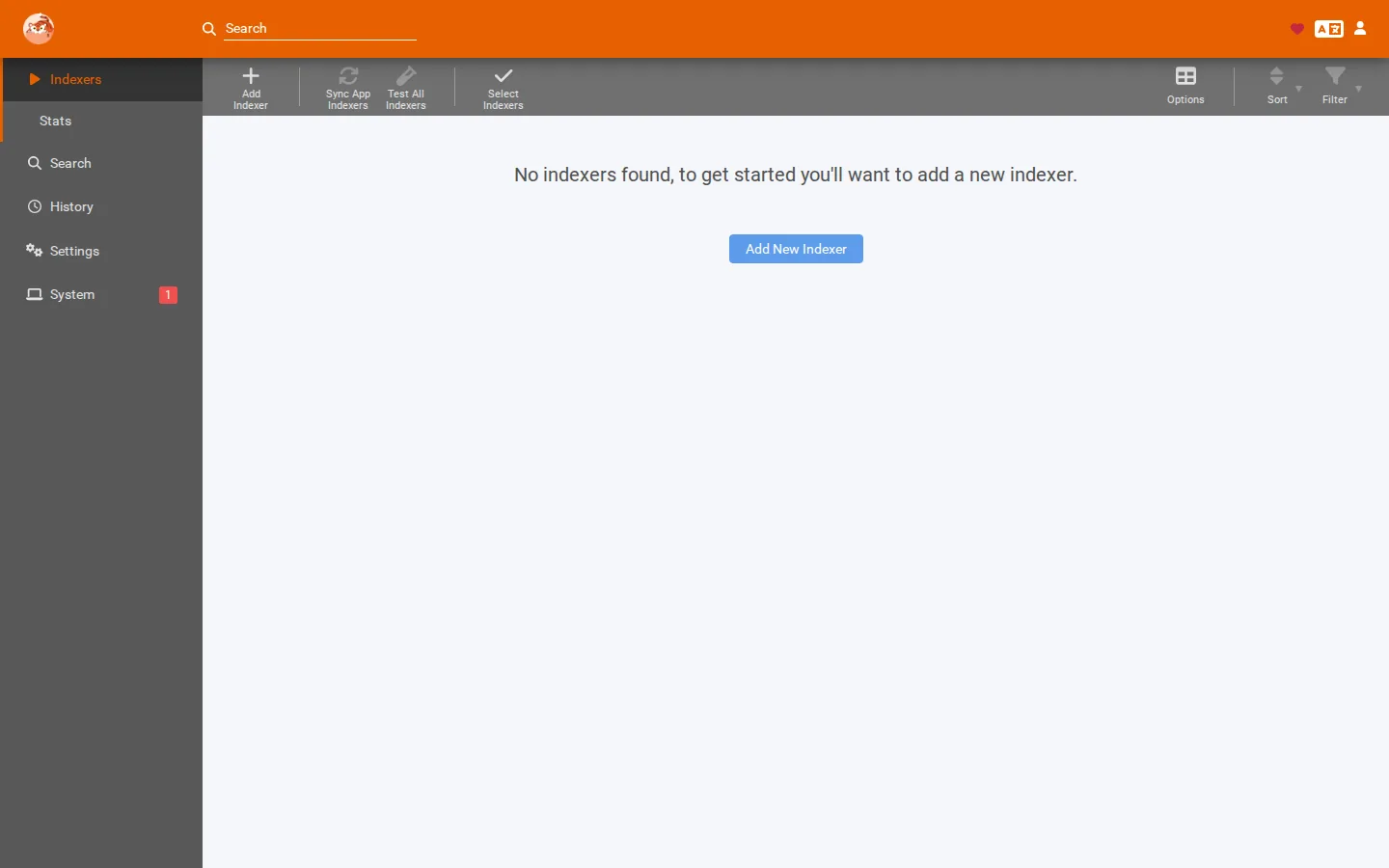
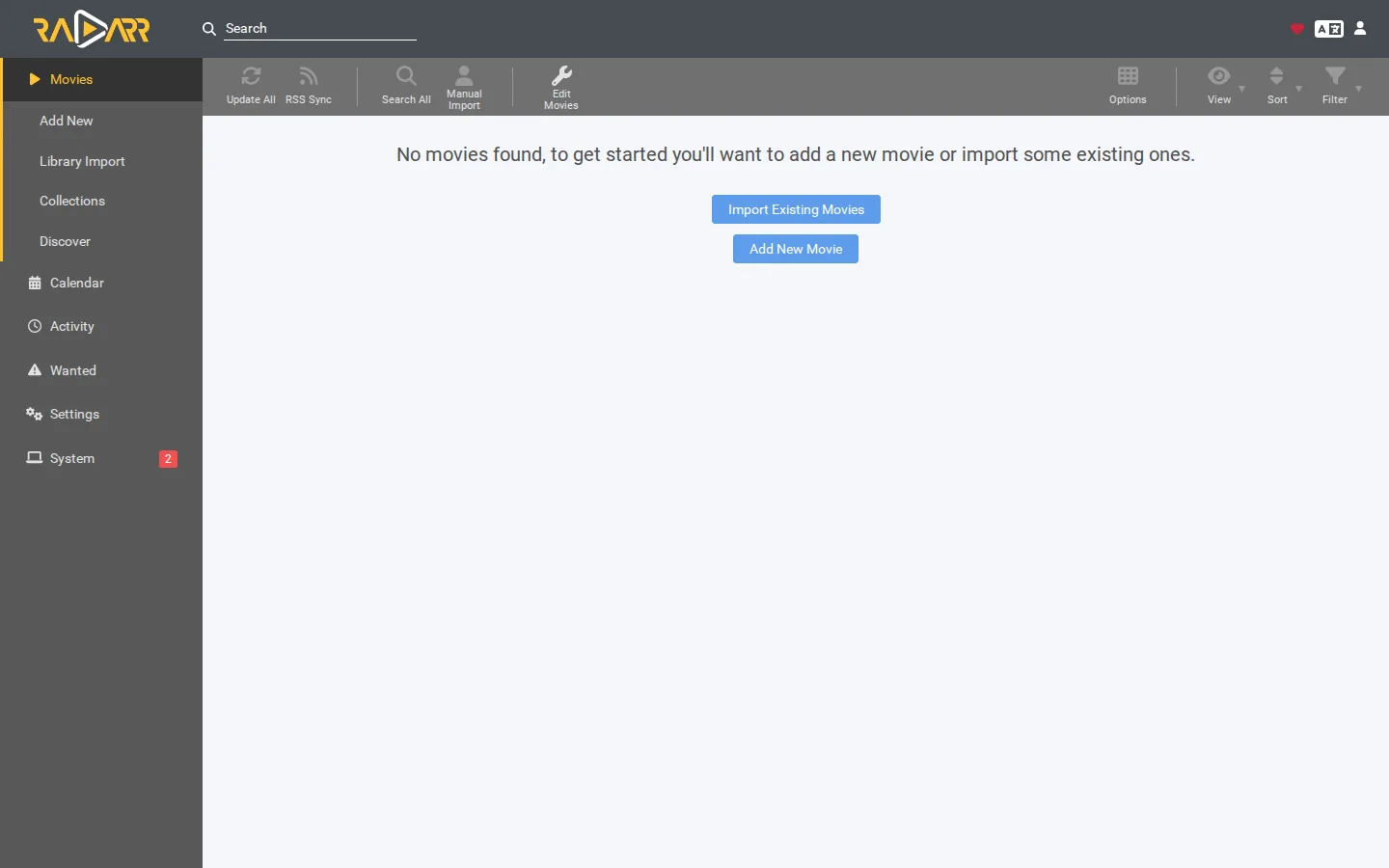
This is a different symptom: your browser reaches Sonarr fine, but Prowlarr's sync settings or Radarr's connection test report they can't reach it. This is almost always an addressing problem between two apps that don't share the same view of the network.
1. Stop using localhost between containers
If Prowlarr and Sonarr are running as separate Docker containers, localhost inside Prowlarr's container refers to Prowlarr itself, not Sonarr. Use one of these instead:
- Sonarr's container name, if both containers are on the same Docker network (e.g.
http://sonarr:8989) - The host machine's actual LAN IP address if they're on different hosts or networks
2. Double-check the API key
Copy the API key fresh from Sonarr's Settings > General page and paste it into Prowlarr or Radarr's connection settings. A stale or partially-copied key will connect to the right address but fail authentication, which often shows the same generic "cannot connect" message.
3. Confirm both apps are on the same network path
If Sonarr and Prowlarr are in separate Docker networks, or one is in Docker while the other runs directly on the host, they may simply not be able to see each other by name. Putting them on the same Docker network, or connecting via the host's LAN IP, resolves this.
Gotcha: A working connection test doesn't guarantee ongoing syncs will work if the address later changes (for example, after a container recreate that gets a new IP). Prefer container names or a fixed hostname over raw IPs where possible.
Cause 3: You're stuck on Sonarr's login page
If Sonarr's interface loads but you can't get past the login screen — the password seems right but it just reloads the login page, or you never get prompted for credentials again after a failed attempt — this is typically a corrupted browser session rather than a wrong password.
1. Clear cookies and cache for that address
Clear your browser's cookies and cached data specifically for Sonarr's address, then reload. This is the most common fix for login loops and takes under a minute.
2. Try a private/incognito window
If Sonarr logs you in normally from a fresh private window, the issue is confirmed to be stale session data in your regular browser profile, not Sonarr's configuration.
3. Reset authentication in Sonarr's config file if needed
As a last resort, Sonarr's authentication method is stored in its config.xml file, located in Sonarr's AppData/config directory. Stopping Sonarr, editing the <AuthenticationMethod> value to None, and restarting will let you back in without a password so you can reset it properly from Settings > General, then re-enable authentication.
Before you post for help: Never paste your Sonarr API key, or any URL that contains it, into a public forum or an AI chat that gets shared publicly. Filtering for secrets often only applies to private support channels — a shared chat link or a copy-pasted URL bar can carry a live key straight into a public post's browser history. If you've done this, regenerate the key in Settings > General right away.
Frequently asked
Why does Sonarr say it cannot connect?
Usually one of three things: Sonarr's process isn't actually running, the port you're browsing to isn't the one Sonarr is bound to (common in Docker when the port mapping is wrong), or a network layer between your browser and Sonarr (WSL, VPN, firewall, reverse proxy) is blocking the connection before it ever reaches Sonarr.
Why can't Prowlarr or Radarr connect to Sonarr?
Almost always an address problem: you typed localhost or 127.0.0.1 into Prowlarr's sync settings, but Prowlarr and Sonarr are separate containers or separate machines, so localhost points at the wrong place. Use Sonarr's container name (on the same Docker network) or its actual LAN IP, plus the correct API key from Sonarr's Settings > General.
Why is Sonarr stuck on the login page or won't accept my password?
This is typically a corrupted browser session or cookie, not a wrong password. Clearing your browser's cache and cookies for that address, or trying a private/incognito window, resolves most login loops. If it persists, Sonarr's authentication settings can be reset directly in its config file.
Is it safe to paste my Sonarr API key into a forum or AI chat when asking for help?
No. Your API key and any URL that includes it grants full remote access to your Sonarr instance. If you've pasted one into a public post, chat, or screenshot, treat it as compromised and regenerate it in Sonarr's Settings > General immediately.
Skip wiring up Sonarr, Radarr, and Prowlarr by hand
SparkBox runs your media apps on one managed network with connections and API keys set up automatically, so "cannot connect" between them isn't a problem you have to troubleshoot.
Questions, or did this not match your box?
Every guide here came from a real problem someone hit. If yours behaves differently, say so — that is how these get corrected, and how the fix gets prioritised.
We answer there rather than in a comment box, because that is where the people who have already solved it are.