Your Portainer admin password is rejected on first login
· Updated 18 September 2026 · SparkBox team
You open Portainer, paste the admin password that was generated for you, and it bounces you back with "invalid credentials" — every single time, even though you copied it exactly. The password was never wrong. It was double-hashed before Portainer ever saw it, so your real password can't possibly match what's stored.
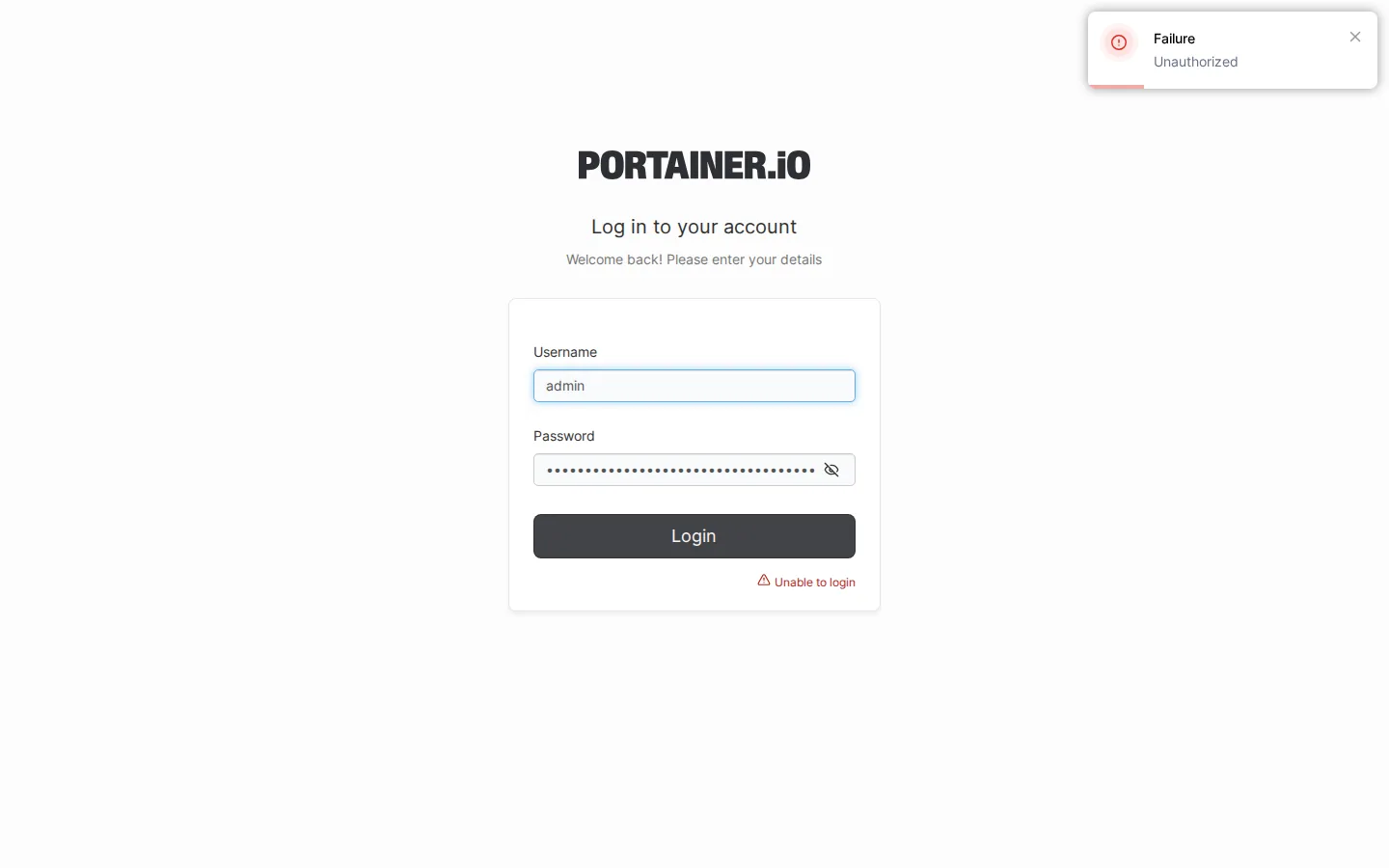
The 10-second version: Portainer's --admin-password-file expects plaintext, but the file was being filled with a bcrypt hash. Portainer then hashed that hash again. Reset the password with the official helper image, and make sure the password file holds plaintext, not a hash.
What's actually going wrong
Portainer, the web dashboard for managing Docker containers, lets you set the initial admin account password non-interactively — handy for automated installs. There are two flags for this, and they are not interchangeable:
--admin-password— expects a value that is already bcrypt-hashed. (bcrypt is a one-way password-hashing algorithm; you can verify a password against a bcrypt hash but you can't reverse it back to the original text.)--admin-password-file— expects a file that contains the plaintext password. Portainer reads it and does the bcrypt hashing itself on startup.
Here's the trap. If you point --admin-password-file at a file that already contains a bcrypt hash, Portainer treats that hash string as if it were your plaintext password and hashes it again. The stored value becomes bcrypt(bcrypt_hash_string) — a hash of a hash.
From then on:
- You log in with the plaintext password you were handed → doesn't match. Rejected.
- You try pasting the bcrypt hash itself as the password → also doesn't match, because it was hashed a second time with a fresh salt.
Nothing you can type will ever authenticate. The password isn't wrong — the pipeline that stored it was.
Why the diagnostics looked fine: a health checker can confirm the Portainer container is up and even answering on its port without ever attempting a real login. A green "doctor" report tells you the service is running, not that the stored credential is usable. Password correctness is invisible until you actually try to authenticate.
Cause 1 — A bcrypt hash was written to the password file (the real one)
This is the root cause behind the recurring reports. An install routine generated a random plaintext password, ran it through a bcrypt step (via htpasswd, a Python bcrypt library, or a throwaway httpd container), and wrote the hash into the file that --admin-password-file reads. Because that flag wants plaintext, the extra hashing step is the bug, not a feature.
In SparkBox specifically, the password file is the bind-mount target at modules/core/config/portainer-admin-password (a "bind mount" is just a host file mapped into the container). The fix, shipped in v1.6.480, was to drop the hashing chain entirely and write the generated plaintext password straight to that file.
Fix it on any setup
- Find the file your Portainer command points to. Look at how your Portainer container is started (its
docker runline or Compose service) for--admin-password-file. The path after it, inside the container, maps back to a file on your host via a volume or bind mount. - Check what's in it. If the contents start with something like
$2a$,$2b$, or$2y$, that's a bcrypt hash — the wrong thing. A plaintext password looks like an ordinary random string with no$prefix. - Replace it with plaintext. Overwrite the file so it contains only your chosen password, no hash, no trailing formatting. Then recreate the Portainer container so it re-reads the file on a fresh admin account (see the reset step below — an existing admin account won't be re-initialised from the file).
Gotcha: --admin-password-file only sets the password when Portainer initialises a brand-new admin account. If an admin already exists (even a broken one), editing the file alone does nothing. You need to either reset the existing account or wipe Portainer's data so it initialises again. That's what the next section does.
Cause 2 — You're already locked out and need a reset now
If the double-hashed account already exists, the cleanest recovery is Portainer's official password-reset helper. It rewrites the admin credential directly inside Portainer's data volume and prints a fresh random password you can log in with immediately.
Reset with the official helper image
- Stop the running Portainer container first — the helper needs exclusive access to the data. Use your normal method (
docker stopon the container, or bring down its Compose stack). - Identify Portainer's data volume. This is the volume mounted at
/datainside the Portainer container (commonly a named volume such asportainer_data). Inspect your Portainer container if you're unsure which one it is. - Run the reset helper against that volume:
docker run --rm -v portainer_data:/data portainer/helper-reset-passwordReplace portainer_data with your actual volume name. The command prints a new username/password pair to the terminal — copy it down.
- Start Portainer again and log in with the credentials it printed.
- Change the password to something you'll keep, via the Portainer UI under your user settings, so you're not relying on the temporary one.
Do this too: after resetting, still fix Cause 1. If the password file feeding your installer keeps holding a hash, the next clean reinstall recreates the same broken account. Reset gets you in today; the plaintext file fix stops it recurring.
Cause 3 — You mixed up the two flags manually
If you wrote your own Portainer command and reached for a bcrypt hash because a tutorial told you to, double-check which flag you're using:
- Using
--admin-password? Then the value should be a bcrypt hash. That's correct. - Using
--admin-password-file? Then the file must contain plaintext. A hash here is the bug.
Pick one path and be consistent. For automated setups the file approach is simpler and safer, precisely because you never have to hash anything yourself — you just write the password you want and let Portainer handle the rest.
Confirm you're actually fixed
- Log out of Portainer completely.
- Log back in with the password you expect to work.
- If it succeeds on the first try, the stored credential now matches your plaintext — the double-hash is gone.
If it still fails after a reset, re-run the helper and read the printed password character by character; a copy-paste that grabs a trailing space is the usual culprit at this stage.
Frequently asked
Why is my Portainer admin password rejected even though I typed it correctly?
Because --admin-password-file expects plaintext and hashes it for you. If the file already held a bcrypt hash, Portainer hashed that hash again and stored bcrypt(bcrypt_hash). Your real password can't match a hash-of-a-hash, so every login fails regardless of what you type.
What's the difference between --admin-password and --admin-password-file in Portainer?
--admin-password takes an already-bcrypt-hashed string. --admin-password-file points to a file containing the plaintext password, which Portainer hashes on startup. Putting a hash in the file is the classic cause of a password that never works.
How do I reset a lost or broken Portainer admin password?
Stop the Portainer container, then run docker run --rm -v portainer_data:/data portainer/helper-reset-password against Portainer's data volume. It prints a new random admin password. Start Portainer, log in with that, and change it in the UI.
Is this Portainer password bug fixed in SparkBox?
Yes — in v1.6.480. The installer now writes the generated plaintext password directly to the bind-mounted password file instead of running it through a bcrypt step, so the very first login works.
Skip the credential archaeology
SparkBox ships Portainer with a working admin login already provisioned — plaintext handled correctly, no double-hash, no reset dance. This exact bug was fixed in v1.6.480.
Questions, or did this not match your box?
Every guide here came from a real problem someone hit. If yours behaves differently, say so — that is how these get corrected, and how the fix gets prioritised.
We answer there rather than in a comment box, because that is where the people who have already solved it are.