qBittorrent Login Failing or "IP Banned"? Here's the Actual Fix
· Updated 18 September 2026 · SparkBox team
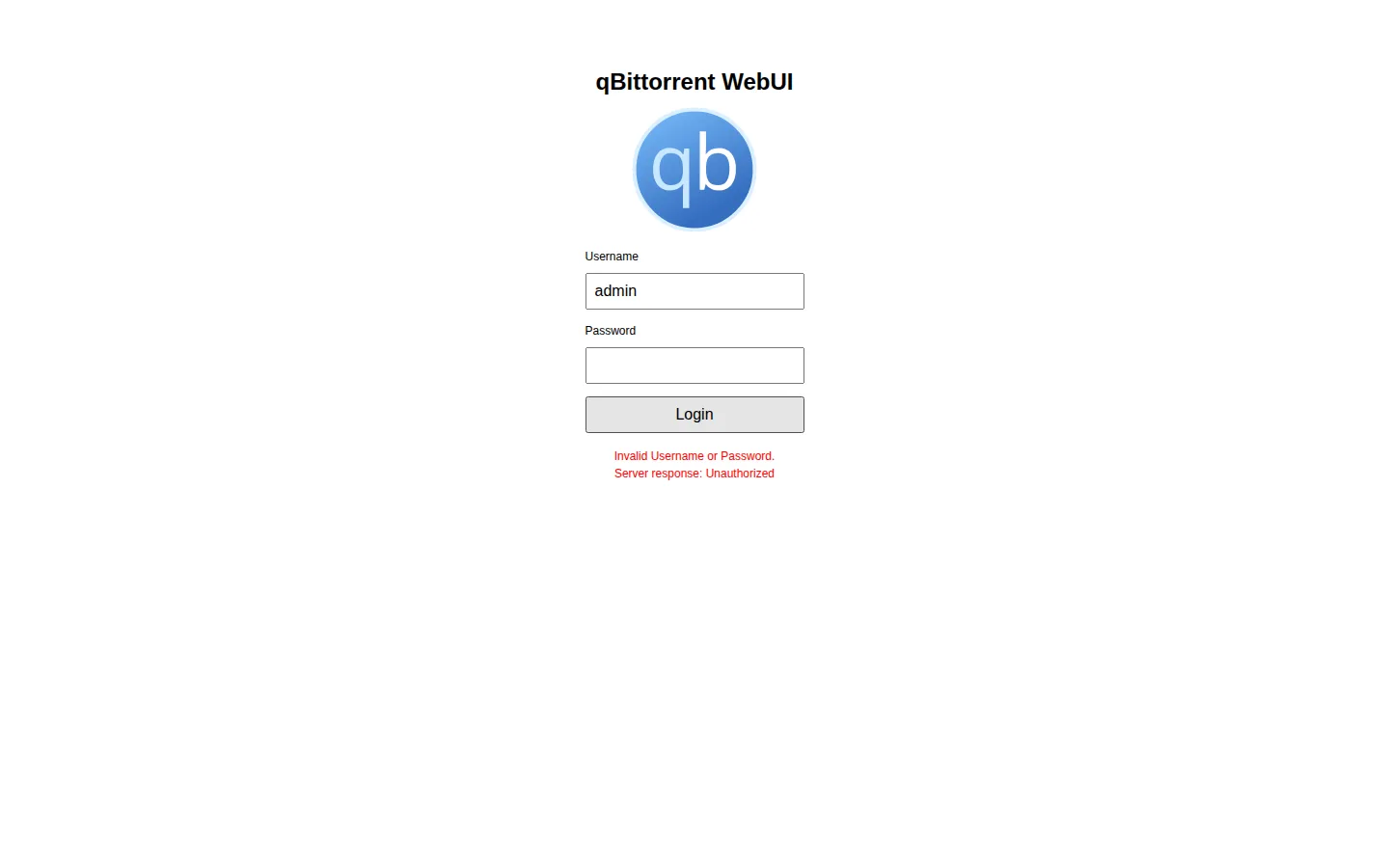
You open the qBittorrent WebUI, type in a password you know is correct, and get "Unauthorized" or a message that your IP has been temporarily banned for too many failed attempts. The frustrating part: you already fixed the password. The ban is a separate, in-memory list that a password change doesn't touch — it only clears when qBittorrent actually restarts.
Rather not chase config files at all? SparkBox surfaces app admin passwords and login-lockout state right in its dashboard, so you're not digging through logs or conf files to get back into a torrent client. See the walkthrough →
The 10-second version: If your password is already correct but login still fails, fully stop and start qBittorrent — not just save its settings — to clear the ban list. If you don't know the password at all, check the app's startup logs for a generated temporary password, or edit qBittorrent's config file to remove the saved password hash.
Why "the password is right" doesn't fix "IP banned"
qBittorrent's WebUI has a built-in brute-force guard: after a number of failed login attempts from the same address, it bans that address for a set period. That ban list lives in the running process's memory, not in the same place as your saved password. So if a password was reset or confirmed correct while qBittorrent kept running, the ban from the earlier failed attempts is still sitting there, untouched, and will keep rejecting logins until it expires on its own or the process restarts.
This is the exact trap in the common scenario: someone updates the password (or confirms it was already correct), the app never actually restarts, and the login ban from before the fix survives the "repair." From the outside it looks like the fix didn't work. It did — the ban just outlived it.
- Confirm the password you're using is genuinely current (check whatever seeded it — a setup script, a secrets file, or your own memory of the last change).
- Fully stop qBittorrent. If it runs as a container, stop and start the container itself rather than restarting just the torrent process inside it. If it's a system service, restart the service, don't just reload it.
- Wait for it to come back up fully, then try logging in again. The ban list is rebuilt fresh on every process start.
Gotcha: Some auto-restart or watchdog tools "repair" an app by re-applying config or re-pulling an image without ever actually killing the running process. If your restart button doesn't visibly interrupt the app for a few seconds, it may not have restarted the process that's holding the ban list.
Find qBittorrent's temporary password in the logs
If you've never set a WebUI password, or qBittorrent has just been freshly installed, it generates a random temporary password on first boot and writes it to the application's startup logs — it does not use a fixed default like it did in older versions.
- Open the logs for wherever qBittorrent is running (container logs, systemd journal, or the app's own log file, depending on your setup).
- Look near the very start of the log output for a line referencing a temporary WebUI password.
- Log in with that temporary password immediately.
- Once logged in, go to the WebUI settings and set a permanent password of your own choosing right away — the temporary one regenerates on the next restart if you don't replace it.
Where qBittorrent stores the password (and how to reset it by hand)
qBittorrent keeps its WebUI login in its main configuration file, typically named qBittorrent.conf, under a key called WebUI\Password_PBKDF2. This holds a hashed version of the password, not the plain text, so you can't just read it off — but you can remove it to force a reset.
- Stop qBittorrent completely.
- Locate
qBittorrent.confin the app's config directory. - Open it in a text editor and find the line starting with
WebUI\Password_PBKDF2=. - Delete that line (or comment it out, if your setup supports that), then save the file.
- Start qBittorrent back up. Without a saved password hash, it treats this like a fresh install and generates a new temporary password — check the logs for it, as described above.
- Log in with the temporary password and immediately set a new permanent one.
Gotcha: Editing the config file while qBittorrent is still running usually doesn't work — the app can overwrite your edit with its in-memory copy of the file when it next saves settings. Always stop it first.
Login works on the local address but fails through your domain or DNS name ("qbit dns")
If qBittorrent's WebUI logs you in fine at a local address but rejects the same password when you reach it through a domain name, a reverse proxy, or a different DNS entry, the issue usually isn't the password at all — it's qBittorrent's CSRF (cross-site request forgery) protection checking the browser's Host or Referer header against what it expects. When that header doesn't match — which is common the moment a proxy or custom hostname sits in front of qBittorrent — the login request gets rejected as unauthorized even though the credentials are correct.
- In the qBittorrent WebUI, open the settings and find the security/CSRF-related options.
- Check whether there's a setting for allowed hostnames or Host header validation, and add the domain or DNS name you're using to reach it.
- If you're going through a reverse proxy, make sure it's forwarding the original Host header to qBittorrent rather than rewriting it — a mismatched header is the usual trigger here.
- Retest the login from the domain name after saving changes and restarting qBittorrent, since some WebUI security settings only take effect after a full restart.
Frequently asked
Why does qBittorrent still say I'm banned after I fixed my password?
The ban list is a separate, in-memory record of failed login attempts. A password change doesn't clear it. Only a full stop-and-start of the qBittorrent process rebuilds that list from scratch.
Where does qBittorrent store my WebUI password?
In its config file, qBittorrent.conf, as a hashed value under the WebUI\Password_PBKDF2 key. You can delete that line and restart to force a reset rather than trying to edit the hash directly.
Where do I find qBittorrent's temporary password?
In the app's startup logs, right when it boots with no saved WebUI password. It only shows there — not in the WebUI itself — so check logs the moment you suspect a fresh or reset install.
Why does qBittorrent login fail only when I use my domain name, not locally?
qBittorrent checks the Host/Referer header as part of its CSRF protection. A reverse proxy or custom DNS name that doesn't pass through a matching header will get rejected at login even with the right password — you need to allowlist the hostname or fix the proxy's header forwarding.
Skip hunting through conf files for every app password
SparkBox tracks admin credentials and login-lockout state for the apps it manages — including qBittorrent — so a reset isn't a scavenger hunt through logs and config files.
Questions, or did this not match your box?
Every guide here came from a real problem someone hit. If yours behaves differently, say so — that is how these get corrected, and how the fix gets prioritised.
We answer there rather than in a comment box, because that is where the people who have already solved it are.