Host your own Valheim server (one click, no command line)
· Updated 18 September 2026 · SparkBox team
Valheim is built for playing with friends — but someone's PC always has to host, and the world sleeps when they log off. A dedicated server on your own hardware fixes that: the world lives around the clock, friends come and go on their own schedule, and every save stays on your box instead of a £10-a-month rental. SparkBox sets one up in one click; this guide covers the join flow, the password, and the one thing everyone hits — the big first-boot download.
1. What you're actually installing
Valheim's official dedicated server — the game world without the graphics, built to run on a box in a cupboard. There's no web page and nothing to log into: the server runs quietly, and everyone plays by joining it from inside Valheim.
SparkBox generates a server password for you automatically (Valheim requires one — it's what keeps strangers out) and puts it where you can find it: Settings → Service Passwords.
2. Install it (one click, then be patient)
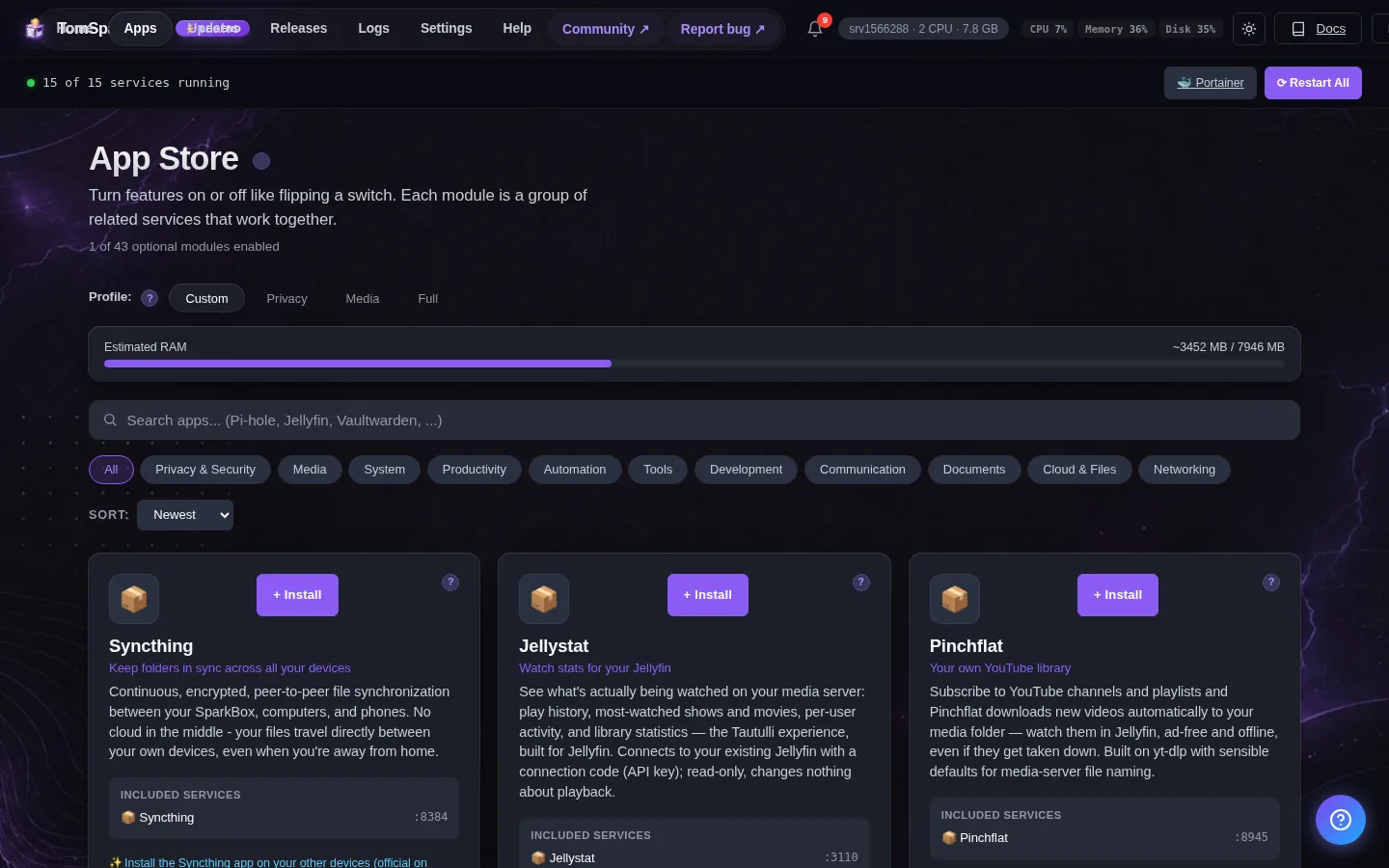
- Open your SparkBox dashboard and go to Apps.
- Find Valheim Server and click Install.
- Now the honest part: the first start downloads about 2GB of game files before the world can generate. On most connections that's 10–20 minutes. It only happens once.
3. Joining your server
- Open Valheim, pick your character.
- Choose Join Game → Join by IP.
- Enter your box's address with
:2456on the end — at home that looks like192.168.1.50:2456. - Type the server password from Settings → Service Passwords.
4. Letting friends in from outside
- On a NAS or home PC: forward UDP ports 2456–2457 on your router to your SparkBox's local address. Every router words this differently (“Port Forwarding”, “Virtual Server”, “NAT”). Note it's UDP — TCP won't work.
- On a VPS: nothing to do — SparkBox opens its own firewall, and friends connect to the server's public address.
Friends join the same way you did — your public address, :2456, and the password.
5. Worlds, saves and memory
- Your world is named sparkbox and lives on the box in
/opt/sparkbox/modules/valheim/config(open it from a terminal on the box — the File Browser app only shows your data folder) — it's included in SparkBox backups automatically. - Admin rights (console, kick/ban, spawning items): press F2 in Valheim to see your SteamID64, add it on its own line to
adminlist.txtin that folder (sudo nano /opt/sparkbox/modules/valheim/config/adminlist.txt), then runsudo sparkbox restart valheim. Add-consoleto Valheim's launch options in Steam so F5 opens the console. - A running world sits around 2GB of memory; a busy evening with several players wants more, and SparkBox gives it room up to 4GB by default.
- Bringing an existing world over? Drop its
.dband.fwlfiles into the worlds folder under that config directory and restart.
6. When something goes wrong
“My friend can't connect.” In order of likelihood: the router forward is TCP instead of UDP; the ports forwarded don't include 2457 (Valheim needs both); or they typo'd the password — it's case-sensitive.
“It's been 'starting' for ages.” First boot is the 2GB download — give it 20 minutes before worrying. After the first boot, starts take a minute or two.
“Wrong version” on join. The server updates itself to the current release when it restarts — restart the app from the dashboard and try again.
Legend supporters can also ask Tom AI in the dashboard — it reads the server's actual logs and explains errors in plain English.
Questions, or did this not match your box?
Every guide here came from a real problem someone hit. If yours behaves differently, say so — that is how these get corrected, and how the fix gets prioritised.
We answer there rather than in a comment box, because that is where the people who have already solved it are.