Host a Minecraft Bedrock server (the Minecraft your kids play)
· Updated 18 September 2026 · SparkBox team
There are two Minecrafts. Java is the classic PC edition; Bedrock is what runs on phones, tablets, Xbox, PlayStation, Switch and the default Windows app — and the two can't join each other's servers. If the players in your house are on tablets and consoles, a Java server won't help them. This guide sets up a Bedrock server on your own hardware in one click — it's the lightest Minecraft hosting there is (about 1GB), and unlike a Realm subscription, the world lives on your box and never expires.
1. Which Minecraft is which (read this first)
- Bedrock (this guide): phones, tablets, Xbox, PlayStation, Switch, and the Minecraft that comes with Windows. If your kids tap a Minecraft icon on an iPad, it's this one.
- Java: the classic PC edition with mods and modpacks. SparkBox hosts that too — it's the Game Servers (Crafty) app, a different install with its own guide.
They cannot join each other's servers. Check what your players actually run before picking — it's the single most common mix-up.
2. Install it (one click)
- Open your SparkBox dashboard and go to Apps.
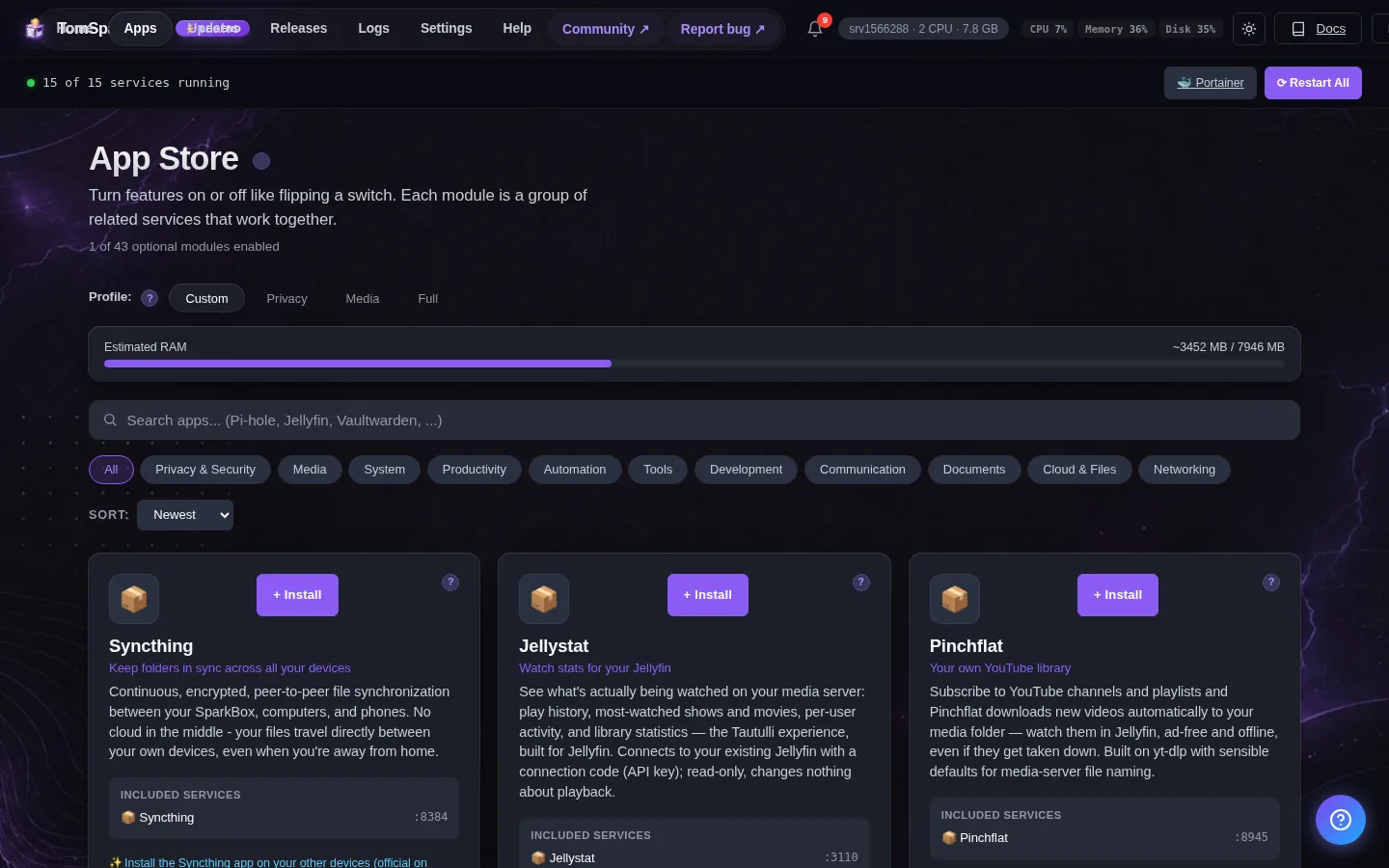
- Find Minecraft Bedrock Server and click Install.
- It's ready in about a minute — the world generates itself on first start.
One honest note: installing runs Mojang's official server and accepts the Minecraft EULA on your behalf.
3. Joining from phones, tablets and Windows
- Open Minecraft and tap Play.
- Go to the Servers tab and choose Add Server.
- Enter any name, your box's address (at home, something like
192.168.1.50), and port19132.
That's it — the server appears in their list permanently. From outside your house, friends use your public address instead, and you forward UDP port 19132 on your router to your box first (on a VPS, SparkBox opens the firewall for you). Note it's UDP — TCP won't work.
4. The honest bit about consoles
Xbox, PlayStation and Switch can't add server addresses in their Minecraft menus — Microsoft only shows their curated Featured servers. That's a console restriction, not a SparkBox one, and any guide that skips this is setting you up for a frustrated evening.
- What works today: phones, tablets, and Windows join directly with Add Server, as above. A phone or tablet player can be in the same world as PC players without any tricks.
- What some families do for consoles: there are community DNS-redirect workarounds (search “BedrockConnect”) that trick a console into a server list. They work, but they involve pointing your console's DNS at a third-party service — understand that trade-off before using one. We'd rather tell you that plainly than pretend a checkbox exists.
5. Keeping it private
- Every player signs in with a Microsoft account — that's on by default and keeps anonymous strangers out.
- For an invite-only world, turn on the allow-list: open
server.propertieson the box in/opt/sparkbox/modules/bedrock/data(open it from a terminal on the box — the File Browser app only shows your data folder), setallow-list=true, add your players' gamertags toallowlist.json, and restart the app. - The world file lives in the same folder and rides SparkBox's normal backups.
6. When something goes wrong
“My kid can't see the server.” First: are they on Bedrock (tablet/phone/Windows app)? A Java player can't join this server — that's the other app. Second: same house = use the local address; outside = public address plus the UDP 19132 forward.
“Outdated server!” after a game update. Phones and consoles update Minecraft automatically, and an old server refuses new clients. Restart the app from the dashboard — it fetches the current server version on start.
“It says I need to sign in.” That's the Microsoft account requirement — it's the door lock, and it's deliberate.
Legend supporters can also ask Tom AI in the dashboard — it reads the server's actual logs and explains errors in plain English.
Questions, or did this not match your box?
Every guide here came from a real problem someone hit. If yours behaves differently, say so — that is how these get corrected, and how the fix gets prioritised.
We answer there rather than in a comment box, because that is where the people who have already solved it are.