Host your own Terraria server (one click, no command line)
· Updated 18 September 2026 · SparkBox team
A shared Terraria world is the best version of Terraria — but only if the world is always there. A dedicated server on your own hardware keeps it up around the clock: friends dig, build and boss-fight on their own schedule, and the world file lives on your box, not on a rental server that vanishes when you stop paying. It's also the lightest game server this box runs — well under a gigabyte — so it fits happily next to everything else. One click; here's the rest.
1. What you're actually installing
The official Terraria dedicated server (vanilla — the standard game, no mods required on anyone's side). No web page, nothing to log into: it runs quietly on your box and everyone joins from inside Terraria.
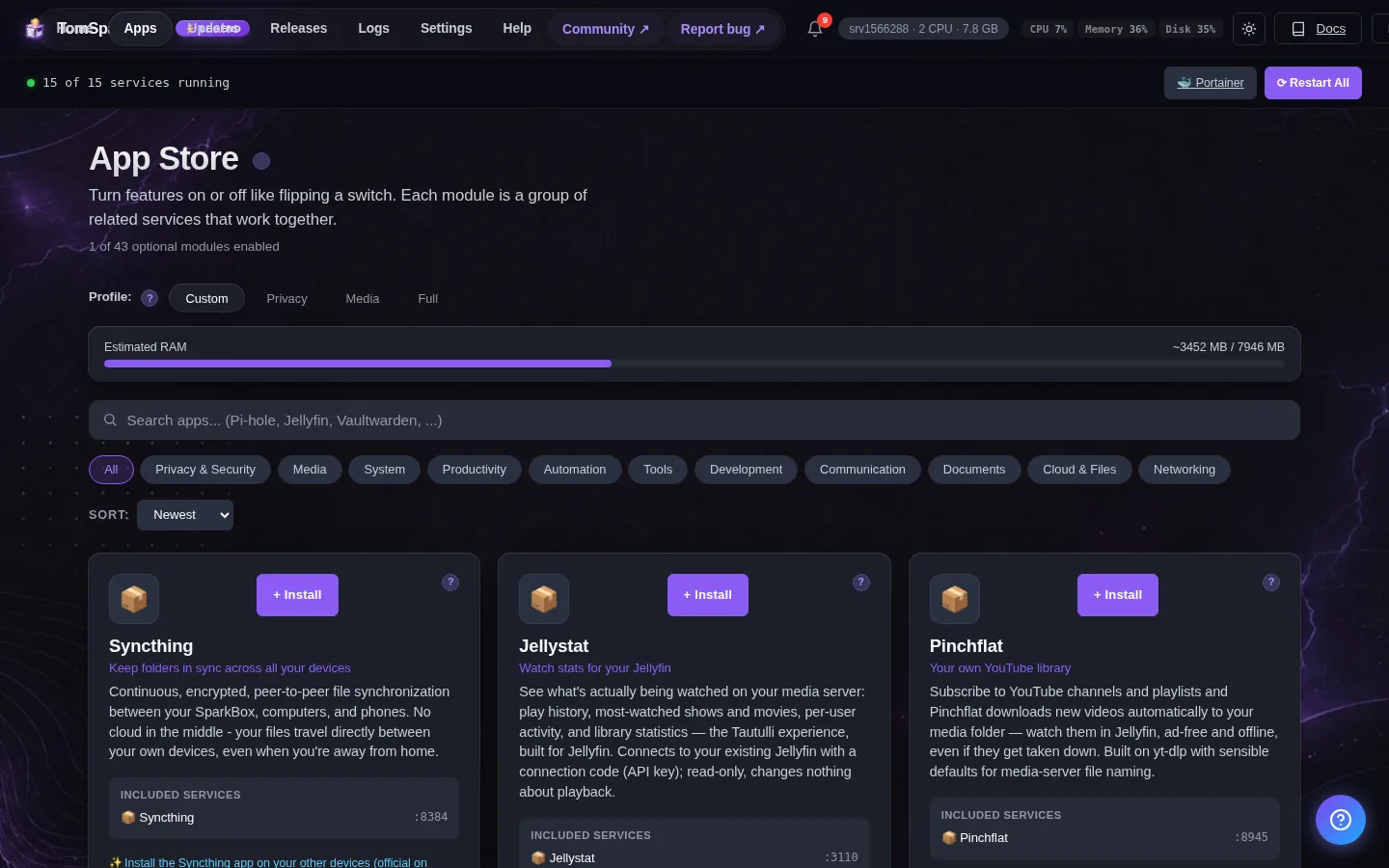
The installer generates a join password automatically and keeps it in Settings → Service Passwords — that's what keeps strangers out of your world.
2. Install it (one click)
- Open your dashboard and go to Apps.
- Find Terraria Server and click Install.
- The first start generates a medium world named sparkbox by itself — give it a few minutes.
3. Joining your server
- Open Terraria, pick your character.
- Choose Multiplayer → Join via IP.
- Enter your box's address (at home, something like
192.168.1.50), then port7777when it asks. - Type the password from Settings → Service Passwords.
4. Letting friends in from outside
- On a NAS or home PC: forward TCP port 7777 on your router to your SparkBox's local address. Note it's TCP — the opposite of Factorio and Valheim, which are UDP. Every router words this differently (“Port Forwarding”, “Virtual Server”, “NAT”).
- On a VPS: nothing to do — SparkBox opens its own firewall, and friends connect to the server's public address.
5. Worlds and the password
- The world file lives on the box in
/opt/sparkbox/modules/terraria/worlds(open it from a terminal on the box — the File Browser app only shows your data folder) — included in the dashboard backups automatically. - Bring an existing world: drop its
.wldfile into that folder, rename itsparkbox.wld(or restart after adjusting), and restart the app. - Fresh start: delete
sparkbox.wldand restart — a new world generates.
6. When something goes wrong
“My friend can't connect.” In order of likelihood: the router forward is UDP instead of TCP; their Terraria version doesn't match the server's; or the password — it's case-sensitive.
“Lost connection” right after joining. Usually a version mismatch — make sure everyone's game is up to date on Steam.
“The world reset!” It didn't — a renamed or moved world file makes the server generate a fresh one. Check /opt/sparkbox/modules/terraria/worlds on the box; your old .wld will still be there.
Legend supporters can also ask Tom AI in the dashboard — it reads the server's actual logs and explains errors in plain English.
Questions, or did this not match your box?
Every guide here came from a real problem someone hit. If yours behaves differently, say so — that is how these get corrected, and how the fix gets prioritised.
We answer there rather than in a comment box, because that is where the people who have already solved it are.