Host a Project Zomboid server (one click, no command line)
· Updated 18 September 2026 · SparkBox team
This is how you died — on someone else's rented server that expired. A dedicated Project Zomboid server on your own hardware keeps the world ticking between sessions: the loot you stashed stays stashed, the safehouse stands, and your group plays on its own schedule instead of whenever the host is online. SparkBox sets it up in one click and generates the passwords for you. One honest warning up front: the first start downloads about 7GB, so it's a make-a-cup-of-tea install — everything after that is instant.
1. What you're actually installing
The official Project Zomboid dedicated server — the game world without the graphics, running quietly on your box. There's no web page and nothing to log into: everyone joins from inside Project Zomboid.
SparkBox generates two passwords and keeps them in Settings → Service Passwords: a Server Password friends type to join (keeps strangers out), and an Admin Password for the in-game admin account (kicks, teleports, settings).
2. Install it (one click, then a long first start)
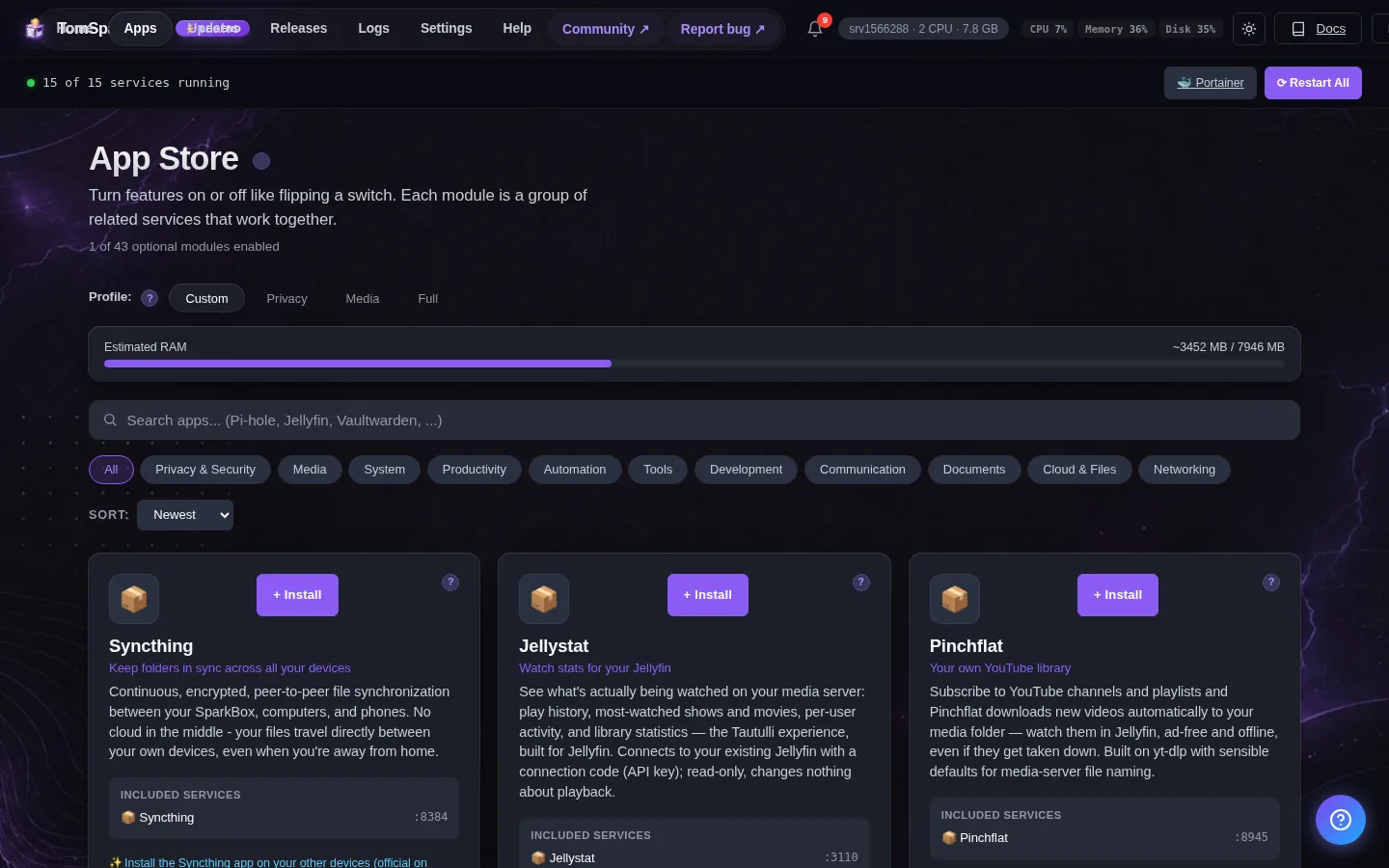
- Open your SparkBox dashboard and go to Apps.
- Find Project Zomboid Server and click Install.
- Now the honest part: the first start downloads about 7GB of server files. On a typical home line that's 20–40 minutes, once. Restarting doesn't speed it up.
3. Joining your server
- Open Project Zomboid and pick Join.
- Add a server: your box's address (at home, something like
192.168.1.50), port16261. - Account username: pick any name. Server password: the one from Settings → Service Passwords.
- Save it to Favorites so it's one tap next time.
4. Letting friends in from outside
- On a NAS or home PC: forward UDP ports 16261–16262 on your router to your SparkBox's local address. Every router words this differently (“Port Forwarding”, “Virtual Server”, “NAT”). Note it's UDP — TCP won't work. The server's own log mentions UPnP; ignore it — manual forwarding is the reliable path.
- On a VPS: nothing to do — SparkBox opens its own firewall, and friends connect to the server's public address.
5. Being the admin
- Join as username
adminwith the Admin Password from Settings → Service Passwords — type/helpin chat for the command list (kick, teleport, weather, and so on). - World, settings and the player database live on the box in
/opt/sparkbox/modules/zomboid/data(open it from a terminal on the box — the File Browser app only shows your data folder) — included in SparkBox backups automatically. Sandbox settings are inServer/sparkbox.iniand friends: edit, then restart the app. - Mods: add Workshop IDs to the server settings file and restart — joining players download them automatically from the Workshop.
6. When something goes wrong
“My friend can't connect.” In order of likelihood: the router forward is TCP instead of UDP; only 16261 was forwarded (it needs 16262 too); their game version doesn't match the server's; or the password — it's case-sensitive.
“It's been installing forever.” The 7GB first download is real. Check back in half an hour before worrying — every start after the first takes a minute or two.
“We updated the game and now it won't connect.” Restart the app from the dashboard — it updates the server to match on start.
Legend supporters can also ask Tom AI in the dashboard — it reads the server's actual logs and explains errors in plain English.
Questions, or did this not match your box?
Every guide here came from a real problem someone hit. If yours behaves differently, say so — that is how these get corrected, and how the fix gets prioritised.
We answer there rather than in a comment box, because that is where the people who have already solved it are.