Home Assistant: open it, first login, settings, fixes
· Updated 18 September 2026 · SparkBox team
Open-source home automation hub. Control smart devices, create automations, and integrate with 3000+ services — all running locally on your own hardware. This is the short card for it — the two minutes after you press Enable, and the page to come back to when something is off.
Before you turn it on
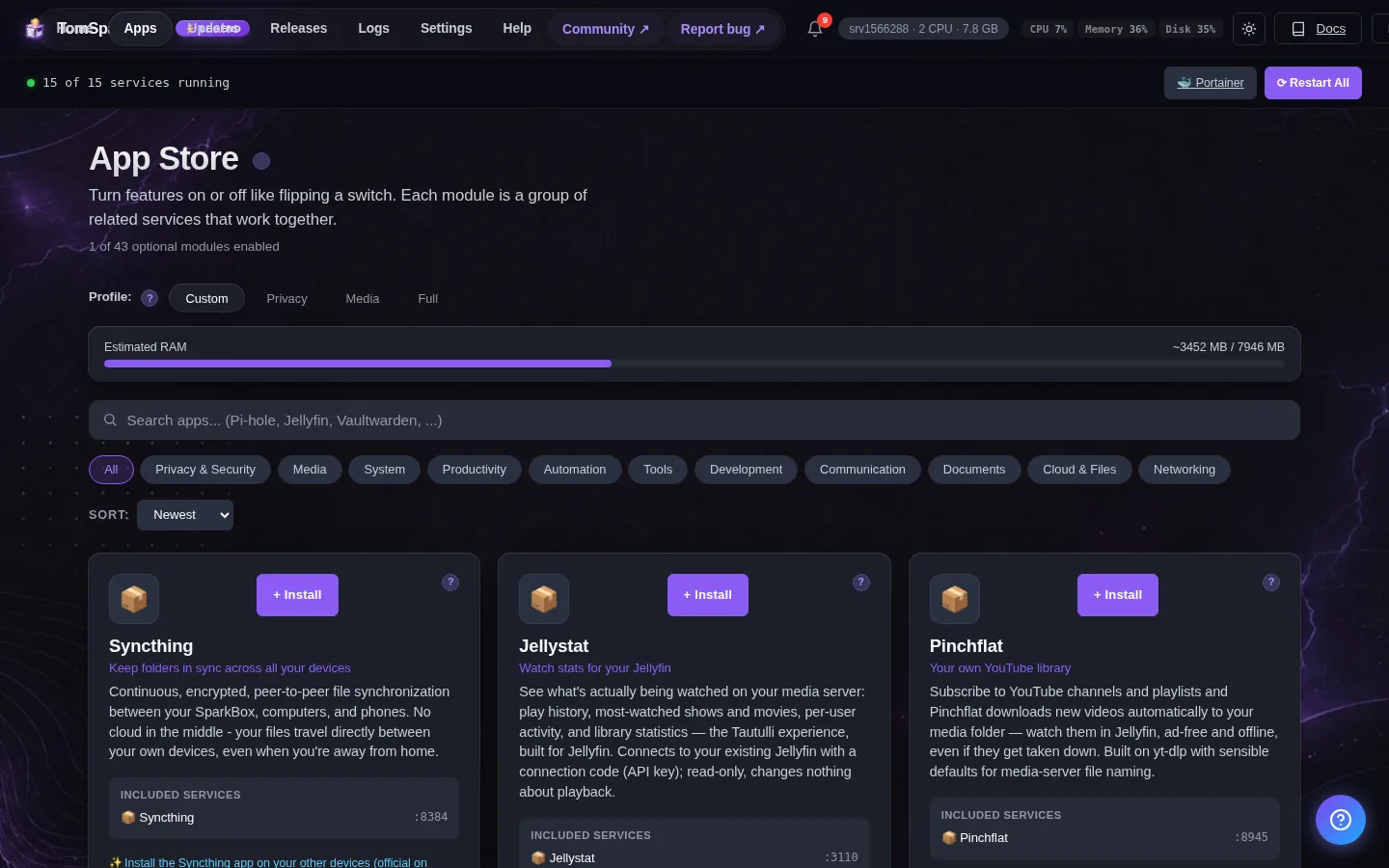
Home Assistant finds smart devices (Chromecast, HomeKit, Sonos, Hue, smart TVs) by listening for their broadcasts, and those broadcasts do not reach an app on its own Docker network. It starts that way here to keep apps separated, which is why its Discovered list can be empty at first. To let devices show up on their own, turn on 'Use host networking for device discovery'. The switch is in the Classic dashboard → Settings → Home Assistant (on the new dashboard, press 'Classic dashboard' at the top first). Or in the terminal: sudo sparkbox set-env HOMEASSISTANT_HOST_NETWORK 1, then sudo sparkbox up homeassistant. Guide: tomsparkbox.com/guides/homeassistant-host-network
Open it
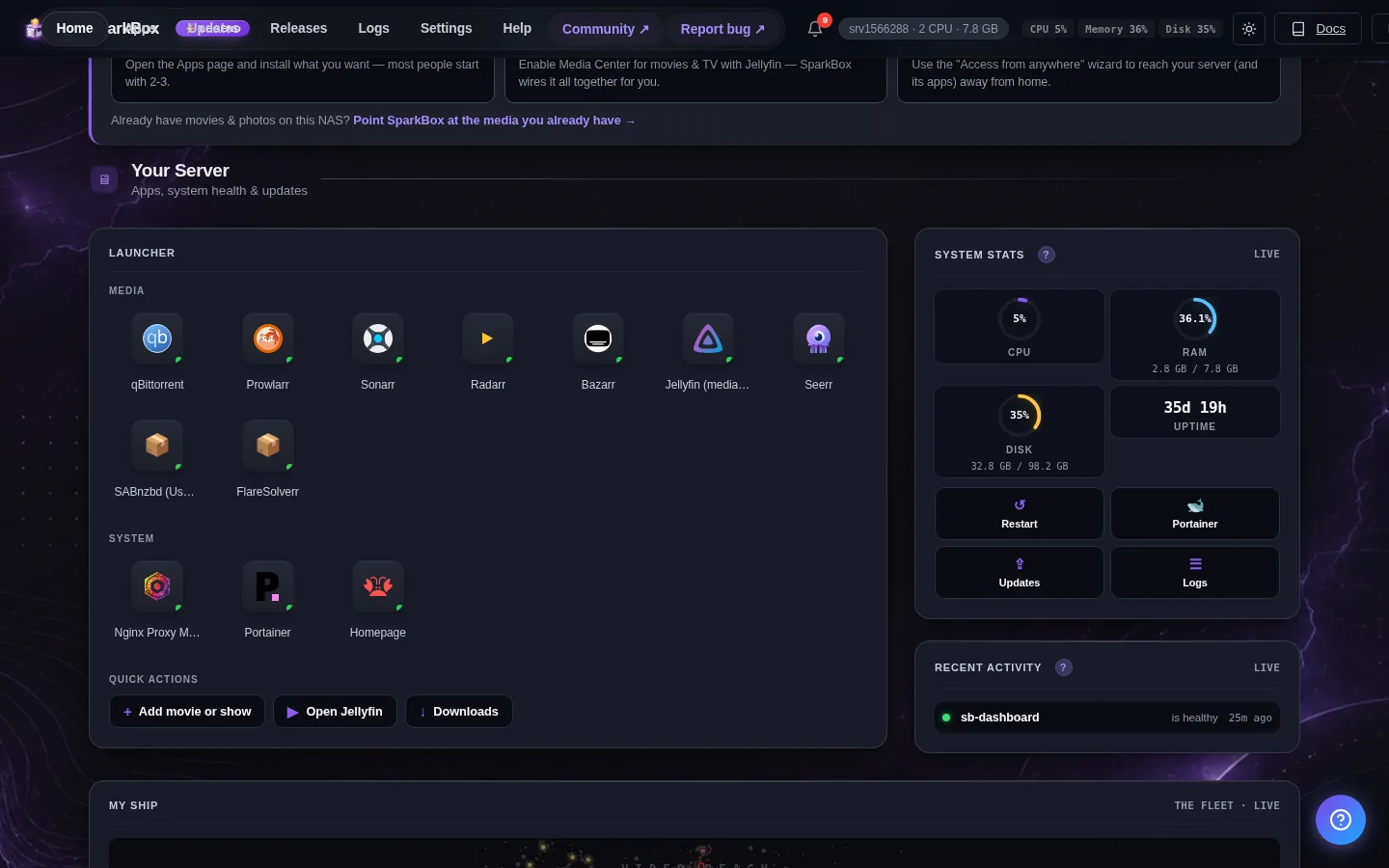
Dashboard → Apps → Home Assistant → Open. The direct address on your network is:
http://<your-box-IP>:8123Devices not showing up on their own? Turn on 'Use host networking for device discovery': Classic dashboard → Settings → Home Assistant → Save (the new dashboard has no per-app settings yet — press 'Classic dashboard' at the top first). Or in the terminal: sudo sparkbox set-env HOMEASSISTANT_HOST_NETWORK 1, then sudo sparkbox up homeassistant. Either way it restarts with the change applied.
First login
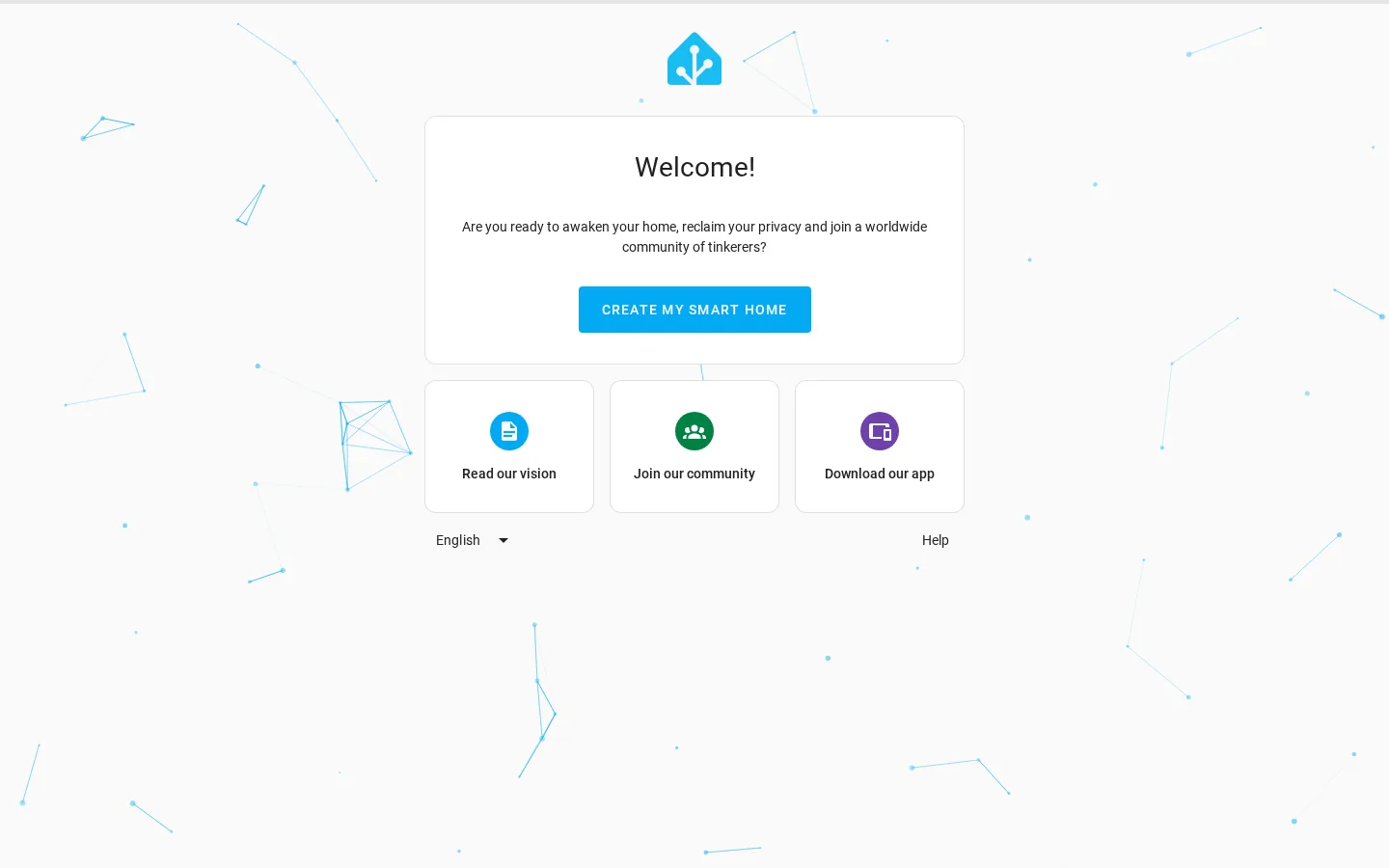
Home Assistant runs a multi-step onboarding wizard on first launch. Create your user account in the first step.
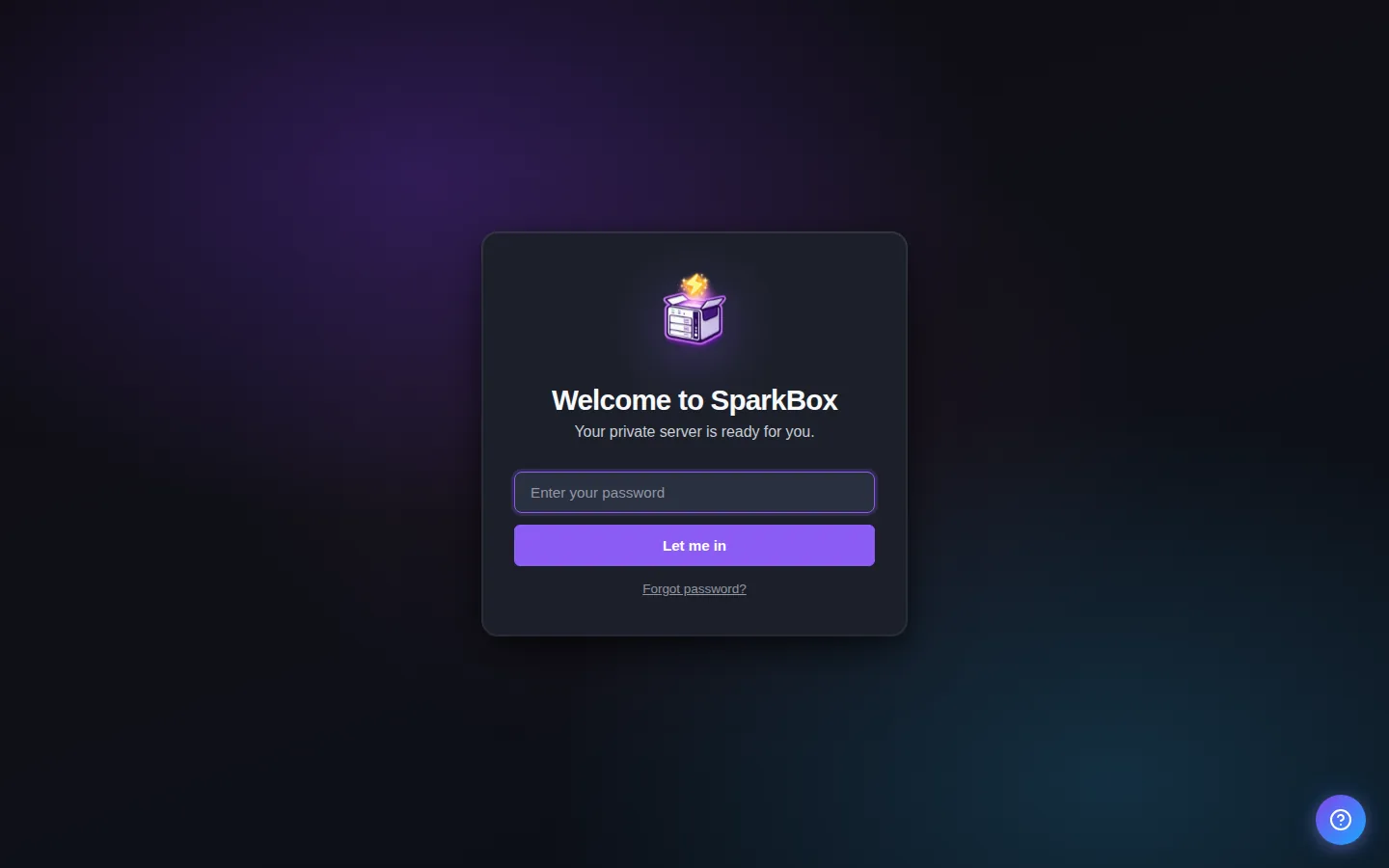
Any password the installer generated for you is under Settings → Passwords; the Open button offers to copy it.
Settings that matter
Change these under Apps → Home Assistant (or when you enable it):
- Use host networking for device discovery (Chromecast, HomeKit, Sonos) — Off (default): Home Assistant runs on its own network, and devices that announce themselves (Chromecast, HomeKit, Sonos, Hue, smart TVs) will not appear in its Discovered list — you add them by hand. On: Home Assistant shares the server's network, so those devices show up on their own. Saving restarts Home Assistant with the change (about a minute); it still opens on port 8123. If you gave Home Assistant a custom domain: with this ON, the reverse proxy must forward to this server's LAN IP on port 8123 (for example 192.168.1.20:8123) instead of sb-homeassistant.
Devices not showing up on their own (Chromecast, HomeKit, Sonos)
Home Assistant discovers most smart devices by listening for their broadcasts, and those broadcasts stop at the edge of the app's own Docker network — so on a fresh install the Discovered list can stay empty even though the devices are right there. The switch for that is Use host networking for device discovery, and there are two ways to flip it. In the browser: Classic dashboard → Settings → Home Assistant → set it to On → Save (the new dashboard has no per-app settings yet — press Classic dashboard at the top first). In the terminal: sudo sparkbox set-env HOMEASSISTANT_HOST_NETWORK 1, then sudo sparkbox up homeassistant. Either way, wait about a minute while Home Assistant restarts, then open Settings → Devices & services in Home Assistant and the devices appear.
One thing changes if you use a custom domain: with the switch on, the reverse proxy entry for Home Assistant must forward to this server's LAN IP on port 8123 rather than to sb-homeassistant. The device discovery guide walks through both, and how to switch back.
When it breaks
If it will not open, check the app card first — a red dot means it is restarting or unhealthy, and this walkthrough reads the reason from its log. Tom AI on the dashboard can do the same for you.
Where your data lives
/opt/sparkbox/modules/homeassistant/config/Included in the dashboard's Backup by default. Restoring that backup on a fresh install brings Home Assistant back exactly as it was.
Questions, or did this not match your box?
Every guide here came from a real problem someone hit. If yours behaves differently, say so — that is how these get corrected, and how the fix gets prioritised.
We answer there rather than in a comment box, because that is where the people who have already solved it are.