VPN Dashboard Menu and Buttons Do Nothing (the "refused" error)
· Updated 18 September 2026 · SparkBox team
You open your VPN's web dashboard, click the nav menu, the Edit VPN button, or the scheduled-updates switch — and nothing happens. No error on screen, no popup, just silence. The cause is almost always the dashboard's own security policy blocking its own buttons: the page uses inline click handlers, and the browser refuses to run them.
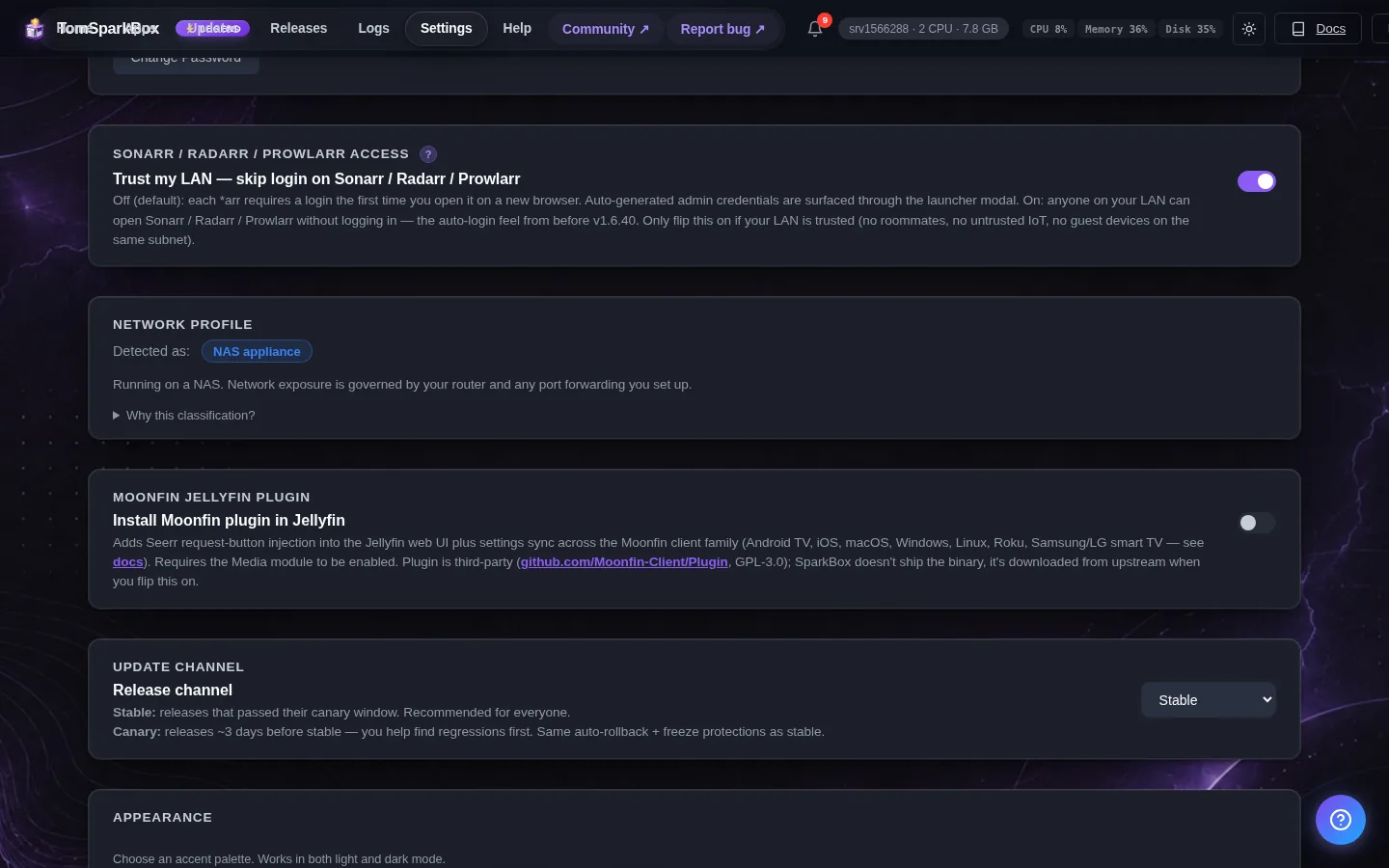
Rather not dig through config files for this? SparkBox ships its dashboard with a policy that's already correct for a login-protected LAN panel, so buttons and toggles work out of the box, no CSP editing needed. See the walkthrough →
The 10-second version: Your VPN dashboard's Content Security Policy (CSP) is blocking the page's own inline JavaScript click handlers. Loosen the CSP to allow the dashboard's own inline scripts — it's safe here because the panel is behind a login and only reachable on your own network — then restart the service and hard-refresh your browser.
What's actually happening
A Content Security Policy is a set of rules a webpage sends to your browser saying "only run scripts from these sources." It exists to stop malicious code from being injected into a page and running without permission. Most VPN dashboards write their buttons the simple way: an onclick="doSomething()" attribute directly on the button's HTML. That's called an inline handler.
If the CSP that ships with (or gets applied to) the dashboard doesn't explicitly allow inline scripts, the browser treats the dashboard's own buttons the same way it would treat a stranger's injected code: it refuses to run them. No crash, no visible error on the page itself — the click event just does nothing. That's why:
- The nav menu never expands when clicked
- The Edit VPN button doesn't open its form
- The scheduled-updates switch won't flip on or off
The dashboard is not broken in the sense of missing files or a crashed service — the interface loaded, it's just being told by the browser not to execute the code that makes the buttons interactive.
Step 1: Confirm it's a CSP block (not something else)
Before changing any config, verify this is actually what's happening so you don't chase the wrong problem.
- Open your browser's developer tools. In most browsers this is F12, or right-click the page and choose "Inspect."
- Click the "Console" tab.
- Click the broken button (menu, Edit, or the scheduled-updates switch) on the dashboard.
- Look for a red message that starts with something like: "Refused to execute inline event handler because it violates the following Content Security Policy directive: ..."
If you see that exact wording, you've confirmed the cause. If the console shows a different error (a 404, a network failure, a CORS message), the fix below won't apply — that points to a different problem, like a missing file or an unreachable backend.
Step 2: Find where the CSP is set
The policy causing the block lives in one of two places, depending on how the VPN dashboard is deployed:
- Inside the app itself — many self-hosted dashboards define their CSP in a config file or an environment variable (often something like a security/headers setting), or hardcode it into the server response.
- In a reverse proxy sitting in front of the app — if you're accessing the dashboard through a reverse proxy (common setups add security headers as a convenience feature), the proxy can inject its own, stricter CSP header that overrides whatever the app itself sends. If you have a reverse proxy in your setup, check its headers/middleware configuration too, not just the app's own settings.
Check both if you're unsure which one applies to you — it's possible only one is actually setting the restrictive policy.
Step 3: Allow the dashboard's own inline handlers
The fix is to update the CSP so it permits the page's own inline scripts to run, rather than blocking all inline JavaScript by default.
- Locate the CSP directive in whichever config you found in Step 2. It will typically include a line mentioning
script-srcas part of a larger Content-Security-Policy value. - Update the
script-srcdirective so it includes permission for inline scripts on this page. This is commonly expressed as adding'unsafe-inline'to the allowed sources forscript-src. - Save the change.
- Restart the service (or the container/proxy, whichever you edited) so the new policy actually takes effect on the next page load.
Why this is fine here: The name "unsafe-inline" sounds alarming, and on a public-facing website you'd want a tighter policy (using nonces or hashes instead). But this is a login-protected admin panel that's only reachable on your own LAN — the security model here is "don't let strangers in," not "sandbox the page from itself." Loosening the policy to let the dashboard run its own buttons doesn't open you up to outside attackers; it just lets the panel work the way it was built to work.
Step 4: Clear the old policy from your browser
Browsers sometimes hold onto a page's headers and cached scripts across reloads, which can make it look like your fix didn't work.
- Do a hard refresh: Ctrl+Shift+R (Windows/Linux) or Cmd+Shift+R (Mac).
- If that doesn't help, close the tab entirely and reopen the dashboard in a fresh tab.
- Re-open developer tools and confirm the earlier "Refused to execute" message is gone from the console when you click the buttons.
Step 5: Verify the fixed behavior
Once the policy is updated and the browser cache is cleared, go through each affected control to confirm it's actually working, not just quiet:
- Click the nav menu — it should expand and show its options.
- Click Edit VPN — the edit form or panel should open.
- Flip the scheduled-updates switch — it should visibly toggle on/off and the change should persist after a page reload.
If all three now respond, the fix is complete. If only some of them work, double-check that you restarted the correct service — sometimes a reverse proxy caches its own config separately from the app behind it, and both need a restart.
Frequently asked
Why does the VPN dashboard's menu or Edit button just do nothing?
The page's buttons use inline click handlers, JavaScript written directly on the button's HTML tag. If the dashboard's Content Security Policy is set too strictly, the browser refuses to run that inline code at all, silently, so clicking does nothing and no menu appears.
Is it safe to loosen the Content Security Policy just to fix this?
For a login-protected admin panel that only lives on your LAN or behind your own VPN, yes. A CSP that blocks inline scripts is meant to stop injected code on public-facing pages. It's not doing much extra protection on a panel only you can reach, and it's actively breaking the panel's own legitimate buttons.
How do I confirm this is really a CSP problem and not something else?
Open your browser's developer tools console (F12 in most browsers) and click the broken button. If you see a message starting with "Refused to execute inline event handler because it violates the following Content Security Policy directive," that confirms it.
Does this affect actual VPN connections, or just the dashboard?
Just the dashboard's user interface. Your VPN tunnel, connected devices, and traffic routing are unaffected. This is purely a browser-vs-webpage permission issue on the admin panel.
Skip the header-editing entirely
SparkBox's dashboard is preconfigured with a security policy that's already correct for a private, login-protected panel — the menu, Edit buttons, and toggles just work, no CSP directive to track down.
Questions, or did this not match your box?
Every guide here came from a real problem someone hit. If yours behaves differently, say so — that is how these get corrected, and how the fix gets prioritised.
We answer there rather than in a comment box, because that is where the people who have already solved it are.