Syncthing: open it, first login, settings, fixes
· Updated 18 September 2026 · SparkBox team
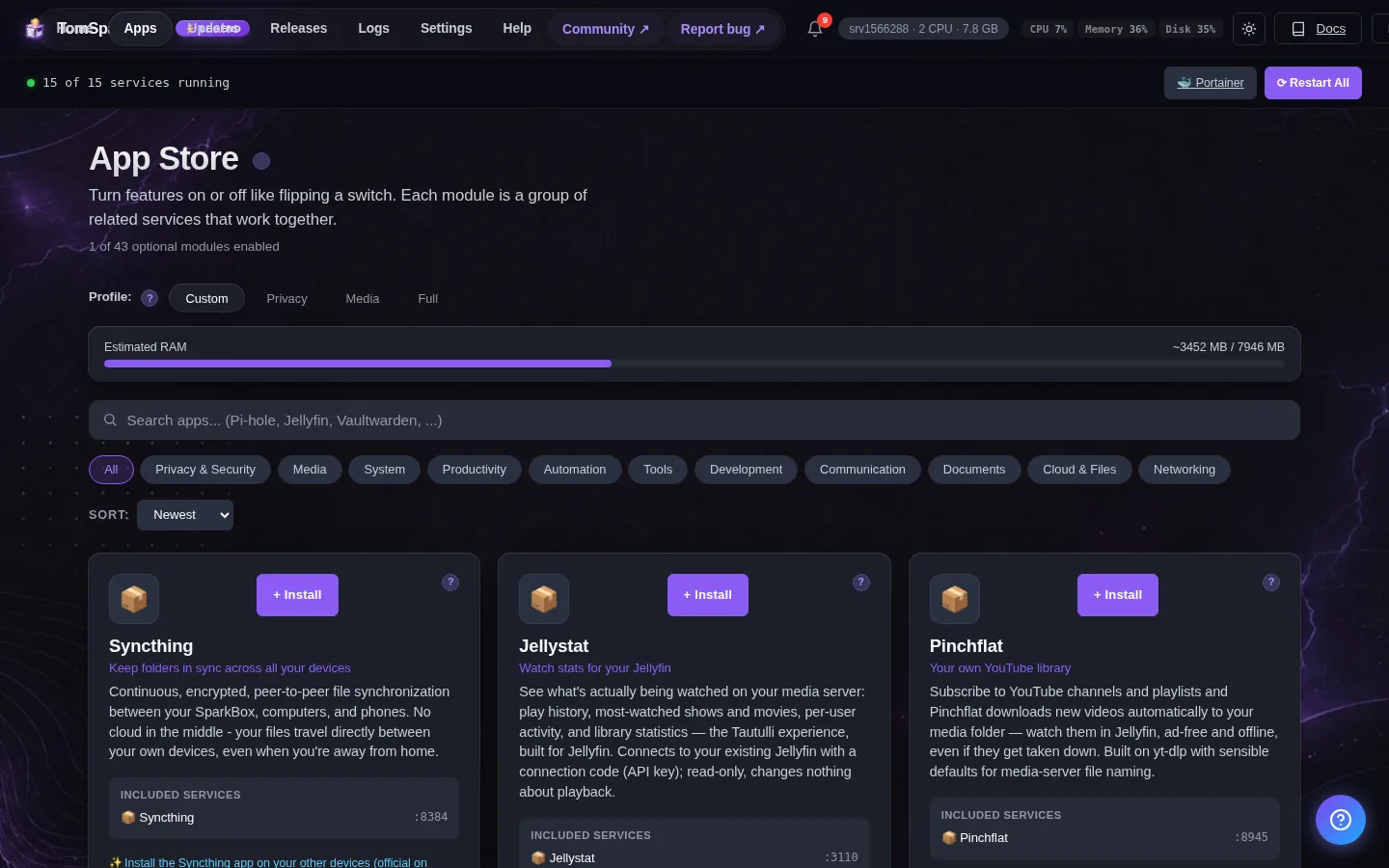
Continuous, encrypted, peer-to-peer file synchronization between your SparkBox, computers, and phones. No cloud in the middle - your files travel directly between your own devices, even when you're away from home. This is the short card for it — the two minutes after you press Enable, and the page to come back to when something is off.
Open it
Dashboard → Apps → Syncthing → Open. The direct address on your network is:
http://<your-box-IP>:8384Pair devices by ID under Actions → Show ID; keep synced folders under /data so they land on your storage pool
First login
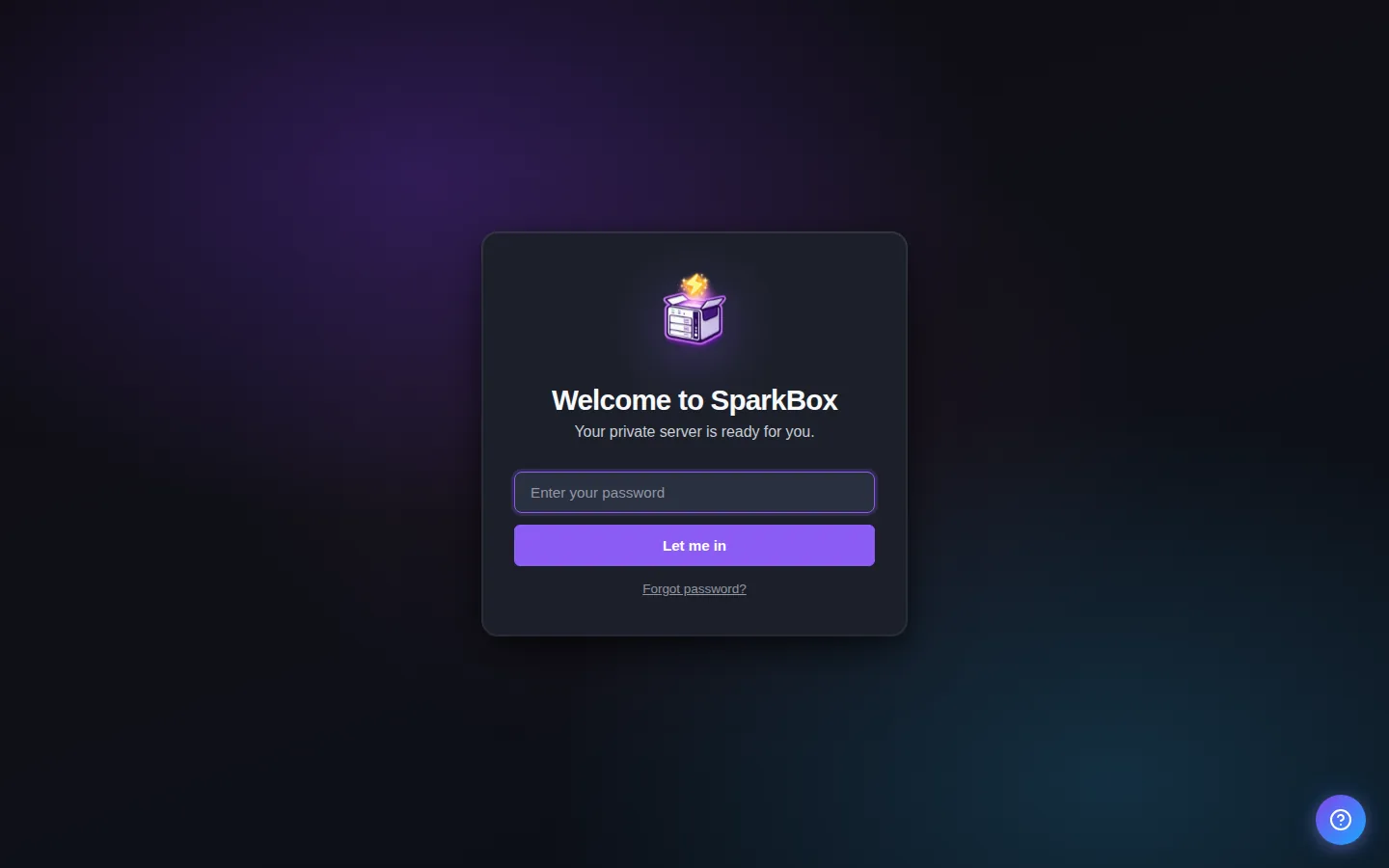
No preset password - and this one matters: open the web UI, go to Actions then Settings then GUI, and set a GUI user and password right away (Syncthing shows a red warning banner until you do). SparkBox can't pre-seed this credential because Syncthing only accepts it through its own UI/API, not at install time. The UI is only reachable from your LAN until you set up remote access.
Any password the installer generated for you is under Settings → Passwords; the Open button offers to copy it.
Worth knowing
- Install the Syncthing app on your other devices (official on Android/Windows/Mac/Linux; on iPhone use the third-party Möbius Sync) and pair them by device ID
- Synced folders live under /data inside the container - that's the syncthing/ folder on your storage pool
- Sync is NOT backup: a file deleted on one device is deleted everywhere. Enable File Versioning on the SparkBox side to keep old copies
Pair your first device
Install Syncthing on the other device (syncthing.net for Windows/Mac/Linux, the official Syncthing app on Android, or the third-party Möbius Sync on iPhone - there is no official iOS app, that's an upstream reality, not a SparkBox gap). In the SparkBox Syncthing web UI click Actions, then Show ID, and on the other device choose Add Remote Device and paste it - or just have both devices on the same network and they'll usually spot each other and offer to connect. Accept the pairing on BOTH sides; the first time, Syncthing on your SparkBox shows a notification asking you to confirm the new device.
Share a folder
On the device with the files, pick (or add) a folder, open its settings, go to Sharing, and tick your SparkBox. The SparkBox web UI then pops a notification asking where to put it - accept, and set the path to a subfolder of /data (for example /data/laptop-documents) so it lands on your storage pool. From then on, every change syncs automatically in both directions while both devices are online.
Sync is not backup (read this once)
If you delete or corrupt a file on your laptop, Syncthing faithfully deletes or corrupts it on your SparkBox too - that's what sync means. Two protections worth turning on: in the folder's settings on the SparkBox side, enable File Versioning (Staggered, with a sensible age limit) so deleted and changed files keep old copies; and if you also run the Backups module, your synced folders under /data are included in what it can back up off-site.
When it breaks
If it will not open, check the app card first — a red dot means it is restarting or unhealthy, and this walkthrough reads the reason from its log. Tom AI on the dashboard can do the same for you.
Where your data lives
/opt/sparkbox/modules/syncthing/config/Included in the dashboard's Backup by default. Restoring that backup on a fresh install brings Syncthing back exactly as it was.
Questions, or did this not match your box?
Every guide here came from a real problem someone hit. If yours behaves differently, say so — that is how these get corrected, and how the fix gets prioritised.
We answer there rather than in a comment box, because that is where the people who have already solved it are.