Cloud Storage: open it, first login, settings, fixes
· Updated 18 September 2026 · SparkBox team
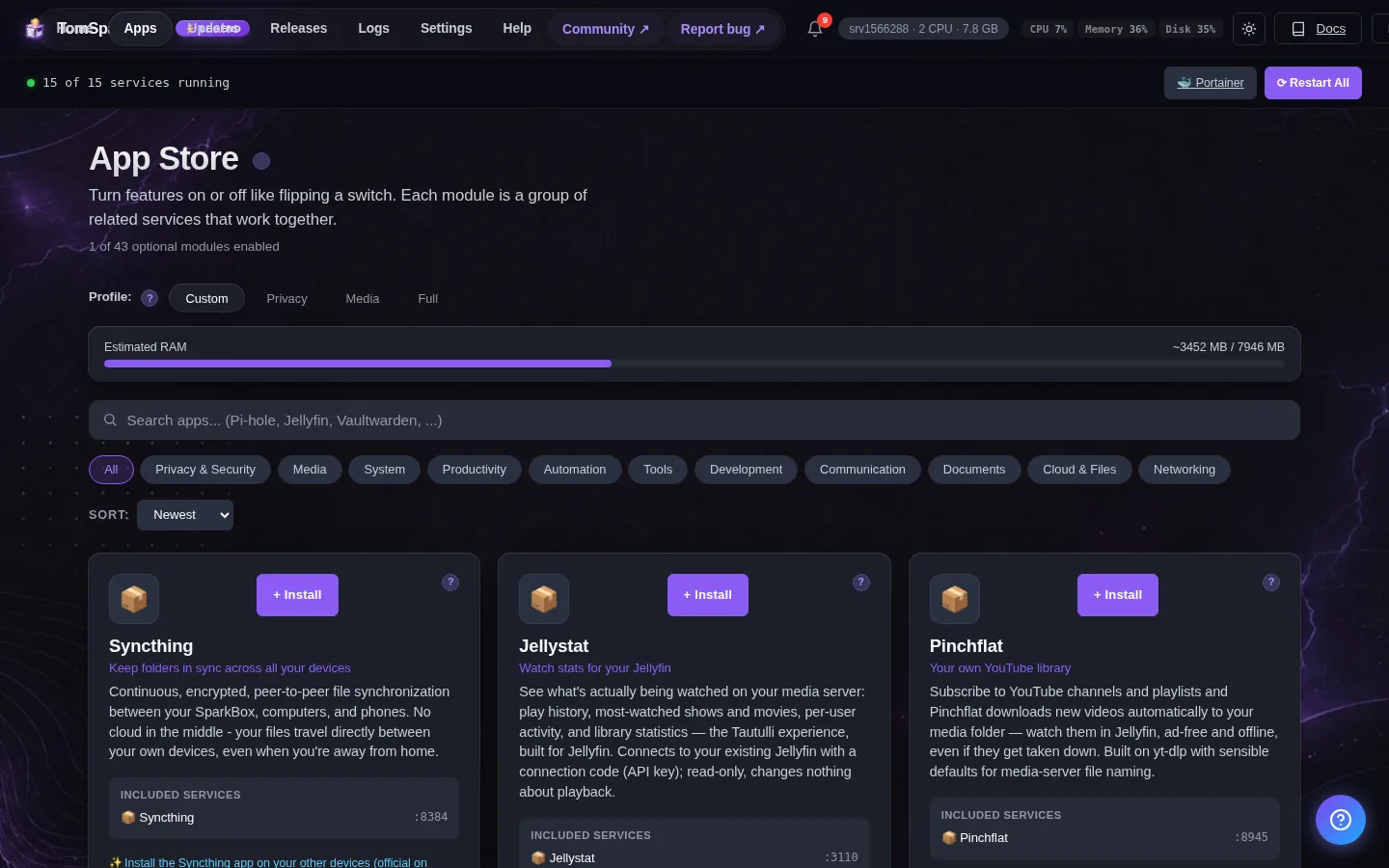
Sync files between your phone, laptop, and server. Share files with links. Includes calendar and contacts too. Powered by Nextcloud with a fast MariaDB database and Redis cache. This is the short card for it — the two minutes after you press Enable, and the page to come back to when something is off.
Before you turn it on
To use the phone apps you need a web address with a padlock (https). SparkBox sets this up in the 'Nginx Proxy Manager' app — see the guide at tomsparkbox.com/guides/cloud-setup.html.
Open it
Dashboard → Apps → Cloud Storage → Open. The direct address on your network is:
https://<your-box-IP>:8445Install the Nextcloud app on your phone and computer for automatic sync
First login
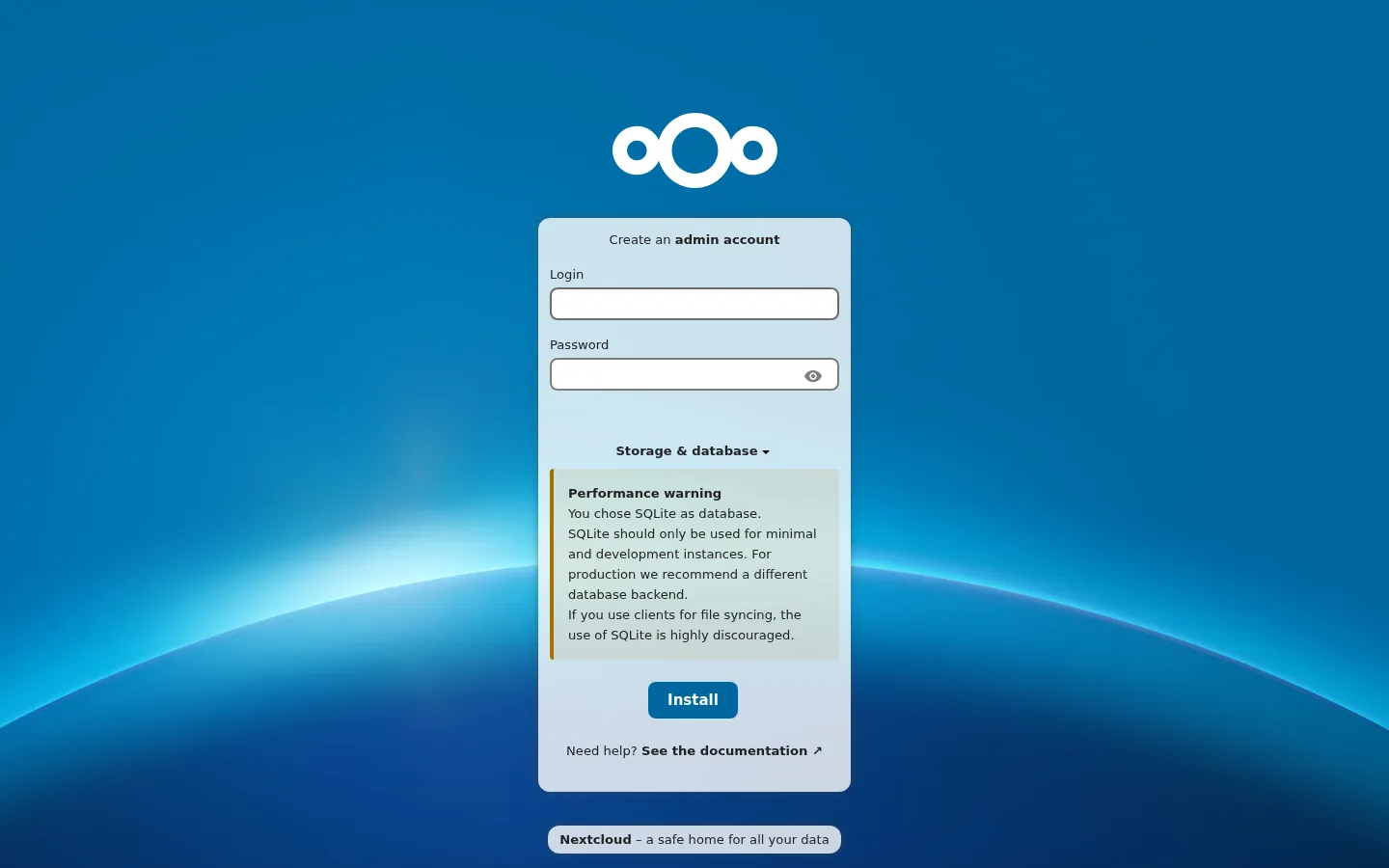
Nextcloud has no pre-set password. The first time you open it, you'll see a 'Create an admin account' setup page — pick any username and password you like, and that becomes your Nextcloud login. SparkBox does not generate this one for you (unlike Pi-hole or Jellyfin), so there's nothing to look up in Settings → Passwords. Write down what you choose. Note: the 'DB Root Password' / 'DB Password' shown when you enabled the module are the internal database secrets, NOT your Nextcloud login.
Any password the installer generated for you is under Settings → Passwords; the Open button offers to copy it.
Settings that matter
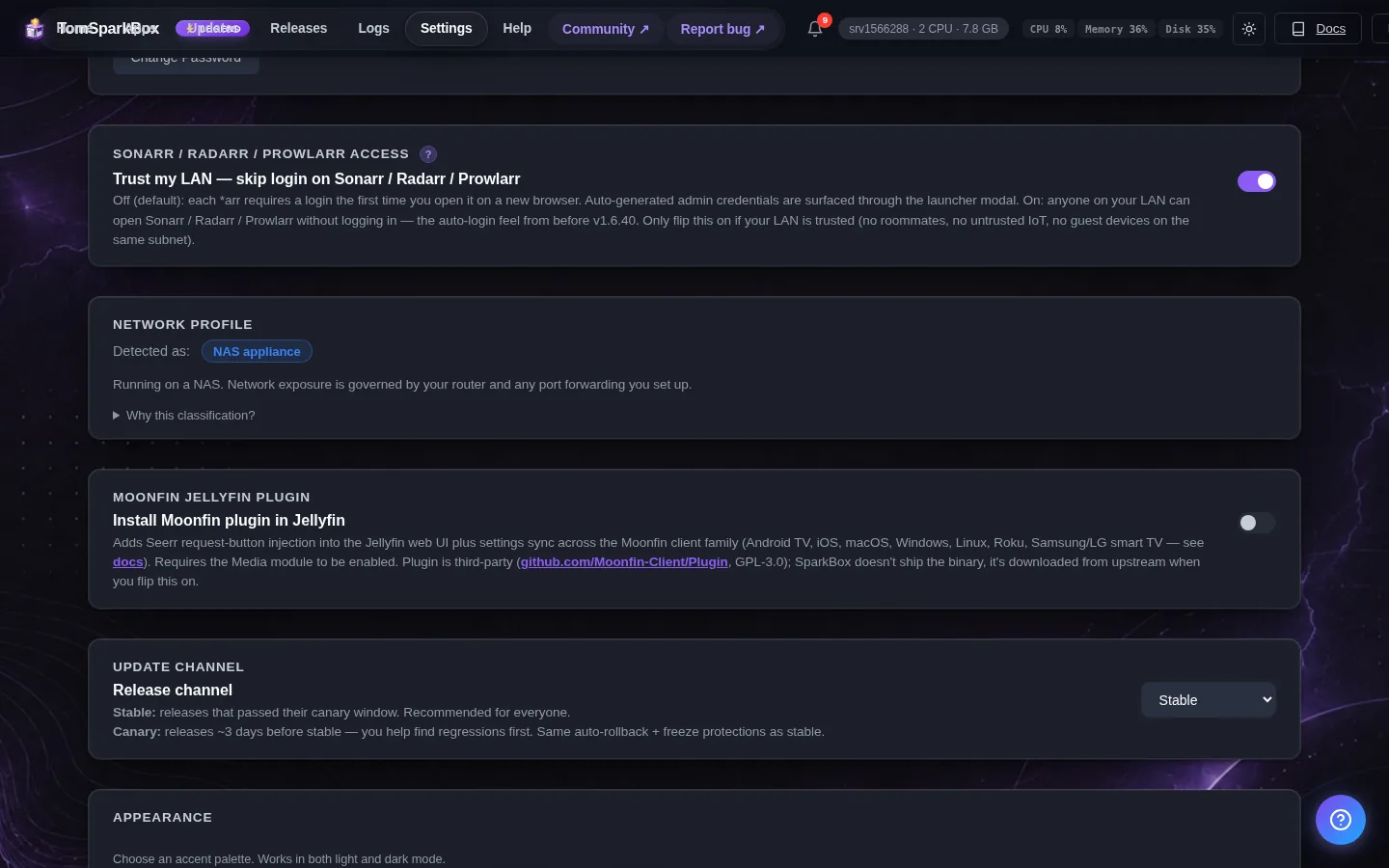
Change these under Apps → Cloud Storage (or when you enable it):
- DB Root Password
- DB Password
- Enable Document Server (in-browser editing) — optional, off by default
Editing Office files in your browser
Nextcloud ships a connector app called ONLYOFFICE, but on its own it has nothing to open files with — you'll see "Failed to open the requested file" if you try it without the piece below. Turning on Enable Document Server in this app's settings starts that missing piece: an OnlyOffice Document Server, so Word/Excel/PowerPoint files open and edit right in your browser, including with other people at the same time.
- Turn on Enable Document Server (in-browser editing) above and save. Give it a minute to start (it's a heavier app — about 500-650MB of RAM while idle).
- In Nextcloud, install the ONLYOFFICE app if you haven't already (Apps → search "ONLYOFFICE").
- Go to Settings → Administration → ONLYOFFICE and set the Document Editing Service address to your SparkBox address on port
8790— for examplehttps://your-box:8790once it has a padlock via Nginx Proxy Manager, the same way you set up Nextcloud itself. - On the same page, paste the Secret key. SparkBox generated one when you turned the Document Server on — find it under Settings → Passwords on your dashboard (or in the Cloud Storage app's settings as "OnlyOffice JWT secret"). The Document Server refuses every request that isn't signed with it, so a blank field means files never open.
- Open Advanced server settings on that page and set Server address for internal requests from ONLYOFFICE Document Server to
https://sb-nextcloud, then tick Disable certificate verification. This is the address the Document Server uses to fetch your file back from Nextcloud. SparkBox's Nextcloud only speaks HTTPS with a self-signed certificate on your home network, so without this step the fetch fails and you see "Error while downloading the document file to be converted". (If Nextcloud already has a real padlock through Nginx Proxy Manager or a Cloudflare tunnel, you can put that publichttps://address here instead and leave verification on.) - Save. Nextcloud checks the connection immediately — a green confirmation means you're done. Open any .docx/.xlsx/.pptx file in Nextcloud and it now opens for editing instead of failing.
Don't need in-browser editing? Nextcloud's built-in file sharing and download still work exactly as before — this is purely additive.
When it breaks
If it will not open, check the app card first — a red dot means it is restarting or unhealthy, and this walkthrough reads the reason from its log. Tom AI on the dashboard can do the same for you.
Where your data lives
/opt/sparkbox/modules/cloud/config/Included in the dashboard's Backup by default. Restoring that backup on a fresh install brings Cloud Storage back exactly as it was.
Questions, or did this not match your box?
Every guide here came from a real problem someone hit. If yours behaves differently, say so — that is how these get corrected, and how the fix gets prioritised.
We answer there rather than in a comment box, because that is where the people who have already solved it are.