Paperless-ngx: open it, first login, settings, fixes
· Updated 18 September 2026 · SparkBox team
A document management system that transforms your physical documents into a searchable online archive. Automatically OCRs, tags, and sorts your scanned documents. This is the short card for it — the two minutes after you press Enable, and the page to come back to when something is off.
Open it
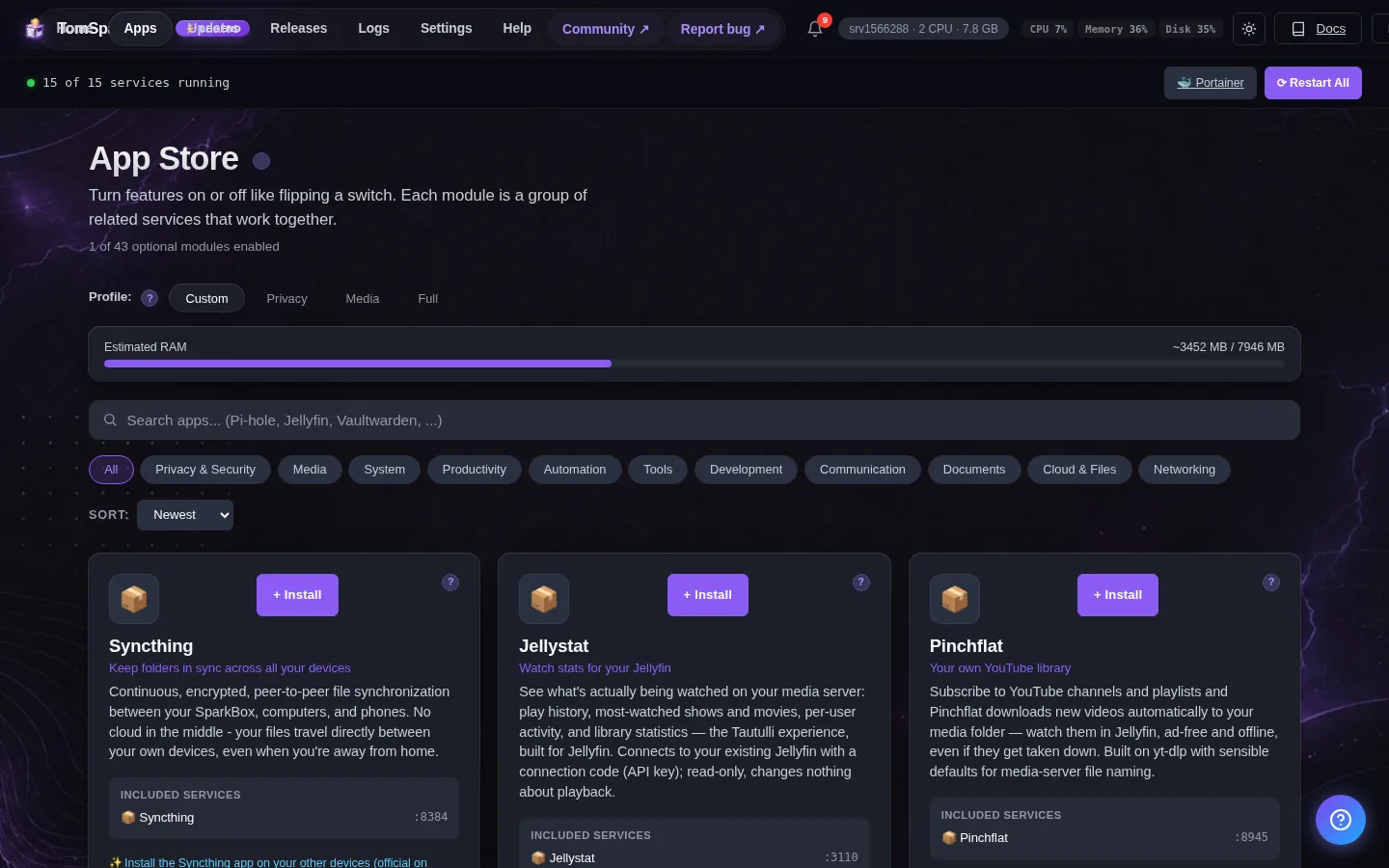
Dashboard → Apps → Paperless-ngx → Open. The direct address on your network is:
http://<your-box-IP>:8010Drop PDFs in the consume folder or use the web uploader to add documents
First login
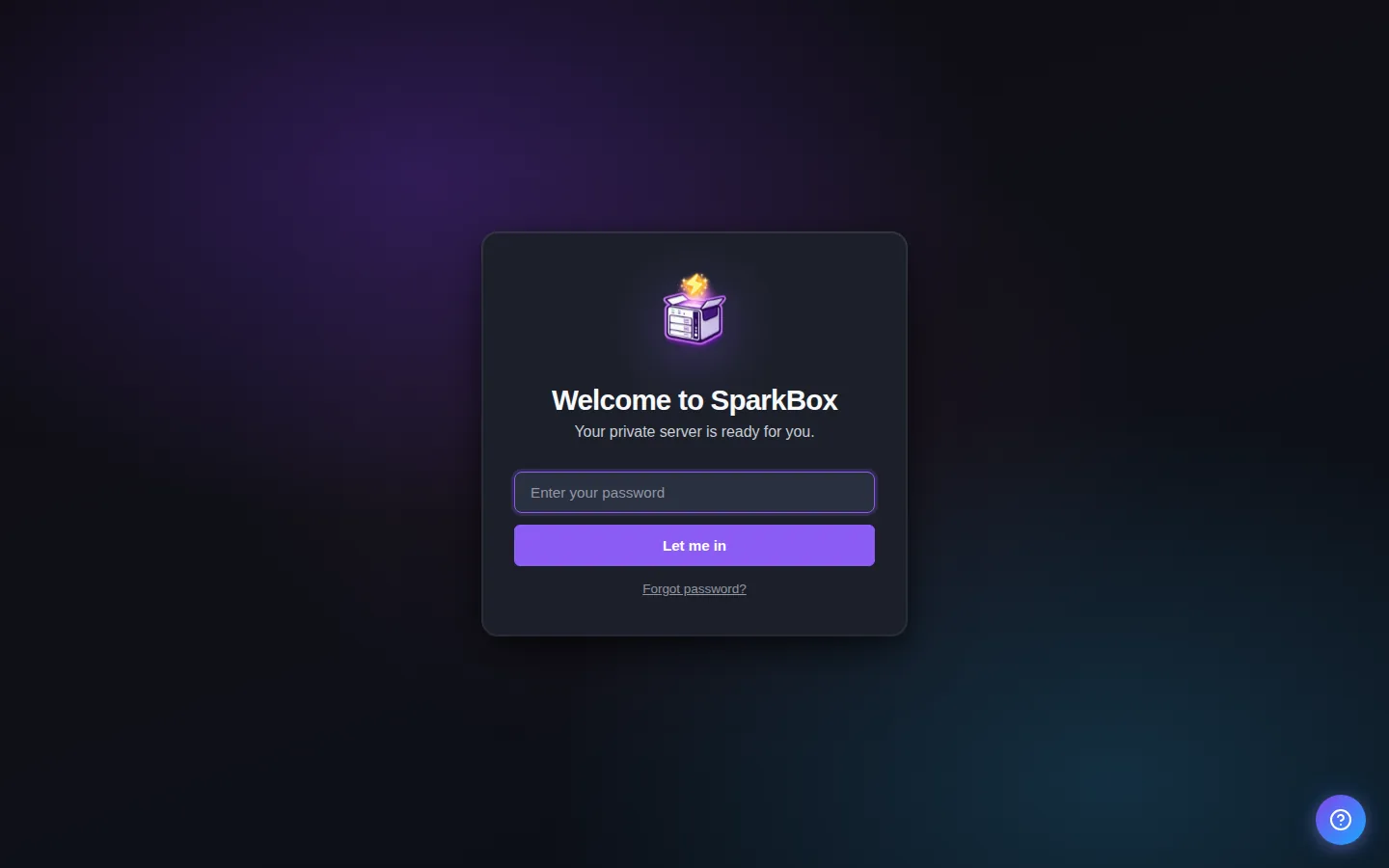
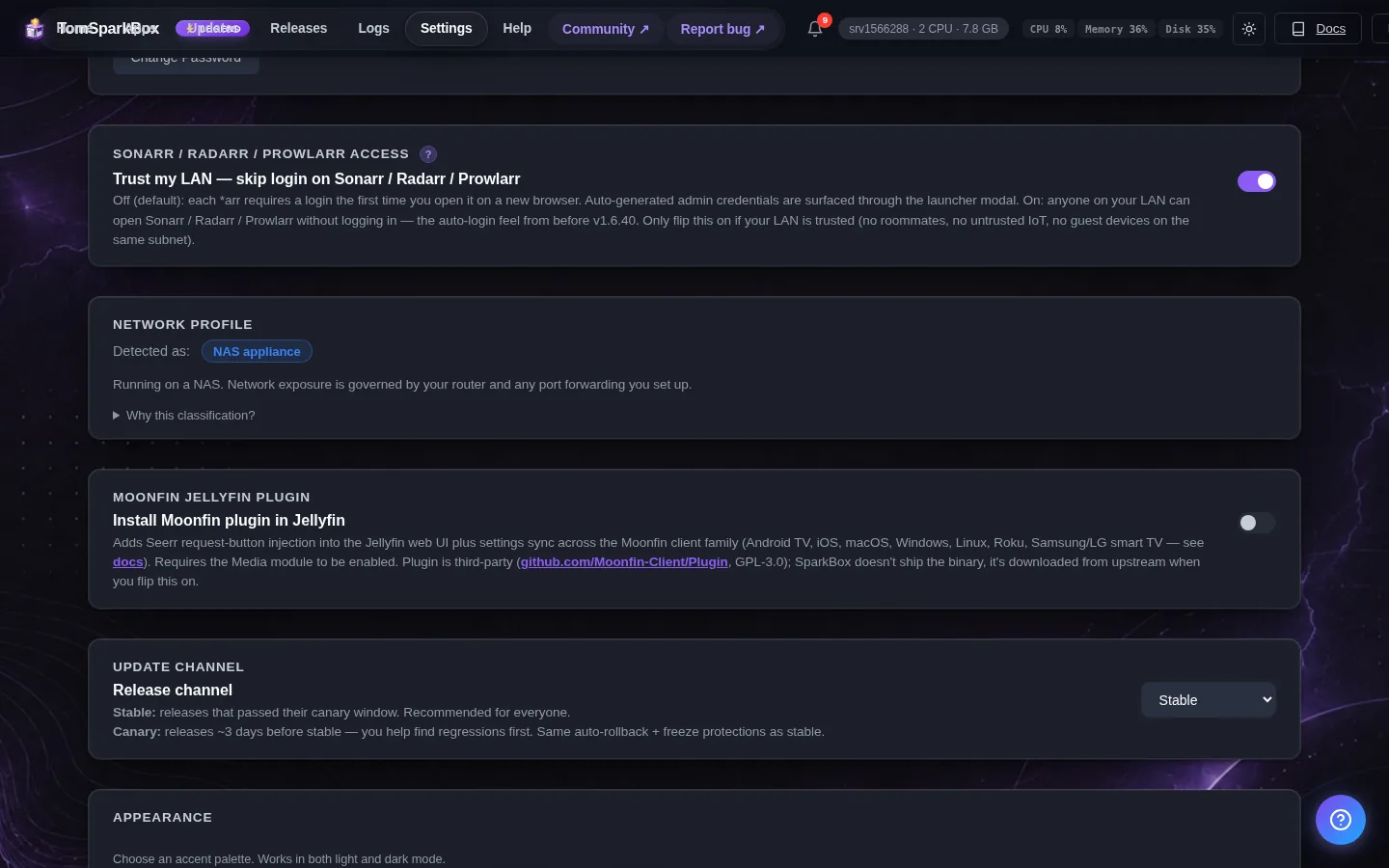
Log in as 'admin' — the password was auto-generated for you (Settings → Service Passwords). If you created your own Paperless account on an older install, keep using yours: SparkBox only creates the 'admin' account when no account exists yet.
Any password the installer generated for you is under Settings → Passwords; the Open button offers to copy it.
Worth knowing
- Email documents to Paperless or drop them in the consume folder to auto-import
- Set up automatic tagging rules to keep your documents organized
Settings that matter
Change these under Apps → Paperless-ngx (or when you enable it):
- External web address — Only needed if you reach Paperless through your own domain (e.g. via Nginx Proxy Manager). Enter the full address you use, like https://paperless.mydomain.com — without this, Paperless blocks logins from that address with a 403 security (CSRF) error. Leave blank if you only use the normal dashboard link.
When it breaks
The problems people actually report with Paperless-ngx, each with its own tested fix:
Anything else: the dashboard's checkup names the cause, and Tom AI can read the app's log for you.
Where your data lives
/opt/sparkbox/modules/paperless/config/Included in the dashboard's Backup by default. Restoring that backup on a fresh install brings Paperless-ngx back exactly as it was.
Questions, or did this not match your box?
Every guide here came from a real problem someone hit. If yours behaves differently, say so — that is how these get corrected, and how the fix gets prioritised.
We answer there rather than in a comment box, because that is where the people who have already solved it are.