Download movies and shows in 4K instead of 1080p
· Updated 18 September 2026 · SparkBox team
Out of the box, SparkBox asks for 1080p. That is on purpose — it plays on everything and a movie is a few gigabytes. If you have a 4K TV and the disk space to match, one setting flips the whole pipeline to 4K/UHD: Radarr, Sonarr and Seerr all switch together, in about a minute, with nothing to type.
The 10-second version: Dashboard → Settings → Media → Video quality → pick 4K / UHD → Save. Wait a minute. New requests in Seerr now ask for 4K. Files you already have are untouched.
1. What actually changes
Your media apps decide what to download using a quality profile — a ranked list of what is acceptable and what is preferred. SparkBox ships the community-standard profiles from TRaSH Guides, so you never have to build one by hand:
- 1080p (default) — Radarr uses HD Bluray + WEB, Sonarr uses WEB-1080p.
- 4K / UHD — Radarr uses UHD Bluray + WEB, Sonarr uses WEB-2160p. HDR is preferred; releases that would show up black or green on a non-Dolby-Vision screen are scored down.
Seerr — the Netflix-style request page — always requests against whichever profile you have picked here. That is why one setting is enough: it moves all three apps at once.
2. Before you switch: three honest costs
- Disk. A 4K movie is 15–60 GB; the same film in 1080p is 2–8 GB. A season of a 4K show can pass 100 GB. Look at the free-space figure on your dashboard's Overview first. If your media folder sits on a small system drive, move it to your storage pool before you switch.
- Playback. 4K plays perfectly on a 4K TV, an Apple TV, a Shield or similar. On a phone, a laptop, or an older TV, your server has to transcode — re-encode the video live — and a NAS without hardware transcoding will stutter or fail. Check Settings → Server Config → Media → Hardware Transcoding is not set to
none, and test one 4K title on each device you care about. - Availability. Far fewer 4K releases exist, especially for TV. A request your sources can fill at 1080p may take much longer at 4K, or never fill. If that bothers you, use the per-title approach in section 5 instead of the global switch.
3. Make the switch
- Open your SparkBox dashboard and click Settings.
- Scroll to the Media section. Find Video quality.
- Change it from 1080p — recommended to 4K / UHD and click Save.
- Wait about a minute. In the background SparkBox re-applies the quality profiles to Radarr and Sonarr, then points Seerr at the new ones. No app is restarted except Seerr, briefly.
Prefer the terminal, or running headless? Edit /opt/sparkbox/.env, set SB_MEDIA_QUALITY=4k, then run sudo sparkbox up. Same result.
4. Check it worked
- Seerr: open it from the dashboard, go to Settings → Services, click Radarr. The quality profile should read UHD Bluray + WEB. Sonarr should read WEB-2160p.
- Radarr: Settings → Profiles now lists UHD Bluray + WEB next to the 1080p one. Both stay; nothing is deleted.
- Request something. In Seerr, request a film. In Radarr → Activity → Queue the release name should contain
2160p.
If Seerr still shows the old profile after two minutes, run sudo sparkbox up once — the change is applied again on every start — and look in /opt/sparkbox/state/recyclarr-sync.log for what happened.
5. 4K for some titles, 1080p for the rest
This is what most people actually want: the big films in 4K, the sitcom you have on in the background in 1080p. Leave the global setting on 1080p and pick per title:
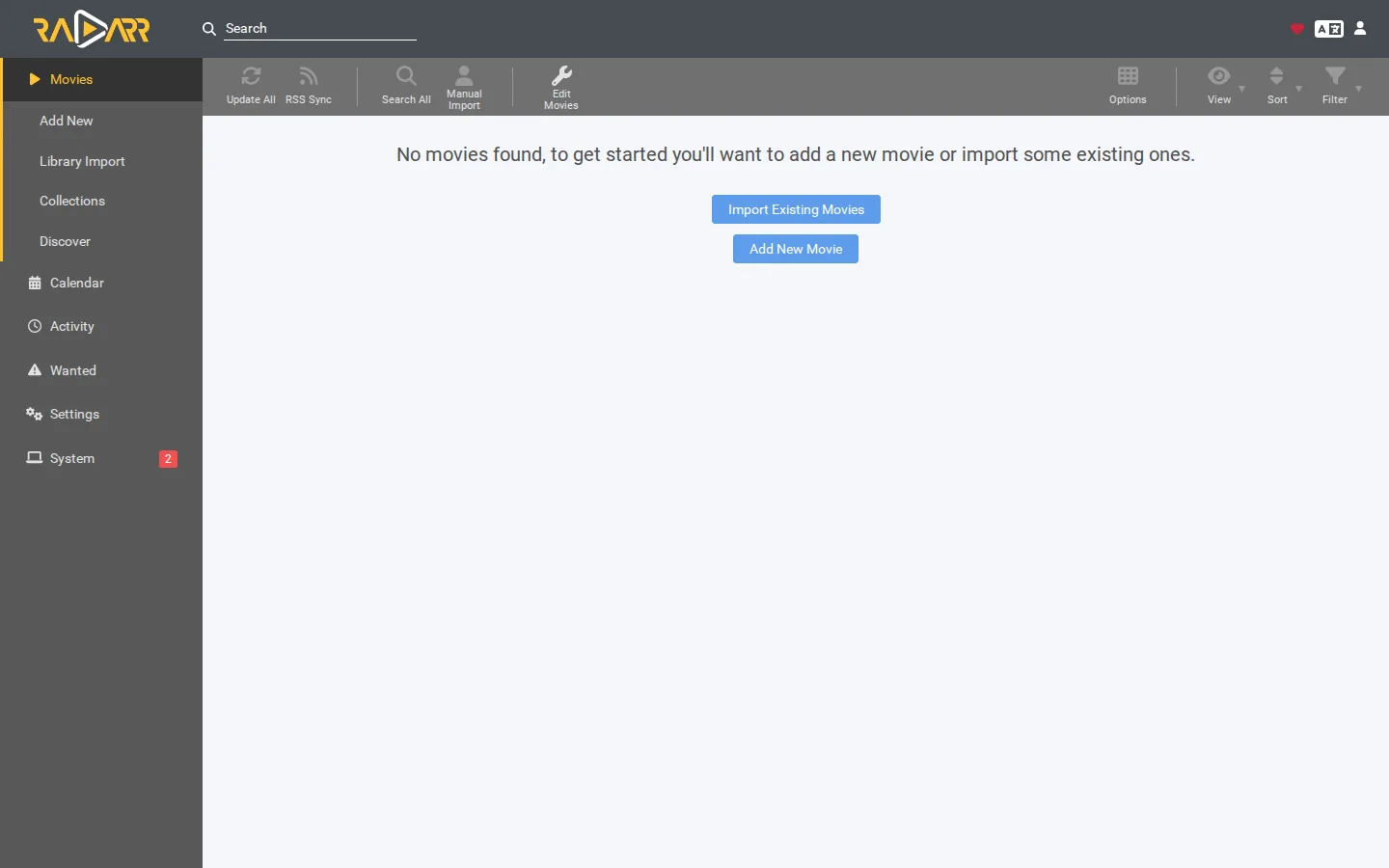
- Radarr: open the movie → Edit (the wrench) → Quality Profile → UHD Bluray + WEB → Save → Search. For many at once: Movies → Mass Editor.
- Sonarr: same idea — open the show → Edit → Quality Profile → WEB-2160p.
- Seerr: when you request as an admin, click Advanced on the request dialog and pick the profile for that request only.
Both profile sets exist on your server as soon as you have switched to 4K once (you can switch straight back — the profiles stay).
6. Upgrading things you already have
The global setting never re-downloads your existing library — that would be a nasty surprise on disk space. To get a 4K copy of something you own in 1080p: change that title's profile as in section 5 and click Search. Radarr keeps the 1080p file until the 4K one has finished downloading and imported, then replaces it.
7. Going back to 1080p
Settings → Server Config → Media → Video quality → 1080p — recommended → Save. New requests go back to 1080p within a minute. 4K files you already downloaded stay; Radarr and Sonarr will not downgrade a file they already have.
8. Where people get stuck
- "Requests never fill at 4K." That is availability, not a fault. Your search sources simply may not carry 4K for that title. Either accept the wait, switch that title back to 1080p, or add a search source that does carry it — see adding a search source in Prowlarr.
- "It plays but stutters." Transcoding. Play on a 4K device, turn on hardware transcoding, or keep that device on 1080p titles.
- "Colours look washed out / grey." HDR being shown on a non-HDR screen. The player, not the file, is the problem — it is a well-known Jellyfin/TV combination issue; try a different player app on that TV.
- "The Video quality row isn't in my Settings." Update SparkBox first (Updates on the dashboard, or
sudo sparkbox update). The setting arrived in late August 2026. That same update also repairs a problem where installs from the first weeks of August got no curated profiles at all — if your Radarr only shows the stock profiles, the update fixes that too.
Frequently asked
Will switching to 4K re-download everything I already have?
No. The setting only changes what new requests ask for. Files you already have stay exactly as they are. If you want a 4K copy of something you already own, change that one title's profile in Radarr or Sonarr and run a search.
How much bigger are 4K files?
A 4K movie is typically 15 to 60 GB against 2 to 8 GB for 1080p. A season of a 4K show can be 40 to 100 GB. Check your free space before you switch.
Why does 4K stutter or fail to play on my phone or laptop?
Anything that is not a 4K screen makes your server transcode the video on the fly, which is heavy. A NAS without hardware transcoding, or a box where it is off, will struggle. Play 4K on a 4K TV or streaming box, keep 1080p for everything else, or turn on hardware transcoding in Settings.
Can I have some titles in 4K and the rest in 1080p?
Yes. Leave the global setting on 1080p and change the quality profile on individual movies or shows to the UHD one. Both profile sets exist on your server once you have switched at least once.
One setting, three apps
SparkBox keeps Radarr, Sonarr and Seerr on the same curated quality profiles and moves them together — so "I want 4K" is a dropdown, not an afternoon of reading profile guides.
Questions, or did this not match your box?
Every guide here came from a real problem someone hit. If yours behaves differently, say so — that is how these get corrected, and how the fix gets prioritised.
We answer there rather than in a comment box, because that is where the people who have already solved it are.