Point SparkBox at the movies & photos you already have on your UGREEN NAS
· Updated 18 September 2026 · SparkBox team
You already have a stack of movies, shows, and photos sitting on your UGREEN NAS — and you want SparkBox's apps (Jellyfin, Plex, Sonarr, Radarr) to use them instead of starting from scratch. This guide shows you exactly how: tell SparkBox where your media lives, then give the apps permission to read it — without changing who owns your files, so your NAS's own file manager and photo app keep working.
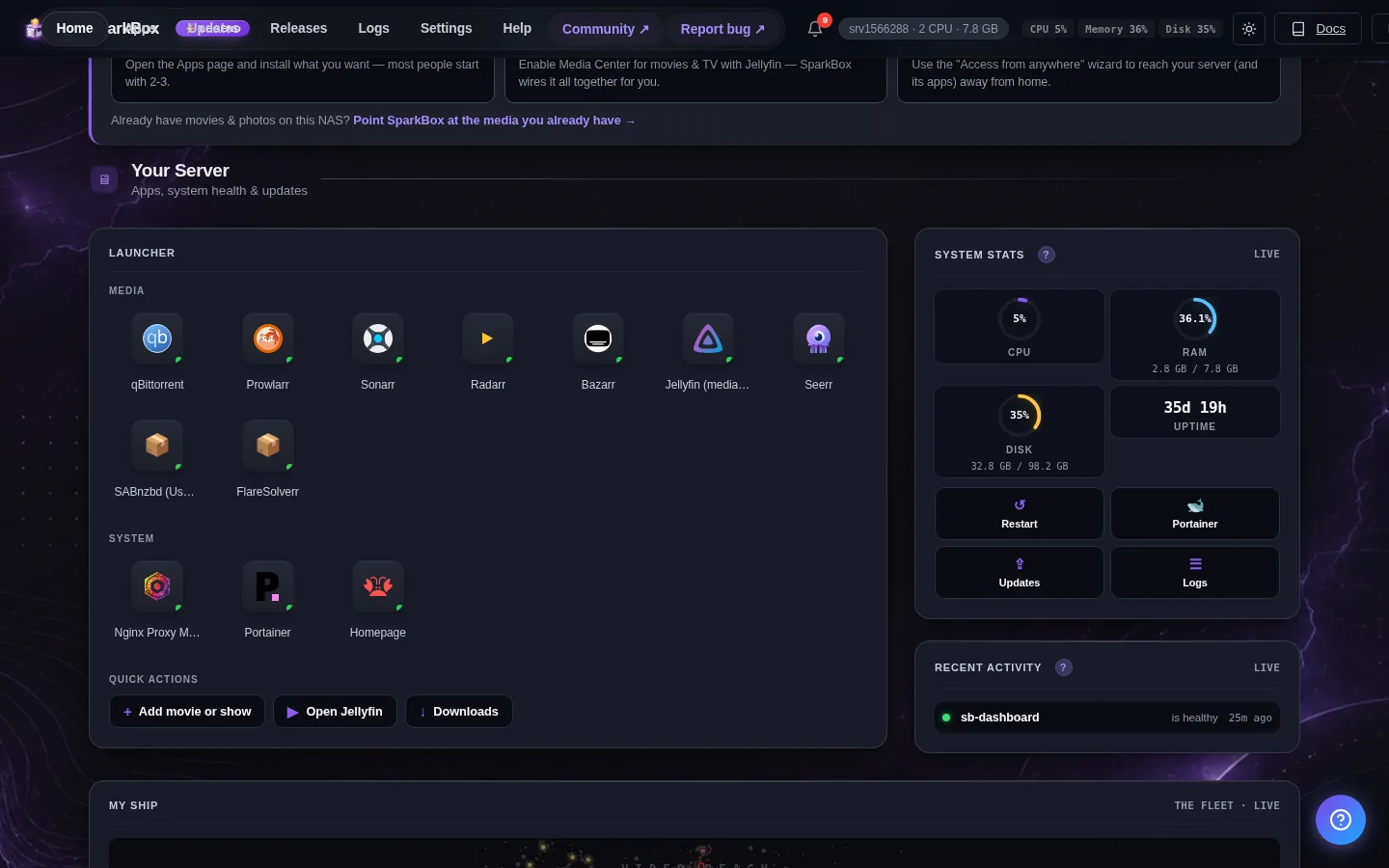
Why SparkBox doesn't see your media yet
Two things usually get in the way, and they stack up:
- SparkBox doesn't know where to look. It doesn't auto-scan every folder on your NAS. There's one setting — called
MEDIA_ROOT— that tells it which folder your library lives in. Until you point that at your existing media, the apps only see the empty folders SparkBox made for itself. - The apps aren't allowed to read your files. SparkBox's media apps run as a dedicated background user (you'll see it called user
abcor "user id 1000" in messages). But the movies and photos your UGREEN NAS created are owned by a different user, and UGOS (the NAS's own software) adds its own permission layer on top. So even when SparkBox is looking at the right folder, the apps hit a wall: Jellyfin shows an empty library, and Sonarr/Radarr say "folder is not writable or readable."
Both are quick to fix. Let's do them in order.
1. Find where your media lives
On a UGREEN NAS, the folders you create (called "shared folders" in UGOS) live under a path that starts with /volume1/. So if you made a shared folder called Media, its real path is:
/volume1/MediaIf you're not sure of the exact name, open the UGOS web interface, go to the Files app, and note the name of the shared folder that holds your movies/photos. The path is just /volume1/ followed by that name. (If you have more than one storage pool it might be /volume2/, /volume3/, and so on.)
Whitespace tip: SparkBox can't use a media path with a space in it (e.g. /volume1/My Movies). If yours has a space, rename the shared folder to one without spaces (e.g. Movies) before continuing.
2. Point SparkBox at it (MEDIA_ROOT)
SparkBox keeps its settings in a file at /opt/sparkbox/.env. You're going to set MEDIA_ROOT to the folder you found above.
Open a terminal on your NAS (SSH in), then run this — replacing /volume1/Media with your actual folder:
sudo sed -i 's|^MEDIA_ROOT=.*|MEDIA_ROOT=/volume1/Media|' /opt/sparkbox/.envThen apply it:
sudo sparkbox upThis restarts the media apps pointing at your existing folder. sparkbox up also runs a quick check and will tell you in plain English if the apps still can't read your files — which leads us to the next step.
3. Let the apps read your files
This is the step almost everyone needs on a UGREEN NAS, and it's the one that fixes the "empty library" problem. You're going to grant read access to your media so SparkBox's apps can see it — without changing who owns the files. That last part matters: it means UGOS's own Files app, photo app, and sharing keep working exactly as before.
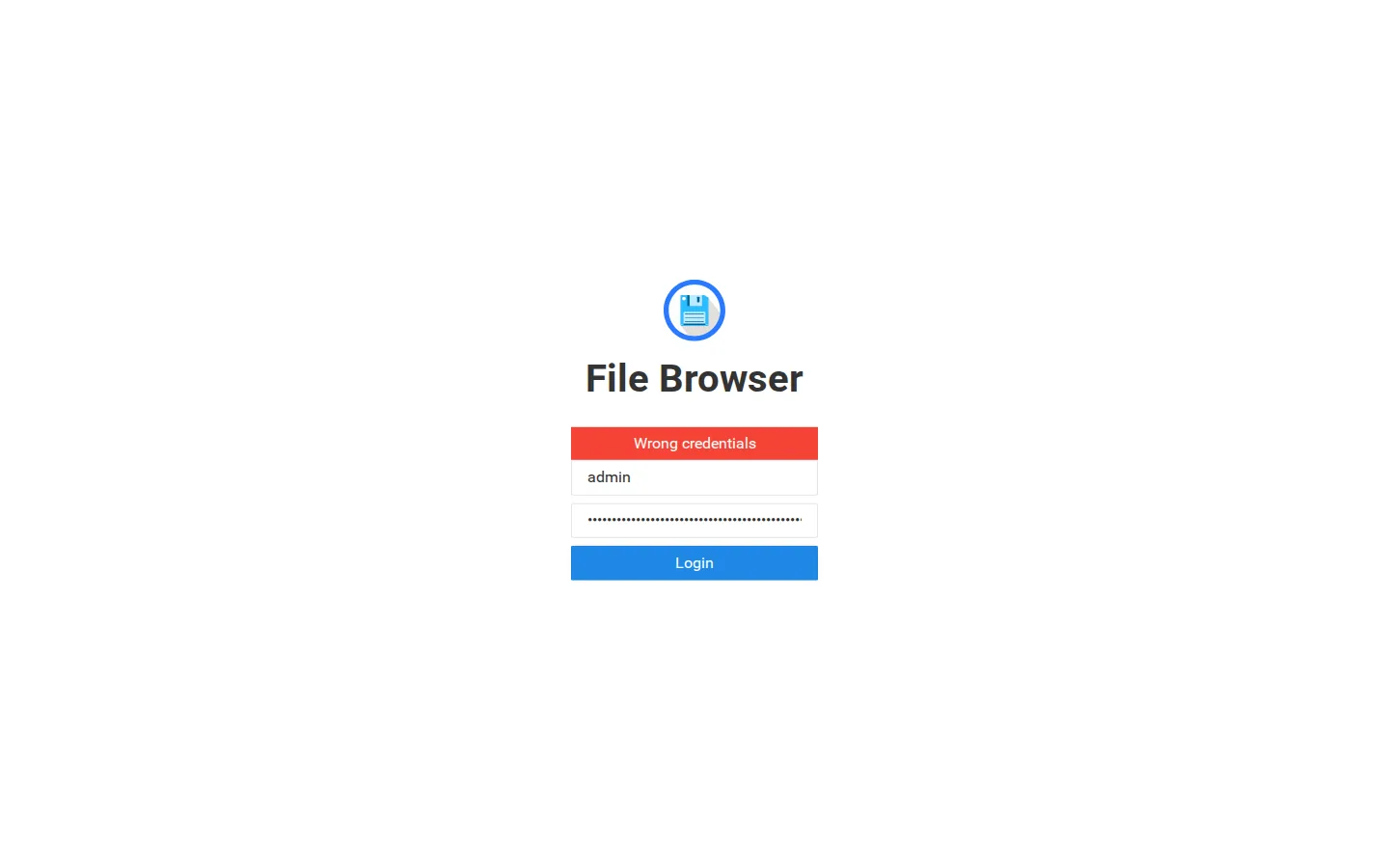
Run this one command (replace the path with your MEDIA_ROOT):
sudo chmod -R o+rX /volume1/MediaIn plain English, that says: "let everyone read the files, and let everyone open the folders to look inside." It does not change ownership, delete anything, or hand control to SparkBox — it only adds read permission on top of what's already there. On a big library this can take a few minutes the first time; that's normal.
Then nudge the apps to re-scan:
sudo sparkbox upThe capital X in o+rX is deliberate — it adds "open the folder" permission to folders but doesn't make your actual media files executable. Use it exactly as written.
4. Want the apps to organize/rename too?
Reading is all you need for streaming in Jellyfin/Plex, and it's enough for Sonarr/Radarr to copy new downloads in next to your existing media. But if you want Sonarr/Radarr to also move, rename, or hardlink your existing files (their tidy-up features), the apps need write access too — and we still don't want to take ownership away from UGOS.
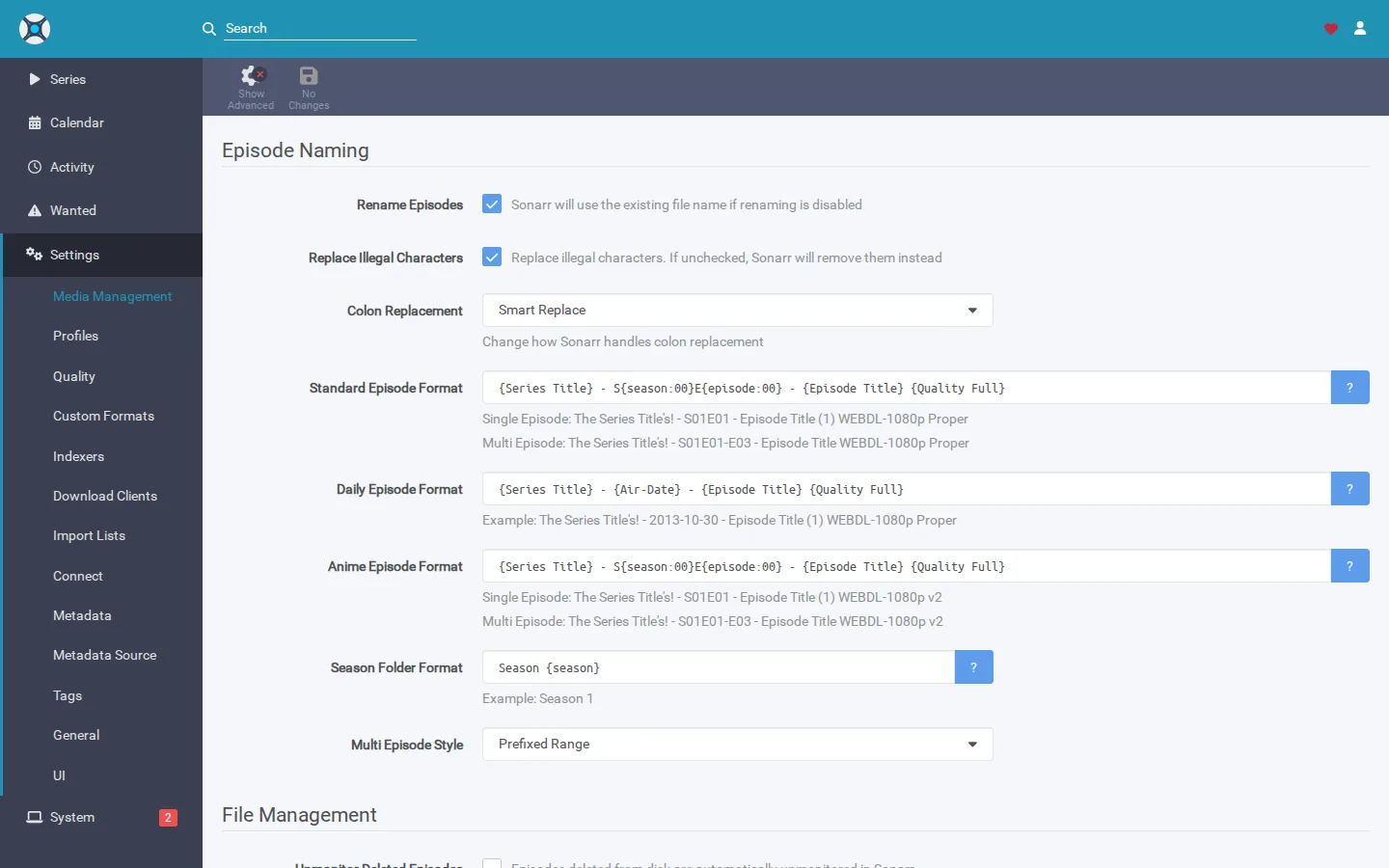
The clean way to do that is to grant the apps' user (id 1000 by default) write access without changing the owner:
sudo setfacl -R -m u:1000:rwX -d -m u:1000:rwX /volume1/MediaThat gives the SparkBox apps full read/write on your library while leaving your files owned by your UGOS user. The -d part makes it apply to new files too, so anything the apps add later inherits the same access. If your SparkBox shows a different "PUID" than 1000 (check /opt/sparkbox/.env), use that number instead.
If setfacl isn't installed, you can add it with sudo apt-get install -y acl.
5. How you'll know it worked
- Jellyfin/Plex: add a library pointed at
/data(that's how yourMEDIA_ROOTappears inside the apps), trigger a scan, and your existing movies and shows show up — posters and all. - Sonarr/Radarr: when you set the root folder, the "not writable or readable" warning is gone.
- From the terminal, SparkBox can check for you:
A green "your apps can read your existing media" line means you're done. If it still flags a folder, it prints the exact command to fix it.
sudo sparkbox check-media-perms
Troubleshooting
- Still empty after the chmod? Make sure
MEDIA_ROOTin/opt/sparkbox/.envreally points at the folder with your media (not the empty default), then runsudo sparkbox upagain. Runsudo sparkbox doctorfor a full read-out of what it sees. - The honest UGOS caveat: UGREEN's UGOS adds a proprietary permission layer (its own ACLs) on top of standard Linux permissions. The
chmod -R o+rXcommand above grants read access at the standard layer that every app — including SparkBox's — respects, which is why it's the reliable fix. If you've done custom permission tinkering inside UGOS and still hit a wall, post in d/sparkbox with the output ofsudo sparkbox check-media-permsand we'll sort it. - Don't run
chownon your media. You might seechownsuggested elsewhere for permission problems — but on existing UGOS media it changes who owns your files, which can break UGOS's own Files and photo apps. Thechmod o+rXapproach above gets the apps reading without that risk. Savechownfor empty folders SparkBox created.
Next steps
Your existing library, now in SparkBox.
If something doesn't match what you see, post in d/sparkbox or hit us up on YouTube. Every SparkBox bug gets patched; every UX-stumble in this guide gets rewritten.
Questions, or did this not match your box?
Every guide here came from a real problem someone hit. If yours behaves differently, say so — that is how these get corrected, and how the fix gets prioritised.
We answer there rather than in a comment box, because that is where the people who have already solved it are.