FreshRSS: open it, first login, settings, fixes
· Updated 18 September 2026 · SparkBox team
A free, self-hosted RSS feed aggregator. Subscribe to blogs, news sites, and podcasts and read everything in a clean, unified interface. Supports mobile apps and browser extensions. This is the short card for it — the two minutes after you press Enable, and the page to come back to when something is off.
Open it
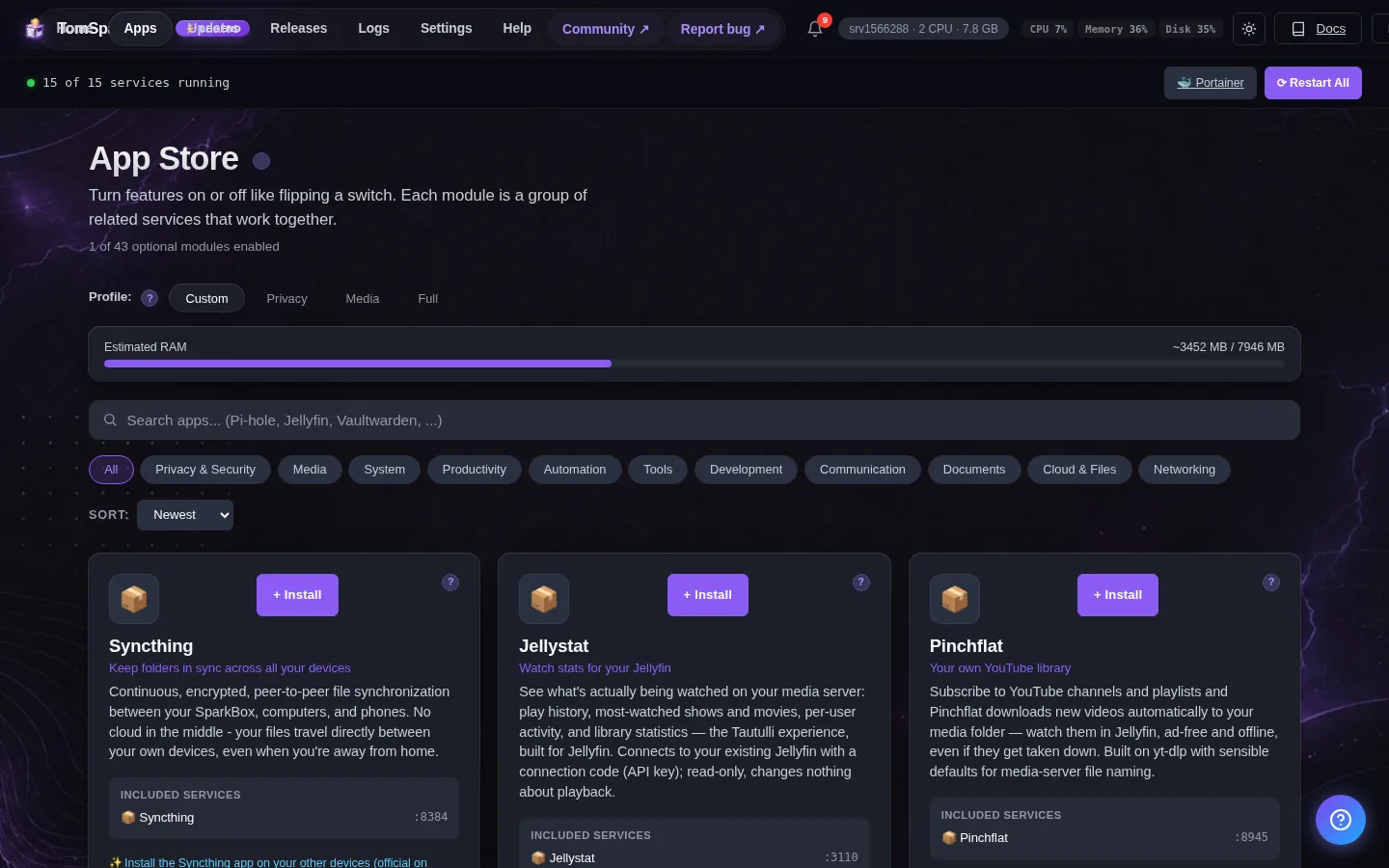
Dashboard → Apps → FreshRSS → Open. The direct address on your network is:
http://<your-box-IP>:8070Add feeds by clicking the + icon and pasting any website or RSS URL
First login
FreshRSS shows a setup wizard on first launch. Pick a username and password — that becomes your admin account.
Any password the installer generated for you is under Settings → Passwords; the Open button offers to copy it.
Worth knowing
- Add your favorite news sites and blogs by pasting their RSS feed URLs
- Use a mobile RSS app and connect it to your FreshRSS server for reading on the go
When it breaks
If it will not open, check the app card first — a red dot means it is restarting or unhealthy, and this walkthrough reads the reason from its log. Tom AI on the dashboard can do the same for you.
Where your data lives
/opt/sparkbox/modules/freshrss/config/Included in the dashboard's Backup by default. Restoring that backup on a fresh install brings FreshRSS back exactly as it was.
Questions, or did this not match your box?
Every guide here came from a real problem someone hit. If yours behaves differently, say so — that is how these get corrected, and how the fix gets prioritised.
We answer there rather than in a comment box, because that is where the people who have already solved it are.