Ebooks & Comics: open it, first login, settings, fixes
· Updated 18 September 2026 · SparkBox team
Run your own digital library with Calibre-web for ebooks (send to Kindle/Kobo) and Kavita for comics, manga, and manhwa. Browse, read, and sync from any device. This is the short card for it — the two minutes after you press Enable, and the page to come back to when something is off.
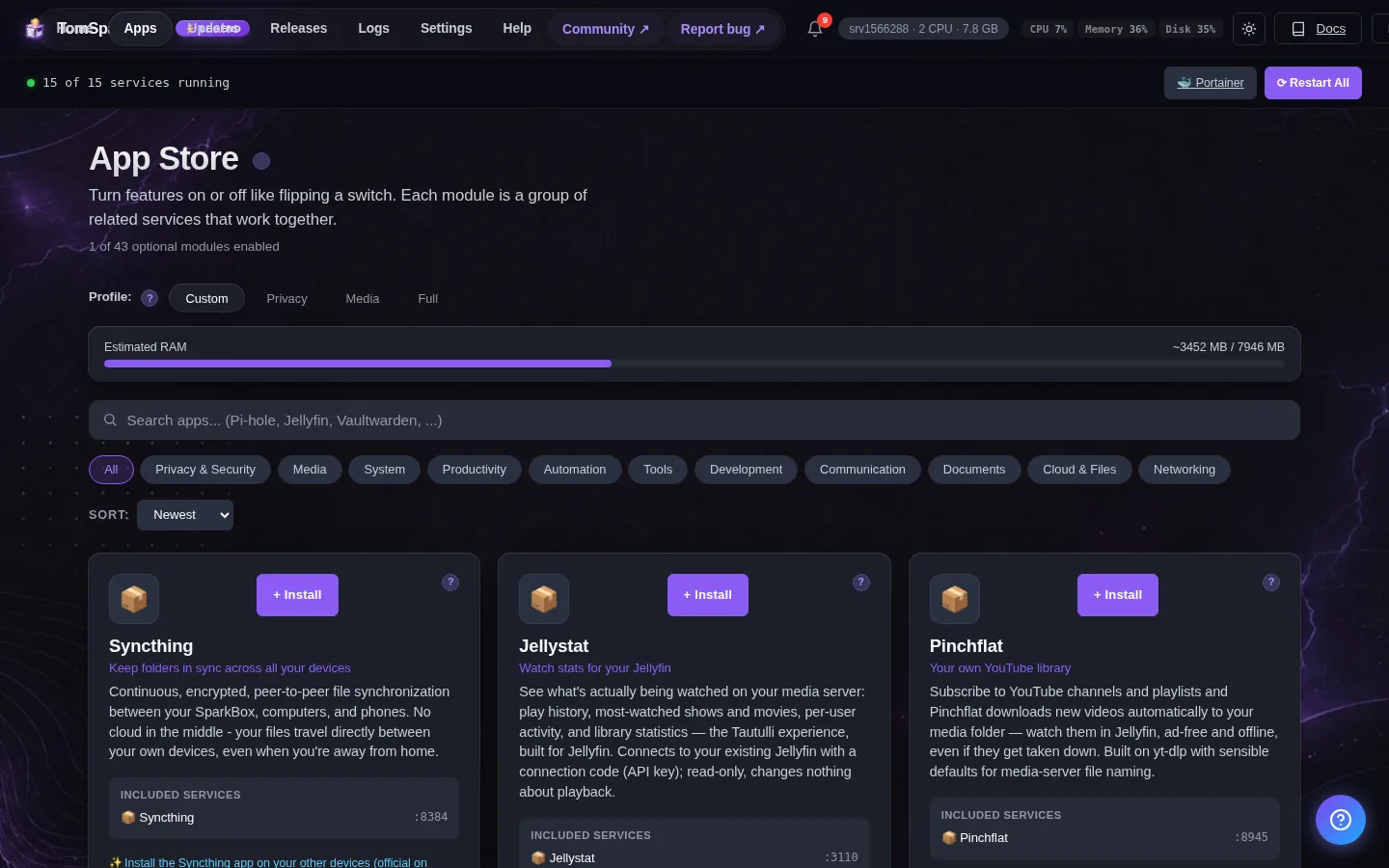
Before you turn it on
Make sure the paths you choose for books and manga exist and are writable. You can drop files in after install.
Open it
Dashboard → Apps → Ebooks & Comics → Open. The direct address on your network is:
http://<your-box-IP>:8083Point Calibre-web at /books on first run to import your library.
First login
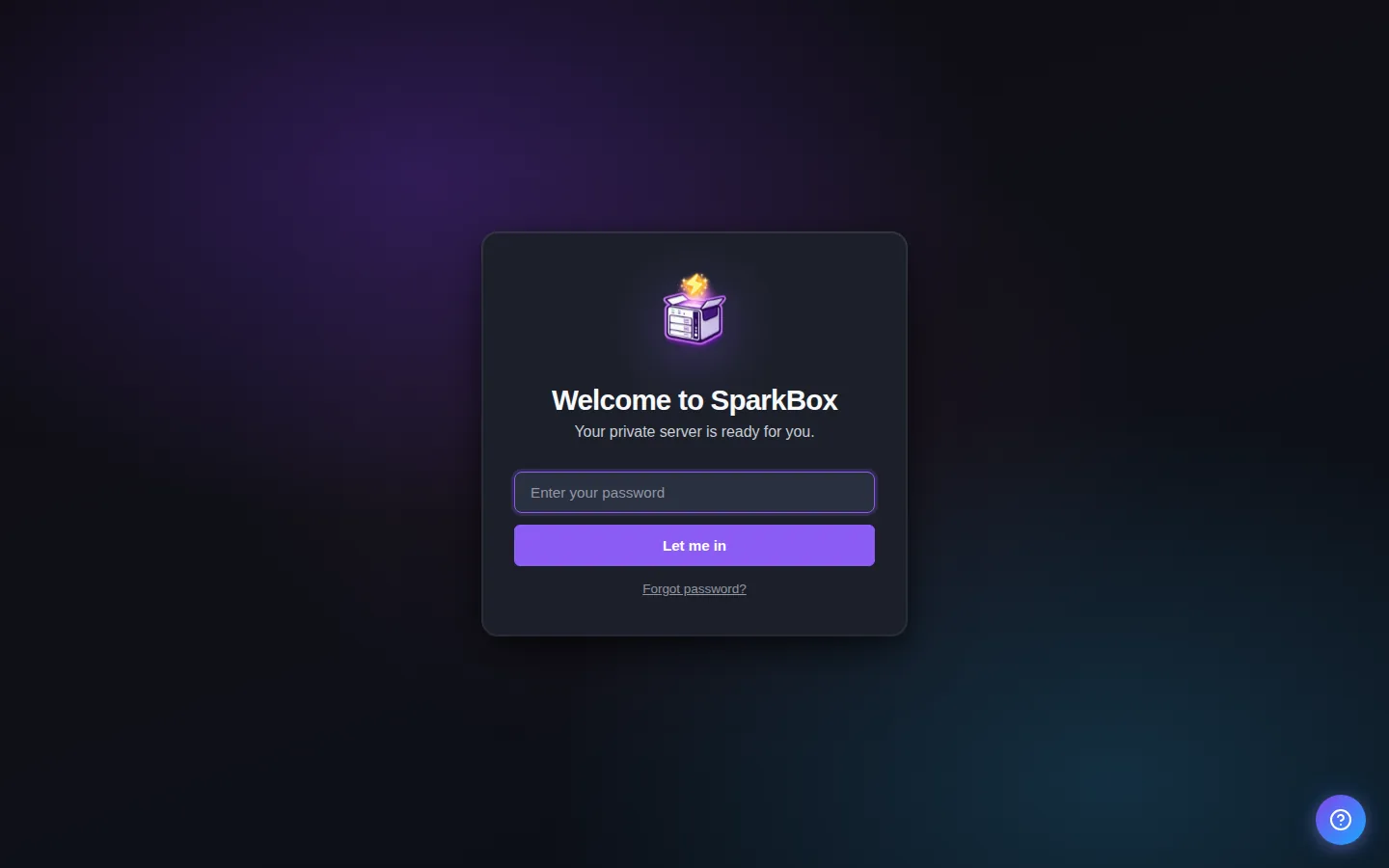
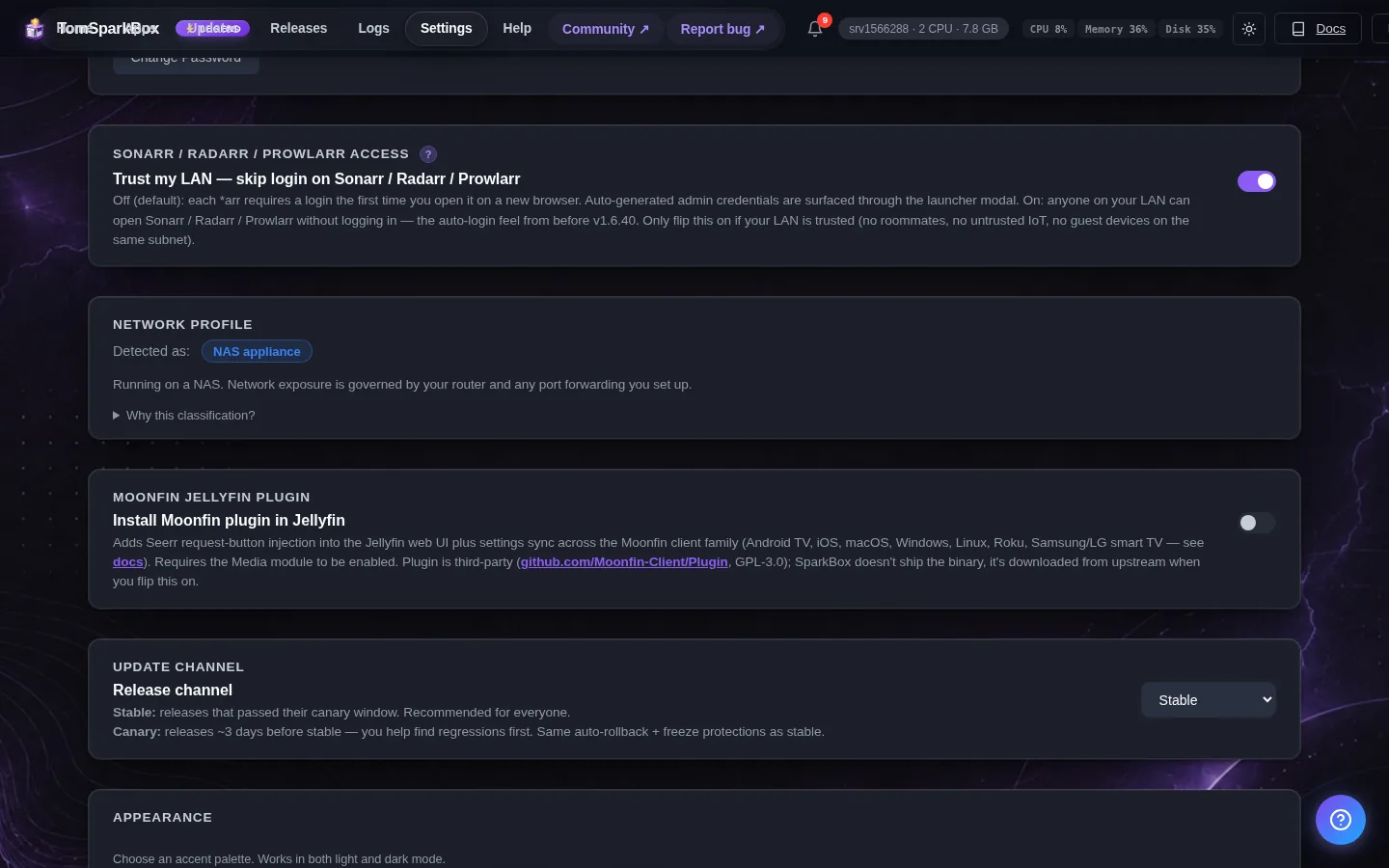
Log in as 'admin' — SparkBox auto-generated the password for you and it's shown below (also at Settings → Service Passwords, with a Reset button; the shared factory admin/admin123 login is retired on first start). On first visit Calibre-web asks for a Calibre library path; leave it as '/books' (SparkBox creates an empty Calibre library there for you). If it says 'New db location is invalid', the library is still being prepared — wait a minute, run 'sparkbox up' (or restart from the dashboard), and try again.
Any password the installer generated for you is under Settings → Passwords; the Open button offers to copy it.
Settings that matter
Change these under Apps → Ebooks & Comics (or when you enable it):
- Books Folder — Where to store your ebook library
- Manga Folder — Where to store your manga/comics library
When it breaks
If it will not open, check the app card first — a red dot means it is restarting or unhealthy, and this walkthrough reads the reason from its log. Tom AI on the dashboard can do the same for you.
Where your data lives
/opt/sparkbox/modules/ebooks/config/Included in the dashboard's Backup by default. Restoring that backup on a fresh install brings Ebooks & Comics back exactly as it was.
Questions, or did this not match your box?
Every guide here came from a real problem someone hit. If yours behaves differently, say so — that is how these get corrected, and how the fix gets prioritised.
We answer there rather than in a comment box, because that is where the people who have already solved it are.