ZimaOS vs SparkBox: replace your NAS operating system, or keep it?
· Updated 18 September 2026 · SparkBox team
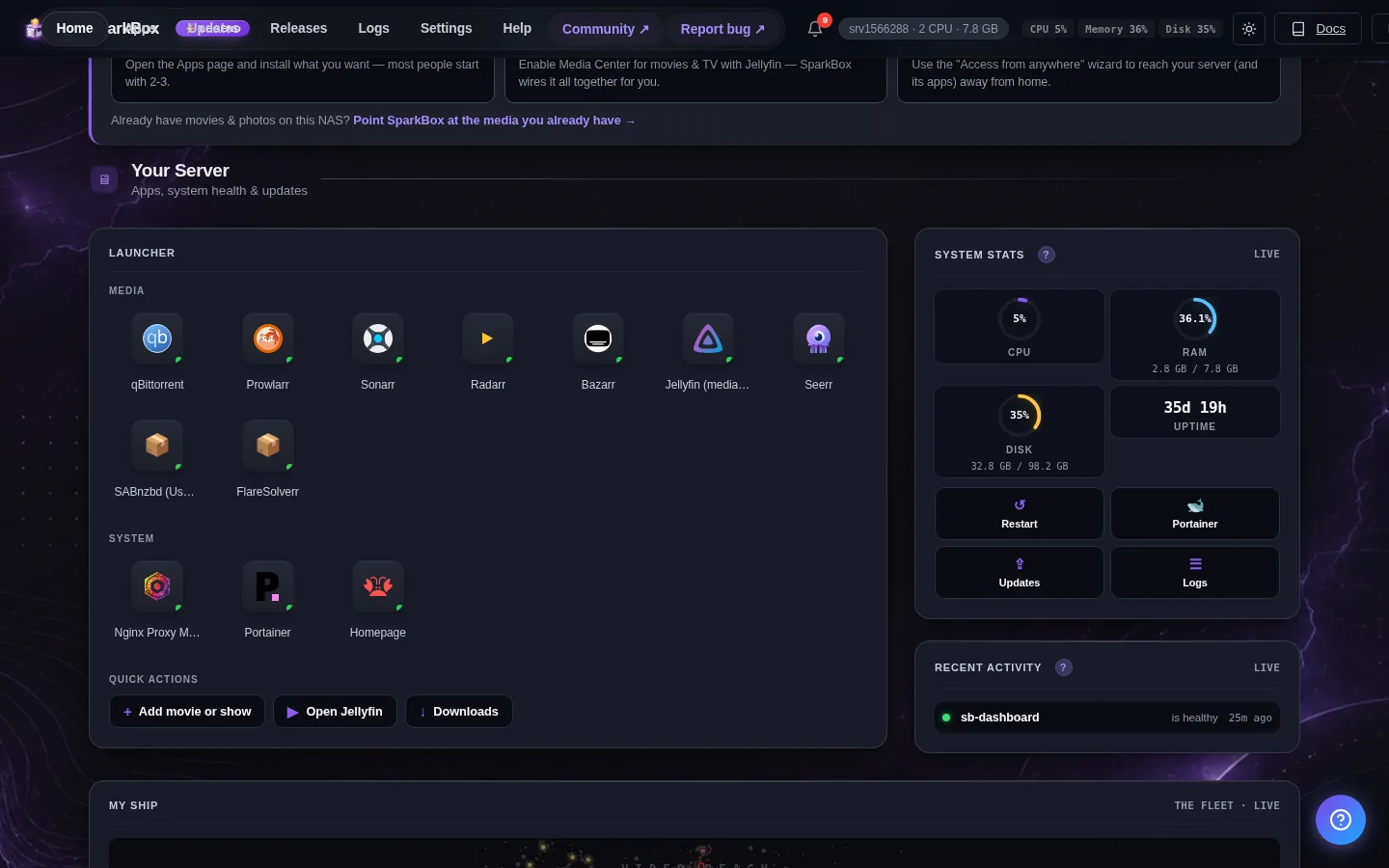
These get compared a lot, and the comparison is usually framed as a feature race. It isn't one. ZimaOS and SparkBox answer different questions, and the honest way to choose between them is to answer one question first: do you want to wipe the operating system your NAS came with?
The 20-second version: It is the difference between installing an app on your phone and flashing a custom ROM onto it. ZimaOS is a full NAS operating system — you flash it to a drive and it replaces what was there, after a trip through the BIOS. SparkBox is not an operating system — it installs on top of the one you already run and leaves it alone. If you want GUI-managed RAID, ZFS and virtual machines, ZimaOS does things SparkBox does not. If you bought a NAS whose own apps you want to keep, SparkBox exists precisely because wiping it is a big ask.
What ZimaOS actually is
ZimaOS comes from IceWhale, the company behind the ZimaBoard, ZimaBlade and ZimaCube. It grew out of CasaOS, and it describes itself as "a simplified, focused and open NAS OS", built on Buildroot with over-the-air updates.
It is a real operating system, and a capable one. From its own documentation and release notes, it offers:
- GUI management for Btrfs, ext4 and ZFS, and software RAID 0/1/5/6 and JBOD — insert drives, click through a wizard
- Full SAMBA support and standard network-share protocols
- Virtual machines (ZVM), DLNA, and local AI options
- Integration with external storage and cloud accounts such as Google Drive and Dropbox, with migration between them
- A large app store — redesigned again in v1.7.0 (July 2026) with new browsing, discovery and management pages
That is a genuinely broad feature set, and several of those things SparkBox does not do at all. If GUI-managed ZFS or running virtual machines is what you need, this comparison is already over and ZimaOS is your answer.
The part that decides it for most people
ZimaOS is installed by writing an image to a USB stick and booting from it. The installer's own warning is unambiguous: back up anything important, because the selected disk will be erased. It requires UEFI boot enabled and Secure Boot disabled in your BIOS.
On a UGREEN NAS specifically — which is what most people asking this question own — installing ZimaOS replaces UGOS permanently. Community write-ups describe the process: enter the BIOS (Ctrl+F12 on these machines), enable USB boot, disable Secure Boot, flash the image with balenaEtcher or Rufus, and pick a drive to install onto. People report the internal eMMC may be locked.
Two consequences are worth being blunt about, because they are easy to under-weigh until afterwards:
The vendor software is gone. UGOS's file manager, its photo application, and the UGREEN phone apps your household may already be using — all of it goes with the OS. If you are the only person who touches the NAS, that may be no loss. If a partner or family already uses the photo app, you have just changed their software without asking.
There is no apt. ZimaOS ships without a general-purpose package manager, which community reports flag as a practical problem: hardware extras like the UGREEN LED controller cannot simply be reinstalled. Small until it is your machine's front-panel lights that no longer mean anything.
A way to think about the difference
Installing an app on your phone, versus flashing a custom ROM onto it.
Flashing a ROM is a legitimate, powerful thing to do. It also means unlocking the bootloader, wiping the device, and losing the manufacturer's own apps — and afterwards your phone is yours in a way it wasn't before. Nobody does it by accident, and nobody does it to a phone their family shares.
Installing an app is a different order of decision. Everything already on the phone keeps working. If you don't like the app, you remove it and the phone is exactly as it was.
ZimaOS is the ROM. SparkBox is the app. Neither is the "right" answer — but they are not the same size of decision, and comparing them on feature count hides that completely.
It runs on the Linux you already have
This is the part that gets missed most often, and it is the biggest practical difference between the two.
SparkBox does not care what your machine runs, as long as it is a mainstream Linux with Docker. The installer detects your distribution family and uses its native package manager — apt-get, dnf or pacman:
- Debian family — Debian, Ubuntu (including Server), Linux Mint, Pop!_OS — and UGOS Pro, which is Debian-based, which is why a UGREEN NAS is a first-class target rather than a workaround
- RHEL family — Fedora, RHEL, CentOS, Rocky, AlmaLinux, Oracle Linux, Amazon Linux
- Arch family — Arch, Manjaro, EndeavourOS, ArcoLinux, Garuda
- NAS hardware, an old desktop, or a $7/month VPS — the same install either way
ZimaOS is not distribution-agnostic, because it is the distribution. Its supported list is its own hardware — ZimaBoard, ZimaBlade, ZimaCube — plus generic x86-64 machines, with UEFI required and Secure Boot disabled. That is not a criticism; an OS is entitled to specify the machines it boots on. It is simply a different kind of commitment.
The setup, side by side
Worth laying out literally, because "easy to install" is claimed by everyone and means nothing until you count the steps.
| ZimaOS | SparkBox | |
|---|---|---|
| Before you start | Back up everything on the target disk — it will be erased | Nothing. Your data and your NAS's OS stay put |
| Physical steps | Download an image, flash a USB stick with balenaEtcher or Rufus | None |
| Firmware changes | Enter the BIOS, enable USB boot, disable Secure Boot | None |
| Reboots | Boot from USB, install, reboot into the new OS | None required |
| The actual install | Pick a disk and let it wipe | Paste one command |
| If you change your mind | Reinstall the vendor OS from scratch | sudo sparkbox reset --nuke |
None of the ZimaOS steps are hard for someone comfortable in a BIOS. But every one of them is a place to stall, and the whole sequence is irreversible in a way pasting a command is not. If you have ever talked a relative through changing a boot order over the phone, you already know which column is the harder sell.
What SparkBox is, precisely
SparkBox is not an operating system and does not try to be. It is one command that installs a curated, maintained stack of self-hosted applications onto the OS your machine already runs — UGOS on a UGREEN NAS, or Debian, Ubuntu, or a $7/month VPS.
Nothing is wiped. UGOS keeps running. Its file manager and photo app keep working, and the SparkBox apps live alongside them. If you decide you hate it, sudo sparkbox reset --nuke removes it and leaves the machine as it was.
That constraint — never own the machine, always be a guest on it — is the whole design, and it is why the two projects are not really substitutes.
Where SparkBox actually earns its keep
Here is the part that does not show up in a feature comparison, and it is the honest argument for what we do.
An app store hands you a container. That is the well-documented part, and everybody's app store does it well. What no catalogue entry tells you is what goes wrong afterwards on your specific machine — and self-hosting is almost entirely made of that.
Some real examples, all of which are ordinary rather than exotic:
- Your GPU has a different group number than the guide assumed. The number that lets a container use your GPU differs between NAS firmware, Debian and Ubuntu. Get it wrong and video playback fails with a message that explains nothing, sending people hunting for a corrupt file that does not exist. SparkBox detects the real number on your box instead of hardcoding one.
- Docker reports a container as "running" before the app inside can answer. For anything with a real database that gap is minutes, not seconds — so every status light is green while nothing works. SparkBox waits for actually-ready before it tells you everything is fine.
- A backup that copies a database mid-write restores broken. It usually restores looking fine and fails weeks later, long after the good copy rotated away. SparkBox pauses each database, takes a clean copy, and restores from that one.
- A VPN can connect perfectly and still block file sharing. Tunnel up, IP changed, every indicator green, nothing downloading. SparkBox surfaces that specific trap rather than leaving you to discover it.
None of that is a feature you would put on a comparison table. All of it is the difference between a stack that runs and a stack that keeps running.
An honest table
| ZimaOS | SparkBox | |
|---|---|---|
| What it is | A NAS operating system | An app stack for the OS you have |
| Installation | USB stick, BIOS changes, target disk erased | One command; nothing is wiped |
| Runs on | Zima hardware + generic x86-64 (UEFI, Secure Boot off) | Any mainstream Linux — Debian, Ubuntu, Fedora, Arch, UGOS, a VPS |
| Your NAS's own apps | Replaced | Kept, still working |
| BIOS changes needed | Yes — USB boot on, Secure Boot off | No |
| RAID / ZFS / Btrfs GUI | Yes | No — your NAS OS handles storage |
| Virtual machines | Yes (ZVM) | No |
| SAMBA / network shares | Yes, built in | Whatever your existing OS provides |
| App catalogue size | Larger | Smaller, curated |
| Reversible | Reinstall the vendor OS | sparkbox reset --nuke |
| Runs on a cheap VPS | Not the target | Yes |
Read that table honestly and ZimaOS wins four rows outright. We are not going to pretend otherwise — if those four rows are what you need, install ZimaOS. It is good software and the people building it know what they are doing.
So which one should you pick?
Choose ZimaOS if: you are building from bare hardware or a spare PC; you want GUI-managed RAID, ZFS or virtual machines; you have no attachment to whatever OS shipped on the box; and you are comfortable in a BIOS.
Choose SparkBox if: you bought a NAS and want to keep its software; other people in your house already use its photo or file apps; you want a media stack, ad-blocking and private cloud on top without a risky migration; or you want the same setup on a NAS and a cheap VPS.
And a real third option: try SparkBox first precisely because it is reversible. Wiping your NAS is a decision you make once. Installing something alongside it and removing it again if you dislike it costs you an evening.
Common questions
Does ZimaOS replace the operating system on my NAS?
Yes. It is installed by flashing an image and booting from USB, and the installer erases the target disk. On a UGREEN NAS it replaces UGOS permanently, taking the vendor's file manager, photo app and phone apps with it. SparkBox installs on top of the existing OS and leaves it running.
Can I run ZimaOS on a UGREEN NAS?
Technically yes, and people do. You enter the BIOS, enable USB boot, disable Secure Boot, and flash the image to a drive. Community reports note the internal eMMC may be locked, and that the absence of a package manager makes hardware extras such as the UGREEN LED controller hard to restore.
Is ZimaOS better than SparkBox?
For storage management and virtualization, yes — it does things SparkBox does not attempt. They are not competing for the same job: one is an operating system, the other is a maintained application stack for the operating system you already have.
Which should I choose for a home media server?
Bare hardware, or you want RAID and VMs managed for you: ZimaOS. A NAS whose own software you want to keep, and you would rather not wipe anything: SparkBox.
Keep your NAS. Add the rest.
SparkBox installs in one command on the operating system you already run, and removes just as cleanly if you change your mind.
Questions, or did this not match your box?
Every guide here came from a real problem someone hit. If yours behaves differently, say so — that is how these get corrected, and how the fix gets prioritised.
We answer there rather than in a comment box, because that is where the people who have already solved it are.