How to Replace UGOS with Ubuntu on a UGREEN NAS (Keep Your Data)
· Updated 18 September 2026 · SparkBox team
UGOS is fine. It's also a locked-down vendor OS, and at some point you realize you want your NAS to just be a normal Linux server you fully control — for Docker, for self-hosting, for SparkBox, for whatever. The good news: you can swap UGOS for plain Ubuntu on a UGREEN DXP-series box entirely over SSH — no monitor, no keyboard, no USB stick — and keep every photo and every app exactly where it is.
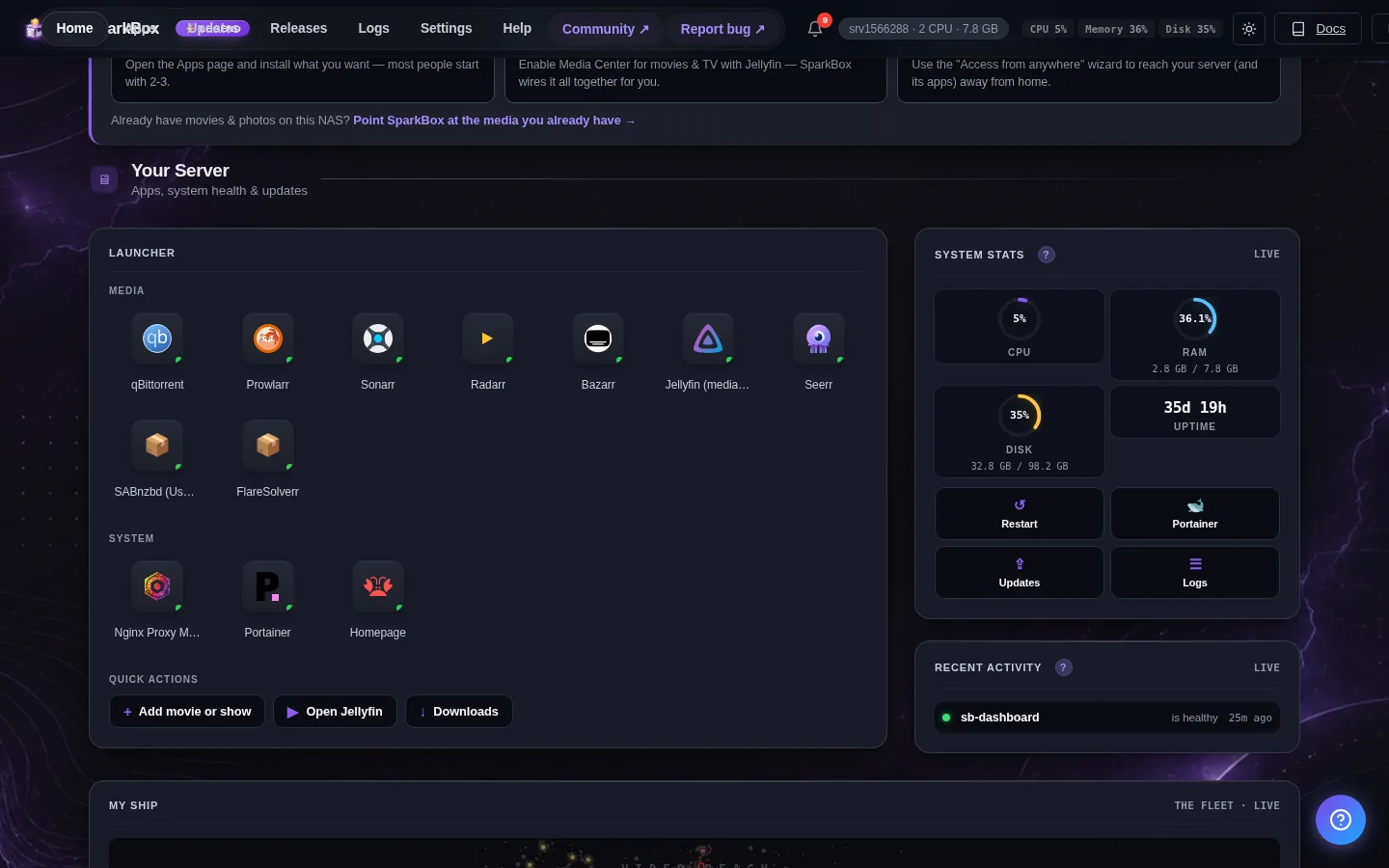
I (tomspark) ran this end-to-end on a UGREEN DXP2800 (Intel N100). Every command below actually executed. The payoff at the end was real: same 14 apps, all my photos intact (43,144 of them, verified), and the box using ~44% less RAM than it did under UGOS. I was the test dummy so you get the clean path.
I won't oversell it — there are some genuinely weird UGREEN-specific gotchas, and one honest limitation at the very end that needs a monitor for ten minutes. But the core trick is reversible at every step, and that's the part that makes it safe to try.
Tested on: UGREEN DXP2800 (Intel N100), Ubuntu 24.04 LTS cloud image, end-to-end over SSH alongside SparkBox v1.6.158.
1. Who this is for (and what you keep)
This is for capable-but-not-expert self-hosters. You can SSH into your NAS and paste commands; you don't need to be a kernel hacker.
What stays completely untouched:
- UGOS — it lives on the NAS's internal eMMC (a small built-in flash chip). We never write to it. It stays bootable the whole time.
- Your HDD data pool — photos, Immich, Docker volumes, everything. The drives physically stay in the NAS and Ubuntu just adopts them. Nothing gets copied across the network.
What we add: Ubuntu goes onto a spare M.2 NVMe SSD — a separate drive. That's the only thing we ever write to.
Jargon, defined once:
- eMMC = the small soldered-in flash chip your NAS boots UGOS from.
- M.2 NVMe = a stick-shaped SSD that slots inside the NAS. This is where Ubuntu goes.
- cloud image = a ready-made, already-installed Ubuntu disk image you write straight onto a drive (no installer needed).
- cloud-init = the thing that personalizes that generic image on first boot (your user, your SSH key).
2. Safety & reversibility (read this first)
This is the part that makes the whole thing low-risk:
| Thing | What happens to it |
|---|---|
| UGOS on the eMMC | Untouched. Still bootable. |
| HDD data pool (photos/Immich) | Untouched. Drives never leave the box. |
| The spare M.2 | The only drive written to. |
| Default boot | Stays UGOS until you deliberately change it. |
| Escape hatch | Power-cycle the NAS → you're back on UGOS. |
Two design choices make this safe:
- One-shot boot. When we first boot Ubuntu, we use a UEFI feature called BootNext — the firmware boots Ubuntu exactly once, then falls back to UGOS on its own. If Ubuntu doesn't come up, just power-cycle. Nothing was wiped.
- The one pool change is metadata-only. The single command we run against your data pool flips one bit in the filesystem superblock. It touches none of your file data (more on this below) and it's reversible.
Still: back up first. I had a verified off-site backup before I started. Do the same. "Reversible" is not "skip the backup."
3. Prerequisites
- A UGREEN DXP-series NAS (x86_64, UEFI). Confirmed on DXP2800.
- A spare M.2 NVMe SSD installed in one of the internal M.2 slots. ⚠️ Slot location surprise: the M.2 slots are under the drive bays — pull the 3.5" HDD trays out and they're on the floor of the bay, NOT in the side RAM compartment. (I opened the RAM door first. Wrong panel.)
- SSH access to UGOS with a
sudoaccount. - The NAS online — it downloads ~600 MB.
- Your SSH public key — you'll bake it into the image so you can log into Ubuntu the moment it boots.
This is a manual, two-phase walkthrough (phase1 on UGOS, phase2 on Ubuntu) — there's no script to download and run. Every command below is spelled out so you can see exactly what happens to the drive before you run it.
4. Phase 1 — Put Ubuntu on the M.2 (run on UGOS)
The headline trick: no ISO, no USB
Ubuntu publishes a cloud image — a ready-made disk image of an already-installed Ubuntu. You write it straight onto the M.2 from inside the running NAS, drop in a tiny config file with your SSH key, and point the firmware at it. First boot, it expands to fill the drive and comes up with SSH ready.
4.1 Get qemu-img (UGOS is missing it)
To write the cloud image (a qcow2 file) onto the M.2 you need a tool called qemu-img, and UGOS — a stripped-down Debian appliance — doesn't ship it. Installing it normally fails with a dependency conflict. Don't fight the package manager. Just extract the one binary you need from the .deb:
sudo apt-get update                 # refresh the index first or the .deb 404s
cd /tmp && sudo apt-get download qemu-utils
dpkg-deb -x qemu-utils_*.deb /tmp/qx
/tmp/qx/usr/bin/qemu-img --version  # -> 7.2.x, runs fine
Its libraries are already on the box, so it runs without installing anything.
4.2 Download the Ubuntu cloud image
/tmp on UGOS is tiny, so put the ~600 MB image on the data volume:
DEST=/volume1/ubuntu-build && sudo mkdir -p "$DEST"
sudo curl -fL -o "$DEST/noble.img" \
  https://cloud-images.ubuntu.com/releases/24.04/release/ubuntu-24.04-server-cloudimg-amd64.img
/tmp/qx/usr/bin/qemu-img info "$DEST/noble.img"   # confirm: qcow2, virtual size 3.5 GiB
4.3 Write Ubuntu onto the M.2 ⚠️ destructive step
This is the only destructive command, and it only touches the empty M.2. Confirm the target by its by-id / serial — never by a bare device name like /dev/nvme0n1 (device names can shift; serials don't):
ls -l /dev/disk/by-id/nvme-*          # confirm your M.2's serial maps to the right device
mount | grep nvme0n1 || echo "not mounted (good)"
sudo /tmp/qx/usr/bin/qemu-img convert -p -O raw "$DEST/noble.img" /dev/nvme0n1
sudo partx -u /dev/nvme0n1; sync
lsblk -o NAME,SIZE,FSTYPE,PARTLABEL /dev/nvme0n1
⚠️ Plain-English warning: this overwrites the entire target drive. If you point it at the wrong device, that drive is gone. Triple-check the serial against ls -l /dev/disk/by-id/nvme-* before you run it, and confirm the target M.2 is empty (nothing under lsblk) before continuing.
4.4 Inject your cloud-init "seed" (your SSH key + hostname)
The cloud image is generic. You make it yours by mounting its root partition and dropping two tiny files into /var/lib/cloud/seed/nocloud/. On first boot, cloud-init reads them, creates your user with your SSH key, sets the hostname, enables SSH, and grows the filesystem to fill the drive.
user-data (the important one):
#cloud-config
hostname: sparkbox-ubuntu
manage_etc_hosts: true
users:
  - name: yourname
    groups: [sudo, adm]
    sudo: "ALL=(ALL) NOPASSWD:ALL"
    shell: /bin/bash
    lock_passwd: false
    passwd: "<openssl passwd -6 output>"        # console fallback password
    ssh_authorized_keys:
      - "ssh-ed25519 AAAA...your-public-key"     # <-- YOUR key
ssh_pwauth: true
growpart: {mode: auto, devices: ['/']}
resize_rootfs: true
runcmd:
- [systemctl, enable, --now, ssh]meta-data:
instance-id: sparkbox-ubuntu-001
local-hostname: sparkbox-ubuntu
Mount and inject (UGOS's scp is locked down, so pipe the files in over SSH):
# on the NAS:
sudo mount /dev/nvme0n1p1 /mnt/utgt
sudo mkdir -p /mnt/utgt/var/lib/cloud/seed/nocloud
# from your machine:
cat seed/user-data | ssh nas 'sudo tee /mnt/utgt/var/lib/cloud/seed/nocloud/user-data >/dev/null'
cat seed/meta-data | ssh nas 'sudo tee /mnt/utgt/var/lib/cloud/seed/nocloud/meta-data >/dev/null'
sudo umount /mnt/utgt
Verify your key BEFORE rebooting. Make sure the public key you put in the seed is one whose private half you actually have, or you lock yourself out of the new Ubuntu. ssh-keygen -y -f ~/.ssh/yourkey should print a line matching the seed exactly.
4.5 Make Ubuntu actually boot on this hardware (the UGREEN gauntlet)
Here's where the weird-UGREEN-stuff lives. The cloud image is built for cloud VMs, not bare metal, and UGREEN's firmware has some opinions. You fix all of this in one chroot (working inside the Ubuntu install while still on UGOS). The key pieces:
- The IT87 hardware watchdog. UGREEN's firmware arms a hardware watchdog timer that hard-resets the box ~40 seconds into every Ubuntu boot (UGOS keeps it happy; stock Ubuntu didn't even know it was there). Fix: tell systemd to pet it with
RuntimeWatchdogSec=60, and load theit87_wdtdriver at boot. - Missing drivers. The cloud image ships a cut-down
-virtualkernel with no bare-metal drivers. Add them withapt install linux-modules-extra-<kernel-version>. - The driver is blacklisted. Ubuntu ships
it87_wdtblacklisted by default — un-blacklist it (comment out theblacklist it87_wdtline) so it can load. - Empty network config. cloud-init leaves
/etc/netplanempty, so Ubuntu boots with no network. Drop in a catch-all DHCP netplan that matches anye*NIC.
4.6 Set the one-shot boot ⚠️ and reboot
Add a UEFI entry for Ubuntu, then set it as BootNext — boots once, then reverts. Leave BootOrder alone so UGOS stays the default:
ORIG=$(sudo efibootmgr | awk '/BootOrder/{print $2}')   # save UGOS's boot order
sudo efibootmgr -c -d /dev/nvme0n1 -p 15 -L "Ubuntu-M2" -l '\EFI\ubuntu\shimx64.efi'
# find the new Boot#### number, then:
sudo efibootmgr -o "$ORIG"    # keep UGOS the default
sudo efibootmgr -n "$NEW"     # BootNext = Ubuntu, ONE shot
sudo reboot
Wait 1–2 minutes, then SSH in. Heads up: Ubuntu's network stack uses a different DHCP client ID than UGOS, so your router will likely hand it a different IP than UGOS had. Sweep your subnet or check your router's lease list to find it.
ssh -o UserKnownHostsFile=/dev/null -o StrictHostKeyChecking=no \
    -i ~/.ssh/yourkey yourname@<new-ip>
If Ubuntu doesn't come up in ~3 minutes: power-cycle the NAS → you're back on UGOS, no harm done.
5. Phase 2 — Bring your data and apps across (run on Ubuntu)
The happy surprise: almost nothing gets copied. The data drive physically stays in the NAS and Ubuntu adopts it. But there's one wall to get past first.
5.1 The one real blocker: UGREEN's ugacl flag
Your data pool is standard Linux RAID + LVM + ext4 — except UGREEN bolts on a proprietary ext4 feature called ugacl (their custom permissions layer). Stock Ubuntu flat-out refuses to mount it:
EXT4-fs: Couldn't mount because of unsupported optional features (20000000)A newer kernel won't help — it's vendor-specific, not an upstream feature. The fix is one command: strip the flag. It's a metadata-only change — it flips a bit in the superblock and touches none of your file data. I verified this byte-for-byte: a test file's md5 was identical before and after, a loopback test passed e2fsck clean, and the real 514 GB pool came through with the exact same 43,144-file count as my backup. It's also reversible (-O ugacl re-adds it).
The catch: only UGREEN's patched tune2fs understands ugacl. Lucky break — UGREEN's tools are statically linked, so they run fine on Ubuntu. Phase 1 already copied them over as ugos-tune2fs etc. And because Ubuntu can't auto-mount a ugacl filesystem, the pool comes up cleanly unmounted — so you never have to fight UGOS to release a busy drive.
# find + activate the pool
sudo vgchange -ay
POOL=/dev/mapper/ug_<your-id>_pool1-volume1   # ls /dev/mapper/ug_* to find yours

sudo ugos-e2fsck -fn $POOL                     # confirm it's clean first
sudo ugos-tune2fs -O ^ugacl $POOL              # <-- strip the flag
sudo ugos-e2fsck -fy $POOL                     # cleanup (fixes a benign quota count)
⚠️ Plain-English warning: this rewrites filesystem metadata. It does not touch your files, and it's reversible — but this is exactly why you took a backup first. Confirm the pool device path carefully before running it; you want your data pool, nothing else.
Now stock Ubuntu mounts it natively:
sudo mkdir -p /volume1 && sudo mount $POOL /volume1
ls /volume1/sparkbox-data        # your data is right there
Make it permanent by adding the pool's UUID to /etc/fstab with a nofail option, so a missing pool never blocks boot.
5.2 Adopting your apps (SparkBox)
Your layout: bulk media + Docker live on the pool; the SparkBox install + app configs + databases (Immich Postgres, Vaultwarden vault — ~4 GB) live on the eMMC at /opt/sparkbox. Copy that small config bundle over, then reuse the Docker data already on the pool:
# copy the SparkBox install + configs + DBs from the eMMC overlay
sudo mount /dev/mmcblk0p7 /mnt/emmc
sudo cp -a /mnt/emmc/upper/opt/sparkbox /opt/

# install Docker, REUSING your existing images + volumes on the pool
curl -fsSL https://get.docker.com | sudo sh
sudo systemctl stop docker
echo '{ "data-root": "/volume1/docker" }' | sudo tee /etc/docker/daemon.json
sudo systemctl start docker        # finds all your images + containers, no re-pull
On start, Docker found all 33 images and 14 containers on the existing data root — no re-pull — and the restart-policy containers came straight back up healthy. Immich, Vaultwarden, Nextcloud, the lot. (If something doesn't, cd /opt/sparkbox && sudo ./sparkbox up.)
5.3 Two gotchas every UGOS→Ubuntu SparkBox move hits
-
Pi-hole won't start (port 53 is taken). Ubuntu's
systemd-resolvedsquats on port 53. Free it:printf '[Resolve]\nDNSStubListener=no\n' | sudo tee /etc/systemd/resolved.conf.d/99-no-stub.conf # point /etc/resolv.conf at a real upstream (e.g. 1.1.1.1), then: sudo systemctl restart systemd-resolved -
Dashboard can't read Docker (
EACCES /var/run/docker.sock). Thedockergroup ID differs on Ubuntu vs UGOS. Quick + persistent fix:sudo chmod 666 /var/run/docker.sock # plus a persistent drop-in so it survives restarts: printf '[Socket]\nSocketMode=0666\n' | sudo tee /etc/systemd/system/docker.socket.d/override.conf sudo systemctl daemon-reload
5.4 Take over the NAS's IP
So your bookmarks and phone apps (Immich, etc.) keep working, give Ubuntu the same static IP UGOS used (a netplan static config on the enp1s0 NIC). Your SSH session will drop when you apply it — reconnect at the static IP.
6. The 6 weird UGREEN gotchas, explained simply
- No
qemu-img. UGOS is a stripped appliance. Pull the binary out of the.debinstead of installing the package — its libraries are already there. - The M.2 slots hide under the drive bays, not behind the RAM door. Pull the HDD trays.
- A hardware watchdog reboots you ~40s in. UGREEN's firmware arms it; UGOS pets it, stock Ubuntu doesn't. Load
it87_wdt+ tell systemd to pet it. - The cloud image's kernel has no bare-metal drivers (it's the
-virtualkernel). Addlinux-modules-extraand un-blacklist the watchdog driver. - cloud-init leaves the network empty. Drop in a catch-all DHCP netplan or you boot with no network.
- Your data pool has a proprietary
ugaclflag that blocks stock Ubuntu. Strip it with UGREEN's owntune2fs— metadata-only, reversible, file data untouched.
7. The payoff: 44% less RAM, same apps
Measured on the same DXP2800, both at 21 minutes uptime, same 14 apps running:
| Metric | UGOS | Ubuntu |
|---|---|---|
| RAM used | 3,567 MB | 2,001 MB |
| Load (1 min) | 0.38 | 0.14 |
| Processes | 317 | 246 |
That's roughly 1.5 GB / ~44% less RAM, just from dropping the vendor appliance services you weren't using. All 14 apps healthy, every photo present and accounted for.
8. The one honest limitation
Here's the catch I promised not to bury: UGREEN's firmware reverts software boot-order changes. Set Ubuntu as the permanent default with efibootmgr and the firmware quietly puts UGOS back on top after the next reboot. (This is the same reason TrueNAS/UnRAID installs on these boxes need a one-time BIOS change.)
So until you do one physical step, Ubuntu only boots reliably via the one-shot trick (sudo efibootmgr -n <ubuntu-entry> then reboot).
The one-time fix: plug in an HDMI monitor and a USB keyboard, tap Ctrl+F2 or Ctrl+F12 at power-on to reach the firmware menu, and set the M.2 first in the boot order. Ten minutes, once, and Ubuntu becomes the permanent default. After that you never need the monitor again.
It's the one part you can't do over SSH. I'd rather tell you that up front than have you discover it after a reboot drops you back into UGOS.
9. FAQ
Will I lose my photos / data?
No. The data drives physically stay in the NAS; Ubuntu adopts them in place. The only change to the pool is a reversible metadata flag strip that doesn't touch file contents. I still recommend a backup first — and I had one.
Can I go back to UGOS?
Yes, at every step. UGOS is untouched on the eMMC the whole time. Before you do the BIOS change, a simple power-cycle returns you to UGOS. After it, switch the boot order back in the firmware menu. The ugacl flag can even be re-added if you want UGOS's exact original state.
Do I need a monitor and keyboard?
Only for the final one-time boot-order change in the firmware. Everything else is 100% over SSH.
Why does Ubuntu get a different IP at first?
Ubuntu's network stack uses a different DHCP client ID than UGOS, so your router hands it a new lease. In Phase 2 you assign it UGOS's old static IP so all your bookmarks and apps keep working.
Does my data pool have to be reformatted?
No. That's the whole point of the ugacl strip — your 500+ GB stays exactly where it is. No reformat, no re-download, no second drive needed.
Is there a script for all this?
No — there's no downloadable script, just the manual walkthrough above, split into phase1 (on UGOS) and phase2 (on Ubuntu). Every command is shown so you can check the target device before running anything destructive.
Next steps
A UGREEN NAS that's just a normal Ubuntu server.
This isn't a trivial five-minute job — it's a real OS swap with some genuinely strange UGREEN-specific hurdles. But none of it is risky if you go in the order above: UGOS stays safe on the eMMC, only the empty M.2 gets written, the one pool change is reversible metadata, and you've got a backup. I did the painful discovery run so you don't have to — the path above is the clean one.
The reward is a UGREEN NAS that's just a normal Ubuntu server: yours to do anything with, running the same apps on a fraction of the RAM. SparkBox installs the whole self-hosting stack on top with one command — Immich, Vaultwarden, Pi-hole, the lot. If you don't have it yet, that's roughly two hours of setup compressed into a single install.
Questions, or did this not match your box?
Every guide here came from a real problem someone hit. If yours behaves differently, say so — that is how these get corrected, and how the fix gets prioritised.
We answer there rather than in a comment box, because that is where the people who have already solved it are.