Run SparkBox as a Windows App (Install It on Your Desktop)
· Updated 18 September 2026 · SparkBox team
If you installed SparkBox on Windows, your dashboard can run as a real desktop app — its own window, its own icon in the Start menu and taskbar, no browser tab in the way. There's nothing to download from the Microsoft Store and no account to create: the dashboard you already have becomes the app. This guide does it click by click, and then turns on notifications so your box can tap you on the shoulder when it needs you.
Quick check first: if you used the Windows installer, it already put a SparkBox app shortcut in your Start menu and on your desktop — open the Start menu, type SparkBox, and launch it. If it opens in its own window, you're done. No shortcut, or on a Mac, phone, or Linux? Keep reading.
1. What "install as an app" actually means
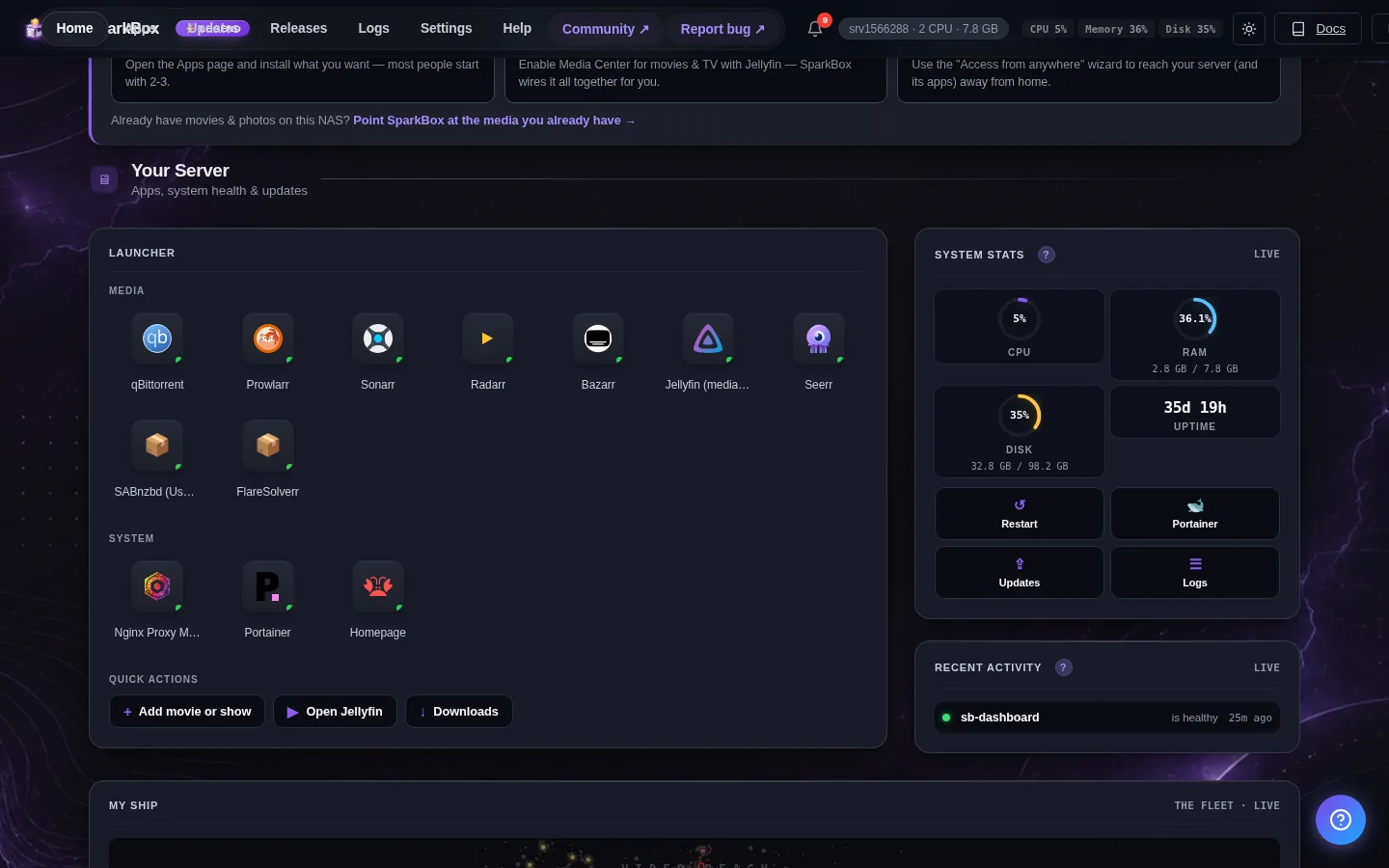
SparkBox doesn't ship a separate program you download and run. Instead, Edge and Chrome can take the dashboard and install it as an app on Windows: it gets its own window with no address bar, its own icon in the Start menu, and it shows up in the taskbar like Spotify or Slack. Under the hood it's still your dashboard talking straight to your box — you've just given it a front door on your desktop.
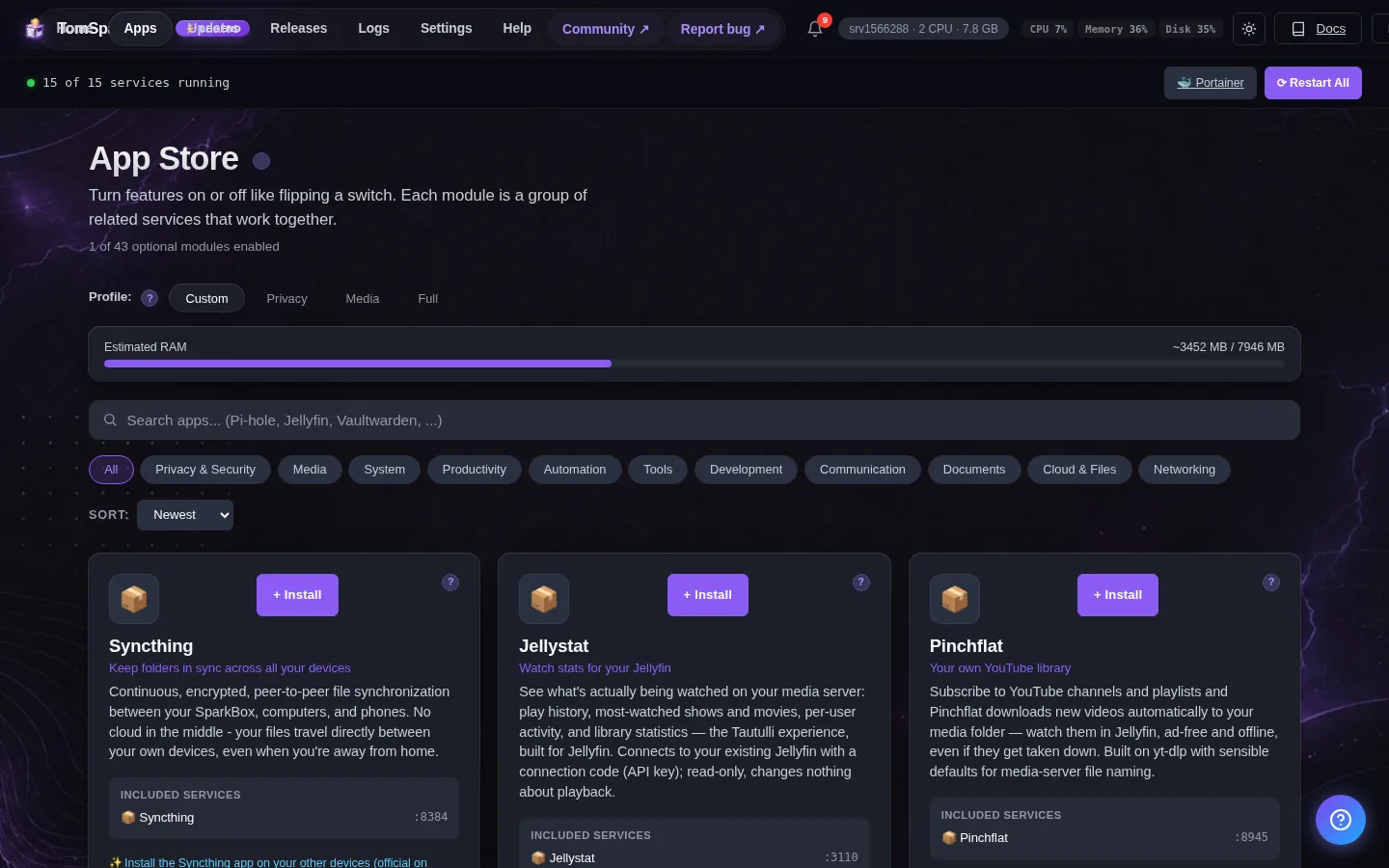
The bonus is notifications. Once it's installed, SparkBox can send you a real Windows notification — the kind that slides in from the bottom-right — even when the window is closed.
2. What you need first
- SparkBox installed and running on this PC. If you just finished the Windows installer, you're ready — open
http://localhost:8443. (Plainhttp://localhostwithout the:8443opens a different page; the dashboard is on:8443.) - Microsoft Edge or Google Chrome. Both can install SparkBox as an app. Firefox can't install desktop web apps, so use Edge or Chrome for this.
- That's it. No Legend license is needed to install the app — that part is free. Notifications are the Legend piece, covered in step 6.
3. Install it from the dashboard (easiest)
SparkBox has a button built right in:
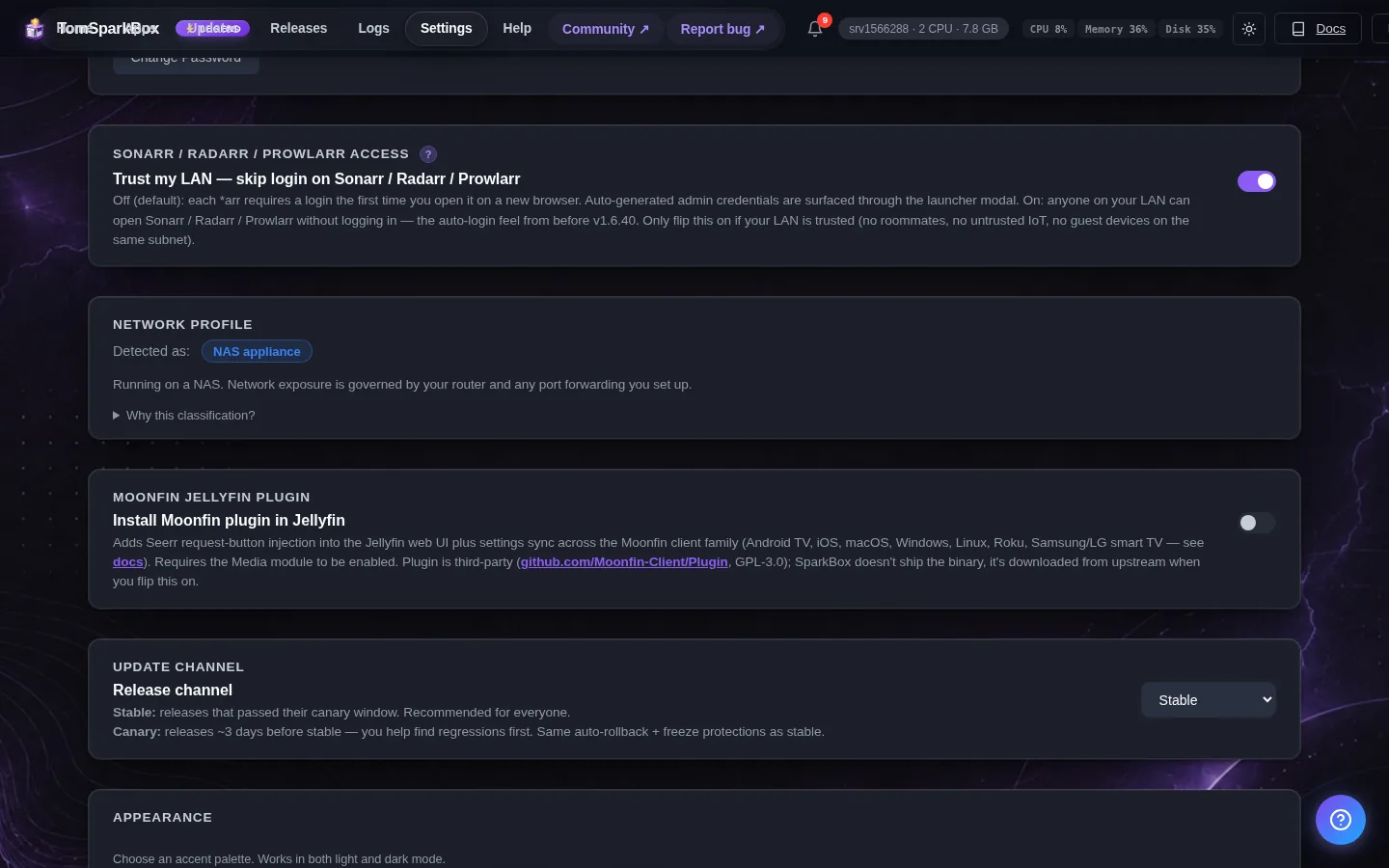
- In your dashboard, go to Settings.
- Click the Monitoring tab.
- Find Install & Notifications and click Install app.
- Windows asks "Install SparkBox?" — click Install.
SparkBox opens in its own window straight away, and the icon is now in your Start menu. That's the whole thing.
4. Install it from your browser bar (always works)
Prefer the browser's own control, or the button says to use it? It's just as quick:
- Look at the right end of the address bar for a small install icon — a monitor with a downward arrow (Edge) or a screen with a plus (Chrome). Click it, then Install.
- No icon there? Open the browser's three-dot menu (top-right) → Apps → Install this site as an app (Chrome) or Install SparkBox (Edge). Confirm.
This is the same result as the in-dashboard button — use whichever you spot first.
5. Pin it to your taskbar & Start menu
Right after it installs, Windows usually offers to pin it and start it with Windows — say yes if you want it one click away. If you skipped that:
- Open the Start menu and type SparkBox — the app appears.
- Right-click it → Pin to taskbar (and/or Pin to Start).
Now it launches like any installed program — no typing an address, no hunting for the tab.
6. Turn on notifications
Notifications are a Legend feature. With Legend active, open the app (or the dashboard), then:
- Go to Settings → Monitoring → Install & Notifications — the same place as the install button.
- Switch Send alerts to this device on.
- Windows asks "Allow notifications?" — click Allow.
- Use Send a test notification to confirm one slides in from the corner.
On the free or Backer tier you'll see a short "Legend perk" note here instead of the toggle, with a link to upgrade. The install itself stays free either way. To turn alerts off later, just switch the toggle back off — there's nothing to uninstall.
7. What SparkBox will notify you about
These are picked to be genuinely worth an interruption — SparkBox is deliberately quiet, not chatty:
- Something went unhealthy — e.g. "Immich went unhealthy." Often Tom AI is already on it, and you'll get a follow-up when it's fixed. It's a heads-up, not a chore.
- 🍿 Ready to watch — request a movie or show, and the moment it finishes downloading and lands in your library, your desktop tells you: "Night of the Living Dead is now available on your SparkBox." Click it to jump straight in.
- Updates & important events — when a new SparkBox version is ready, or something needs your attention that the box can't fix on its own.
Clicking any notification opens SparkBox straight to the right place.
8. The privacy part (this matters)
Here's the bit most "companion apps" quietly skip: SparkBox's notifications go straight from your box to your browser's push service and onto your desktop — they don't pass through our servers. We're not a middleman that sees your alerts, your requests, or when you're at your machine. That's the same principle as the rest of SparkBox: your box talks to your device, and we stay out of it. It's also why notifications are a Legend feature — we built the secure, direct path instead of the cheap route of funnelling everything through us.
9. If the button isn't there
- "Install app" is greyed out and says "Installed"? It's already installed — find it in your Start menu (type "SparkBox").
- Clicking the button shows a message about your browser menu? Your browser didn't hand SparkBox a direct install prompt (Firefox never does). Use the address-bar install icon or the three-dot menu instead — see step 4.
- No install option anywhere? You're probably in Firefox, or opened SparkBox from another device over a plain
http://192.168.x.xaddress. Install from the Windows PC itself athttp://localhost:8443in Edge or Chrome. To install and get notifications on a different device, reach your box over a secure link first — Tailscale or a custom domain both give you one. - Notifications toggle says "Legend"? Notifications are a Legend perk. Upgrade in Settings → License and it unlocks immediately.
- Still stuck? Post in d/sparkbox with your Windows version and browser — we'll walk you through it and fix the guide if a step was unclear.
Next steps
That's SparkBox living on your desktop.
On a phone too? The steps are a little different — see Put SparkBox on your phone. And to make those "ready to watch" alerts happen, set up requesting movies & shows.
Questions, or did this not match your box?
Every guide here came from a real problem someone hit. If yours behaves differently, say so — that is how these get corrected, and how the fix gets prioritised.
We answer there rather than in a comment box, because that is where the people who have already solved it are.