Tailscale: open it, first login, settings, fixes
· Updated 18 September 2026 · SparkBox team
Reach your apps from anywhere — no router setup, nothing exposed to the internet. Only your own signed-in devices can connect. You can also share the box with family or friends — note that sharing gives them every app on it unless you add an access rule in your Tailscale account first. This is the short card for it — the two minutes after you press Enable, and the page to come back to when something is off.
Before you turn it on
Two quick, one-time steps in your free Tailscale account before this works: (1) at https://login.tailscale.com/admin/settings/features turn on 'HTTPS Certificates' (some older accounts also show a 'Tailscale Serve' switch — turn that on too if you see it). (2) Create a sign-in code (Tailscale calls it an 'auth key') at https://login.tailscale.com/admin/settings/keys — make it reusable so it lasts 90 days. Full walkthrough at https://tomsparkbox.com/docs.html#remote-access-tailscale
Open it
Tailscale has no page of its own — it works in the background. The dashboard's app card shows whether it is running.
Install Tailscale on your phone and laptop to reach your apps from anywhere
Settings that matter
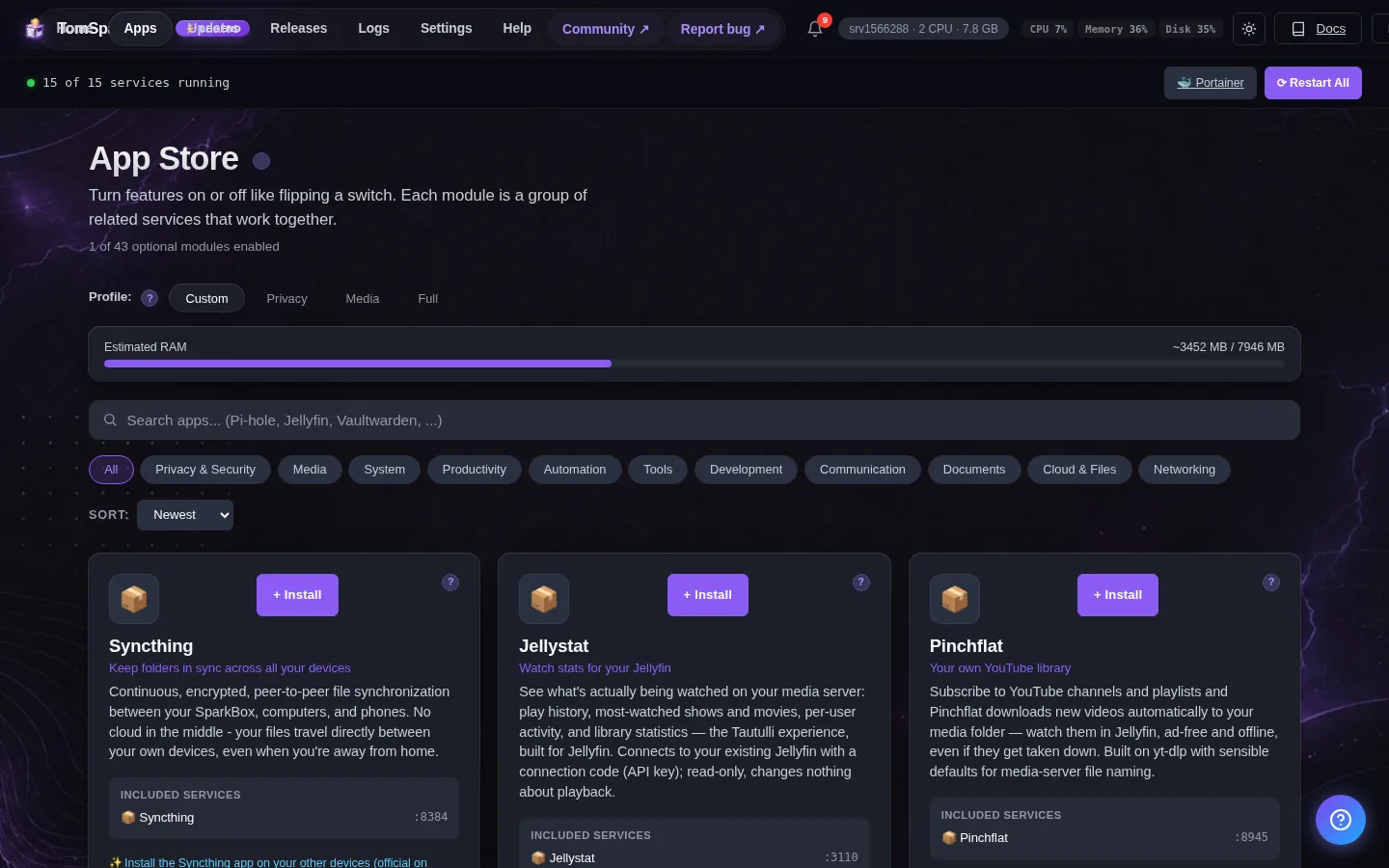
Change these under Apps → Tailscale (or when you enable it):
- Tailscale Auth Key — Paste your Tailscale auth key here — that's a one-time sign-in code from your Tailscale account, and it starts with 'tskey-auth-'. Get one at https://login.tailscale.com/admin/settings/keys — pick a reusable key so it reconnects on its own after a restart. One more thing: make sure 'HTTPS Certificates' is turned on at login.tailscale.com/admin/settings/features, or remote access over a secure address quietly won't work.
Custom serve / Funnel setups
SparkBox re-applies its own serve configuration every time the Tailscale container starts, so anything you add by hand with the tailscale serve or tailscale funnel CLI gets reset on the next update or restart — the classic symptom is a Funnel that works all day and silently drops back to private overnight. To make custom entries permanent, declare them in /opt/sparkbox/state/tailscale/serve.user.json instead (SparkBox v1.6.211+); SparkBox merges that file into its generated config on every regeneration. (An older file at modules/tailscale/serve.user.json still works and is copied across for you — state/ is the folder that survives a core upgrade.) Full walkthrough with an example: Custom serve & Funnel in the docs.
When it breaks
If it will not open, check the app card first — a red dot means it is restarting or unhealthy, and this walkthrough reads the reason from its log. Tom AI on the dashboard can do the same for you.
Where your data lives
/opt/sparkbox/modules/tailscale/config/Included in the dashboard's Backup by default. Restoring that backup on a fresh install brings Tailscale back exactly as it was.
Questions, or did this not match your box?
Every guide here came from a real problem someone hit. If yours behaves differently, say so — that is how these get corrected, and how the fix gets prioritised.
We answer there rather than in a comment box, because that is where the people who have already solved it are.