Remote Access VPN: open it, first login, settings, fixes
· Updated 18 September 2026 · SparkBox team
Connect securely to your server from anywhere in the world using WireGuard VPN. Access all your services as if you were sitting right next to your server. Includes a simple web UI for managing VPN clients — just scan a QR code with your phone. This is the short card for it — the two minutes after you press Enable, and the page to come back to when something is off.
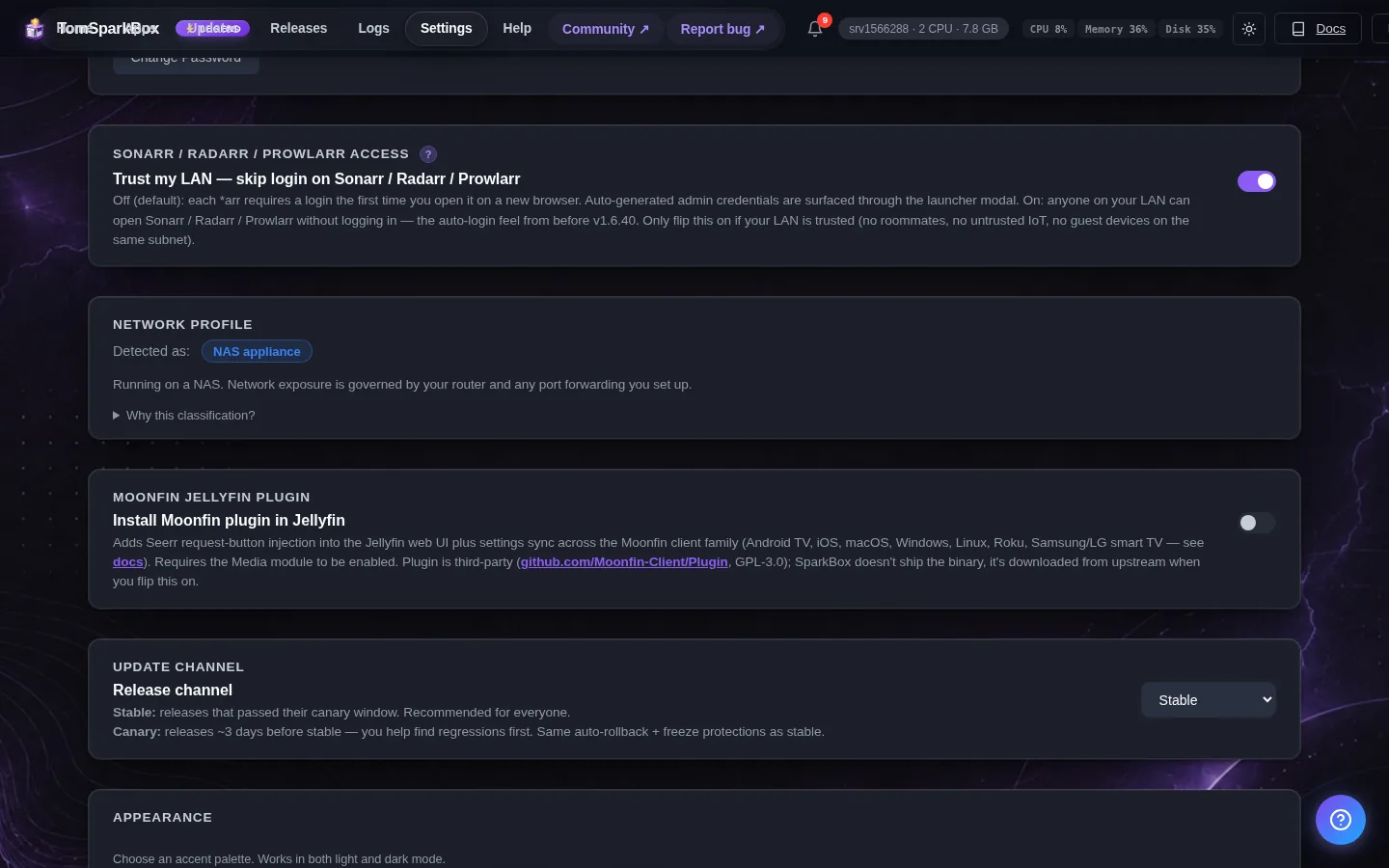
Before you turn it on
Port 51820/UDP must be open in your firewall. The SparkBox installer configures this automatically.
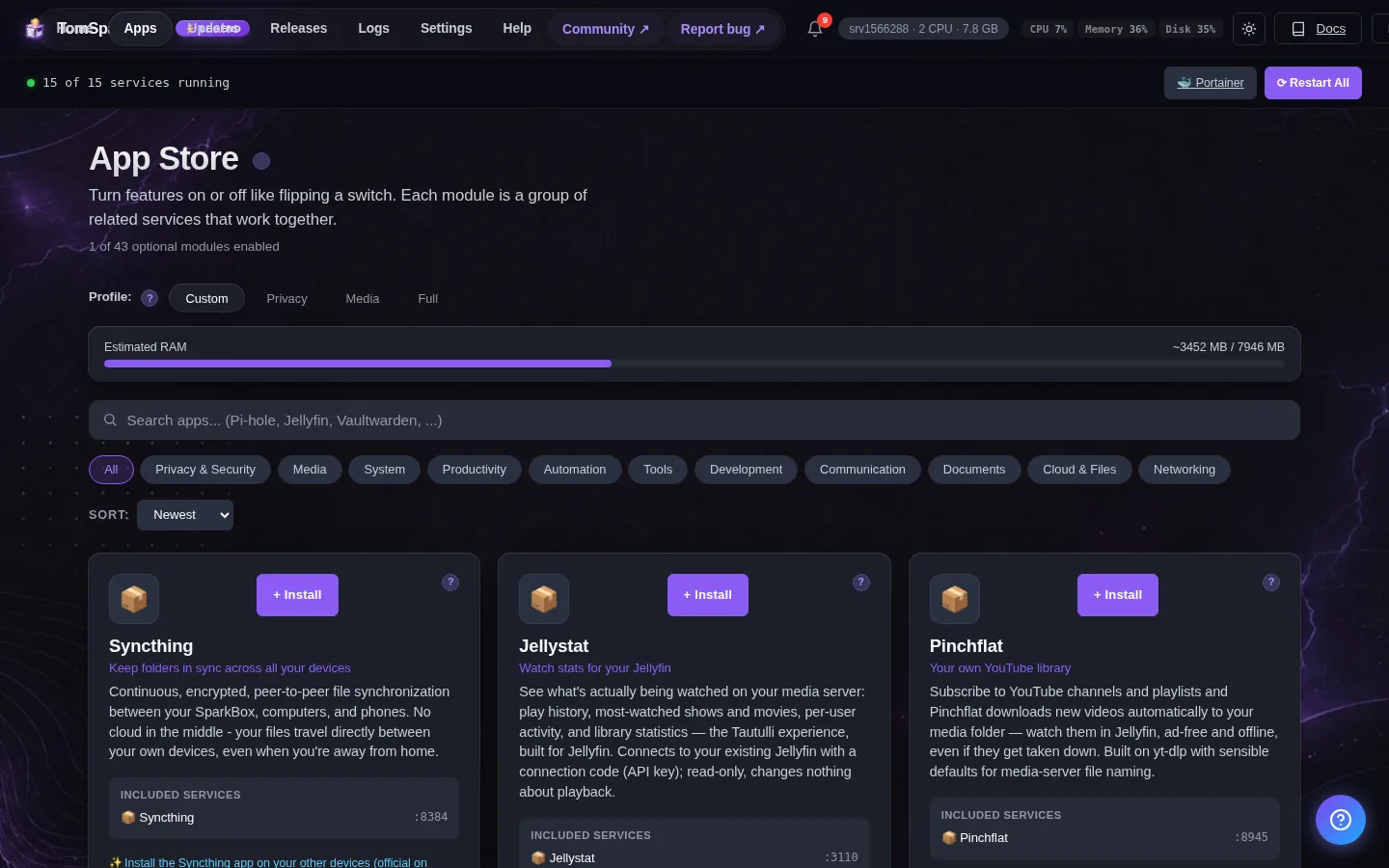
Open it
Dashboard → Apps → Remote Access VPN → Open. The direct address on your network is:
http://<your-box-IP>:51821Create a client config, scan the QR code with the WireGuard app, and you're connected
First login
The panel asks for a password only (no username). If you set one when enabling the module, it's that; otherwise SparkBox auto-generated it for you — find it at Settings → Service Passwords. This panel can hand out VPN profiles (permanent remote access into your network), which is why it is never left password-free.
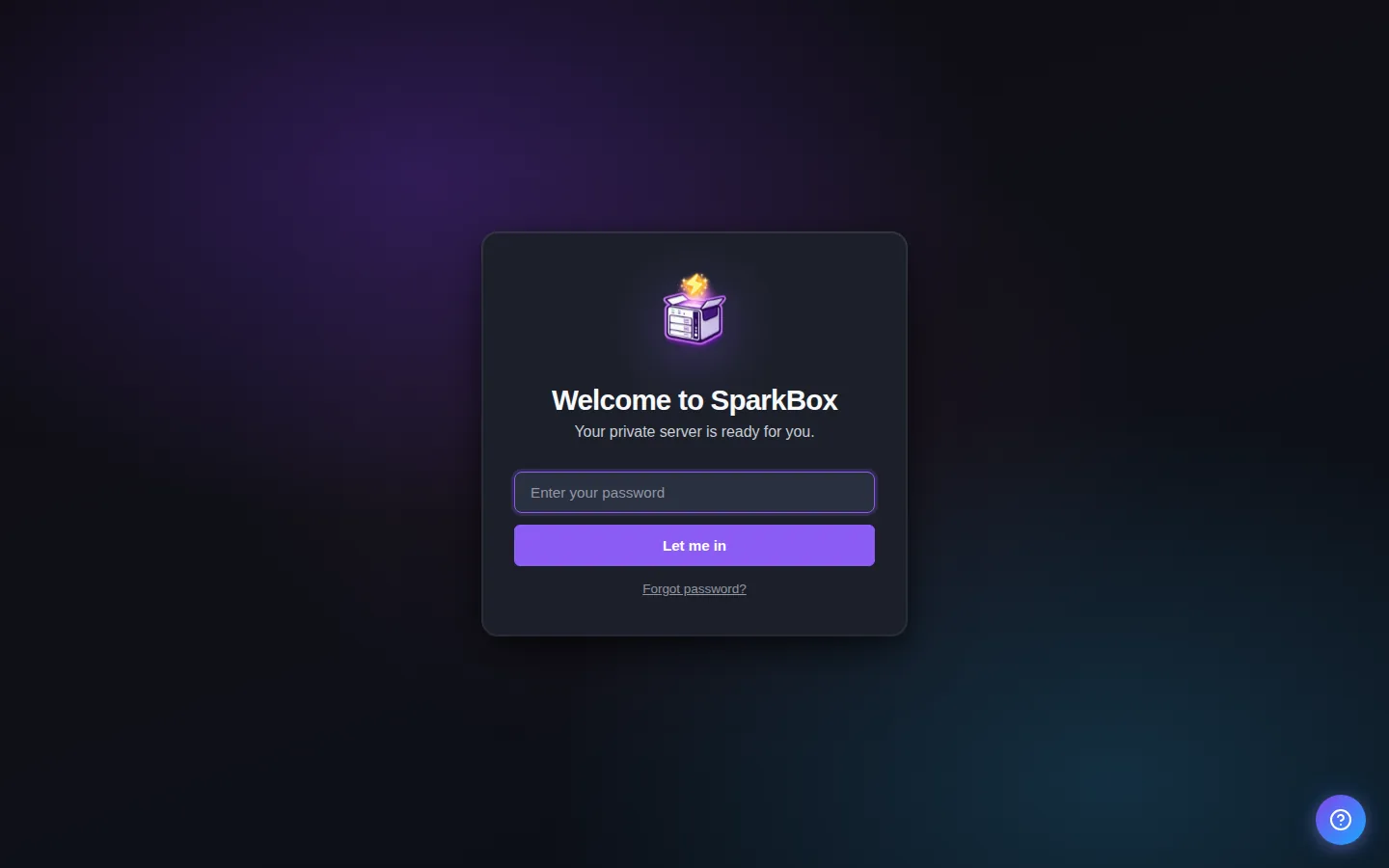
Any password the installer generated for you is under Settings → Passwords; the Open button offers to copy it.
Settings that matter
Change these under Apps → Remote Access VPN (or when you enable it):
- WireGuard Password — Set a password for the WireGuard VPN management panel (leave blank to auto-generate)
- WireGuard Password (plain)
- WireGuard Host
When it breaks
The problems people actually report with Remote Access VPN, each with its own tested fix:
- VPN connects but nothing resolves: the missing VPN_DOT switch
- Your VPN card is hugely tall on the dashboard — how to fix the stretched layout
- VPN not working or not connecting? Start here
- Your VPN (or database module) starts with a blank password after an update
- VPN stuck: the "modprobe tun" fix that always fails in an LXC
- Your VPN Container Shows "Unhealthy" and Won't Stop Restarting
Anything else: the dashboard's checkup names the cause, and Tom AI can read the app's log for you.
Where your data lives
/opt/sparkbox/modules/vpn/config/Included in the dashboard's Backup by default. Restoring that backup on a fresh install brings Remote Access VPN back exactly as it was.
Questions, or did this not match your box?
Every guide here came from a real problem someone hit. If yours behaves differently, say so — that is how these get corrected, and how the fix gets prioritised.
We answer there rather than in a comment box, because that is where the people who have already solved it are.