How to set up Immich on your SparkBox
· Updated 18 September 2026 · SparkBox team
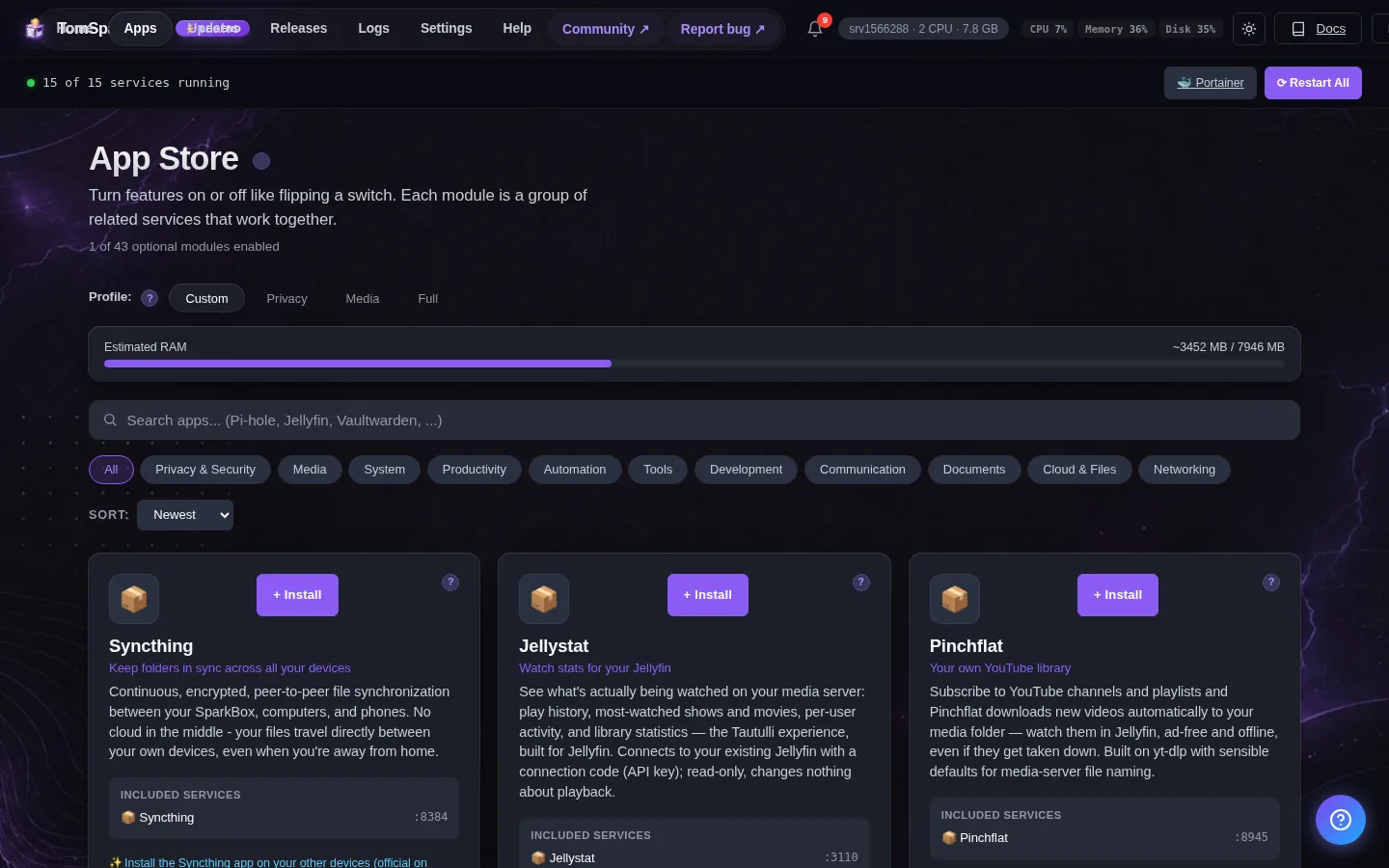
Immich is self-hosted Google Photos — a real one. Timeline view, face grouping, "show me dogs at the beach" text search, mobile auto-upload, shared albums. Every byte stays on your hardware. SparkBox preinstalls it (server + Postgres + Redis + ML inference container) so the only thing left is the part Google Photos hides from you: setting it up.
Tested on: UGREEN DXP4800 Plus (Intel N100, 8 GB RAM) running SparkBox v1.6.111 with a 43,000-photo migration from Google Photos. The gotchas in this guide are the ones I actually hit.
1. What is Immich?
The short version: Google Photos, but it runs on your box and nothing leaves your network. The longer version is that Immich actually does three things most self-hosted photo apps don't:
- Face grouping — clusters every photo of the same person so you can browse "People" and click someone's name.
- Smart search (CLIP) — type "dog on beach at sunset" and it finds matches without you tagging anything. Locally. Using a downloaded AI model.
- Mobile auto-upload — phone takes a picture, photo lands on your NAS within seconds, on the same Wi-Fi or over Tailscale.
The cost: the AI part needs CPU. On a beefy machine you don't notice. On a low-power NAS (N100, Raspberry Pi 5, similar), the first-import job queue grinds for hours to a couple of days. We'll talk about that in §4.
2. First login (the web UI)
Immich is reachable at:
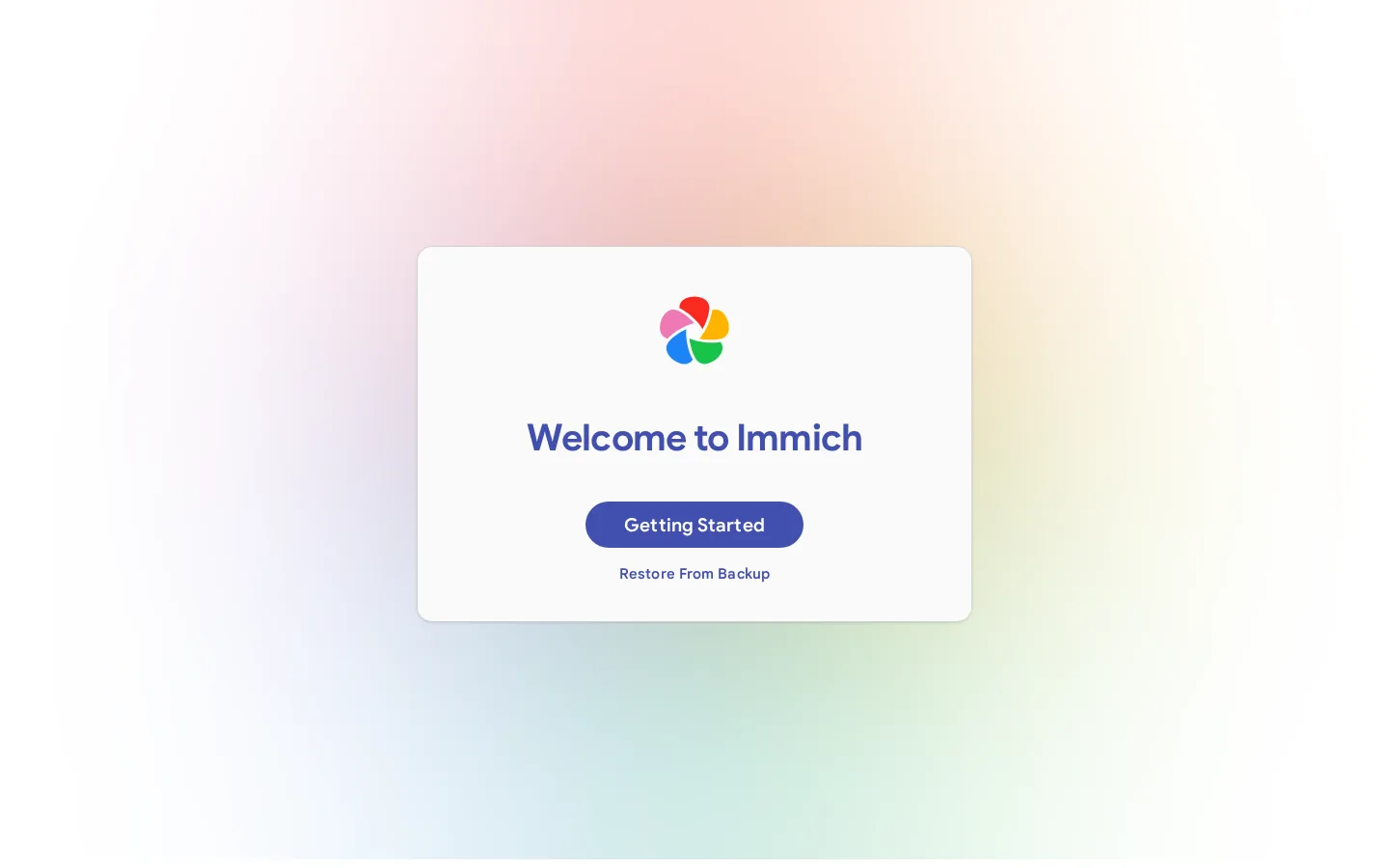
http://<your-NAS-IP>:2283No default account, no default password. The first user to register on the web UI becomes the admin. So step one is: open that URL, click Get Started, set your admin email + password, log in.
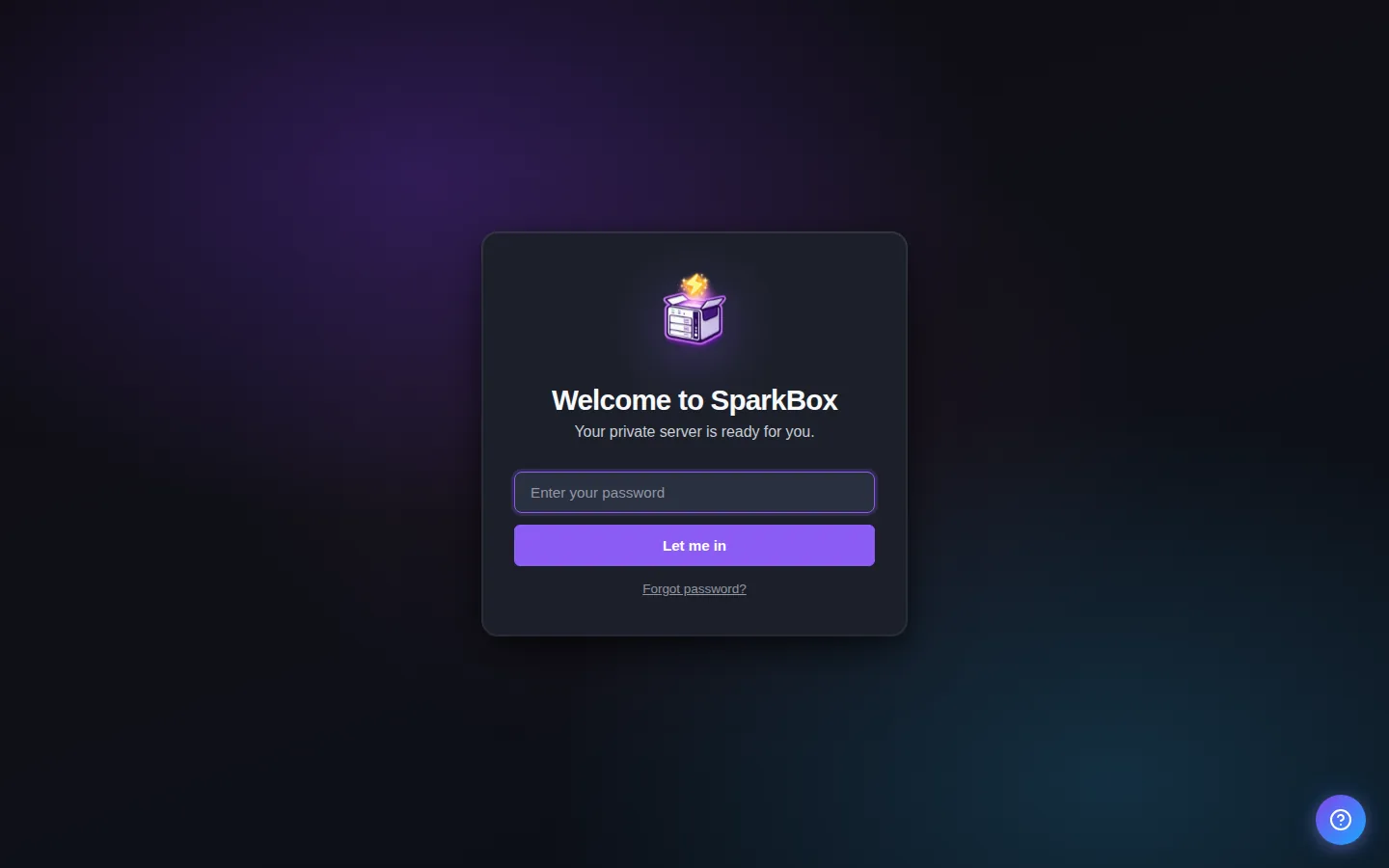
Pick a real password and save it somewhere — Vaultwarden's right there on the SparkBox dashboard if you need a place. If you do lose it later, see §7.
3. Connect the mobile app
Install the Immich app from the App Store or Play Store. On the login screen it asks for a Server Endpoint URL. The format catches almost everyone:
http://<your-NAS-IP>:2283/apiTwo things people get wrong:
- The
http://prefix is required. Just192.168.x.x:2283with no scheme returns invalid URL immediately. - The trailing
/apiis required. Without it you'll hit the web UI's HTML root, the mobile app can't parse it, and you get a confusing connection error.
Then log in with the same email + password you set in §2. Once you're in, go to the gear icon and turn on Backup — it'll start uploading your camera roll in the background, even when the app is closed (Android keeps better at this than iOS; iOS needs the app open or in foreground occasionally to sync).
Remote access: by default Immich is LAN-only. If you want to upload from outside your house, the cleanest path is to enable Tailscale on the SparkBox (Apps → Tailscale) and on your phone. Then use your Tailscale IP in the server URL instead of the LAN IP. No port forwarding, no DDNS, no risk.
4. Bulk import — what to expect
If you're coming from Google Photos with a Takeout dump (or any large existing library), this is the section that matters most. Immich runs a chain of background jobs on every new photo:
- Metadata extraction — read EXIF, build timestamps, GPS, etc. Fast (milliseconds per photo).
- Thumbnail generation — encode preview JPEGs. CPU-bound. ~1-5 photos/sec on N100.
- Face detection — run a face-finding model. Slow.
- Facial recognition — match faces to known people. Slow.
- Smart search (CLIP) — generate vector embeddings so text search works. Slow.
- OCR — pull text out of photos of receipts, screenshots, etc. Slow.
- Video transcoding — re-encode videos for mobile playback. Slowest.
You can watch all of these live at Administration → Jobs. Each has a queue depth counter.
The key insight: thumbnails and ML are separate jobs on separate workers. Until thumbnails finish, the gallery shows placeholders for those photos — not because of ML, but because there's no preview encoded yet. Disabling ML (next section) makes thumbnails finish much faster because all your CPU goes to thumbnailing instead of competing with face detection.
What "much faster" looks like: on an N100 with 43,000 photos and ML running, the thumbnail queue was finishing about 300 photos/hour — projected ~6 days total. With ML disabled and video transcoding paused, the same hardware does ~5,000/hour. Same box, 15× faster, because the CPU stops fighting itself.
5. The ML container (and when to turn it off)
The sb-immich-ml container is the AI brain. It runs four models locally:
- Face detection / recognition (Buffalo) — powers the "People" feature.
- CLIP (ViT-B-32) — powers text-based search.
- OCR (PaddleOCR) — extracts text from images.
- Duplicate detection — finds near-duplicates by embedding distance.
None of this is required. Immich is fully functional without the ML container — you keep timeline view, albums, search by date/location/filename, manual tags, mobile upload, shared libraries, EXIF metadata. You lose face grouping, text search, and auto-tagging.
If you're on low-power hardware and the queue is grinding, turn ML off until your thumbnails finish, then turn it back on overnight. The toggle is at:
Administration → Settings → Machine Learning → Enabled (toggle off)That stops the server from queuing new ML jobs. To clear what's already in the queue, go to Administration → Jobs, find Face Detection, Smart Search, and OCR, and click the trash icon on each.
That toggle stops the jobs, but the container is still sitting there holding ~1.2 GB of RAM and ~2 CPU cores. To actually stop running it, turn it off in the SparkBox dashboard — Settings → Immich → Run the Immich AI engine on this box → off. SparkBox stops the container and keeps it off through updates. Flip it back on the same way when you want ML again, then run Administration → Jobs → Smart Search → All to backfill embeddings for everything that came in during the disabled window.
Don't use docker stop sb-immich-ml. It works until the next
sparkbox up or update, which recreates the container from SparkBox's compose
file and puts it straight back. A per-app override can't remove it either — overrides
merge settings on, they can't delete a container. The dashboard toggle (which sets
IMMICH_ML_ENABLED=false in .env) is the one that sticks.
Running ML on a different machine? If you have a beefier box, run Immich's
immich-machine-learning container there, then in Settings → Immich set
AI engine address to e.g. http://192.168.1.50:3003 and turn
Run the Immich AI engine on this box off. Immich keeps every AI feature; the work
just happens somewhere with the CPU for it.
6. Bumping the memory limit
SparkBox ships Immich with conservative resource limits so it plays nice with everything else on the box. For most users this is fine. For a 30,000+ photo bulk import, the sb-immich-server container can bump up against its 1 GiB memory cap and OOM mid-thumbnail, which stalls the queue and freezes the web UI.
If you see sb-immich-server sitting north of 80% memory in docker stats during import, bump it. Easiest way without restarting the container:
sudo docker update --memory=3g --memory-swap=3g sb-immich-serverThat takes effect immediately on the running container. To make it persistent across sparkbox up cycles, edit the file and change memory: 1G under immich-server to memory: 3G:
sudo nano /opt/sparkbox/modules/immich/docker-compose.yml3 GiB is enough for libraries up to ~100k photos. Once your import is done you can drop it back to 1 GiB if you want — steady-state Immich is a tiny memory user.
7. Locked out? Reset the admin password
If you lose the password and there's no other admin account, Immich ships a CLI for exactly this. From the NAS:
sudo docker exec sb-immich-server immich-admin reset-admin-passwordIt will print the current admin account info and ask for a new password. Just hit Enter to skip — it generates a strong random one and prints it. Use that to log in, then go to Account Settings → Password and change it to something you'll remember.
Photos, albums, faces, settings — all untouched by the reset. Only the password row in the database changes.
8. Where your data lives
Two paths matter:
- Originals:
/opt/sparkbox/modules/immich/config/upload/— every photo and video you've uploaded. This is the directory you absolutely cannot lose. The SparkBox Backup tile (Duplicati) includes it by default. - Database:
/opt/sparkbox/modules/immich/config/db/— Postgres holding all the metadata, albums, faces, etc. Also backed up by the Backup tile. If you lose this but keep the upload directory, you can restore the photos but lose all your organization.
A full restore from a SparkBox backup brings Immich back exactly as it was, including all the ML processing — no need to re-scan the library.
Next steps
That's Immich live and tuned for your hardware.
If your setup behaves differently — different NAS, different photo count, different OS — post in d/sparkbox with what you saw. Every UX-stumble in this guide gets rewritten.
Questions, or did this not match your box?
Every guide here came from a real problem someone hit. If yours behaves differently, say so — that is how these get corrected, and how the fix gets prioritised.
We answer there rather than in a comment box, because that is where the people who have already solved it are.