Open your SparkBox apps by name (no more IP addresses)
· SparkBox team
Nobody remembers 192.168.1.23:8096. From SparkBox 1.6.787, every app on your box can have a name instead: jellyfin.tom.home.arpa for Jellyfin, seerr.tom.home.arpa for Seerr, and tom.home.arpa for the dashboard itself. You pick the "tom" part. This guide turns it on, gets your phone to open the names, and covers the handful of things that stop a phone from opening them.
The short version: dashboard → Settings → Network tab → Addresses → tick Use friendly addresses → type a short name → Save. Then your devices need to ask your box for the names. If Pi-hole or AdGuard Home runs on SparkBox, that means setting your router's DNS to the box. If not, section 3 has the other ways. The names work on your home network and over Tailscale, never from the internet.
1. What you get
Turn the feature on and SparkBox gives each installed app with a web page its own address, built from three parts:
- The app:
jellyfin,seerr,sonarr,immichand so on. A few get a tidier name than their internal one: Nginx Proxy Manager becomesproxy, Calibre-Web becomescalibreand wg-easy becomeswireguard. - Your name: anything short you like, such as
tom,smith-houseor the defaultsparkbox. - The ending:
home.arpaunless you change it.
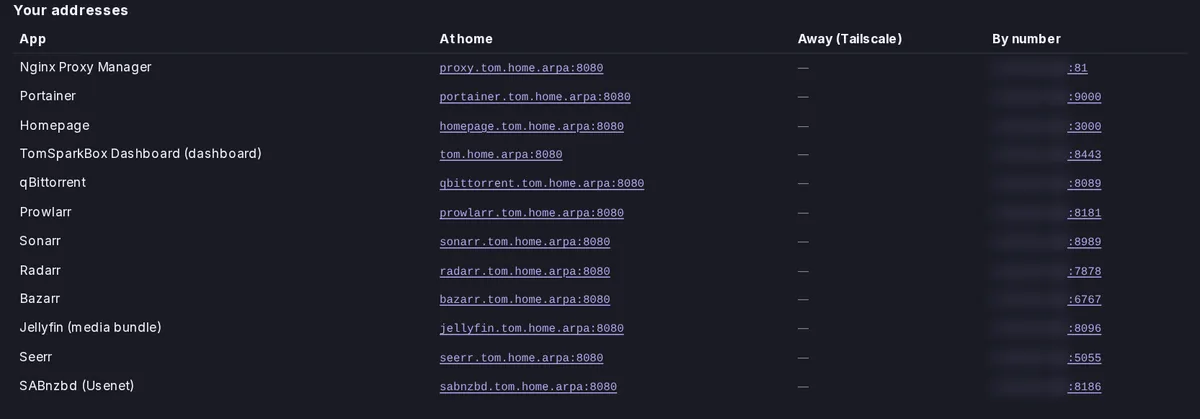
So Jellyfin is jellyfin.tom.home.arpa, and the dashboard is tom.home.arpa with no app in front. On boxes that run avahi (the service that lets iPhones and Macs find printers), the dashboard is also announced as tom.local.
Why "home.arpa"?
It looks odd, but it's the right choice. home.arpa is the ending the internet's standards set aside for home networks (RFC 8375), so it can never clash with a real website. It also ends in a real top-level domain, so when you type jellyfin.tom.home.arpa into a phone browser, the phone opens it instead of searching Google for it.
You can pick .internal, .lan or .home instead. They're shorter, but on a phone you usually have to type http:// in front the first time, or the browser searches instead. .lan and .home aren't reserved either, and many routers already use them for their own names. .local isn't offered for app names, because it belongs to the system iPhones and Macs use to find printers, and phones would never ask your DNS about it.
Who can open them
Only devices on your home network and devices on your Tailscale. Each name carries a rule that lets private home addresses and Tailscale in and refuses everyone else with 403 Forbidden. That holds even if your router forwards a port to the box. We checked it on our test server, which sits on the public internet: the internet gets 403 for every name.
2. Turn it on
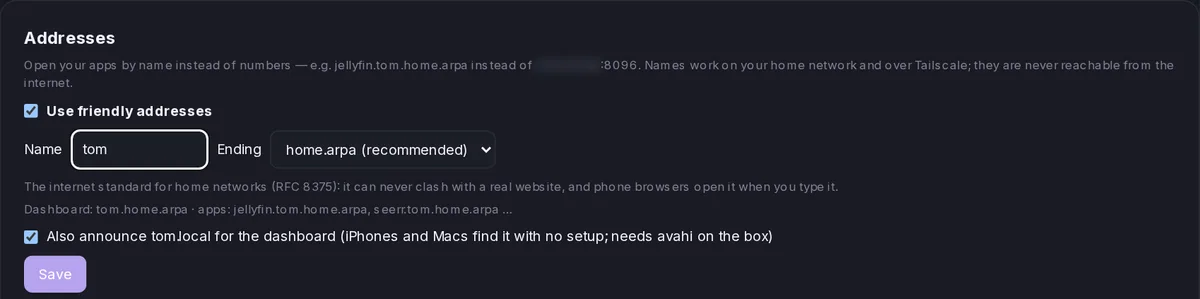
- Open your SparkBox dashboard and click Settings, then the Network tab. Scroll to Addresses. (On the Classic dashboard it's its own section: Settings → Addresses.) Don't see it? Update SparkBox first: the feature arrived in 1.6.787.
- Tick Use friendly addresses.
- Type your Name: 1 to 24 lowercase letters, numbers or dashes, starting with a letter. A few words that networks use themselves (like
router,wwworlocalhost) are refused, and the page tells you why. - Leave Ending on home.arpa (recommended). The line under it shows exactly what your addresses will look like.
- Leave Also announce tom.local for the dashboard ticked. It does nothing on boxes without avahi, and the page says so.
- Press Save. It can take a minute while SparkBox adds the names. If it asks for your dashboard password, type it and press Confirm.
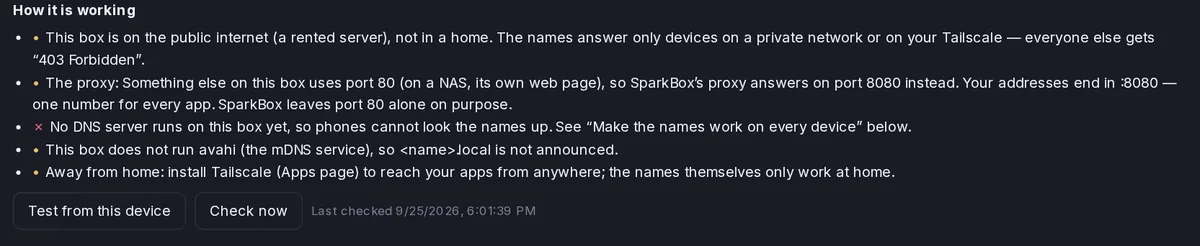
After you save, the page adds a How it is working list. It says whether SparkBox's proxy answers the names, whether a DNS server on the box knows them, whether tom.local is announced, and what to use away from home. It also adds two buttons: Test from this device checks whether the browser you're using can open the names, and Check now redoes the setup and re-reads everything.
Below that is Your addresses: one row per app, with its name at home, its Tailscale address for when you're away, and its old number address, which keeps working.
Why your addresses might end in :8080
The names go through SparkBox's own proxy (the Nginx Proxy Manager that's part of every install). Normally it answers on port 80, the one browsers use when you don't type a port, so the names need no number. If something else on the box already has port 80, SparkBox leaves it alone and the proxy answers on another port, usually 8080. On a UGREEN NAS that's always the case, because UGOS, the NAS's own system, keeps port 80 for itself.
Then every address ends in the same :8080, for example jellyfin.tom.home.arpa:8080. The page tells you this in its status list. Type the port along with the name; it's the same number for every app.
Five apps keep their number address
Some apps refuse to be opened under another name until you set them up for it inside the app itself. Rather than hand you a name that shows an error page, SparkBox leaves these on their IP:port address and shows the reason in the table:
- Home Assistant refuses visits through a proxy until
trusted_proxiesis set in its ownconfiguration.yaml. - Syncthing blocks unknown names until you set a GUI password inside Syncthing.
- Nextcloud only answers the names listed in its
trusted_domainssetting. - Ghost and WordPress always send you back to the address they were installed with.
What happens to the app buttons
The Open buttons on your dashboard switch to the names by themselves, but only after your browser has shown that it can reach one. It does this quietly by loading a tiny image through tom.home.arpa. Until that works on a device, that device keeps getting the number addresses, so nothing breaks while you sort out DNS. A phone and a laptop can differ; each one decides for itself.
3. Make the names work on every device
Your devices find out where jellyfin.tom.home.arpa is by asking a DNS server, the internet's phone book. Normally that's your router or your internet provider, and neither of them has heard of your box's names. There are three ways to fix that. The first is the easiest.
With Pi-hole or AdGuard Home on SparkBox (easiest)
If Pi-hole runs on your SparkBox, SparkBox writes the names into it for you, using the Pi-hole password it already has. It keeps them up to date as you add and remove apps. It only ever removes names it wrote itself; if you already had a record with the same name, SparkBox leaves yours alone and tells you.
With AdGuard Home it's the same, except SparkBox needs AdGuard's login once. A box called Let SparkBox add the names to AdGuard Home appears on the Addresses page. Type the username and password you chose in AdGuard's own setup wizard and press Save login. SparkBox checks them with AdGuard and keeps them on the box only.
Then point your network at the box, the same step Pi-hole needs for ad-blocking:
- Open your router's admin page and find the DNS server setting. It's usually under LAN or DHCP.
- Enter your box's address (the one you use to open the dashboard) as the only DNS server. Remove any second one, such as
8.8.8.8. With two, phones sometimes skip the box. - Save, then turn Wi-Fi off and on again on each phone so it picks up the change.
No Pi-hole yet? Installing it from the App Store is the easiest fix for this whole section, and it blocks ads too. Once it's running, SparkBox writes the names into it on its own.
Without Pi-hole: your router's local DNS page
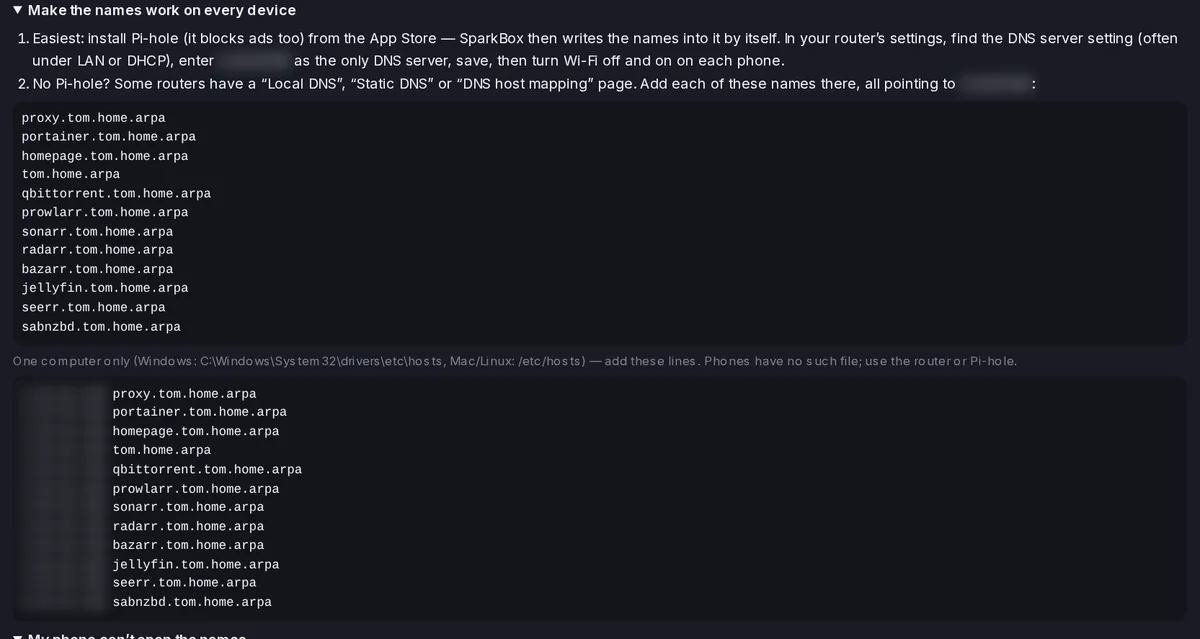
Some routers have a page called Local DNS, Static DNS or DNS host mapping. If yours does, add each name there, all pointing at your box's address. You don't have to type the list yourself: open Make the names work on every device on the Addresses page. It lists every name, ready to copy, with your box's real address filled in.
Just one computer: the hosts file
To try it on one computer before touching the router, add the lines from the second box on that page to the computer's hosts file: C:\Windows\System32\drivers\etc\hosts on Windows, /etc/hosts on a Mac or Linux. Phones have no such file, so for phones use the router or Pi-hole.
4. "My phone can't open it"
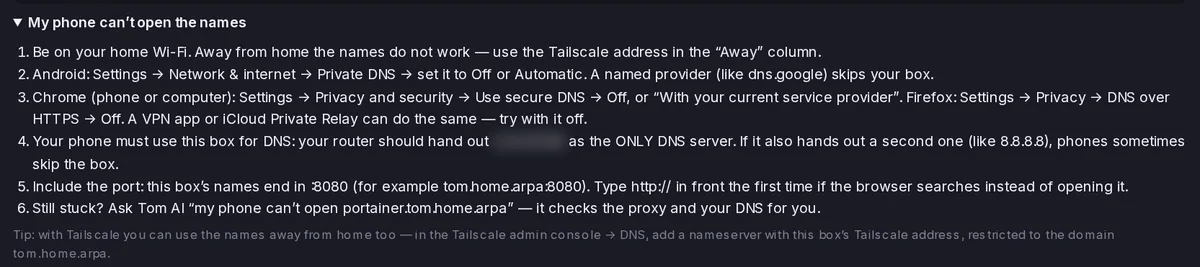
If a laptop at home opens jellyfin.tom.home.arpa but a phone doesn't, the box is fine and the phone isn't asking it. Go through these in order. The same list is on the Addresses page under My phone can't open the names.
- Are you at home? The names only work on your home Wi-Fi. On mobile data or somewhere else, use the Tailscale address in the Away column (see section 5).
- Android Private DNS. Settings → Network & internet → Private DNS → set it to Off or Automatic. A named provider such as
dns.googleskips your box completely. - Secure DNS in the browser. Chrome (phone or computer): Settings → Privacy and security → Use secure DNS → Off, or "With your current service provider". Firefox: Settings → Privacy → DNS over HTTPS → Off.
- A VPN app or iCloud Private Relay. Both send your lookups somewhere else. Try again with them off.
- A second DNS server from the router. The router should hand out your box as the only DNS server. If it also hands out something like
8.8.8.8, phones sometimes use that one. Remove it, then turn Wi-Fi off and on. - The port, and http://. If your addresses end in
:8080, type that too. If the browser searches instead of opening the page, typehttp://in front once, for examplehttp://jellyfin.tom.home.arpa:8080.
The one check that tells you which side is wrong (when Pi-hole or AdGuard runs on the box): on a computer on the same Wi-Fi, run nslookup jellyfin.tom.home.arpa 192.168.1.23, using your box's address in place of the example. An answer means the box side works and the problem is on the phone (the list above). No answer means press Check now on the Addresses page to write the names again.
Or ask Tom AI
Tom AI on your dashboard can check a name for you. Ask it something like "why can't my phone open jellyfin.tom.home.arpa?". It looks at your box: whether the names are on, whether the box's DNS answers that name, and whether the proxy serves it. It also tells you if you typed a name that isn't one of yours and gives you the right one. Then it tells you which side the problem is on.
5. Away from home
The names don't work away from home, because nothing outside your house knows them. That's on purpose. Use Tailscale instead: once it's set up, the Away (Tailscale) column shows each app's Tailscale address, and those work from anywhere on your own devices. Without Tailscale, the page says so and points you to the Apps page to install it.
6. Advanced: use your own domain, with a padlock
If you own a domain on Cloudflare, SparkBox can also give every app a name under it, such as jellyfin.home.example.com, with a real HTTPS padlock. It's under Advanced: use your own domain (with a padlock) on the Addresses page, and you need three things:
- the name to use, for example
home.example.com; - a Cloudflare API token: Cloudflare → My Profile → API Tokens → Create Token → the Edit zone DNS template, for that domain (it needs Zone → DNS → Edit and Zone → Zone → Read). SparkBox uses it for this setup and hands it to the proxy for renewals, and it isn't shown again;
- your email address, for Let's Encrypt (they only write when a certificate is about to expire).
Press Set up my domain. It takes one to three minutes. SparkBox asks Let's Encrypt for one certificate covering *.home.example.com through Cloudflare, so no port has to be opened. If you leave the box ticked, it also adds a public DNS record that points those names at your box's home address. That's a private address, so from outside your home the names lead nowhere, and they still answer only your home network and Tailscale. Some routers block public names that point at home addresses ("DNS rebind protection"); with Pi-hole or AdGuard on the box that doesn't matter, because SparkBox writes these names there as well.
Turn off my domain removes the names from the box. Any public record SparkBox added stays in your Cloudflare account; the page reminds you to delete it there if you don't want it.
7. Changing or turning it off
Change the name or the ending and press Save: SparkBox swaps the old names for the new ones. Untick Use friendly addresses and Save: it removes every proxy entry and DNS record it made (only its own), and the app buttons go back to the number addresses. On our test server, turning it off removed all twelve names it had added.
Frequently asked
Why does SparkBox use home.arpa?
It's the ending the internet standard RFC 8375 sets aside for home networks, so it never clashes with a real website, and phone browsers open it when you type it. .internal, .lan and .home are offered too, but on a phone you usually need to type http:// in front the first time.
Can people on the internet open my app names?
No. Every name answers only your home network and your Tailscale devices. Everyone else gets 403 Forbidden, even if a port is forwarded to the box.
Why do my addresses end in :8080?
Something else on the box already uses port 80. On a UGREEN NAS that's UGOS. SparkBox leaves it alone and answers on 8080, so every name carries :8080.
Why can't my phone open the name when my laptop can?
The phone isn't asking your box. Check Android Private DNS, Chrome or Firefox secure DNS, a VPN app or iCloud Private Relay, a second DNS server from the router, and whether you're actually at home. Section 4 has the full list.
Do the names work away from home?
No. Use the Tailscale address in the Away column.
Names instead of numbers, on the box you already have
Friendly addresses use pieces SparkBox already runs: its own proxy, the Pi-hole or AdGuard you may have installed, and Tailscale for when you're out. There's no new container, no port 80 taken from your NAS, and nothing opened to the internet.
Set up Pi-hole (it makes the names work everywhere at home) → Set up Tailscale for away from home →
Questions, or did this not match your box?
Every guide here came from a real problem someone hit. If yours behaves differently, say so — that is how these get corrected, and how the fix gets prioritised.
We answer there rather than in a comment box, because that is where the people who have already solved it are.