Sonarr Library Empty or Won't Scan? Fix the Path Mismatch
· Updated 18 September 2026 · SparkBox team
Your TV shows are on disk, Sonarr says it downloaded and imported them, but the library tab is blank, episodes show as missing, or a manual scan finds nothing. Nine times out of ten this isn't a Sonarr bug, it's a mismatch between the folder path Sonarr thinks it's using and the folder path its container can actually see.
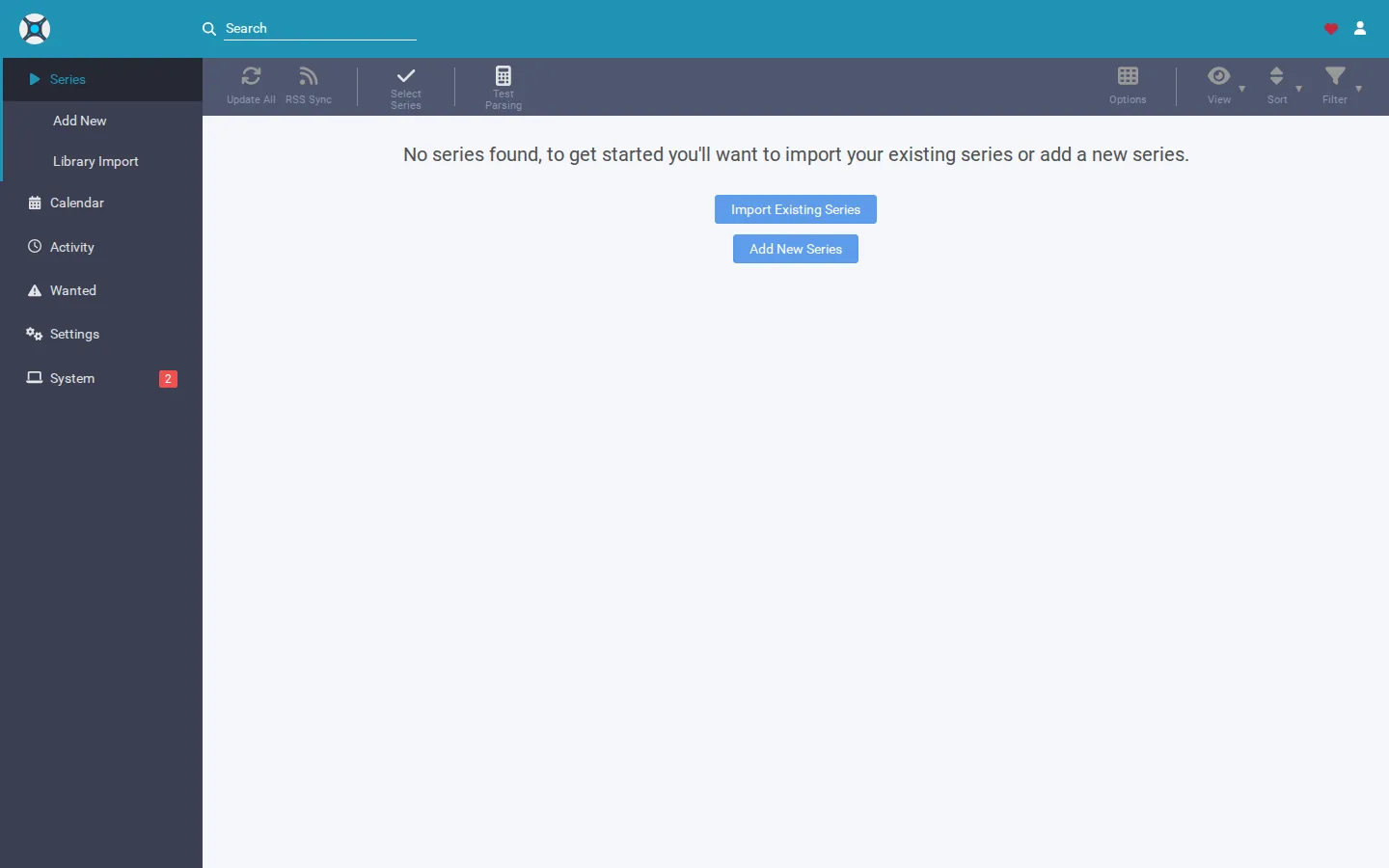
The 10-second version: Point every container, Sonarr, Radarr, and your media server, at the exact same host folder, mounted to the exact same path inside every container. If Sonarr's root folder is /media/TV but the container's bind mount doesn't have a /media/ segment at all, Sonarr is reading from a folder that doesn't exist inside its own filesystem.
Why this happens
Docker containers don't see your host's file system directly. A docker-compose.yml volume line like ./tv:/data/TV tells Docker "take the host folder ./tv and make it appear at /data/TV inside the container." Sonarr's root folder setting only cares about the second half of that, the path inside the container. If that inside path doesn't match what you typed into Sonarr's UI, or doesn't match what a different service (like Jellyfin) is using for the same physical files, you get a library that looks empty, imports that silently fail, or a root folder that Sonarr flags as unhealthy.
This shows up in two common flavors:
- The arr containers' bind mount is missing a segment. For example, the compose file mounts
MEDIA_ROOT:/data, but Sonarr's root folder is set to/media/TV, a path that was never created inside that container. Sonarr can't see it, so the library stays empty even though the host folder is full of episodes. - Jellyfin (or another media server) is bound to a different path than the arr stack. If Sonarr writes files to
/data/TVinside its container, but Jellyfin's compose file binds the same host folder to something like/media/tv, Jellyfin either can't find the new episodes or Sonarr can't hardlink into Jellyfin's library folder at all, forcing slow full copies instead of instant hardlinks (or failing outright).
Step 1: Confirm the symptom is really a path mismatch
- Open Sonarr, go to Settings → Media Management → Root Folders, and note the exact path shown (e.g.
/data/TVor/media/TV). - Check whether Sonarr shows a warning icon next to that root folder. A warning here usually means the path doesn't exist inside the container, or exists but is empty.
- Open a shell inside the Sonarr container and list that exact path.
docker exec -it sonarr ls -la /data/TVIf that command returns "No such file or directory," or returns an empty folder while you know episodes exist on the host, you've confirmed the mismatch. The path saved in Sonarr's settings and the path your container actually has mounted are two different things.
Step 2: Check your docker-compose volume bindings
Open the compose file for your arr stack and look at the volume lines for Sonarr (and Radarr, if you run it). You're looking for the host path (left of the colon) and the container path (right of the colon).
volumes:
  - ${MEDIA_ROOT}:/data
Then compare that to what Sonarr's root folder is set to. If the compose file binds to /data but Sonarr's root folder says /media/TV, that's the bug: nothing inside the container's mount ever created a /media path, so Sonarr is pointed at nothing.
Gotcha: A root folder path that "looks right" in the Sonarr UI isn't proof it's correct. Sonarr will happily save a path that doesn't exist inside the container until you try to scan or import into it, at which point it fails quietly or throws a health warning that's easy to miss.
Step 3: Align everything to one canonical bind path
The fix that actually holds up long-term is to stop letting each service invent its own internal path for the same physical folder. Pick one canonical bind, for example MEDIA_ROOT:/data, and use it everywhere: Sonarr, Radarr, and your media server.
- In your
.envor compose variables, setMEDIA_ROOTto the actual host folder containing your media (e.g./mnt/storage/media). - Update every arr service's volume line to bind
${MEDIA_ROOT}:/data, not a hardcoded path and not a different segment like/media. - Inside Sonarr, set the root folder to
/data/TV(and for Radarr,/data/Movies). These are the paths that should now genuinely exist inside the container, because they're subfolders of theMEDIA_ROOTyou just bound to/data. - If a bootstrap or setup script on your system is responsible for creating and registering root folders automatically, make sure it uses the
MEDIA_ROOTvariable directly rather than a hardcoded default, so this still works if you've customized where your media lives on the host.
docker exec -it sonarr ls -la /data/Movies /data/TVBoth should now list your actual media files. If they do, Sonarr's root folder health check should clear on its own the next time you open Settings → Media Management.
Step 4: Fix Jellyfin's (or your media server's) volume binding too
This is the step people miss. Even after Sonarr's own path is fixed, if your media server's compose file still binds the same host folder to a different internal path, you'll get a second version of the same bug: Sonarr imports the episode fine, but your media server never sees it, or Sonarr can't hardlink the file into the library at all because the two containers disagree about where it lives.
- Open the compose file for your media server (Jellyfin or otherwise).
- Change its volume binding for the media library to the same host path and, ideally, the same internal container path as your arr stack, e.g.
${MEDIA_ROOT}:/data. - Recreate the container so the new binding takes effect.
- Point your media server's library folder to
/data/Moviesand/data/TVto match.
docker compose up -d jellyfinWhy the internal path matters for hardlinks: Sonarr's fast, no-copy import (a hardlink) only works when the source and destination folders sit on the same underlying mount as seen by that container. If Sonarr and your media server are bound to different paths, hardlinks silently fall back to slow full copies, or fail, even though the files are technically on the same physical disk.
Step 5: Trigger a rescan, don't re-download
Once every container agrees on the same path, you don't need to touch your downloads again.
- In Sonarr, go to your root folder and click Rescan (or rescan an individual series if only one show is affected).
- Confirm the root folder's health warning is gone in Settings → Media Management.
- Refresh your media server's library so it picks up the same files at the newly-aligned path.
If files still don't appear after a rescan, double-check permissions on the host folder, an unreadable folder inside a correctly-bound container produces the same symptom as a wrong path.
Frequently asked
Why does Sonarr's library show no episodes even though the files are on disk?
Sonarr can only see what's inside its own container. If the host folder holding your TV shows is mounted to a different path than the one saved as Sonarr's root folder, the app is looking at an empty or wrong directory even though the real files exist on your host machine.
Why did this break after I set up Jellyfin?
It's common for the *arr stack and the media server to be mounted with different bind paths in their docker-compose files. When Sonarr imports a file at one path and Jellyfin looks for it at another, Jellyfin won't show the episode, or Sonarr can't hardlink into Jellyfin's folder at all.
Do I need to re-import my whole TV library after fixing this?
No. Once the root folder path matches the container's real mount, a manual library scan (or Sonarr's "Rescan" on the series/root folder) will pick the existing files back up without re-downloading anything.
What is MEDIA_ROOT and why does it matter?
MEDIA_ROOT is the single host folder that everything, Sonarr, Radarr, and Jellyfin, should be pointed at. When every container binds MEDIA_ROOT to the same internal path (like /data), there's no room for the containers to disagree about where a file actually lives.
Skip the volume-mapping puzzle entirely
SparkBox mounts one shared media path across Sonarr, Radarr, and Jellyfin from the start, so root folders, imports, and hardlinks all line up automatically, no manual compose edits required.
Questions, or did this not match your box?
Every guide here came from a real problem someone hit. If yours behaves differently, say so — that is how these get corrected, and how the fix gets prioritised.
We answer there rather than in a comment box, because that is where the people who have already solved it are.