Fix "Sonarr Not Writable" Errors When Importing or Renaming Files
Sonarr (or Radarr, or Lidarr) tells you its library folder "is not writable" or that it "could not rename files," even though the folder looks fine when you open it yourself. The usual cause: the top of your media folder is writable, but the specific subfolder Sonarr needs — TV, a season folder, or the downloads folder it's importing from — isn't, because it's owned by a different user or process.
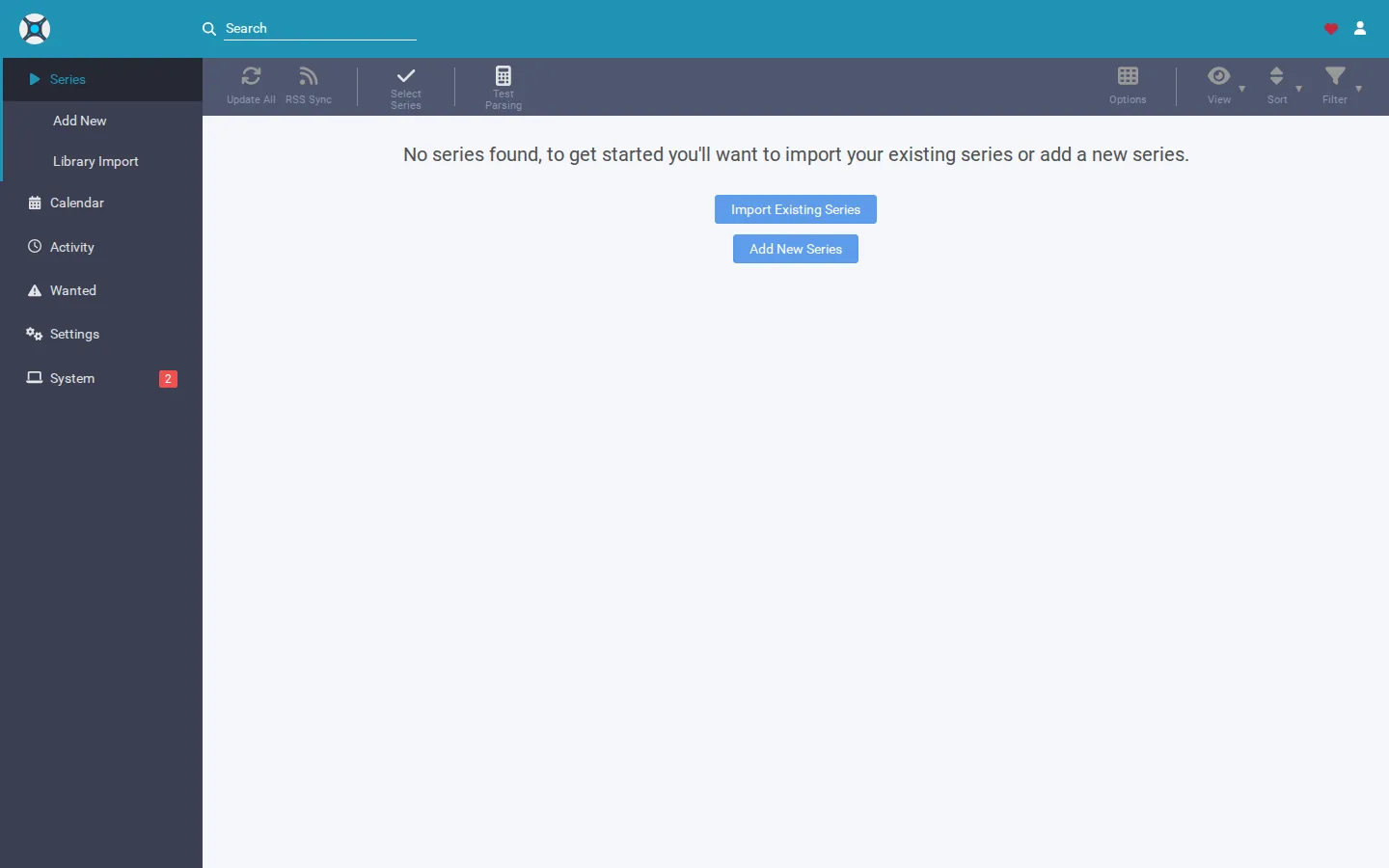
Rather not chase permissions by hand? SparkBox's built-in doctor tests your Movies, TV, Music and downloads folders individually as your apps actually run, names the ones it can't write into, and runs sudo sparkbox check-media-perms to fix them or hand you the exact command. See the walkthrough →
The 10-second version: Sonarr's health check often only confirms your top-level media folder is writable. The actual failure is almost always one level deeper — a specific subfolder (TV, a show folder, or downloads) owned by a different user or with tighter permissions. Find the exact folder in the error, check who owns it, and match its ownership/permissions to the user Sonarr runs as.
Why the "top folder is fine" check is misleading
Most media apps, and most quick health checks, test whether a path exists and whether the top-level folder itself is writable. That check can pass cleanly while a nested folder underneath it fails, because:
- The parent folder (e.g.
/data/media) was set up correctly once, but a subfolder likeTVor a specific show's season folder was created later by a different process — a download client, a manual copy, or a different container — under a different user. - Your downloads folder and your library folder live on different drives or mounts, each with its own ownership, even though both sit under a folder structure that looks unified.
- Permissions were applied non-recursively at some point, so the parent directory is open but a child directory kept older, stricter permissions.
The result: whatever tool told you "the media folder is writable" was telling the truth about the folder it tested — just not the one Sonarr actually tripped over.
Fix 1: Find the exact folder in Sonarr's error, not just the top-level path
Before touching permissions, get the precise path. General folder names in a health check ("Movies folder is not writable") aren't specific enough — you need the actual subfolder.
- In Sonarr, open System → Status or the health warning banner and read the full path in the message.
- Check Activity → Queue or History for the specific episode/import that failed — the failure reason usually includes the exact destination path Sonarr tried to write to.
- Note whether the failing path is inside your library folder (e.g. a specific show's TV subfolder) or inside your downloads/incomplete folder that Sonarr is trying to move files out of.
Gotcha: "Not writable" and "could not rename files" can point to two different folders — the source (downloads) and the destination (library). Sonarr needs write access to both to complete an import, since it typically moves or hardlinks the file and then may need to remove the original.
Fix 2: Confirm the user Sonarr actually runs as
Permissions are checked against the user (and group) a process runs as — not against you, the person browsing the folder in a file manager.
- If Sonarr runs as a native service, check which system user its service is configured to run under.
- If Sonarr runs in a container, check the
PUIDandPGIDenvironment variables in its container configuration — these tell it which user and group ID to write files as. - Make sure that same user/group is used consistently across every app that touches your media — Sonarr, Radarr, Lidarr, and your download client — so files handed off between them keep permissions everyone can use.
Fix 3: Check and fix ownership on the specific failing folder
Once you know the exact path and the user Sonarr runs as, compare them directly.
- List the folder's current owner and permissions:
ls -la /path/to/media/TV - If the owner or group doesn't match the user/group Sonarr runs as, change it recursively:
sudo chown -R sonarr_user:sonarr_group /path/to/media/TV - If ownership is correct but permission bits are too tight, open up write access for the owning group:
sudo chmod -R 775 /path/to/media/TV - Repeat this for every folder Sonarr writes to or reads from — the library root, the specific season folders, and the downloads/incomplete folder your download client hands files off from.
Fix 4: Verify by writing as Sonarr's actual user, not yourself
Don't trust that it's fixed just because you can create a file there. Test as the same user Sonarr runs as.
- Switch to that user and try writing a test file into the exact folder that failed:
sudo -u sonarr_user touch /path/to/media/TV/test.txt - If that succeeds, delete the test file and try a manual scan or import in Sonarr to confirm the original operation now completes.
- If it still fails, re-check the path — it's easy to fix permissions on the library root while the real failing folder is a specific show or season subfolder one or two levels deeper.
Gotcha: Fix this on every app separately. A permissions fix for Sonarr's TV folder does nothing for Radarr's Movies folder or Lidarr's Music folder — each app has its own configured root folder(s), and each needs the same ownership/permission treatment if it's hitting the same problem.
If it keeps recurring on new folders
If you fix a folder and the same error reappears on a newly added show or a freshly created season folder, the underlying cause is upstream: whatever creates those new folders (your download client, a script, a manual process) is creating them with different ownership than Sonarr expects. Fixing existing folders is a one-time patch — the real fix is making sure every app that creates or writes to your media folders runs as the same user/group, so new folders inherit permissions everyone can use from the start.
Frequently asked
Why does Sonarr say a folder isn't writable when I can open it fine myself?
Because you and Sonarr aren't the same user. Sonarr writes to disk as whatever account it actually runs under (a system user, or the PUID/PGID in a Docker container), not as the account you're logged in with in File Explorer or Finder. A folder can be fully browsable to you and still be closed off to Sonarr's process.
Do I need to fix Radarr and Lidarr separately from Sonarr?
Yes. Each app checks and writes to its own configured root folders, so a permissions fix on your TV folder for Sonarr won't automatically fix Movies for Radarr or Music for Lidarr. Repeat the same checks on each app's library path and its downloads folder.
What permissions should my media folders actually have?
As a baseline, directories should be owned by (or group-owned by) the same user/group your media apps run as, with permissions that let that user read, write, and execute (browse into) them. 775 on directories, applied recursively including subfolders like TV, Movies, Music and downloads, is a common working baseline.
Why did this start after I added a new show or artist folder?
New subfolders don't always inherit the same ownership or permissions as the parent folder, especially if they were created by a different process (a download client, a manual copy, a different container). Sonarr can have full access to the top-level library folder while a brand-new subfolder underneath it is still owned by someone else.
Skip re-checking every subfolder by hand
SparkBox's doctor doesn't stop at your top-level media folder — it tests Movies, TV, Music and downloads individually, as your apps run, names exactly which one is blocking imports, and runs sudo sparkbox check-media-perms to fix it or print the exact command to run.