Radarr library flagged an "extra" quality subfolder — it's probably a false alarm
You added a quality subfolder under your Radarr movie library (say, a dedicated folder for 4K remuxes or 1080p copies) and a dashboard or health-check tool warned that it's an extra folder Jellyfin doesn't watch, possibly suggesting you remove it. In almost every setup, that warning is wrong — Jellyfin already watches it, and deleting the folder would delete real movies.
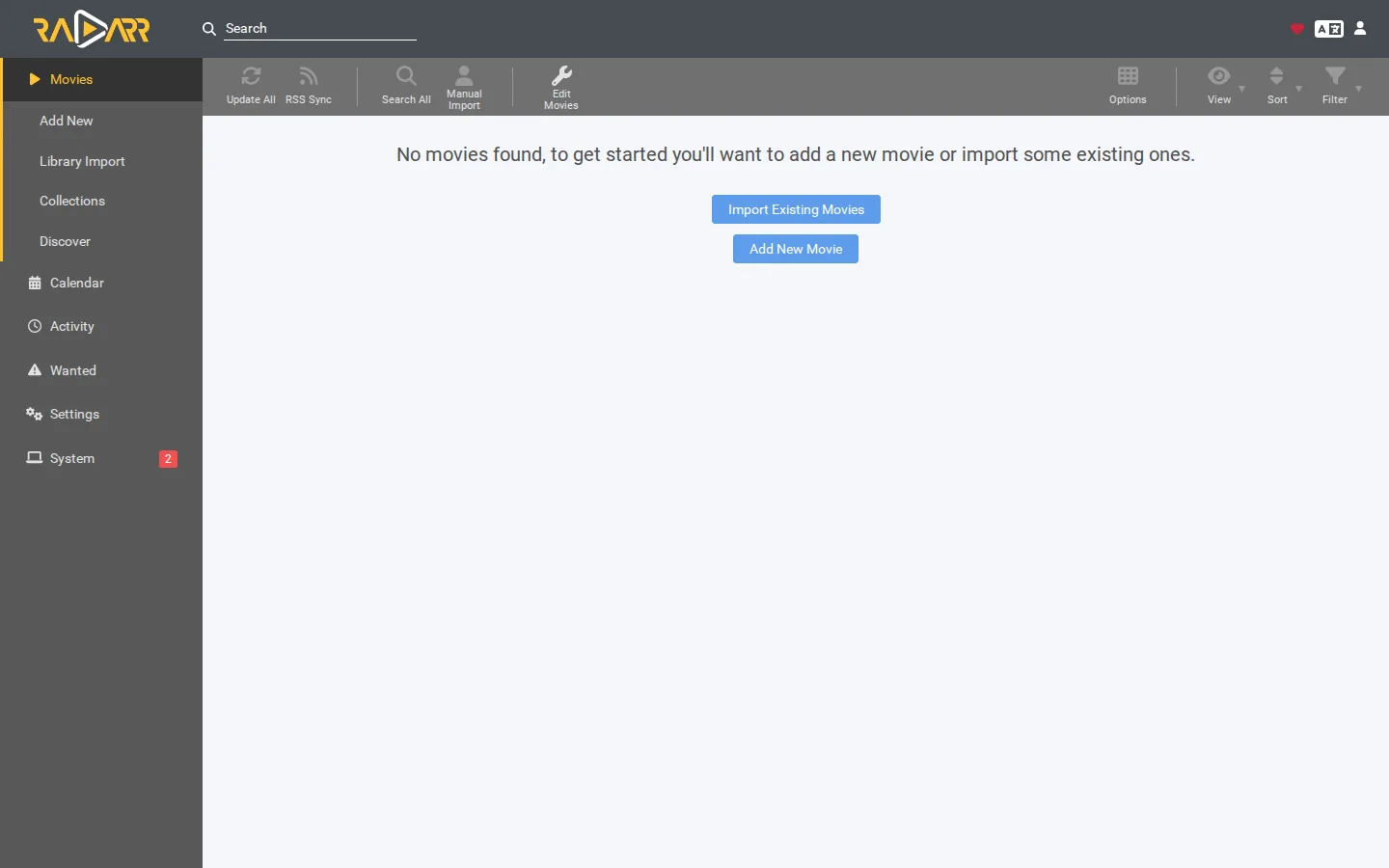
Rather not manually audit your library structure every time you tweak Radarr? SparkBox now recognizes quality subfolders as part of your existing library instead of flagging them as orphaned, so it won't tell you to remove files Jellyfin is actively serving. See the walkthrough →
The 10-second version: If a tool told you a quality subfolder inside your Radarr movie path is an "extra" library folder Jellyfin doesn't watch — it's wrong. Jellyfin scans subfolders recursively by default. Don't delete anything; verify the movies show up in Jellyfin first. If you're on SparkBox, update to 1.6.773 or later, where this specific misreport was fixed.
What's actually happening
It's common to split a movie library by quality — for example, keeping 4K remuxes in a separate subfolder from standard 1080p copies, often for storage-tiering reasons (fast NVMe for one, a slower array for the other) or just to keep things organized. Radarr will happily download and hardlink or move files into that subfolder as long as it sits under a root folder Radarr already manages.
The subfolder is still physically inside the same top-level movie directory that you originally added to Jellyfin as a library — it's just one level deeper. Nothing about adding a quality subfolder changes where the files live at the top level.
Why the "extra folder" warning was wrong
Some monitoring tools compare the list of folders Radarr writes to against the list of top-level paths Jellyfin has registered as libraries. If a tool only checks that top-level list — and doesn't account for the fact that library scans are recursive — it can mistake a normal subfolder for a separate, unwatched location and flag it as "extra."
That's exactly what happened here: SparkBox was comparing folder names too literally and calling a quality subfolder an orphaned library folder. Jellyfin was watching it the entire time. This has been fixed in SparkBox 1.6.773 — it no longer suggests removing quality subfolders that live inside a library path Jellyfin already scans.
Gotcha: If you already removed a subfolder because a tool suggested it, check your Recycle Bin / trash on the storage backend first — recovery is much easier before the space gets reused.
How to confirm Jellyfin is actually watching the subfolder
- Open the Jellyfin dashboard and go to your movie library's admin scan.
- Trigger a manual library scan and let it finish.
- Search for a movie you know exists only inside the quality subfolder.
- If it shows up and plays, the subfolder is being watched correctly — no action needed.
If the movie does not show up after a full scan, the problem isn't the subfolder being "extra" — it's more likely a permissions issue or the subfolder actually sitting outside the path you registered with Jellyfin. Check both before assuming anything needs to be deleted.
When a subfolder really is a problem
The warning isn't always noise. A subfolder is genuinely worth investigating if:
- It sits on a completely different mount or path than the one you added to Jellyfin as a library — not a subfolder of it.
- Jellyfin's process doesn't have read permission on that specific subfolder (files show as missing in Jellyfin even after a scan, but Radarr can see and write to them fine).
- The folder was created via a symlink to a path outside your library's actual filesystem tree, and the symlink target isn't reachable from inside Jellyfin's container or user context.
In these cases the fix isn't deleting the folder — it's either adding the correct path as its own Jellyfin library, or fixing the permission/symlink issue so the existing scan can reach it.
Checking permissions on the subfolder
If files are visible to Radarr but missing from Jellyfin, compare the ownership and permissions of the quality subfolder against a sibling folder that does show up correctly. A common cause is the subfolder being created with different ownership than the rest of the library — for example, if it was created manually before Radarr or Jellyfin had access, rather than being created automatically by Radarr's import process.
Fixing it going forward
- Confirm your Radarr root folder and any quality subfolders sit inside the same top-level path you added as a Jellyfin library.
- Run a manual Jellyfin library scan and verify the movies in the subfolder appear.
- If you're on SparkBox and previously got the "extra folder" warning, update to version 1.6.773 or later — the misreport is fixed and it will no longer suggest removing these subfolders.
- Ignore any past suggestion to remove a quality subfolder unless you've independently confirmed (per the steps above) that Jellyfin genuinely isn't scanning it.
Gotcha: Organizing by quality subfolder is a personal preference, not a requirement. If you don't need the separation, keeping everything flat under one library folder avoids this class of confusion entirely.
Frequently asked
Does Jellyfin scan subfolders inside my movie library automatically?
Yes. Once a folder is added as a Jellyfin library, it scans that folder recursively, including any quality or resolution subfolders Radarr creates underneath it. You don't need to add subfolders as separate libraries.
Why did a tool tell me to remove a quality subfolder from my Radarr library?
Some monitoring and dashboard tools compared Radarr's folder list against Jellyfin's top-level library paths only, mistaking normal subfolders for orphaned, unwatched locations. This was a false positive, and SparkBox has fixed this specific misreport.
Should I delete the subfolder if a tool told me to?
No, not without checking first. If the subfolder sits inside a path Jellyfin already has as a library, deleting it removes real movie files that Jellyfin is actively serving. Verify the files appear in Jellyfin before touching anything.
How do I confirm Jellyfin is actually seeing the subfolder?
Open the Jellyfin dashboard, trigger a library scan, and check that movies from the subfolder appear afterward. If they do, the folder is being watched correctly and no changes are needed.
Skip auditing your library structure by hand
SparkBox now understands that quality subfolders inside an existing library path are part of that library, not orphaned extras — so it stops suggesting you delete files Jellyfin is already serving.