Jellyfin Library Has No Cover Art? It's a DNS Problem
Your Jellyfin library loads, shows are listed, but every poster is a gray placeholder and there's no plot summary or cast list. Jellyfin itself reports healthy the whole time. The real cause is usually DNS: the container can't resolve the metadata providers it needs to fetch artwork from, often because it's stuck using a private DNS resolver Docker can't reach.
Rather not hand-edit DNS configs? SparkBox sets up Jellyfin with working public DNS out of the box, so metadata and artwork fetch correctly from the first library scan. See the walkthrough →
The 10-second version: Jellyfin needs to reach public metadata providers over the internet to pull cover art and show details. If Docker's DNS resolution is stuck on a private/internal resolver it can't reach, those lookups fail silently. Point Docker or the Jellyfin container at a public DNS server (like 1.1.1.1 or 8.8.8.8) and rescan the library.
Why the library stays bare while Jellyfin says it's fine
Jellyfin's own health check just confirms the app is running and the web UI is reachable — neither of those requires internet access. But populating a library with posters, backdrops, plot summaries, and cast info requires Jellyfin to query external metadata providers such as TheMovieDB or TVDB over HTTPS. That means every one of those requests starts with a DNS lookup for a hostname like api.themoviedb.org.
If that DNS lookup fails, the HTTPS request never happens. Jellyfin doesn't crash or show an obvious error banner for this — it just quietly falls back to whatever bare metadata it already has (usually just the filename), and moves on to the next item. The result: a fully "working" media server with a library that looks unfinished.
Cause: Docker has no route to your private DNS resolver
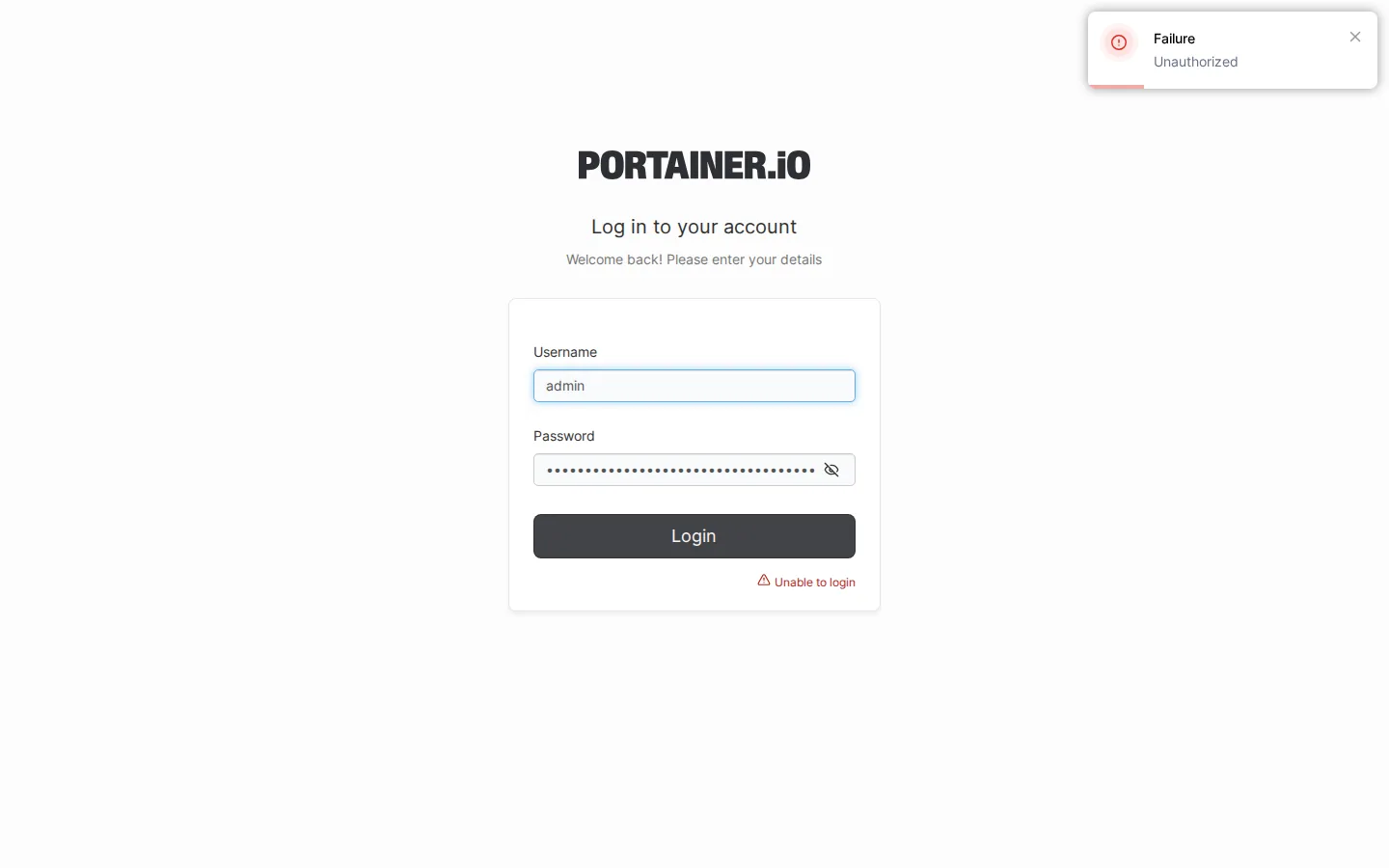
This is the most common trigger. If your network uses a private DNS resolver — a Pi-hole, AdGuard Home, an internal-only DNS server, or just whatever DNS your router hands out over DHCP — your host machine can resolve hostnames fine because it's on the same local network as that resolver.
Docker containers, though, usually run on an isolated bridge network with their own network namespace. Unless that private resolver's IP is specifically reachable from inside Docker's network (which it often isn't, especially on VPS setups or when the resolver is firewalled to LAN-only traffic), the container's DNS queries just time out. Nothing tells you this directly — the container itself has no idea it's asking a resolver that can't be reached.
Gotcha: This can work intermittently and confuse the diagnosis. Some private resolvers cache long-lived DNS records, so a lookup that succeeded once (before the container's network changed, or before a reboot) may keep working from cache until it expires — then artwork starts silently failing for anything scanned afterward.
Step 1: Confirm it's actually a DNS issue
- Check the Jellyfin logs (Dashboard > Logs, or the container's log output) around the time you added or refreshed a library. Look for timeouts or connection errors mentioning the metadata provider, not Jellyfin's own web server.
- Test resolution from inside the running container:
docker exec -it jellyfin nslookup api.themoviedb.orgIf that hangs or returns an error instead of an IP address, DNS resolution is broken for the container — this is your confirmation.
Step 2: Point Docker at a public DNS resolver
The cleanest fix is at the Docker daemon level, so every container gets working DNS, not just Jellyfin.
- Edit (or create)
/etc/docker/daemon.jsonon the host running Docker. - Add or update the DNS entry:
{
  "dns": ["1.1.1.1", "8.8.8.8"]
}- Restart Docker so the change takes effect:
sudo systemctl restart dockerThen recreate the Jellyfin container (a simple restart of an existing container may not pick up daemon-level DNS changes made after it was created):
docker restart jellyfinIf that's not enough: some setups need the container recreated rather than restarted, especially if it was originally created before the daemon.json change. Run docker compose up -d --force-recreate (or the equivalent docker run again) if a plain restart doesn't fix resolution.
Alternative: set DNS on the Jellyfin container itself
If you don't want to change DNS for every container on the host, scope it to just Jellyfin. In your docker-compose.yml, add a dns key under the Jellyfin service:
services:
  jellyfin:
    image: jellyfin/jellyfin
    dns:
      - 1.1.1.1
      - 8.8.8.8
    # ...rest of your existing config
Then apply the change:
docker compose up -dIf you're running Jellyfin with docker run directly instead of Compose, add --dns 1.1.1.1 --dns 8.8.8.8 to the run command and recreate the container.
If Jellyfin runs in host network mode
Some Jellyfin setups use network_mode: host for easier LAN discovery. In that case the container uses the host's own DNS resolution directly — there's no separate Docker network layer to fix. If DNS is still failing here, the problem is the host's own resolver configuration, not Docker. Check what the host is actually using:
cat /etc/resolv.confIf it points only at a private/internal address that isn't reachable (for example, a resolver on a different VLAN, or one that's since been decommissioned), update your host's network settings or DHCP configuration to include a public DNS server as a fallback.
Step 3: Refresh the library to pull in artwork
Fixing DNS doesn't retroactively fill in artwork for items Jellyfin already scanned and gave up on — it needs to try the lookups again.
- In Jellyfin, go to Dashboard > Libraries.
- Select the affected library and choose the option to scan for new and updated files, or refresh metadata for all items.
- Give it a few minutes — metadata provider requests are rate-limited, so a large library refills gradually rather than all at once.
Watch a few titles populate with posters and descriptions to confirm the fix took. If they're still bare after a full refresh, re-run the nslookup test from Step 1 to make sure the DNS change actually applied to the running container.
Frequently asked
Why does Jellyfin say it's running fine but my library has no artwork?
Jellyfin's health status only reflects whether the app and web UI are up, which doesn't require internet access. Cover art and details come from external metadata providers, and those requests fail silently if DNS is broken, so the app stays "healthy" while the library stays bare.
Why does DNS break specifically in Docker but work fine on the host?
Containers on a Docker bridge network don't automatically inherit the host's DNS setup. If the host relies on a private or internal-only resolver, Docker's isolated network often has no route to it, so the container can't resolve any external hostname, including metadata provider APIs.
Which DNS servers should I point Jellyfin at?
Public resolvers reachable from anywhere, such as 1.1.1.1 (Cloudflare) or 8.8.8.8 (Google), work reliably because they don't depend on your local network's internal routing or firewall rules.
Will changing Docker's DNS settings break my other containers?
No. Adding public DNS servers to Docker's daemon config or a single container's compose file only changes how that scope resolves external hostnames. Container-to-container communication on the same Docker network still uses Docker's internal DNS for service names.
Skip the DNS troubleshooting entirely
SparkBox deploys Jellyfin with public DNS resolution already configured, so cover art and metadata fetch correctly on the first scan — no daemon.json edits, no private resolver conflicts to track down.