Gluetun Container Stuck "Unhealthy" — And a Pile of Other Apps Say Stopped
You install a media stack and the dashboard lists a handful of apps as "stopped," with Gluetun buried somewhere in the middle marked "unhealthy." It looks like six separate problems. It's actually one: Gluetun never connected to your VPN, and everything that downloads through it is politely waiting for a network that isn't coming.
Rather not chase VPN provider strings by hand? SparkBox names the VPN container first when it's the root cause and shows how many apps are waiting on it, instead of listing every dependent app as its own broken thing. See the walkthrough →
The 10-second version: Gluetun is unhealthy because the VPN provider name it was given doesn't match the name Gluetun actually recognizes. Fix the provider value in your Gluetun environment settings so it matches Gluetun's expected spelling exactly, recreate the container, and the apps waiting behind it will start on their own once it goes healthy.
Why one VPN problem looks like six stopped apps
Gluetun is a VPN gateway container. Other containers in a media stack — download clients, indexers, request tools, whatever else routes traffic through the VPN — are usually configured to wait until Gluetun reports a passing health check before they start. That's normal and correct behavior; it stops your download client from ever leaking traffic outside the VPN.
The problem is what that looks like on a dashboard. If Gluetun never becomes healthy, none of the dependent containers start. You end up staring at a list like "app A (stopped), app B (stopped), gluetun (unhealthy), and 6 more," with the actual cause sitting in the middle of a wall of red instead of at the top. It reads like six failures. It's one.
If you're checking container status by hand, check Gluetun's health first, before touching anything else in the stack. Everything downstream is very likely just waiting on it.
Confirm this is what's happening
- Check Gluetun's health status directly:
If it saysdocker inspect gluetun --format='{{.State.Health.Status}}'unhealthy, that's your starting point — don't chase the other stopped containers yet. - Look at Gluetun's own logs for the actual error:
Look for a line naming the VPN provider and saying it isn't recognized or isn't active for the VPN type you selected (for example, a message pointing out that a given provider name isn't active for the WireGuard configuration). That message is the real clue — Gluetun is telling you it was handed a provider name it doesn't understand.docker compose logs gluetun --tail 50
The actual cause: a provider name that doesn't match what Gluetun expects
Gluetun is configured through an environment variable that tells it which VPN service to connect to — commonly VPN_SERVICE_PROVIDER. Gluetun matches this against its own internal list of exact provider names, and it's picky about the format.
The mismatch that causes this specific unhealthy loop: some setup tools store the provider choice as a squashed-together slug (something like privateinternetaccess, no spaces) and then pass that value straight through into Gluetun's configuration without translating it into the name Gluetun actually expects. For PrivateInternetAccess, Gluetun's canonical name has a space in it — the squashed version simply isn't a value Gluetun recognizes. Gluetun sees an unknown provider, can't establish the VPN tunnel, and its health check fails forever. It's not a bug in your network, your firewall, or your VPN account — it's a formatting mismatch between what was written into the environment and what Gluetun reads.
This is why the log line about "the provider name for wireguard is not active" is the real smoking gun. It's not that WireGuard is broken — it's that Gluetun doesn't recognize the provider string it was handed, so it can't bring the WireGuard connection up at all.
Fix it: correct the provider value and recreate the container
- Open the environment file or compose file where Gluetun's settings live, and find the line setting your VPN service provider (typically
VPN_SERVICE_PROVIDER=). - Replace whatever slug is there with Gluetun's expected exact name for your provider. For PrivateInternetAccess, that means the spaced-out form, not the run-together one — quote it if your file format requires quotes around values with spaces:
VPN_SERVICE_PROVIDER="private internet access" - Save the file, then recreate just the Gluetun container so it picks up the new value:
docker compose up -d gluetun - Watch the logs again for a successful connection:
You're looking for it to report the VPN as connected rather than repeating the unknown-provider error.docker compose logs -f gluetun - Recheck the health status:
Once it flips todocker inspect gluetun --format='{{.State.Health.Status}}'healthy, containers configured to depend on it should start on their own within a short time.
If any dependent container still shows stopped a couple of minutes after Gluetun goes healthy, restart that one container rather than the whole stack — some apps only check their dependency's health once, at their own startup.
If you set this up through a dashboard or one-click installer
If a dashboard or setup tool gave you a dropdown to pick your VPN provider, be aware that the value it wrote to disk might not be the value Gluetun needs. Dropdowns often store a short internal code for their own bookkeeping and are supposed to translate it into the provider's exact expected string before it ever reaches Gluetun. If that translation step doesn't happen — which is exactly what produces this unhealthy loop — the fix above still applies: open the actual environment file the tool wrote, and correct the provider value by hand so it matches Gluetun's expected spelling. Re-selecting the same option in the dropdown again won't help if the translation itself is missing; you have to edit the value that actually gets passed to Gluetun.
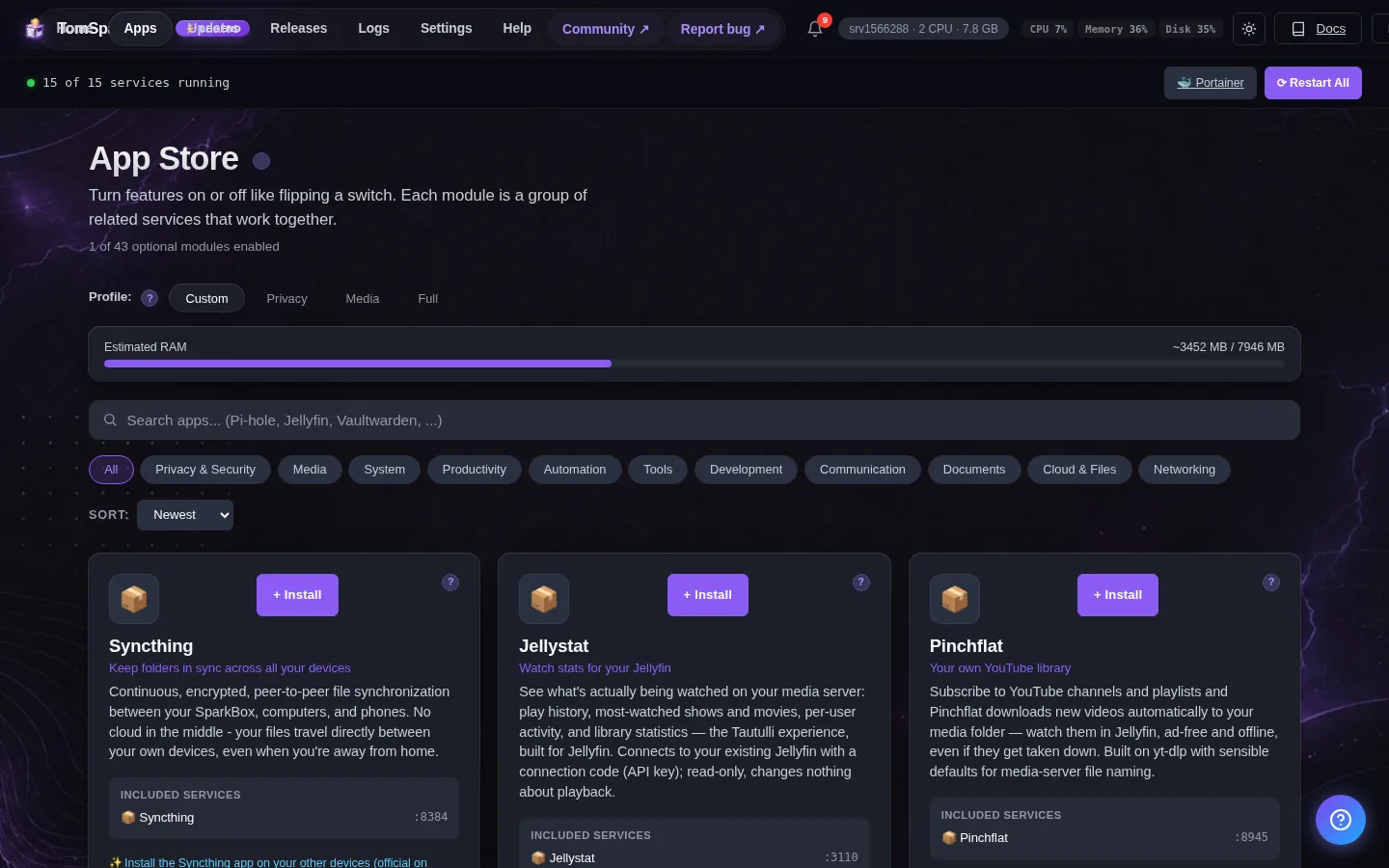
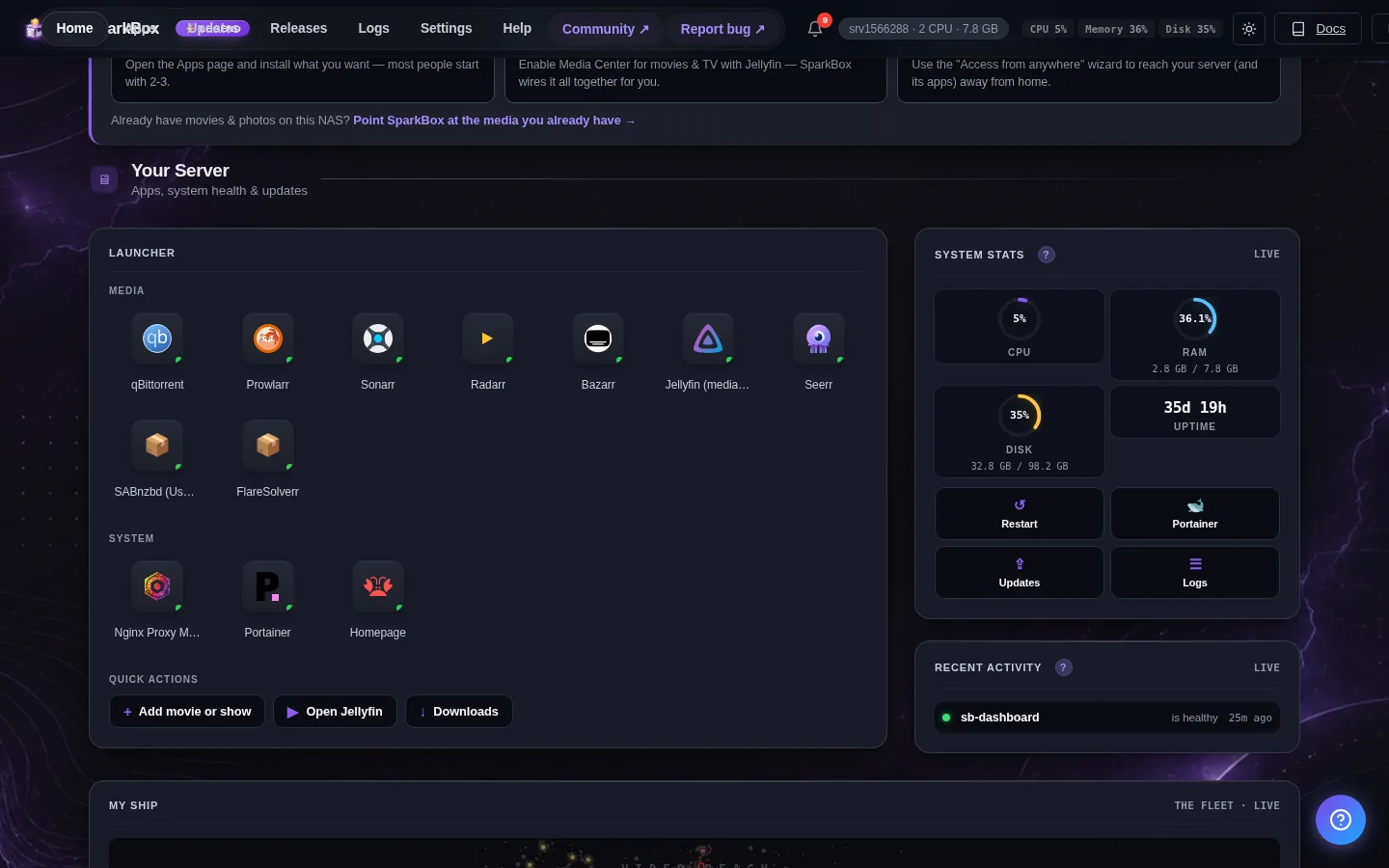
After the fix: what a working status should look like
Once Gluetun is genuinely healthy, you shouldn't see a wall of unrelated "stopped" entries anymore. If you're checking manually with docker compose ps, you want to see Gluetun as healthy and the containers that depend on it as running, not stuck waiting. If you're using a dashboard that groups dependent containers under the VPN's status, it should now show Gluetun as the single point of truth, with everything else following its lead — rather than treating each dependent app as its own separate incident.
Frequently asked
Why does Gluetun show unhealthy right after I install a media stack?
Gluetun's health check only passes once it has actually connected to your VPN provider. If the provider name it was given doesn't match what Gluetun expects, the connection never comes up, so it stays unhealthy from the moment it starts.
Why do other apps show as stopped when the real problem is Gluetun?
Apps that route their downloads through the VPN are set to wait for Gluetun's health check before starting. When Gluetun never goes healthy, those apps never start, so a single VPN problem shows up as a long list of stopped containers.
What's the correct provider name for PrivateInternetAccess in Gluetun?
Gluetun expects the full spaced-out name, not a squashed slug. A value like privateinternetaccess with no spaces won't be recognized and will cause the connection to fail.
Do I need to restart the other containers after fixing Gluetun?
Usually not — containers set to depend on Gluetun's health will start on their own once it reports healthy. If one doesn't, restart just that container rather than the whole stack.
Skip hunting through env files for a mismatched provider string
SparkBox sets up the VPN container and everything that depends on it with the correct provider values from the start, and if something does go wrong, it names the VPN as the cause first instead of burying it under a list of stopped apps.